1. Introduction
This manual provides instructions for the setup, operation, and maintenance of your EVICIV 15.6-inch Portable Monitor, Model EC156FHD. This monitor is designed to extend your display capabilities for various devices, including laptops, smartphones, and game consoles, offering a Full HD 1080p resolution display with a 125% sRGB color gamut.
2. Package Contents
Before proceeding with the setup, please verify that all items listed below are present in your package:
- 15.6" Portable Monitor
- Mini HDMI Cable
- Type-C to Type-C Cable
- USB-A to USB-C Cable
- User Guide

If any items are missing or damaged, please contact customer support.
3. Monitor Overview
3.1 Physical Features
The EVICIV portable monitor features an ultra-slim design with narrow bezels, maximizing screen area and minimizing visual distractions. It is lightweight for portability.

3.2 Ports and Controls
The monitor is equipped with various ports and controls for versatile connectivity and easy navigation:
- Mini HDMI Port: For video input from devices with HDMI output.
- USB-C 3.1 Ports (x2): For power, video, and data transmission with compatible devices.
- 3.5mm Audio Jack: For connecting external headphones or speakers.
- Pulley Button/Menu: Used to navigate the On-Screen Display (OSD) menu and adjust settings.
- Return/Power Button: Used to power the monitor on/off and return from OSD menus.
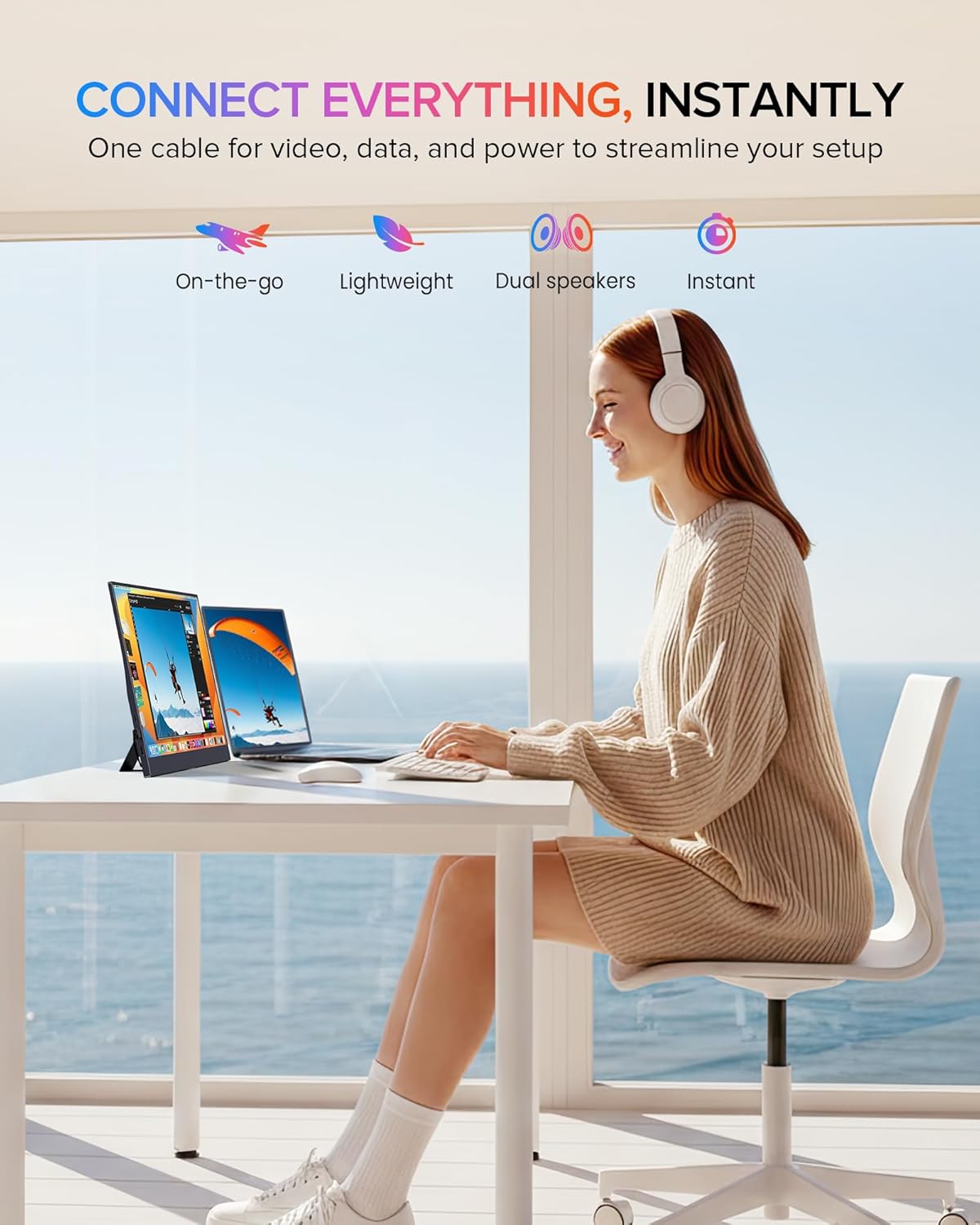
4. Setup and Connection
The monitor supports plug-and-play functionality with most devices. Ensure your device supports video output over USB-C (DisplayPort Alternate Mode) or HDMI.
4.1 Connecting via USB-C (Full-featured)
For devices with a full-featured USB-C port (supporting power, video, and data), a single USB-C to USB-C cable can provide both power and display signal.
- Connect one end of the Type-C to Type-C cable to your device's USB-C port.
- Connect the other end of the Type-C to Type-C cable to one of the monitor's USB-C 3.1 ports.
- The monitor should automatically detect the signal and power on.

4.2 Connecting via Mini HDMI
For devices with an HDMI output, use the Mini HDMI to HDMI cable for video signal and a USB-A to USB-C cable for power.
- Connect one end of the Mini HDMI cable to your device's HDMI port and the other end to the monitor's Mini HDMI port.
- Connect the USB-A end of the USB-A to USB-C cable to a power source (e.g., laptop USB port, wall adapter) and the USB-C end to one of the monitor's USB-C 3.1 ports for power.
- The monitor should display the signal from your device.

4.3 Device Compatibility
The monitor is compatible with a wide range of devices:
- Type-C (Android/Windows): Phones, Tablets, Laptops, PCs.
- HDMI (Game Consoles): Nintendo Switch, Steam Deck, PlayStation (PS3/4/5), Xbox.

5. Operating Instructions
5.1 Power On/Off
Press and hold the Power button (often combined with the Return function) for a few seconds to turn the monitor on or off.
5.2 On-Screen Display (OSD) Menu
The OSD menu allows you to adjust various display settings. Use the Pulley Button to navigate and select options.
- Press the Pulley Button to open the OSD menu.
- Roll the Pulley Button up or down to navigate through menu options.
- Press the Pulley Button to select an option or confirm a setting.
- Press the Return/Power button to exit the current menu or the OSD entirely.
Common OSD settings include Brightness, Contrast, Color Temperature, Input Source, and HDR mode.
6. Display Features
The EVICIV portable monitor is designed with several features to enhance your viewing experience:
- 125% sRGB Color Gamut: Provides a wider range of colors compared to standard sRGB, resulting in more accurate and vibrant color reproduction.
- Full HD 1080p Resolution (1920x1080): Delivers clear and detailed images.
- 350 Nits Brightness: Offers sufficient brightness for various indoor lighting conditions.
- 2000:1 Contrast Ratio: Produces deeper blacks and brighter whites for improved image depth.
- IPS Display Technology: Ensures consistent color and image quality across wide 178-degree viewing angles.
- HDR Support: Enhances dynamic range for compatible content, showing more detail in both bright and dark areas.
- Eye Care Features: Includes a blue light filter and flicker-free technology to reduce eye strain during extended use.


7. Mounting Options
7.1 Built-in Adjustable Stand
The monitor includes a built-in stand that can be adjusted up to 70 degrees, allowing you to find an ergonomic viewing position.

7.2 VESA Mounting
For more permanent setups, the monitor is VESA compatible (75x75mm, M4*4mm). This allows it to be mounted on a wall or a desk arm.
- Locate the VESA mounting holes on the back of the monitor.
- Secure the VESA mount bracket to the monitor using the provided M4*4mm screws.
- Attach the monitor to your VESA-compatible arm or wall mount.

8. Maintenance
To ensure the longevity and optimal performance of your monitor, follow these maintenance guidelines:
- Cleaning the Screen: Gently wipe the screen with a soft, lint-free cloth. For stubborn marks, dampen the cloth slightly with water or a screen-safe cleaning solution. Avoid harsh chemicals or abrasive materials.
- Cleaning the Casing: Use a soft, dry cloth to clean the monitor's casing.
- Storage: When not in use, store the monitor in a cool, dry place, preferably in its protective sleeve or original packaging, to prevent dust accumulation and physical damage.
- Avoid Liquids: Keep liquids away from the monitor to prevent electrical damage.
- Avoid Extreme Temperatures: Do not expose the monitor to extreme hot or cold temperatures.
9. Troubleshooting
If you encounter issues with your monitor, refer to the following common problems and solutions:
9.1 No Signal / Black Screen
- Check Cables: Ensure all video (USB-C or Mini HDMI) and power cables are securely connected to both the monitor and your device.
- Power Source: Verify the monitor is receiving adequate power. If using USB-C, ensure your device's USB-C port supports power delivery. If using HDMI, ensure the USB-C power cable is connected to a sufficient power source.
- Input Source: Use the OSD menu to manually select the correct input source (USB-C or HDMI).
- Device Output: Confirm your connected device is configured to output video to an external display.
9.2 No Power
- Power Cable: Ensure the USB-C power cable is connected to a functional power source (e.g., wall adapter, powered USB port).
- Power Button: Press and hold the Power button for a few seconds to ensure it's not just in standby mode.
- Try Different Cable/Port: Test with a different USB-C cable or a different power source if available.
9.3 Image Flickering or Distortion
- Cable Quality: Use the provided cables or high-quality certified cables. Poor quality cables can cause signal issues.
- Resolution/Refresh Rate: Ensure your device's output resolution and refresh rate are supported by the monitor (Max 1920x1080 at 60Hz).
- Interference: Move the monitor away from other electronic devices that might cause electromagnetic interference.
If these steps do not resolve the issue, please contact EVICIV customer support.
10. Technical Specifications
| Feature | Specification |
|---|---|
| Brand | EVICIV |
| Model Number | EC156FHD |
| Screen Size | 15.6 Inches |
| Resolution | FHD 1080p (1920 x 1080) |
| Display Technology | IPS LCD |
| Refresh Rate | 60 Hz |
| Brightness | 350 Candela (Nits) |
| Contrast Ratio | 2000:1 |
| Color Gamut | 125% sRGB |
| Viewing Angle | 178 Degrees |
| Response Time | 3 Milliseconds |
| Connectivity | 2x USB 3.0 Type-C, 1x Mini HDMI, 1x 3.5mm Audio |
| Mounting Type | VESA (75x75mm), Built-in Stand |
| Power Consumption | 10 Watts |
| Dimensions (D x W x H) | 0.27"D x 14"W x 9"H |
11. Warranty and Support
Your EVICIV Portable Monitor comes with a 2-Year Manufacturer Warranty. This warranty covers defects in materials and workmanship under normal use.
For warranty claims, technical assistance, or further inquiries, please contact EVICIV customer support through the official EVICIV website or your retailer.
For more information and support, visit the EVICIV Store on Amazon.


