
1. Introduction
The Carpuride W125P is an advanced 11.26-inch portable car display designed to enhance your driving experience with seamless connectivity and entertainment features. This device supports wireless Apple CarPlay and Android Auto, allowing for navigation, calls, music, and messaging via voice commands. It also integrates popular streaming applications like Netflix and YouTube, offers a split-screen function for multitasking, and provides multiple audio output options. Equipped with a 1080P reversing camera and supporting Over-The-Air (OTA) updates, the W125P ensures a safe, connected, and enjoyable journey.
2. Package Contents
Please verify that all items listed below are included in your package. If any items are missing or damaged, please contact customer support.
- 1x Carpuride W125P Car Stereo Display
- 1x Car Charger (2.5 m)
- 1x 1080P Reversing Camera with Cable (6 m)
- 1x AUX Cable (1.5 m)
- 1x Self-Adhesive Mount
- 1x Suction Cup Mount
- 1x User Manual (PDF versions in multiple languages are also available)

Image: Detailed view of the Carpuride W125P display and all included accessories, such as the car charger, reversing camera, AUX cable, and mounting options.
3. Setup and Installation
3.1 Mounting the Display
The Carpuride W125P offers two primary mounting options: a self-adhesive mount and a suction cup mount. Choose the option that best suits your vehicle's dashboard or windshield.
- Clean the Surface: Ensure the mounting surface (dashboard or windshield) is clean and dry for optimal adhesion.
- Attach the Mount:
- For the Self-Adhesive Mount: Remove the protective film from the adhesive pad and firmly press the mount onto the desired surface. Apply pressure for a few seconds.
- For the Suction Cup Mount: Place the suction cup on the clean surface, then press down the lever to create a vacuum seal.
- Secure the Display: Slide the Carpuride W125P display onto the chosen mount until it clicks securely into place.
- Adjust Angle: Adjust the viewing angle for optimal visibility without obstructing your driving view.
Important Note:
For initial installation with the self-adhesive mount, it is recommended to fix the mount to the vehicle and let it rest for 24 hours before attaching the display. This allows the adhesive to cure properly, ensuring a secure hold.

Image: Step-by-step diagram illustrating the installation process for both adhesive and suction cup mounts.
3.2 Power Connection
Connect the provided 2.5m car charger to the Type-C port on the Carpuride W125P and plug the other end into your vehicle's cigarette lighter socket. Use only the original car charger included in the package to ensure proper functionality and prevent damage.
3.3 Reversing Camera Installation
The 1080P reversing camera comes with a 6m cable. Install the camera at the rear of your vehicle, ensuring a clear view. Connect the camera cable to the AV IN port on the Carpuride W125P. The camera will automatically activate when the vehicle is put into reverse gear.

Image: Technical diagram showing the features of the 1080P waterproof rear camera, including 1080P resolution, IP67 waterproof rating, 170° wide angle, and adjustable guidelines.
4. Operating Instructions
4.1 Power On/Off and Sleep Mode
- Short Press Power Button: Enters sleep mode.
- Press and Hold for 2 Seconds: Displays options to "Power Off", "Restart", or access "Settings".
- Press and Hold for 5 Seconds: Powers off the device directly.
4.2 Wireless Apple CarPlay and Android Auto
The Carpuride W125P supports wireless Apple CarPlay and Android Auto. This allows you to integrate your smartphone's navigation, communication, and entertainment features directly onto the display.
- Enable Bluetooth and Wi-Fi: On your smartphone, ensure both Bluetooth and Wi-Fi are enabled.
- Pair Device: On the Carpuride W125P, navigate to the CarPlay or Android Auto application. Search for the device's Bluetooth name (e.g., "Carpuride_BT-xxxx") on your phone and pair.
- Confirm Connection: Follow any on-screen prompts on both your phone and the Carpuride W125P to confirm the connection.
Compatibility Notes:
- Apple CarPlay requires iOS 13 or later.
- Android Auto requires Android 11 or later.
- Some applications may not be compatible with CarPlay or Android Auto.
- Certain Samsung, Xiaomi, and Huawei models may have limited compatibility.

Image: The Carpuride W125P display showing a navigation interface with voice command prompts for Siri and Google Assistant, demonstrating wireless CarPlay/Android Auto functionality.
4.3 Integrated Streaming Applications
The Carpuride W125P runs on an Android operating system and comes with pre-installed streaming applications such as Netflix, YouTube, and TikTok.
- Connect to Wi-Fi: Ensure the device is connected to a Wi-Fi hotspot (e.g., from your smartphone) to access online content.
- Log In: Open the desired streaming app and log in with your account credentials.
- Enjoy Content: Browse and play your favorite movies, series, or videos.
Important Notes:
- Additional apps cannot be downloaded; only pre-installed applications are supported.
- Available applications may vary based on IP address.

Image: The Carpuride W125P display showing a football match being streamed, surrounded by icons of popular apps like Netflix, YouTube, Spotify, and TikTok.
4.4 Split Screen Functionality
The dual integrated Wi-Fi modules enable a split-screen mode, allowing you to use navigation (via CarPlay/Android Auto) on one side while passengers enjoy streaming entertainment on the other.
- To activate split-screen, select the desired applications from the main menu and drag them to the split-screen zones.
- When switching between full-screen and split-screen modes, CarPlay/Android Auto will automatically reconnect.
Note:
If your phone does not allow hotspot activation while connected to CarPlay/Android Auto, connect the Carpuride W125P to an alternative hotspot or Wi-Fi network.
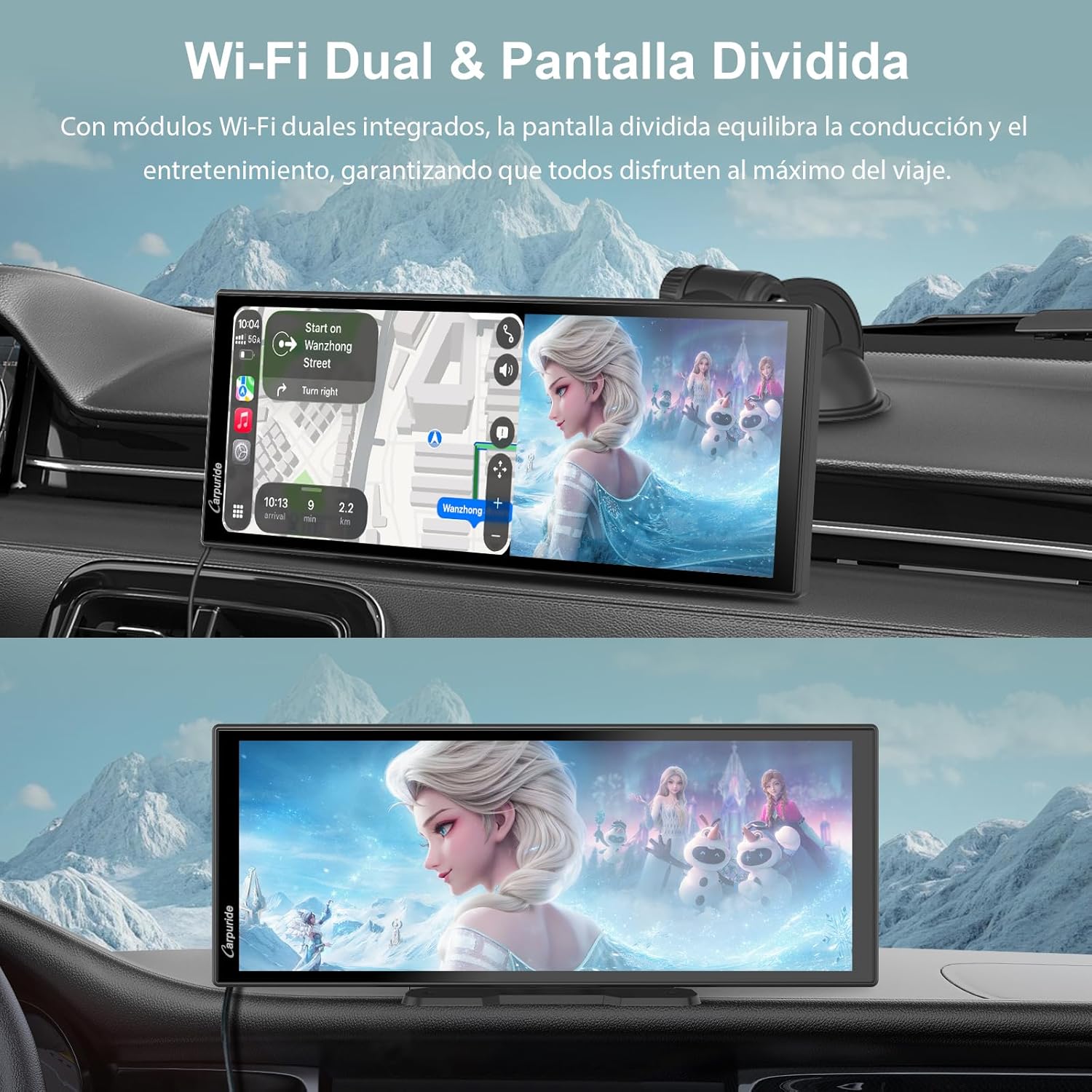
Image: The Carpuride W125P display demonstrating split-screen functionality, showing navigation on one side and video entertainment on the other.
4.5 Audio Output Options
The Carpuride W125P offers four ways to transmit audio to your vehicle's sound system:
- Bluetooth Transmitter Mode: Connect the display directly to your car's audio system via Bluetooth for a stable and immersive sound experience.
- AUX Connection: Use the included 1.5m AUX cable to connect the display to your car's AUX input.
- FM Transmitter: Tune the display and your car radio to the same FM frequency to transmit audio wirelessly.
- Built-in Speaker: The device has an integrated speaker for direct audio output, suitable for vehicles without Bluetooth or AUX inputs.
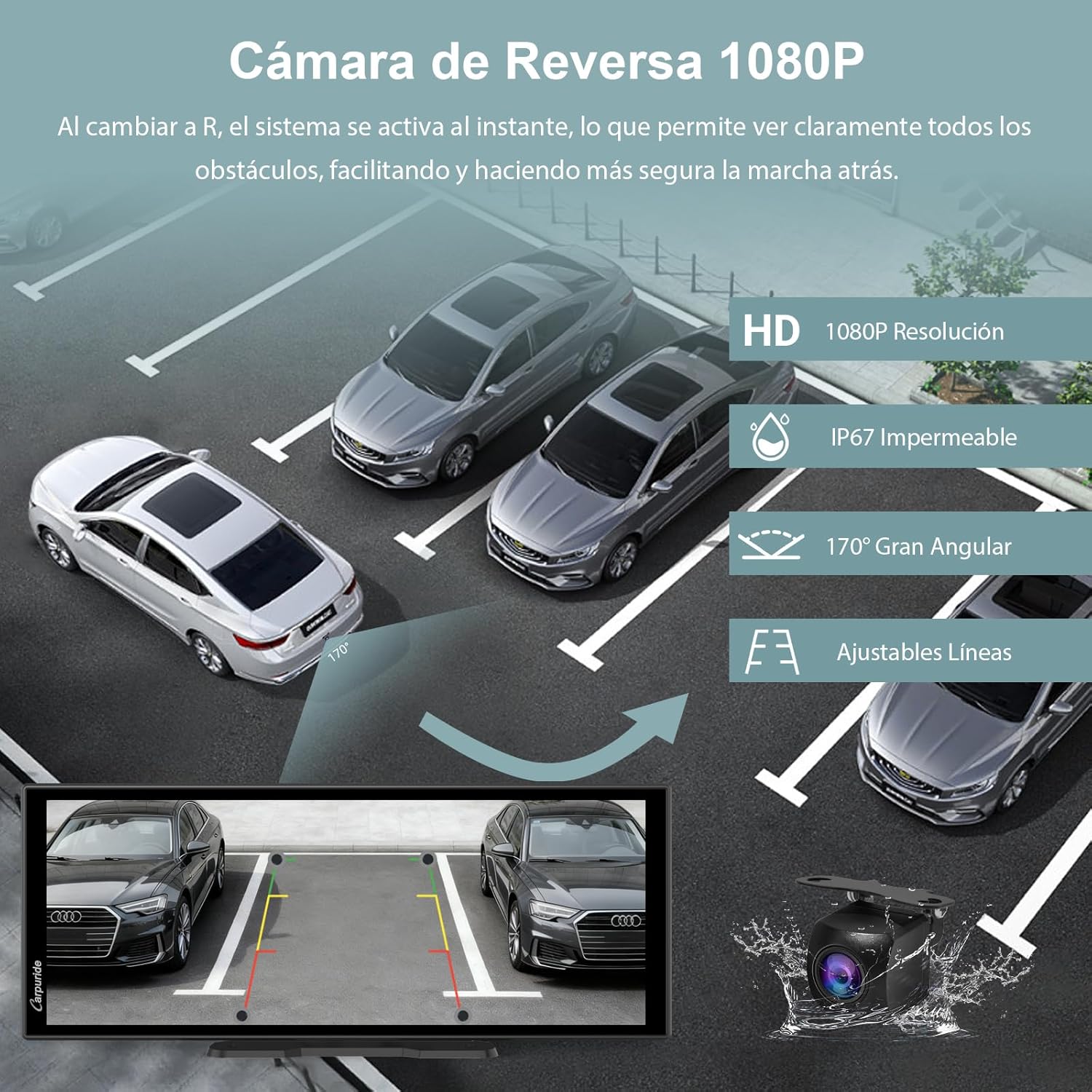
Image: Diagram illustrating the four audio output options: Bluetooth transmitter, built-in speaker, FM transmission, and AUX connection, with a music player interface shown on the main screen.
4.6 Over-The-Air (OTA) Updates
The OTA technology allows for easy online updates of your Carpuride W125P via Wi-Fi, ensuring your device always has the latest firmware and application versions.
- Connect to Wi-Fi: Ensure the device is connected to a stable Wi-Fi network.
- Access Update Settings: Go to "Settings" on the device and look for the "System Update" or "OTA Update" option.
- Check for Updates: Click to check for available updates.
- Install Updates: Follow the on-screen instructions to download and install any new updates.
Benefits:
- No professional assistance required.
- Keeps your device optimized with the latest features and improvements.

Image: Diagram illustrating the OTA update process, highlighting that no computer knowledge or professional equipment is needed, just a Wi-Fi connection.
4.7 Customizable Wallpaper and Offline Media
Personalize your Carpuride W125P with custom wallpapers and enjoy your media offline.
- Custom Wallpaper: Load your favorite images (e.g., car logos, family photos) onto a TF card (not included). Insert the TF card into the device, then navigate to the wallpaper settings to select your custom image.
- Offline Media Library: Store your favorite songs, videos, and photos on a TF card. The device's intuitive file manager allows you to browse, play, and organize your content without an internet connection, ideal for areas with limited signal.
Note:
Software cannot be installed via TF card. The TF card is not included in the package.

Image: The Carpuride W125P display showing a custom wallpaper and a TF card being inserted, illustrating offline media playback and personalization features.
5. Reversing Camera Operation
The included 1080P reversing camera provides a 170° wide-angle view, automatically activating when you engage reverse gear.
- Automatic Activation: The camera view appears on the display instantly when shifting into reverse.
- Adjustable Guidelines: Parking guidelines can be adjusted on the screen for precise parking.
- Anytime View: You can access the reverse view at any time through the dedicated "Reverse" app on the display.
- Image Orientation: If the camera is installed upside down, you can adjust the viewing angle directly on the Carpuride W125P screen without needing to reinstall the camera.

Image: Overhead view of cars in a parking lot with a simulated 1080P reversing camera view on the Carpuride W125P display, showing adjustable guidelines and a 170° wide-angle perspective.
6. Maintenance
To ensure the longevity and optimal performance of your Carpuride W125P, follow these maintenance guidelines:
- Cleaning: Use a soft, dry, lint-free cloth to clean the screen and exterior. Avoid abrasive cleaners, solvents, or aerosol sprays.
- Temperature: Do not expose the device to extreme temperatures (hot or cold) for extended periods.
- Moisture: Keep the device dry. Do not expose it to water or excessive humidity.
- Cable Management: Ensure all cables are properly routed and secured to prevent damage or interference with driving.
7. Troubleshooting
If you encounter issues with your Carpuride W125P, please refer to the following common troubleshooting steps:
| Problem | Possible Cause | Solution |
|---|---|---|
| Device does not power on. | No power, faulty car charger, loose connection. |
|
| Wireless CarPlay/Android Auto fails to connect. | Bluetooth/Wi-Fi off, incompatible phone, software glitch. |
|
| Streaming apps (Netflix, YouTube) not working. | No Wi-Fi connection, incorrect login, app issue. |
|
| No audio output. | Incorrect audio mode, volume too low, cable issue. |
|
| Reversing camera image is distorted or not appearing. | Loose connection, camera obstruction, faulty camera. |
|
8. Specifications
Detailed technical specifications for the Carpuride W125P:
| Feature | Detail |
|---|---|
| Model Number | W125P |
| Display Size | 11.26 inches |
| Display Resolution | 1920x720 (HD) |
| Frame Rate | 60 FPS |
| Operating System | Android OS |
| Connectivity Technology | Auxiliary, Bluetooth, FM, Wi-Fi |
| Wireless Technologies | Bluetooth, Wi-Fi |
| Special Features | OTA Updates, Intuitive UI, Wireless Apple CarPlay & Android Auto, Dual Wi-Fi Module (Split Screen), Dual Bluetooth Module (BT Transmitter), Integrated Apps (Netflix, YouTube) |
| Compatible Devices | Smartphone |
| Connector Type | Charger (Type-C), AUX |
| Audio Output Mode | Stereo (Headphones, Bluetooth) |
| Video Encoding | H.264, H.265/HEVC, VP9 |
| Reversing Camera | 1080P, 170° Wide Angle, Adjustable Guidelines |
| Product Dimensions (D x W x H) | 2.5 cm x 26.5 cm x 10.5 cm |
| Product Weight | 1.22 kg |
| Country of Origin | China |
9. Warranty and Support
9.1 Product Warranty
The Carpuride W125P comes with a 1-year warranty from the date of purchase. This warranty covers manufacturing defects and malfunctions under normal use. It does not cover damage caused by misuse, accidents, unauthorized modifications, or improper installation. Please retain your proof of purchase for warranty claims.
9.2 Customer Support
For technical assistance, troubleshooting, or warranty inquiries, please contact Carpuride customer support. Refer to the contact information provided on the product packaging or the official Carpuride website.
You can also find additional resources, FAQs, and PDF versions of this manual in multiple languages on the Carpuride support page.