
Introduction
Thank you for choosing the RUIST MOX61 6.1" Wireless Motorcycle CarPlay Screen with TPMS. This device integrates wireless Apple CarPlay and Android Auto, GPS navigation, dual Bluetooth connectivity, and a Tire Pressure Monitoring System (TPMS) into a durable, waterproof unit designed for motorcycle use. This manual provides detailed instructions for installation, operation, and maintenance to ensure optimal performance and safety.
Safety Information
Always prioritize safety while riding. Do not attempt to operate the device or adjust settings while the motorcycle is in motion. Ensure all components are securely installed before riding. Adhere to all local traffic laws and regulations. Improper installation or use can lead to accidents or damage to the device and motorcycle.
- Ensure the device is firmly mounted and does not obstruct your view or control of the motorcycle.
- Do not immerse the device in water, despite its IP67 rating, to prevent potential damage.
- Consult a professional for electrical installation if you are unsure about wiring.
- Regularly check tire pressure and temperature readings from the TPMS, but always verify with a manual gauge.
Product Overview and Contents
The RUIST MOX61 package includes the following components:
- MOX61 Moto CarPlay Screen (1 unit)
- Ring Bracket (1 unit)
- Composite Double Socket Arm (1 unit)
- 64G TF Card (1 unit)
- Installation Tool (1 unit)
- Tire Pressure Sensor (2 units)
- Instruction Manual (1 unit)
- Silicone Gaskets (2 units)


Specifications
| Brand | RUIST |
| Model Number | MOX61 |
| Display Size | 6.1 inches |
| Display Type | In-Cell HD Touchscreen (1440×720 resolution, 1000-nits brightness) |
| Connectivity | Bluetooth, Wi-Fi (for CarPlay/Android Auto) |
| Special Features | Built-in TPMS, Dual Bluetooth, Intelligent ACC Protection, Magnetic Mount, Voice Control (Siri/Google Assistant) |
| Waterproof Rating | IP67 |
| Operating Temperature | -20°C to 70°C |
| Power Input | ACC line (motorcycle fuse box connection) |
| Dimensions (D x W x H) | 7" x 2.2" x 3.9" |
| Weight | 10.72 ounces |
Setup
1. Mounting the Device
The MOX61 features a magnetic quick-release bracket for secure and stable mounting on your motorcycle handlebars. It is compatible with 99% of motorcycle models and includes adjustable silicone pads for handlebar diameters of 22mm or 26mm.
- Select the appropriate silicone pads for your handlebar diameter (22mm or 26mm) and insert them into the ring bracket.
- Attach the ring bracket to your motorcycle handlebar and secure it firmly.
- Connect the composite double socket arm to the ring bracket.
- Attach the magnetic Pogo-pin mount to the composite arm.
- Align the MOX61 screen with the magnetic mount and gently push until it clicks into place. The Pogo-pin connector will automatically establish the power connection.
- Adjust the viewing angle of the screen for optimal visibility.


2. Power Connection
The MOX61 utilizes an Intelligent ACC Protection power cable, designed to connect directly to your motorcycle's fuse box (ACC line). This ensures the device automatically powers on and off with your ignition, preventing battery drain.
- Locate your motorcycle's fuse box (ACC line).
- Connect the red wire of the power cable to the ACC power supply.
- Connect the black wire of the power cable to the negative terminal (GND) of your motorcycle's battery or chassis.
- Ensure all connections are secure and properly insulated.

3. TPMS Sensor Installation
The MOX61 includes two external tire pressure sensors for real-time monitoring.
- Unscrew the valve cap from your motorcycle's tire valve stem.
- Screw the TPMS sensor onto the valve stem. Ensure it is tightened securely to prevent air leakage.
- Repeat for the second tire.
- The sensors will automatically pair with the MOX61 screen once the device is powered on and the motorcycle is in motion.

Installation Video
Operating Instructions
1. Powering On/Off
Since the MOX61 is connected to the ACC line, it will automatically power on when your motorcycle's ignition is turned on and power off when the ignition is turned off.
2. Connecting to Wireless Apple CarPlay / Android Auto
The MOX61 supports wireless Apple CarPlay and Android Auto for seamless smartphone integration.
- On the MOX61 screen, select either the "CarPlay" or "Android Auto" mode icon.
- On your smartphone, go to Bluetooth settings and search for available devices.
- Select the device named "CAR-BT_XXXX" (where XXXX is a unique identifier) and pair with it.
- Confirm the pairing request on both your phone and the MOX61 screen.
- Allow contacts and other data to sync if prompted.
- Once connected, the MOX61 screen will automatically switch to the CarPlay or Android Auto interface.


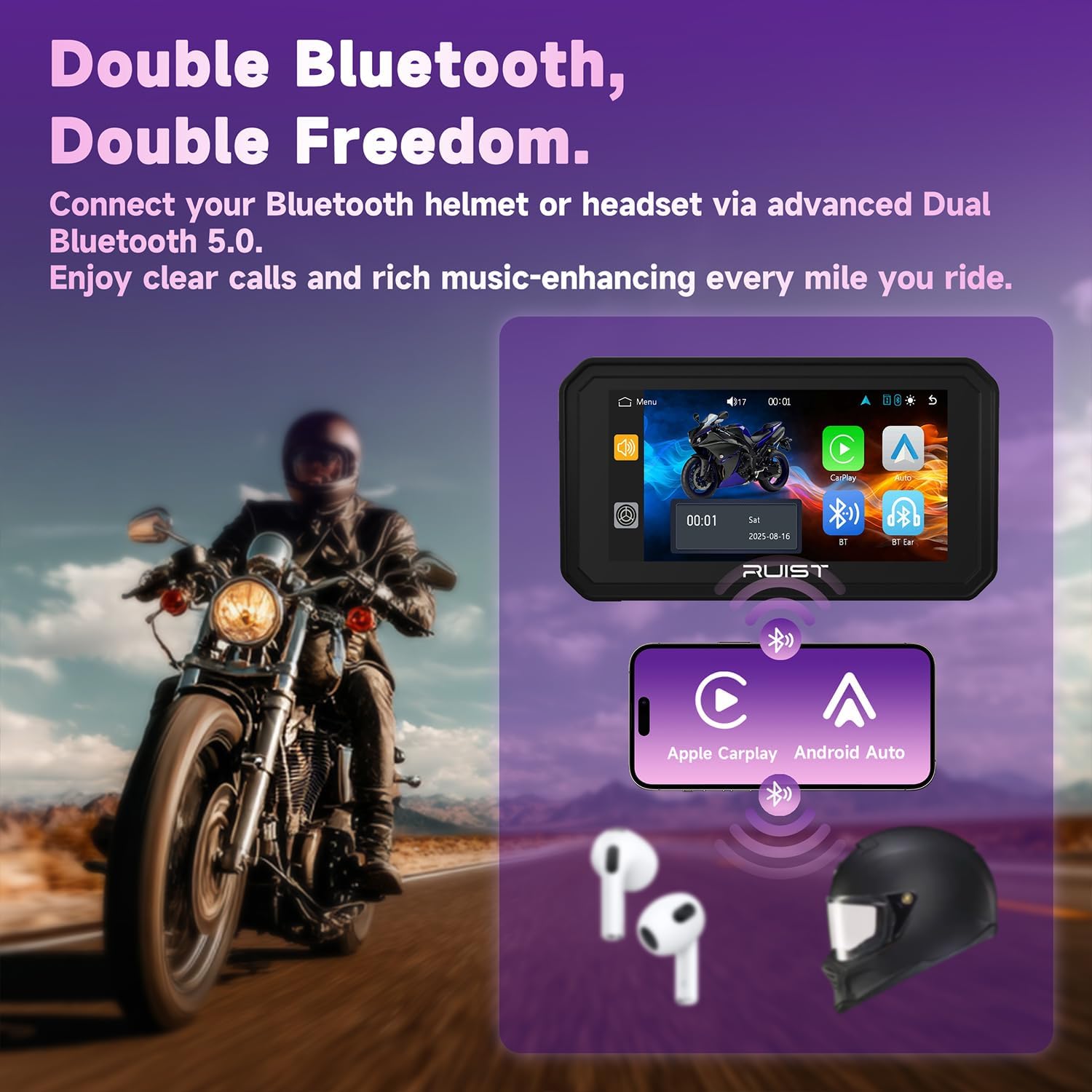
3. Dual Bluetooth Connectivity
The MOX61 features dual Bluetooth, allowing simultaneous connection to your smartphone and a helmet headset or Bluetooth intercom system. This enables stable audio streaming, data transfer, and real-time navigation prompts directly to your helmet.
- First, connect your smartphone to the MOX61 as described in the CarPlay/Android Auto section.
- Ensure your helmet headset or Bluetooth intercom is in pairing mode.
- On the MOX61 screen, navigate to the Bluetooth settings and search for your headset.
- Select and pair with your headset.
- Once both devices are connected, audio from CarPlay/Android Auto will be routed to your headset. Ensure "Phone Sound" is set to "ON" in the MOX61 settings menu if you experience no audio.
4. Voice Control (Siri / Google Assistant)
Utilize Siri or Google Assistant for hands-free control of navigation, music, calls, and messages. This allows you to maintain focus on the road.
- Activate your smartphone's voice assistant (Siri for Apple, Google Assistant for Android).
- Use voice commands such as "Hey Siri" or "Hey Google" followed by your request (e.g., "Navigate to home," "Play my riding playlist," "Call [Contact Name]," "Send a message to [Contact Name]").

5. TPMS Real-Time Monitoring
The built-in TPMS continuously tracks your tire pressure and temperature. The readings will be displayed on the MOX61 screen. The system will provide instant alerts for abnormal readings to help prevent blowouts and ensure riding safety.
- Monitor the dedicated TPMS display on the screen for current tire pressure and temperature.
- If an alert is triggered, safely pull over and inspect your tires.
Product Overview Video
Maintenance
- Cleaning: Use a soft, damp cloth to clean the screen and device body. Avoid abrasive cleaners or solvents.
- Storage: When not in use for extended periods, store the device in a cool, dry place.
- TPMS Sensors: Periodically check the TPMS sensors for damage or loose fitting. Replace batteries as needed (refer to sensor-specific instructions if provided separately).
- Connections: Ensure all power and mounting connections remain secure.
Troubleshooting
- Device does not power on:
- Check the power cable connections to the motorcycle's ACC line and ground. Ensure they are secure and correctly wired.
- Verify that the motorcycle's ignition is on.
- Ensure the MOX61 screen is properly seated on the magnetic Pogo-pin mount.
- Cannot connect to Apple CarPlay or Android Auto:
- Ensure Bluetooth and Wi-Fi are enabled on your smartphone.
- Forget the device ("CAR-BT_XXXX") from your phone's Bluetooth settings and attempt to pair again.
- Restart both your smartphone and the MOX61 device.
- Ensure your phone's operating system is up to date.
- No audio from helmet headset:
- Verify that both your smartphone and headset are successfully paired to the MOX61 via Bluetooth.
- Check the audio output settings on the MOX61 to ensure it's routed to the Bluetooth headset. Look for a "Phone Sound" setting and ensure it is "ON".
- Adjust the volume on both the MOX61 and your headset.
- TPMS readings are inaccurate or not displayed:
- Ensure the TPMS sensors are securely installed on the tire valve stems.
- Check the battery level of the TPMS sensors (if applicable, some may have replaceable batteries).
- Drive for a short period; sensors often activate and transmit data once the wheels are in motion.
- Screen lag or unresponsiveness:
- Restart the MOX61 device by turning off and on your motorcycle's ignition.
- Ensure your smartphone is not running too many background applications, which can affect performance.
Warranty Information
The RUIST MOX61 comes with a 1 Year Manufacturer Warranty. This warranty covers defects in materials and workmanship under normal use. Please retain your proof of purchase for warranty claims. The warranty does not cover damage caused by improper installation, accident, misuse, abuse, negligence, or unauthorized modification.
Customer Support
The RUIST service team is committed to providing professional and responsive after-sales support. If you encounter any issues with setup, operation, or require troubleshooting assistance, please contact our support team. We are dedicated to ensuring your satisfaction and long-term enjoyment of your RUIST MOX61 device.
For support, please refer to the contact information provided with your product packaging or visit the official RUIST website.
