
Alta Labs S12
Alta Labs S12 12-Port SFP+ Distribution Switch
User Manual
1. Introduction
The Alta Labs S12 is a high-performance 12-port SFP+ distribution switch designed for demanding enterprise and commercial network environments. It offers flexible connectivity options and advanced management features to ensure secure and efficient traffic handling.
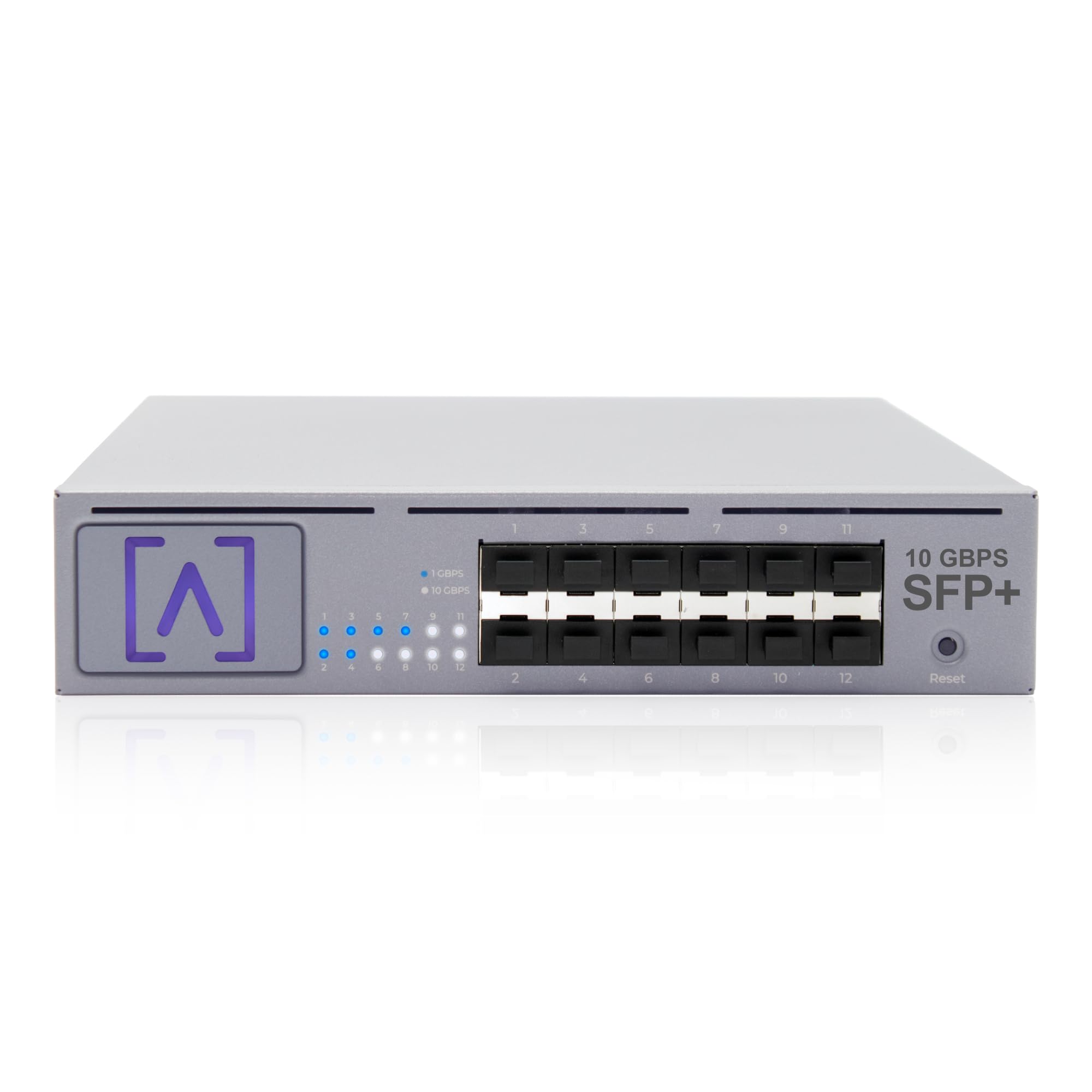
Figure 1: Alta Labs S12 12-Port SFP+ Distribution Switch.
Key Features:
- High-Speed 10 Gbps Networking: Equipped with twelve SFP+ ports supporting 1/2.5/5/10 Gbps, the S12 delivers ultra-fast throughput.
- Enterprise-Grade Switching Performance: Features advanced VLAN stacking, egress and ingress rate limiting, and 802.1X authentication.
- Smart Cloud & Local Management: Seamlessly manage the S12 through the Alta Labs Cloud interface or locally with Alta Control software.
- Simplified Installation & Setup: Bluetooth connectivity allows quick setup from the Alta Labs mobile app. Includes rack and wall mounting hardware.
- Intelligent Network Optimization: Supports IGMP snooping and QoS prioritization for smooth data streaming, video surveillance, and VoIP.
- Designed for Large-Scale Deployments: Ideal for enterprise, hospitality, education, and commercial sites requiring reliable high-bandwidth distribution.
2. Package Contents
Verify that all items are present in your package:
- Alta Labs S12 Distribution Switch
- Quick Start Guide
- Power Cord
- Hardware Kit (includes rack ears, screws, and rack studs duo)
Video 1: Unboxing and initial overview of the Alta Labs S12 Distribution Switch.
3. Physical Overview
Front Panel:
The front panel features twelve SFP+ ports, each capable of 1, 2.5, 5, or 10 Gbps speeds. Adjacent to each port are LED indicators providing status information.
- Port LED (Off): Link is off or down.
- Port LED (Blue): Indicates a 1 Gbps link speed.
- Port LED (White): Indicates a 10 Gbps link speed.
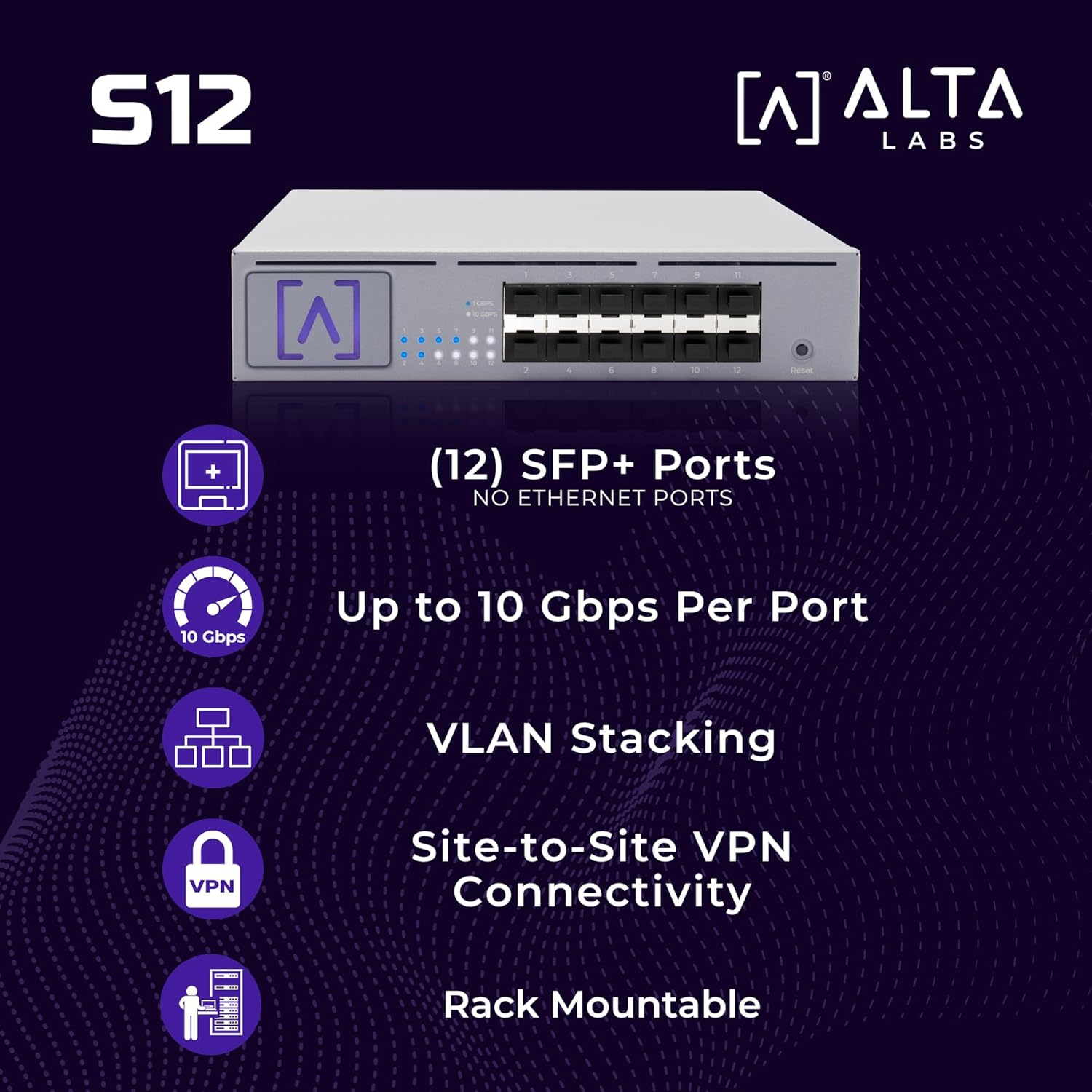
Figure 2: Front panel of the S12 switch with SFP+ ports and status LEDs.
Rear Panel:
The rear panel includes the power input and a cooling fan for optimal thermal management.

Figure 3: Rear panel of the S12 switch.
4. Installation
The Alta Labs S12 offers versatile installation options, including rack mounting and wall mounting.
4.1 Rack Mounting
The S12 is designed to fit comfortably in a 1U rack space. Use the included rack ears and screws for installation.
- Attach the long rack ear to one side of the S12 to position it on either the left or right side of your rack.
- For side-by-side installation of two S12 units in a single 1U rack space, use the optional bracket (not included) between the two S12s and two short rack ears on the outside of each S12.

Figure 4: Rack mounting options for the S12 switch.
4.2 Wall Mounting
To wall mount the S12, install the rack ears so they face either the top or bottom of the unit. Secure the unit to the wall using appropriate fasteners (not included).

Figure 5: Example of the S12 switch wall mounted.
5. Setup and Configuration
Follow these steps to set up your Alta Labs S12 switch:
- Power On: Connect the power cord to the S12 and a power outlet.
- Network Connection: Connect the S12 to your router or existing network switch with an internet connection using an SFP+ module and compatible cable.
- Mobile App Setup: Download the Alta Labs mobile app. Leverage the built-in Bluetooth radio for easy adoption and initial configuration.
- Cloud/Local Management: Manage the S12 from anywhere using the Alta Labs Cloud interface or locally with Alta Control software.

Figure 6: Alta Labs mobile application for simplified setup and management.
6. Operating the Switch
The Alta Labs S12 provides robust features for optimizing network performance and security.
6.1 High-Performance Connectivity
Each of the twelve SFP+ ports supports flexible speeds of 1, 2.5, 5, or 10 Gbps, allowing for high-capacity fiber or copper connections. This ensures ultra-fast data transfer for demanding applications.

Figure 7: The S12 switch providing high-performance connectivity.
6.2 Advanced Network Features
- VLAN Stacking: Configure VLANs to segment network traffic and enhance security.
- Egress/Ingress Rate Limiting: Control bandwidth usage on specific ports to prevent network congestion.
- 802.1X Authentication: Implement robust port-based network access control.
- IGMP Snooping: Optimize multicast traffic delivery, crucial for video streaming and VoIP.
- QoS Prioritization: Prioritize critical network traffic to ensure consistent performance for sensitive applications.
6.3 Site-to-Site VPN Connectivity
Utilize a pair of S12 Distribution Switches with Alta Labs Route10 10 Gbps routers for high-speed site-to-site VPN connections, enabling secure and efficient communication between geographically dispersed locations.

Figure 8: Diagram illustrating site-to-site VPN connectivity using S12 switches.
7. Specifications
| Feature | Description |
|---|---|
| Brand | Alta Labs |
| Model Number | S12 |
| Number of Ports | 12 |
| Interface | SFP+ |
| Data Transfer Rate | 1/2.5/5/10 Gbps per Port (240 Gbps total switching capacity) |
| Switch Type | Managed |
| Included Components | Switch, Quick Start Guide, Power Cord, Hardware Kit (rack ears, screws, rack studs duo) |
| Compatible Devices | Desktop, Laptop, Server |
| Maximum Power Consumption | 35 Watts |
| Upper Temperature Rating | 40 Degrees Celsius |
| Item Dimensions (L x W x H) | 13.03"L x 9.01"W x 1.73"H |
| Color | Black |
8. Maintenance
To ensure optimal performance and longevity of your Alta Labs S12 switch, consider the following maintenance guidelines:
- Firmware Updates: Regularly check for and apply firmware updates through the Alta Labs Cloud interface or Alta Control software to benefit from the latest features and security enhancements.
- Environmental Conditions: Ensure the switch is operated within its specified temperature range (up to 40°C) and in a well-ventilated area to prevent overheating.
- Cleaning: Keep the device free from dust and debris. Use a soft, dry cloth for cleaning. Avoid liquid cleaners.
- Cable Management: Maintain organized cabling to prevent accidental disconnections and improve airflow around the device.
9. Troubleshooting
If you encounter issues with your Alta Labs S12 switch, refer to the following common troubleshooting steps:
- No Power: Ensure the power cord is securely connected to both the switch and a working power outlet. Verify the power outlet is active.
- No Link Light: Check that the SFP+ module is correctly inserted and the network cable is securely connected at both ends. Confirm the connected device is powered on and functioning.
- Slow Connection Speed: Verify that the SFP+ module and connected device support the desired speed (1/2.5/5/10 Gbps). Check cable quality and length specifications.
- Unable to Access Management Interface: Ensure the switch has an active internet connection (for cloud management) or is on the same local network as your management device (for local control). Check network settings and firewall configurations.
- Device Unresponsive: Perform a soft reset by power cycling the device. If the issue persists, locate the reset button on the front panel and use a paperclip to press and hold it for 5-10 seconds to restore factory defaults (note: this will erase all configurations).
For more detailed troubleshooting or persistent issues, please contact Alta Labs Support.
10. Warranty Information
The Alta Labs S12 Distribution Switch comes with a limited two-year warranty. Please retain your proof of purchase for warranty claims. For full details regarding warranty terms and conditions, visit the official Alta Labs website.
11. Support
For technical assistance, product inquiries, or additional resources, please visit the Alta Labs official website or contact our support team:
- Official Website: www.altalabs.com
- Support Portal: Refer to the support section on our website for FAQs, documentation, and contact options.
- Amazon Store: Visit the Alta Labs Store on Amazon
Related documentsS12


Ask a question about this manual
Ask about setup, troubleshooting, compatibility, parts, safety, or missing instructions. Manuals+ will review the question and use this page’s manual context to help answer it.