
1. Overview
The NIIMBOT B1 is a portable Bluetooth thermal label printer designed for various labeling needs in small businesses, offices, homes, and schools. It utilizes direct thermal printing technology, eliminating the need for ink or toner. The device connects to iOS and Android smartphones via Bluetooth, allowing users to design and print labels using the dedicated NIIMBOT app. For PC connectivity, a USB connection and driver download from the official NIIMBOT website are required.
The B1 supports label widths from 20mm to 50mm and comes with a built-in 1500 mAh rechargeable battery, offering extended standby time.
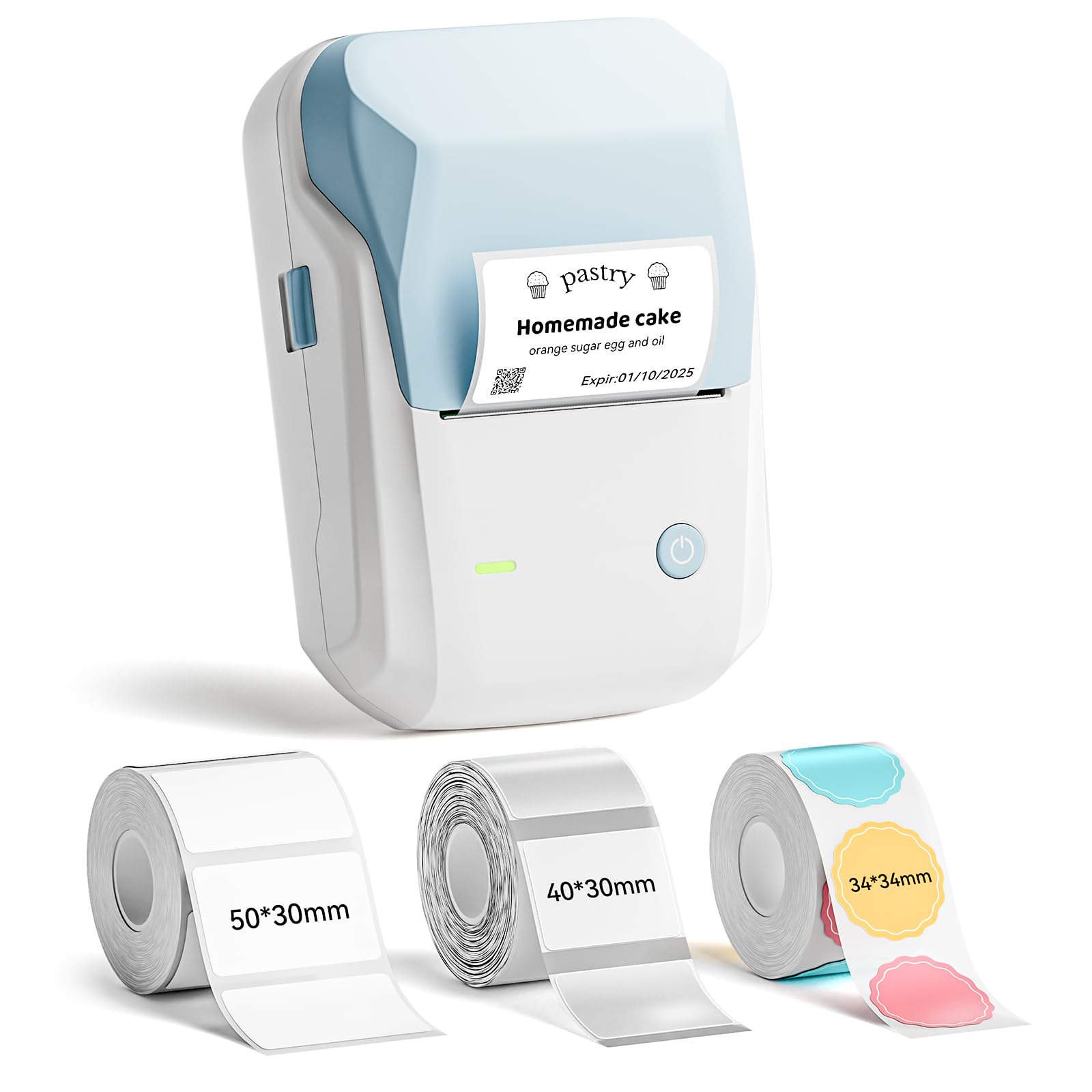
Image: The NIIMBOT B1 Label Maker Machine, a compact light blue and white device.
2. Package Contents
Verify that all items are present in your package:
- 1 x NIIMBOT B1 Label Maker
- 1 x Type-C Cable
- 1 x User Manual
- 3 x Roll Label Tape (50x30mm White, 40x30mm Clear, 34x34mm ColorfulB)

Image: Contents of the NIIMBOT B1 package, including the label maker, USB-C cable, manual, and three rolls of label tape.
3. Setup
3.1 Charging the Device
Before first use, fully charge the NIIMBOT B1 label maker using the provided Type-C cable. Connect the cable to the device and a compatible USB power adapter (not included). The charging indicator light will show the charging status.
3.2 Installing Label Paper
- Open the label compartment cover.
- Insert the label roll with the printing surface facing upwards. Ensure the label roll is seated correctly in the compartment.
- Pull a small portion of the label paper out through the printer's exit slot.
- Close the label compartment cover firmly. The printer will automatically detect the label size.

Image: Diagram showing how to insert a label roll into the NIIMBOT B1 printer, highlighting the supported label widths.
3.3 App Installation and Connection
- Download the "NIIMBOT" app from the Apple App Store (for iOS devices) or Google Play Store (for Android devices).
- Enable Bluetooth on your smartphone.
- Open the NIIMBOT app and follow the on-screen instructions to connect to your B1 label maker via Bluetooth. The device name will typically appear as "B1-XXXX".
- For PC connection via USB, download the necessary driver from the official NIIMBOT website.

Image: A three-step visual guide demonstrating how to download the NIIMBOT app, connect via Bluetooth, and edit labels.
4. Operating Instructions
4.1 Designing Labels with the App
The NIIMBOT app offers extensive customization options:
- Text: Choose from over 10 fonts and multiple languages.
- Graphics: Access over 1500 symbols, 100 borders, icons, and images.
- Data: Generate barcodes, QR codes, and add time/date stamps.
- Templates: Utilize pre-made templates or design your own.

Image: Visual representation of the NIIMBOT app's features, including fonts, symbols, borders, and battery life.
4.2 Printing Labels
- After designing your label in the app, tap the "Print" button.
- Adjust print settings such as copies and print density if needed.
- Confirm the print job. The label maker will quickly print your labels.

Image: A NIIMBOT B1 label maker printing various labels for organizing items in a home or office setting.
5. Maintenance
5.1 Cleaning the Print Head
To ensure optimal print quality, regularly clean the print head. Use a soft, lint-free cloth lightly dampened with isopropyl alcohol. Gently wipe the print head surface. Allow it to dry completely before closing the cover or using the printer.
5.2 Battery Care
The built-in 1500 mAh rechargeable battery provides up to 100 days of standby time. To prolong battery life, avoid fully discharging the battery frequently and store the device in a cool, dry place when not in use for extended periods.
5.3 Label Storage
NIIMBOT labels are waterproof, oilproof, wipeable, tear-resistant, self-adhesive, abrasion resistant, and BPA-free. Store label rolls in a cool, dry place away from direct sunlight to maintain their quality and adhesive properties.
6. Troubleshooting
| Problem | Possible Cause | Solution |
|---|---|---|
| Printer not turning on | Low battery. | Charge the device using the Type-C cable. |
| Unable to connect via Bluetooth | Bluetooth is off on the phone; device is out of range; app not installed. | Ensure Bluetooth is enabled. Move closer to the printer. Install the NIIMBOT app. |
| Poor print quality | Dirty print head; incorrect print density setting; low battery. | Clean the print head. Adjust print density in the app. Charge the device. |
| Labels not feeding correctly | Label roll incorrectly installed; label jam. | Re-install the label roll, ensuring it's properly seated. Clear any jammed labels. |
7. Specifications
- Brand: NIIMBOT
- Model Name: B1
- Connectivity Technology: Bluetooth
- Printing Technology: Thermal
- Printer Output: Monochrome
- Max Print Speed Monochrome: 50 mm/s
- Item Weight: 0.65 Kilograms
- Product Dimensions: 3"D x 3.5"W x 6"H
- Max Print Resolution: 203 DPI
- Supported Label Widths: 20mm to 50mm
- Battery: Built-in 1500 mAh Rechargeable Battery
- Charging Port: Type-C
8. Warranty & Support
8.1 Warranty Information
The NIIMBOT B1 Label Maker comes with a 2-Year Warranty from the date of purchase. This warranty covers manufacturing defects and malfunctions under normal use. It does not cover damage caused by misuse, accidents, unauthorized modifications, or consumables such as label paper.
Please retain your proof of purchase for warranty claims.
8.2 Customer Support
For technical assistance, troubleshooting, or warranty inquiries, please visit the official NIIMBOT website or contact their customer support team. Contact details can typically be found on the product packaging or the official website.
Online Resources: Visit the NIIMBOT Store on Amazon


