
1. Introduction
Thank you for purchasing the VisionOwl DB-14 14-inch Dual Portable Monitor. This manual provides essential information for setting up, operating, and maintaining your device. Please read it thoroughly before use to ensure optimal performance and longevity.
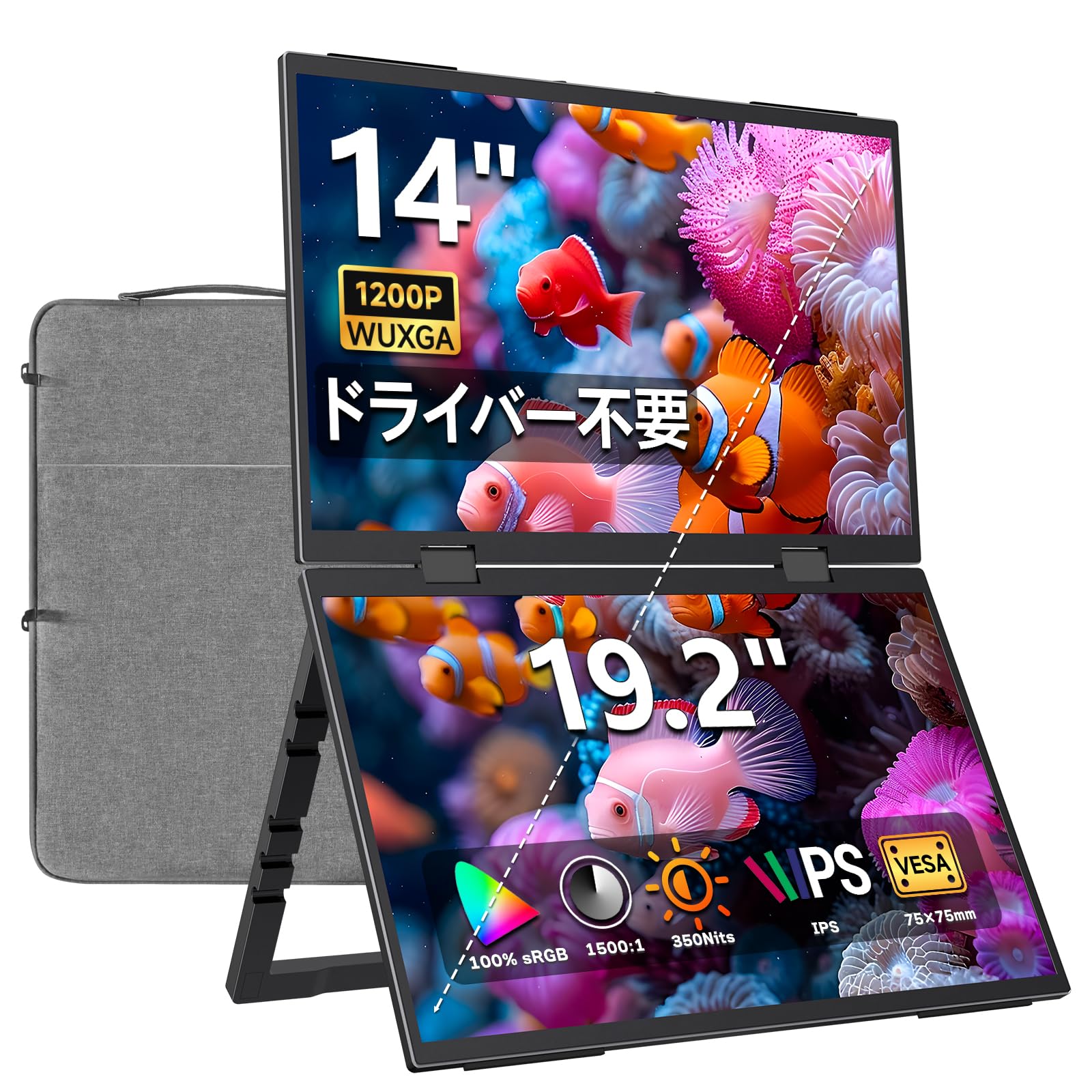
Image 1.1: The VisionOwl DB-14 Dual Portable Monitor in its folded, portable state.
2. Setup
2.1 Package Contents
Please verify that all items are present in the package:
- VisionOwl DB-14 Dual Portable Monitor (Main Unit)
- Storage Case
- 30W PD Charger
- HDMI to Mini HDMI Cable (x2)
- USB Type-C to Type-C Cable (x2)
- User Manual

Image 2.1: Illustration of the VisionOwl DB-14 monitor and its included accessories.
2.2 Connecting Your Device
The DB-14 monitor offers versatile connectivity options. Refer to the port diagram below for connection points.

Image 2.2: Diagram showing the various ports (Mini HDMI, USB Type-C) and compatible devices for the VisionOwl DB-14 monitor.
2.2.1 Windows PC Connection (Single Type-C Cable)
For Windows PCs equipped with Type-C video output (DP Alt Mode compatible), you can extend to both screens using a single USB Type-C cable. This provides a seamless 3-screen setup (your laptop screen + two portable monitor screens).

Image 2.3: A Windows laptop connected to the VisionOwl DB-14 monitor via a single USB Type-C cable, displaying an extended desktop across three screens.
2.2.2 MacOS Connection
For MacOS, a single Type-C cable is not sufficient for 2-screen extension. Each of the two screens must be connected separately to your Mac. Ensure you set the display mode to 'Extend' rather than 'Mirror'.
Important MacOS Note: Do not click the "Stop Extension" button in MacOS display settings. Due to a known MacOS bug, clicking this button may prevent the monitor from being recognized again. If this issue occurs, please contact VisionOwl customer support.

Image 2.4: A screenshot of MacOS display settings with a warning not to click the 'Stop Extension' button.
2.2.3 HDMI Connection
When connecting via HDMI, the HDMI cable does not supply power. You must connect a separate power cable (USB Type-C to power adapter) to the monitor simultaneously for operation.
2.2.4 Nintendo Switch Connection
The VisionOwl DB-14 monitor is compatible with Nintendo Switch. For Switch 2, direct Type-C connection is not supported. Please connect via HDMI through a dock. For other Switch models, ensure adequate power supply (30W or higher recommended) if using the included adapter.

Image 2.5: Two people playing Nintendo Switch on the VisionOwl DB-14 monitor, demonstrating its use with game consoles.
2.3 Power Supply
The monitor can receive power via a Type-C connection to a PC. However, due to the dual-screen nature, power consumption is relatively high. For stable performance, it is highly recommended to use the included 30W PD power adapter for power supply.
3. Operating Instructions
3.1 Display Modes
The VisionOwl DB-14 supports various display configurations:
- Extended Mode: Expand your desktop across the two portable screens and your primary device screen for increased workspace.
- Mirror Mode: Duplicate your primary device's display on the portable screens, ideal for presentations or sharing content.
- Integrated Mode: Combine the two 14-inch screens into a single, larger 19.2-inch virtual display. This feature works regardless of PC model and can be achieved with a single Type-C or HDMI cable.
- Independent Connection: Connect each of the two screens to different devices simultaneously (e.g., one to a game console, one to a PC).

Image 3.1: The VisionOwl DB-14 monitor configured in integrated mode, showing a single large display from two panels.
3.2 Screen Rotation (Gravity Sensing)
The upper screen of the DB-14 features a gravity sensor, allowing it to automatically rotate its orientation (portrait/landscape) without manual adjustment. This is particularly useful for quickly switching between viewing modes or for presentations.

Image 3.2: Illustration of the gravity-sensing feature, showing the upper screen automatically rotating its display orientation.
3.3 Stand and Mounting
The monitor includes a self-standing feature, allowing for free angle adjustment from 0° to 170°. Additionally, it is equipped with 4 VESA holes (75x75mm) for secure mounting on a VESA arm or wall mount. The stand also features cut-out holes to manage cables neatly, allowing the stand to be folded even when cables are connected.
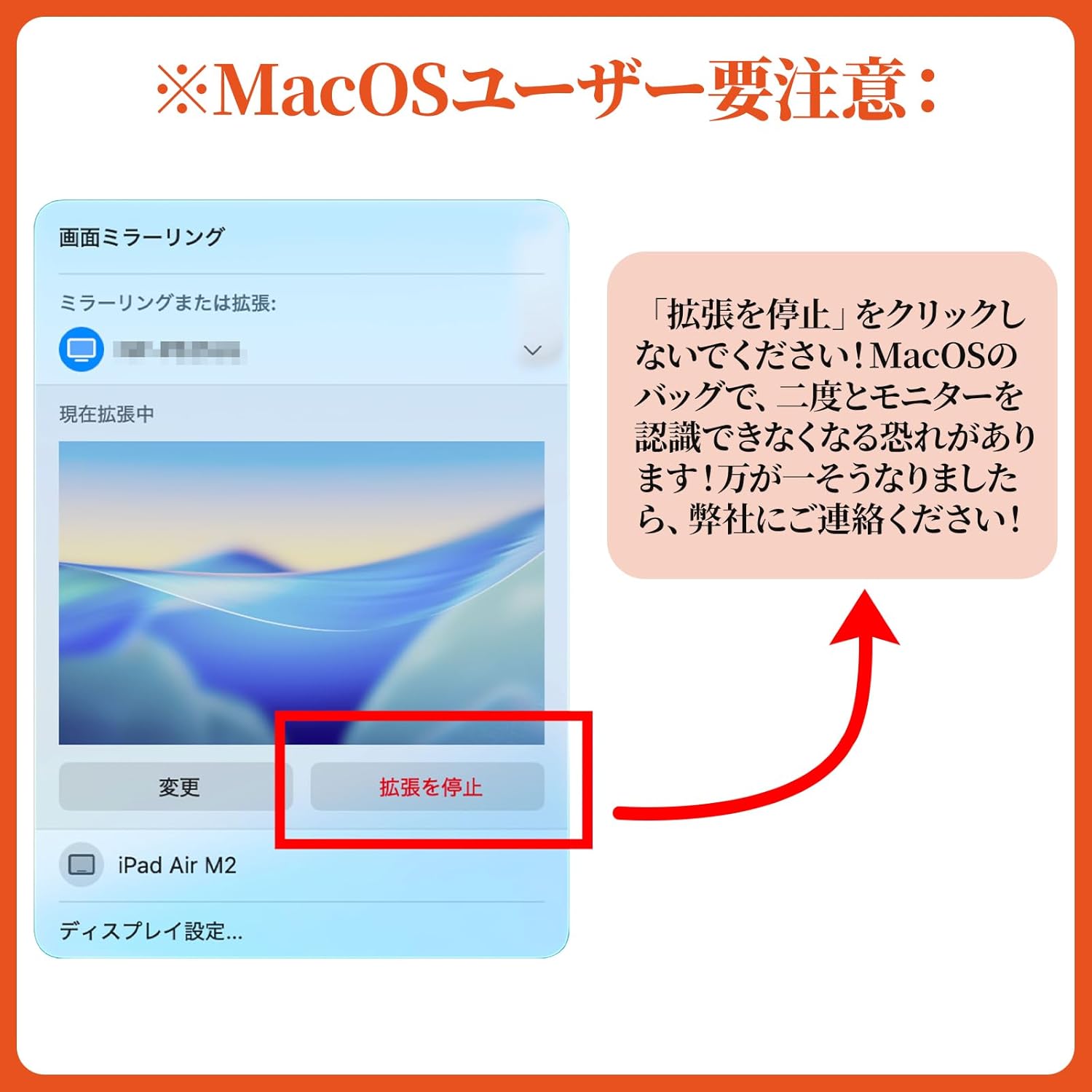
Image 3.3: The VisionOwl DB-14 monitor showcasing its VESA mounting capability and adjustable stand for various orientations.
3.4 Aspect Ratio Adjustment
The monitor supports automatic aspect ratio adjustment to prevent image distortion. Ensure your device's display settings are configured correctly for the best viewing experience.

Image 3.4: Comparison of correct aspect ratio display (left) versus distorted display (right) on the VisionOwl DB-14 monitor.
4. Maintenance
4.1 Cleaning the Monitor
- Always power off and unplug the monitor before cleaning.
- Use a soft, lint-free cloth lightly dampened with water or a non-abrasive screen cleaner.
- Do not spray liquid directly onto the screen or into any openings.
- Avoid using harsh chemicals, alcohol, or ammonia-based cleaners, as they can damage the screen surface.
4.2 Storage
When not in use, store the monitor in its included storage case to protect it from dust, scratches, and impacts. Keep it in a cool, dry place away from direct sunlight and extreme temperatures.

Image 4.1: A person carrying the VisionOwl DB-14 monitor in its protective storage case, highlighting its portability.
5. Troubleshooting
If you encounter any issues with your VisionOwl DB-14 monitor, please refer to the following common solutions:
- No Display / Black Screen:
- Ensure all cables (power and video) are securely connected.
- Verify the power adapter is functioning and connected to a live outlet.
- Check if your source device (PC, console) is powered on and outputting video.
- If using HDMI, ensure a separate power cable is connected to the monitor.
- For MacOS, avoid clicking "Stop Extension" as noted in Section 2.2.2.
- Image Distortion / Incorrect Aspect Ratio:
- Check your source device's display settings to ensure the correct resolution and aspect ratio are selected.
- The monitor supports automatic aspect ratio adjustment; ensure it's enabled if available in the monitor's OSD (On-Screen Display) menu.
- No Sound:
- Ensure the volume on both the monitor and your source device is not muted or set too low.
- Check audio output settings on your source device to ensure audio is directed to the monitor.
- Monitor Not Recognized (MacOS):
- Ensure both screens are connected separately to your Mac.
- If you clicked "Stop Extension" previously, try restarting your Mac and reconnecting the monitors. If the issue persists, contact support.
- Dead Pixels:
- VisionOwl products undergo strict quality control. In the rare event of dead pixels or other initial defects, please contact customer support for assistance.

Image 5.1: An illustration emphasizing VisionOwl's commitment to quality with no dead pixels, contrasting with a display showing pixel defects.
If these steps do not resolve your issue, please contact VisionOwl customer support.
6. Specifications
| Feature | Specification |
|---|---|
| Brand | VisionOwl |
| Model Number | DB-14 |
| Screen Size | 14 inches |
| Resolution | WUXGA (1920 x 1200 pixels) |
| Aspect Ratio | 16:10 |
| Panel Type | IPS |
| Screen Surface | Non-glare |
| Brightness | 350 cd/m² |
| Contrast Ratio | 1500:1 |
| Color Gamut | 100% sRGB |
| Refresh Rate | 60 Hz |
| Response Time | 5 ms |
| Viewing Angle | 178 degrees |
| Adaptive Sync | FreeSync |
| Connectivity | 2x Mini HDMI, 3x USB Type-C (1 for video only, 2 for video/power) |
| VESA Mount | 75x75mm (4 holes) |
| Dimensions (D x W x H) | 2.8 x 31.2 x 21 cm |
| Power Consumption | 15 Watts |
| Color | Black |
| Country of Origin | China |
7. Warranty and Support
7.1 Warranty Information
The VisionOwl DB-14 Dual Portable Monitor comes with a 2-year manufacturer's warranty. This warranty covers defects in materials and workmanship under normal use. It does not cover damage resulting from improper use, accidents, unauthorized repairs, or modifications.
In the event of a malfunction within the warranty period (excluding damage due to improper use, which may require verification), VisionOwl will provide free parts or main unit replacement.
7.2 Customer Support
VisionOwl is committed to providing reliable products and excellent customer service. If you have any questions, concerns, or require assistance with your product, please do not hesitate to contact us.
You can reach our customer support team through Amazon, email, or phone. Please refer to your purchase documentation or the VisionOwl brand store on Amazon for specific contact details.
We value your feedback and are dedicated to resolving any issues responsibly to ensure your satisfaction.