
Introduction
This manual provides essential instructions for setting up, operating, and maintaining your SGIN-T12S Android Tablet. Please read this guide thoroughly to ensure proper use and to maximize your tablet's performance and longevity.

Image: The SGIN-T12S Android Tablet, showcasing its 12-inch screen with the Android 13 operating system and a protective blue case.
Setup
1. Device Overview and Ports

Image: A detailed diagram illustrating the various components and ports of the SGIN-T12S tablet, including cameras, power button, volume controls, speakers, Type-C port, and TF mount.
- Front Camera: For video calls and selfies.
- Rear Camera: For capturing photos and videos.
- Power ON/OFF Button: Press and hold to power on or off.
- Increase Volume Button: Adjusts audio output level.
- Reduce Volume Button: Adjusts audio output level.
- Stereo Speakers: Provides audio output.
- TF Mount: Slot for inserting a Micro TF (microSD) card.
- Type-C Port: For charging and data transfer.
2. Charging the Tablet
Before first use, fully charge your tablet. Use the included Type-C fast charger.
- Connect the Type-C cable to the tablet's Type-C port.
- Plug the charger into a power outlet.
- The battery indicator on the screen will show charging status.
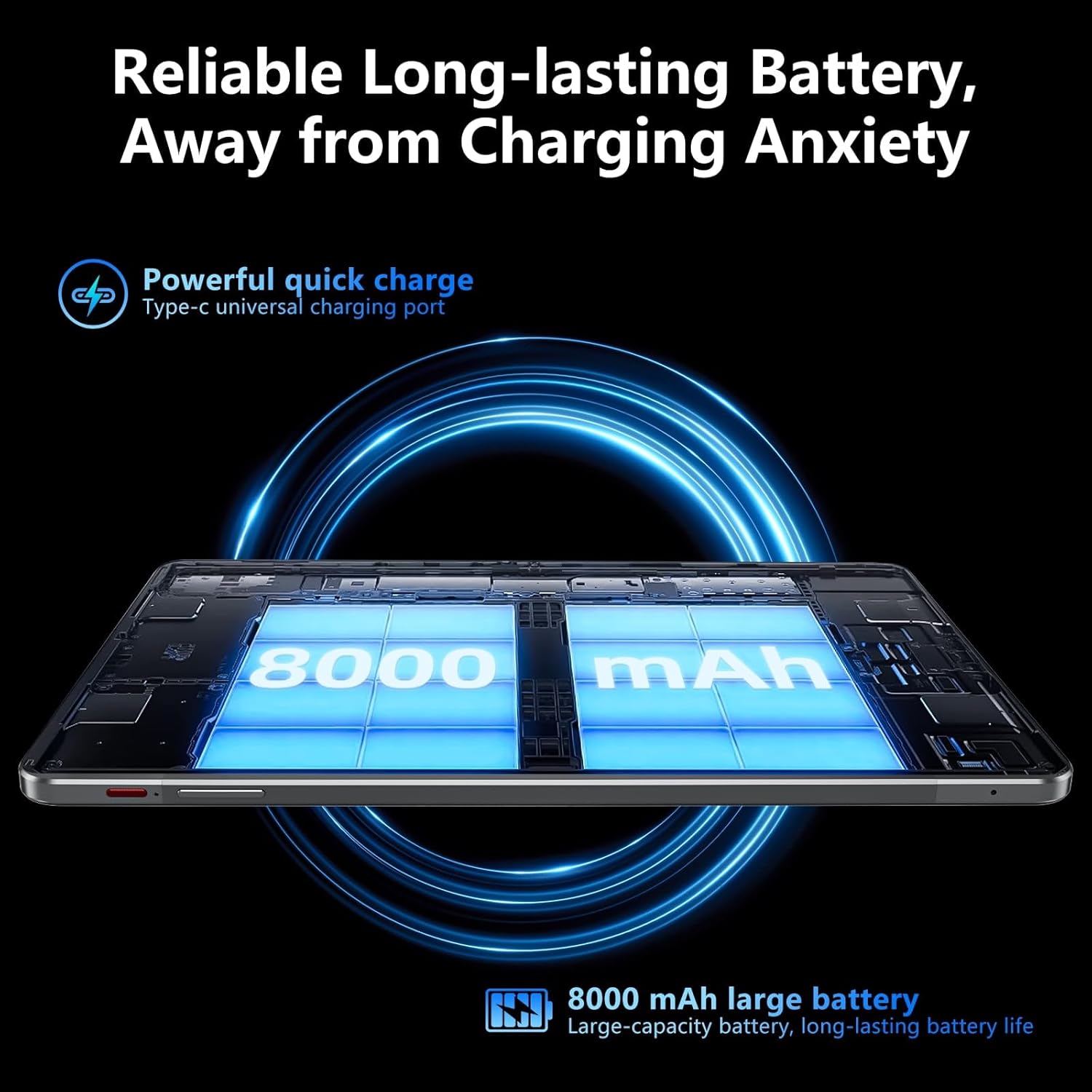
Image: Visual representation of the tablet's 8000mAh battery capacity and the Type-C universal charging port, emphasizing long battery life.
3. Powering On/Off
- To Power On: Press and hold the Power ON/OFF button until the SGIN logo appears.
- To Power Off: Press and hold the Power ON/OFF button, then select 'Power off' from the options on the screen.
- To Restart: Press and hold the Power ON/OFF button, then select 'Restart' from the options.
4. Initial Setup
Upon first power-on, the tablet will guide you through the initial setup process for Android 13. This includes:
- Selecting your language.
- Connecting to a Wi-Fi network.
- Setting up your Google account (required for Google Mobile Services and app downloads).
- Setting up screen lock (PIN, pattern, or password).
5. Inserting a Micro TF Card
To expand storage, insert a Micro TF (microSD) card into the TF mount.
- Locate the TF mount on the side of the tablet (refer to the Device Overview image).
- Gently insert the Micro TF card into the slot until it clicks into place.
- The tablet supports up to 256GB TF card expansion.
Operating Instructions
1. Display and Touch Screen
The tablet features an 11.97-inch Full HD IPS touch screen with a resolution of 1920x1200 pixels.
- Touch Gestures: Use standard Android touch gestures such as tap, swipe, pinch-to-zoom, and long-press.
- Screen Rotation: The display automatically adjusts orientation based on how you hold the tablet. This can be locked or unlocked in the Quick Settings panel.
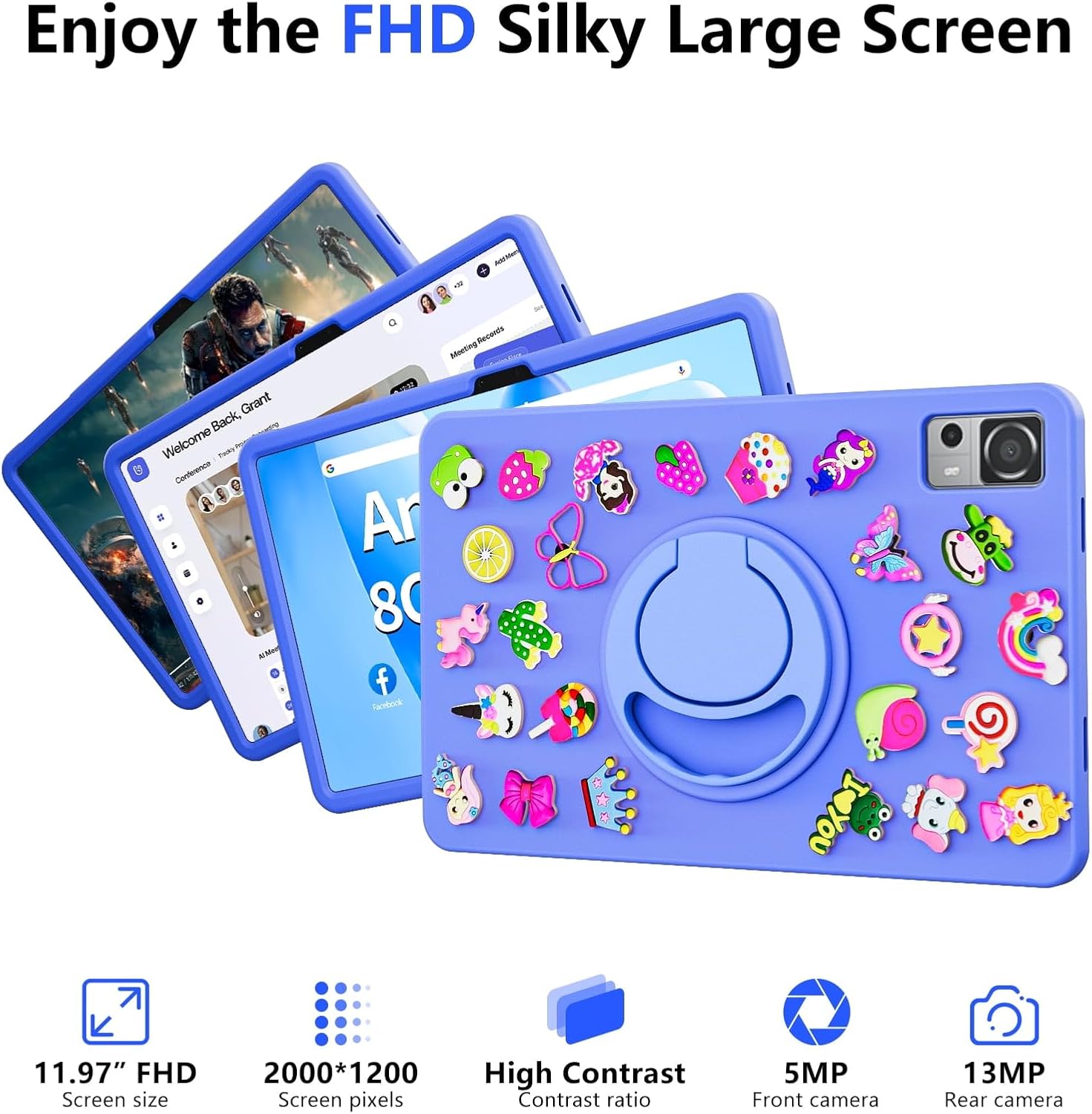
Image: The SGIN-T12S tablet highlighting its 11.97-inch FHD screen, 2000x1200 pixel resolution, 5MP front camera, and 13MP rear camera.
2. Cameras
The tablet is equipped with a 5MP front camera and a 13MP rear camera.
- Open the Camera application from the home screen or app drawer.
- Switch between front and rear cameras using the icon on the screen.
- Tap to focus and press the shutter button to capture photos or start/stop video recording.
3. Audio
Experience immersive sound with the tablet's quad speakers and 3.5mm headphone jack.
- Quad Speakers: Located on the sides of the tablet, providing stereo sound.
- Headphone Jack: Connect standard 3.5mm headphones for private listening.
- Adjust volume using the physical volume buttons or the on-screen controls.

Image: The SGIN-T12S tablet illustrating its surround four-speaker stereo system, designed for an immersive audio experience.
4. Connectivity
- Wi-Fi: Supports dual-band Wi-Fi (2.4G/5G). Go to Settings > Network & internet > Wi-Fi to connect to available networks.
- Bluetooth 5.0: For connecting wireless accessories like headphones, keyboards, or mice. Go to Settings > Connected devices > Connection preferences > Bluetooth to pair devices.
5. Storage and Performance
The tablet comes with 8GB RAM and 256GB internal storage, expandable via Micro TF card.
- RAM: 8GB LPDDR4 RAM ensures smooth multitasking and app performance.
- Internal Storage: 256GB ROM for apps, photos, videos, and documents.
- Expandable Storage: Supports Micro TF cards up to 256GB for additional storage.
- Processor: Powered by an ARM high-performance 8-core CPU with a frequency up to 2GHz for efficient operation.
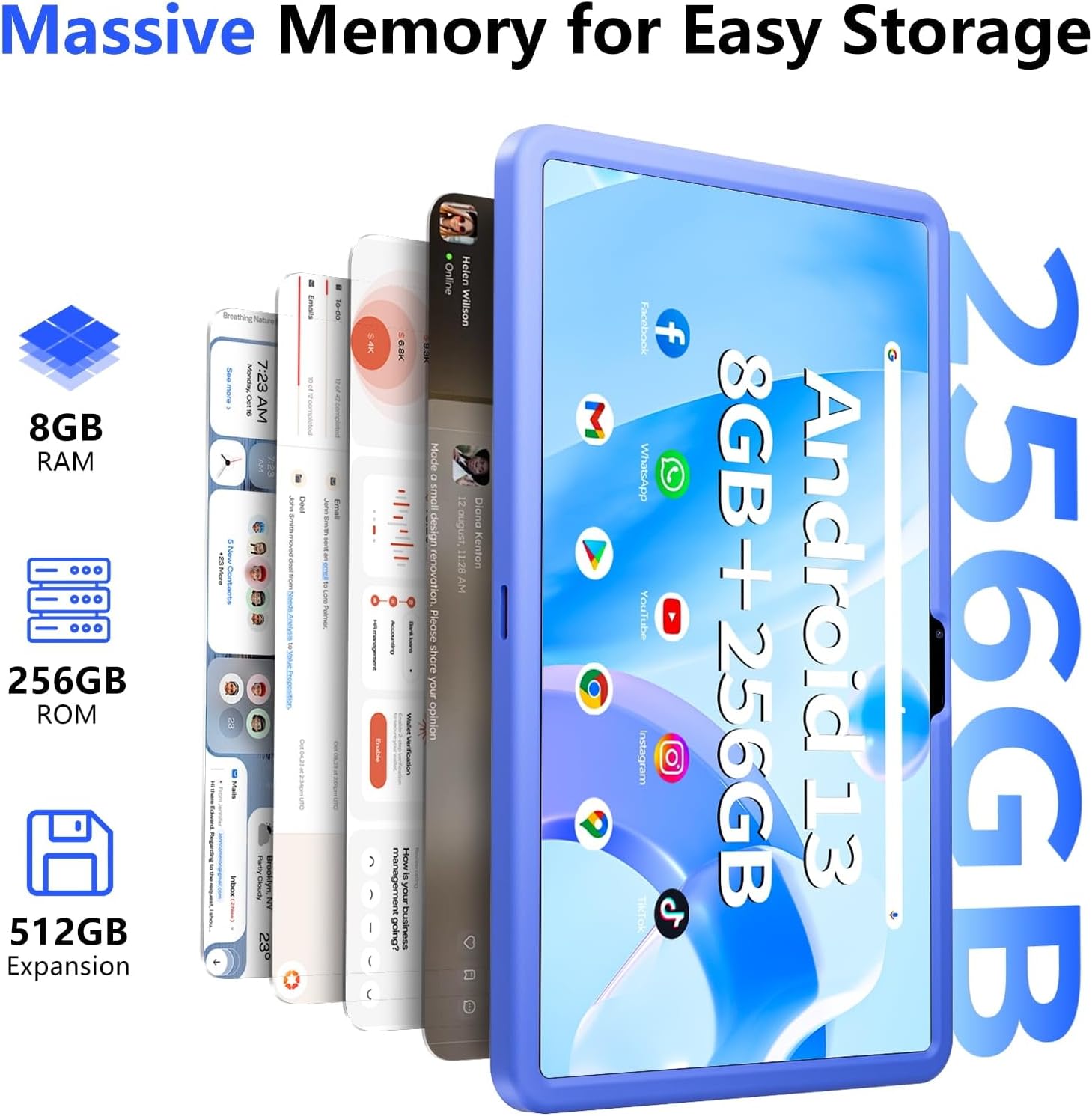
Image: The SGIN-T12S tablet emphasizing its large memory capacity, including 8GB RAM, 256GB ROM, and the potential for 512GB expansion.
6. Android 13 Operating System
The tablet runs on Android 13, offering enhanced security and personalization features.
- Security: Android 13 provides improved privacy controls and system security.
- Personalization: Customize your tablet's interface, themes, and widgets to suit your preferences.
- Google Mobile Services: Access to Google Play Store for apps, Gmail, Google Maps, and other Google services.

Image: The SGIN-T12S tablet highlighting the benefits of Android 13, such as enhanced security and personalization, alongside its matte metal body and silicone shell options.
Maintenance
1. Cleaning
- Use a soft, lint-free cloth to clean the screen and body of the tablet.
- For stubborn smudges, slightly dampen the cloth with water or a screen-cleaning solution.
- Avoid using harsh chemicals, abrasive materials, or excessive moisture.
2. Battery Care
- Avoid extreme temperatures, as they can degrade battery life.
- For optimal battery health, avoid frequently discharging the battery completely or keeping it at 100% charge for extended periods.
- The 8000mAh battery provides approximately 7-9 hours of usage depending on activity.
3. Software Updates
- Regularly check for and install system updates to ensure your tablet has the latest features, security patches, and performance improvements.
- Go to Settings > System > System update to check for updates.
Troubleshooting
- Tablet not powering on: Ensure the tablet is charged. Connect it to the charger and wait a few minutes before attempting to power on again. If it still doesn't turn on, try holding the power button for 10-15 seconds.
- Screen is unresponsive: Try restarting the tablet. If the issue persists, ensure the screen is clean and free of debris.
- Wi-Fi connection issues: Check if Wi-Fi is enabled in settings. Restart your router and the tablet. Ensure you are within range of the Wi-Fi signal and have entered the correct password.
- Apps crashing or freezing: Close and reopen the app. Clear the app's cache (Settings > Apps > [App Name] > Storage & cache > Clear cache). If the problem continues, uninstall and reinstall the app.
- Slow performance: Close unnecessary background apps. Clear cached data. Consider removing unused apps or large files to free up storage space.
Specifications
| Feature | Specification |
|---|---|
| Model Name | SGIN-T12S |
| Operating System | Android 13 |
| Screen Size | 11.97 Inches |
| Max Screen Resolution | 2000*1200 Pixels (FHD IPS) |
| Processor | ARM Octa-Core 2.0 GHz (ARM_Cortex_A5) |
| RAM | 8 GB DDR4 SDRAM |
| Hard Drive (ROM) | 256 GB |
| Expandable Storage | Supports Micro TF card up to 256 GB |
| Front Camera | 5 MP |
| Rear Camera | 13 MP |
| Wireless Type | 802.11bgn (Dual-band 2.4G/5G Wi-Fi) |
| Bluetooth | Bluetooth 5.0 |
| Battery | 8000 mAh Lithium Ion (Average 6-9 hours) |
| Ports | Type-C, Micro TF slot, 3.5mm Headphone Jack |
| Audio | Quad Speakers |
| Item Weight | 2.2 pounds (approx. 500 grams) |
| Product Dimensions | 11.97 x 6.85 x 0.3 inches |
Warranty and Support
Information regarding specific warranty terms and direct support contact details for the SGIN-T12S tablet is not provided in the available product data. Please refer to the product packaging or the official SGIN website for the most current warranty information and customer support options.


