
1. Introduction
Thank you for choosing the jar-owl Foldable Mini Bluetooth Keyboard. This portable and compact wireless keyboard is designed for convenience and efficiency, offering a seamless typing experience across multiple devices. Its slim design and quiet keys make it ideal for travel, study, and light work tasks. Please read this manual carefully to ensure proper setup and operation.
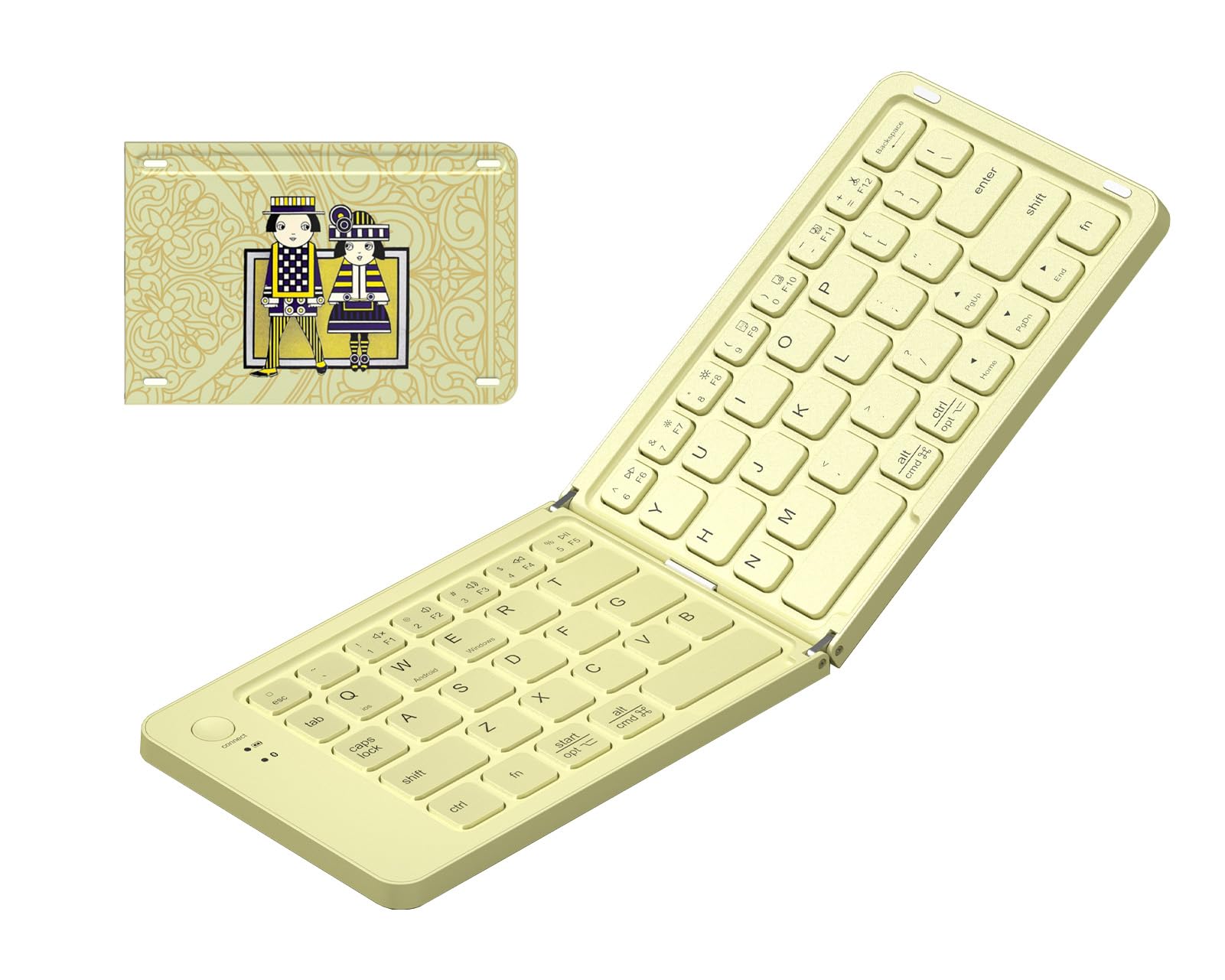
Image: The jar-owl Foldable Mini Bluetooth Keyboard shown in both its compact folded state and its fully unfolded, ready-to-use configuration.
2. Product Overview and Dimensions
The jar-owl Foldable Mini Bluetooth Keyboard features a compact design for ultimate portability. Understanding its dimensions can help you integrate it into your workspace or travel bag.

Image: A visual representation of the keyboard's dimensions, indicating a length of 28.2 cm (11.1 inches), a width of 9.7 cm (3.8 inches), and a thickness of 1.5 cm (0.6 inches).
3. Setup
3.1. Charging the Keyboard
Before initial use, fully charge your keyboard. The keyboard features a built-in rechargeable battery.
- Locate the Type-C charging port on the keyboard.
- Connect the provided Type-C cable to the keyboard and a USB power source (e.g., computer, wall adapter).
- The charging indicator light will illuminate. Once fully charged, the light will change or turn off.

Image: The keyboard connected to a Type-C charging cable, illustrating the charging process for its built-in 3.7V 150mAh battery.
3.2. Bluetooth Pairing
The keyboard supports connection with up to three Bluetooth devices, allowing for quick switching between them.
- Power On: Unfold the keyboard to automatically power it on.
- Enter Pairing Mode: Press and hold the Fn key and one of the Bluetooth channel keys (BT1, BT2, or BT3) for 3-5 seconds until the corresponding indicator light flashes, indicating it's in pairing mode.
- Enable Bluetooth on Your Device: On your smartphone, tablet, or computer, go to Bluetooth settings and turn on Bluetooth.
- Select Keyboard: Look for "Bluetooth Keyboard" or a similar name in the list of available devices and select it to connect.
- Confirm Connection: Once connected, the indicator light on the keyboard will stop flashing.
- Switching Devices: To switch between paired devices, simply press the Fn key along with the desired channel key (BT1, BT2, or BT3).

Image: The keyboard demonstrating its ability to connect to three different devices (phone, tablet, computer) via separate Bluetooth channels (BT1, BT2, BT3), allowing for one-click switching.
4. Operating Instructions
4.1. Basic Typing and Key Layout
The keyboard features a QWERTY layout with 67 slim, quiet keys, providing a comfortable typing experience for mobile devices and tablets.
4.2. Multimedia Shortcut Keys
Utilize the 12 dedicated multimedia shortcut keys for quick access to common functions. These keys are typically accessed by pressing the Fn key in combination with the corresponding function key (F1-F12).

Image: A detailed diagram illustrating the 12 multimedia shortcut keys (F1-F12) and their functions, including mute, volume control, media playback, brightness adjustment, and copy/paste.
4.3. Auto Sleep and Energy Saving
To conserve battery life, the keyboard is equipped with an intelligent auto-sleep function. It will enter sleep mode after 5 seconds of inactivity when unfolded, and automatically power off when folded.
- Auto Sleep: After 5 seconds of no activity, the keyboard will enter a low-power sleep state.
- Wake Up: Press any key to reactivate the keyboard instantly.
- Auto Power Off: Folding the keyboard will automatically power it off, making it ideal for travel.

Image: The keyboard shown on a desk, illustrating its auto-sleep feature after 5 seconds of inactivity to save power and extend battery life. Pressing any key reactivates it.
4.4. Compatibility
The keyboard is compatible with a wide range of operating systems, including Windows, iOS, Android, and Mac OS, making it versatile for various devices such as laptops, smartphones, and tablets.
5. Maintenance
5.1. Cleaning
- Use a soft, dry, lint-free cloth to wipe the keyboard surface.
- For stubborn dirt, slightly dampen the cloth with water or a mild cleaning solution. Avoid excessive moisture.
- Do not use harsh chemicals, abrasives, or solvents, as these can damage the keyboard's finish.
5.2. Battery Care
- Avoid fully discharging the battery frequently.
- Charge the keyboard regularly, even if not in constant use, to maintain battery health.
- Store the keyboard in a cool, dry place when not in use for extended periods.
6. Troubleshooting
6.1. Keyboard Not Connecting via Bluetooth
- Check Power: Ensure the keyboard is unfolded and powered on, and has sufficient battery charge.
- Re-enter Pairing Mode: Press Fn + BT1/BT2/BT3 to re-enter pairing mode.
- Device Bluetooth: Confirm Bluetooth is enabled on your device and it's discoverable.
- Forget Device: If previously paired, try 'forgetting' or 'unpairing' the keyboard from your device's Bluetooth settings and then re-pair.
- Restart Devices: Restart both the keyboard (by folding and unfolding) and your host device.
6.2. Keys Not Responding
- Battery Level: Check if the keyboard battery is low and recharge it.
- Connection: Ensure the keyboard is properly connected to your device via Bluetooth.
- Auto Sleep: If the keyboard is in auto-sleep mode, press any key to wake it up.
6.3. Input Lag or Disconnections
- Distance: Ensure the keyboard is within the 10-meter operating range of your device.
- Interference: Move away from other wireless devices or strong electromagnetic fields that might cause interference.
- Re-pair: Try disconnecting and re-pairing the keyboard with your device.
7. Specifications
| Feature | Detail |
|---|---|
| Brand | jar-owl |
| Model | B0FW46J4RB |
| Connectivity Technology | Bluetooth 5.0 |
| Compatible Devices | Gaming Console, Laptop, Personal Computer, Smartphone, Tablet |
| Number of Keys | 67 |
| Keyboard Layout | QWERTY |
| Power Source | Rechargeable |
| Battery Capacity | 150mAh Lithium Battery |
| Standby Time | ≥ 150 days |
| Operating Voltage | 3.7V |
| Operating Range | 10 meters |
| Continuous Usage Time | < 2 hours |
| Key Lifespan | > 3 million presses |
| Item Weight | 0.23 Kilograms (approx. 197g / 0.4lb) |
8. Warranty and Support
8.1. Warranty Information
This jar-owl Foldable Mini Bluetooth Keyboard comes with a 1-Year Warranty from the date of purchase. This warranty covers manufacturing defects and ensures the product functions as intended under normal use. Please retain your proof of purchase for warranty claims.
8.2. Customer Support
For any questions, technical assistance, or warranty claims, please contact jar-owl customer support through the retailer where you purchased the product or visit the official jar-owl website for contact information.