
1. Introduction
This manual provides essential information for setting up, operating, and maintaining your TABWEE W90 Android 16 Tablet. Please read it thoroughly to ensure proper use and to maximize your device's performance and longevity.
2. What's in the Box
- TABWEE W90 Android 16 Tablet
- 18W Power Adapter
- USB-C Cable
- User Manual (this document)
- After-sales Card
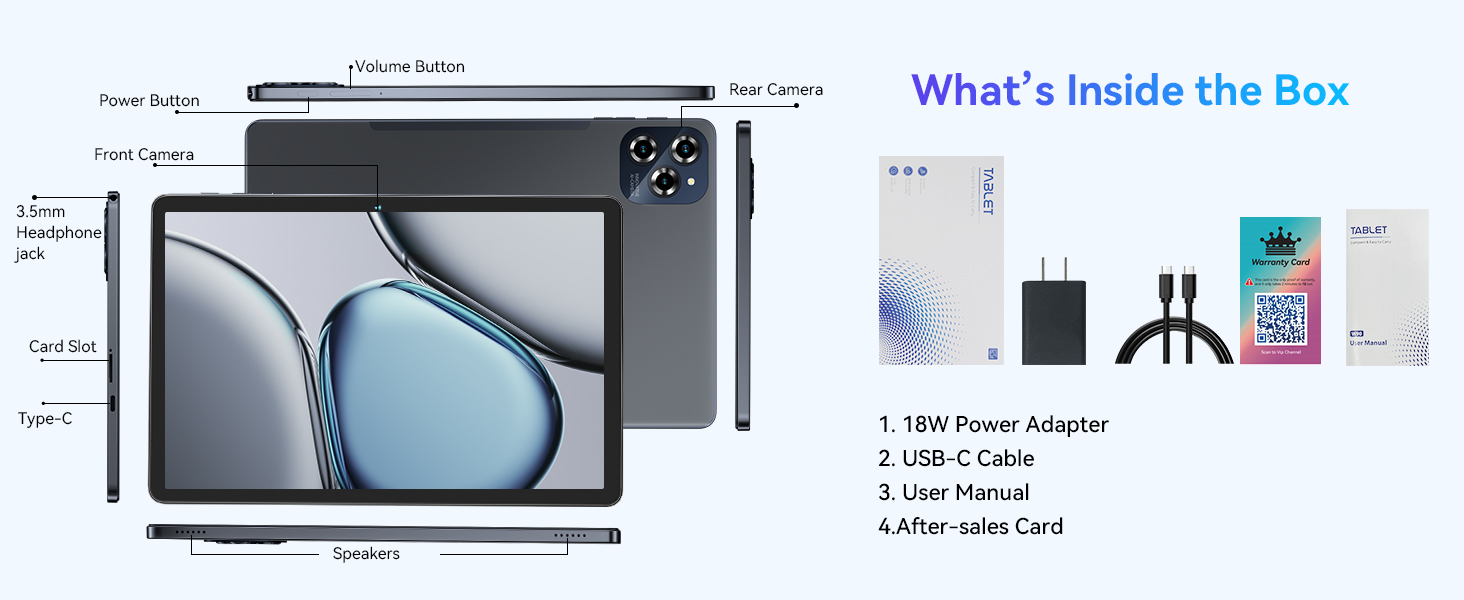
Image: Contents of the TABWEE W90 Tablet box.
3. Device Overview
Familiarize yourself with the physical components of your TABWEE W90 tablet.
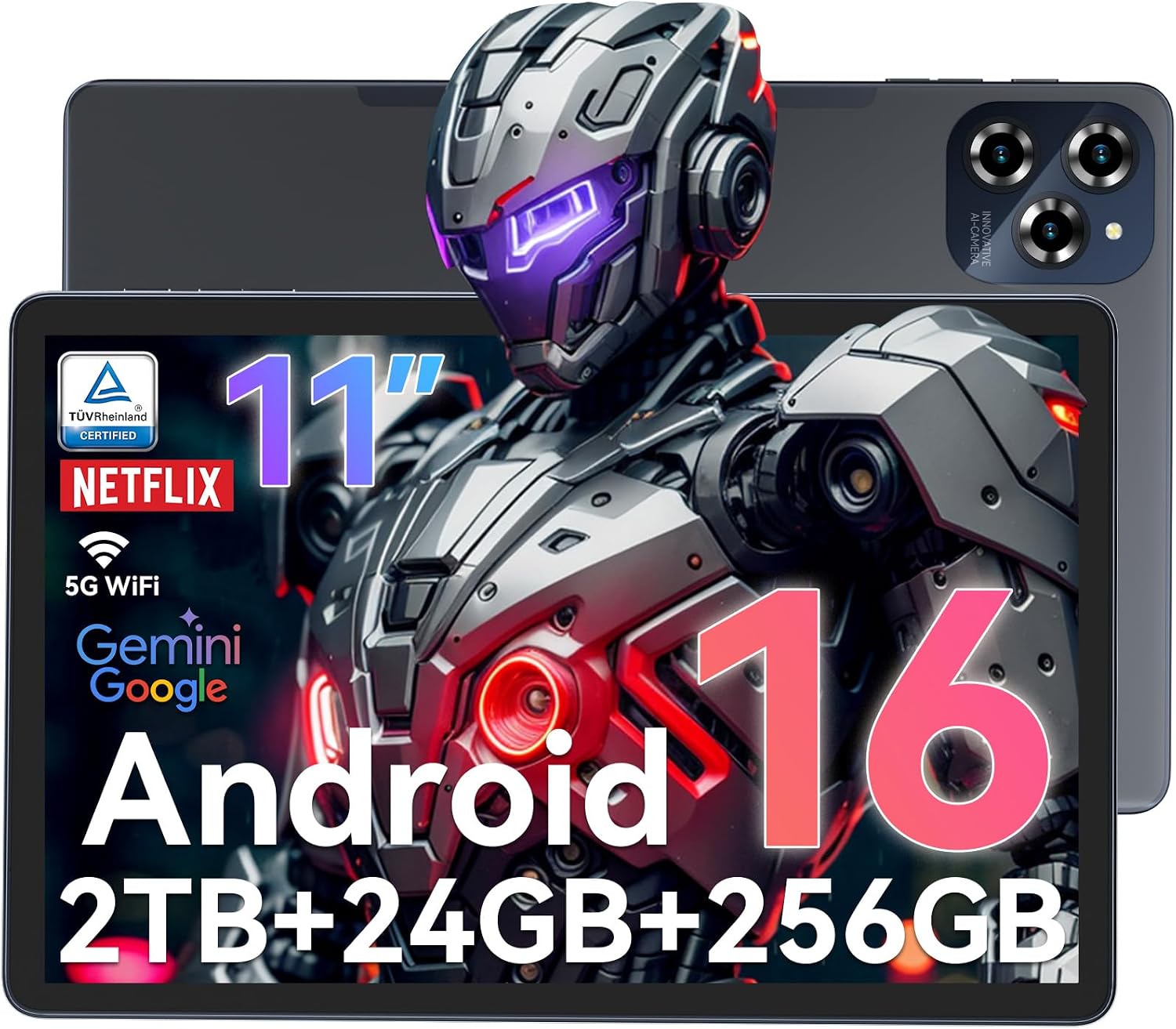
Image: Front view of the TABWEE W90 Android 16 Tablet.
- Power Button: Located on the side, used to power on/off or wake/sleep the device.
- Volume Buttons: Adjust audio levels.
- Front Camera: For video calls and selfies.
- Rear Cameras: For high-resolution photography and video recording.
- 3.5mm Headphone Jack: For connecting wired headphones.
- Card Slot: For inserting a TF (microSD) card for expanded storage.
- Type-C Port: For charging and data transfer.
- Speakers: For audio output.
4. Setup
4.1 Initial Power On and Setup
- Charge the Tablet: Connect the 18W power adapter and USB-C cable to the tablet and a power outlet. Allow the tablet to charge for at least 30 minutes before first use.
- Power On: Press and hold the Power Button until the TABWEE logo appears.
- Follow On-Screen Prompts: The tablet will guide you through initial setup, including language selection, Wi-Fi connection, Google account login, and security settings.
4.2 Expanding Storage (TF Card)
The TABWEE W90 supports up to 2TB TF card expansion.
- Locate the card slot on the side of the tablet.
- Gently insert the TF card into the slot until it clicks into place.
- The tablet will detect the new storage. You may be prompted to format the card for optimal use with the device.
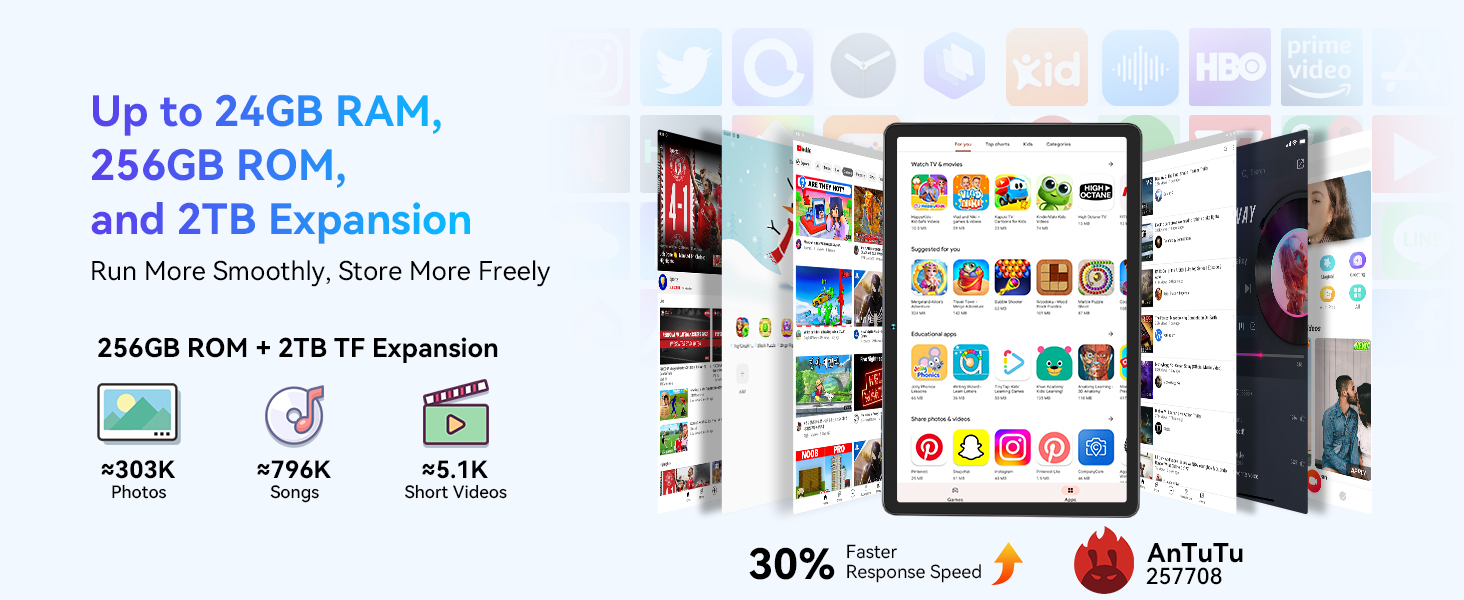
Image: Memory and storage expansion capabilities.
4.3 Connecting a Bluetooth Keyboard (K1 Keyboard Tutorial)
To connect a Bluetooth keyboard, such as the K1, follow these steps:
- Ensure the keyboard is charged and powered on.
- On your tablet, navigate to Settings > Connected devices > Bluetooth.
- Enable Bluetooth if it is not already on.
- On the keyboard, press and hold the Fn + C keys for 3 seconds to enter pairing mode. The Bluetooth indicator light on the keyboard will flash.
- On the tablet, select 'Pair new device' or wait for 'Blackview K1 Keyboard' to appear in the list of available devices.
- Tap on 'Blackview K1 Keyboard' to initiate pairing. Confirm any pairing requests on both devices.
Video: Tutorial on how to link the K1 Bluetooth keyboard to your tablet.
5. Operating Instructions
5.1 Display Features
The TABWEE W90 features an 11-inch FHD (1920x1200) eye-care display with Widevine L1 certification for 1080P HD streaming. It is TÜV certified to reduce harmful blue light by 45%, enhancing eye comfort.

Image: The 11-inch FHD display with TÜV Rheinland Low Blue Light Certification.
5.2 Performance and Memory
Equipped with a Unisoc T615 Octa-Core chipset, the tablet offers smooth multitasking. It comes with 24GB RAM (8GB actual + 16GB expansion) and 256GB ROM, expandable up to 2TB via TF card.
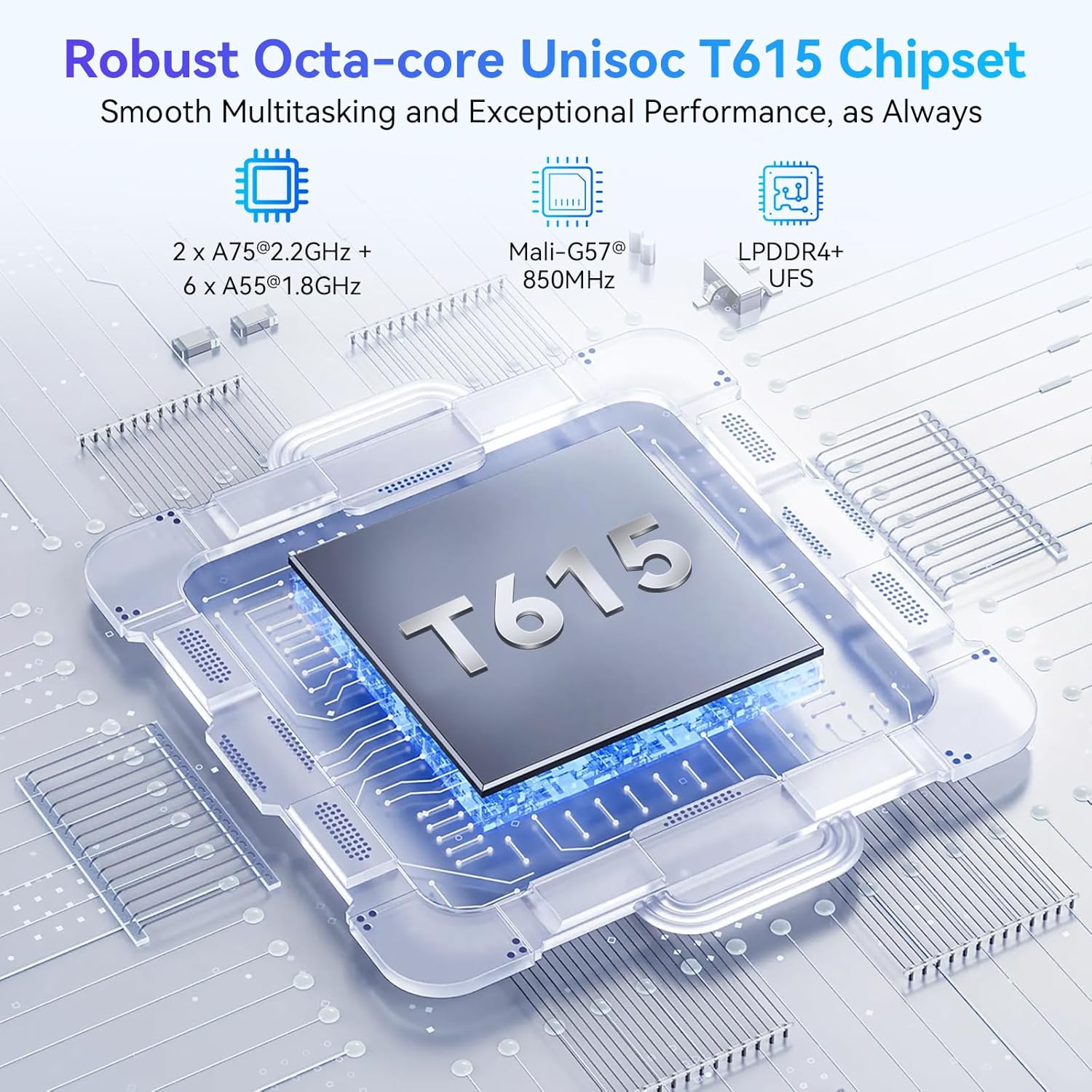
Image: Robust Octa-core Unisoc T615 Chipset.
5.3 Camera Functions
The tablet features a 16MP rear camera and an 8MP front camera. Integrated Google Lens allows for real-time object recognition and enhanced photography with AI features like AI Magic Eraser, AI Photo Unblur, AI Sky Replacement, AI Portrait Unblur, and AI Portrait Light.
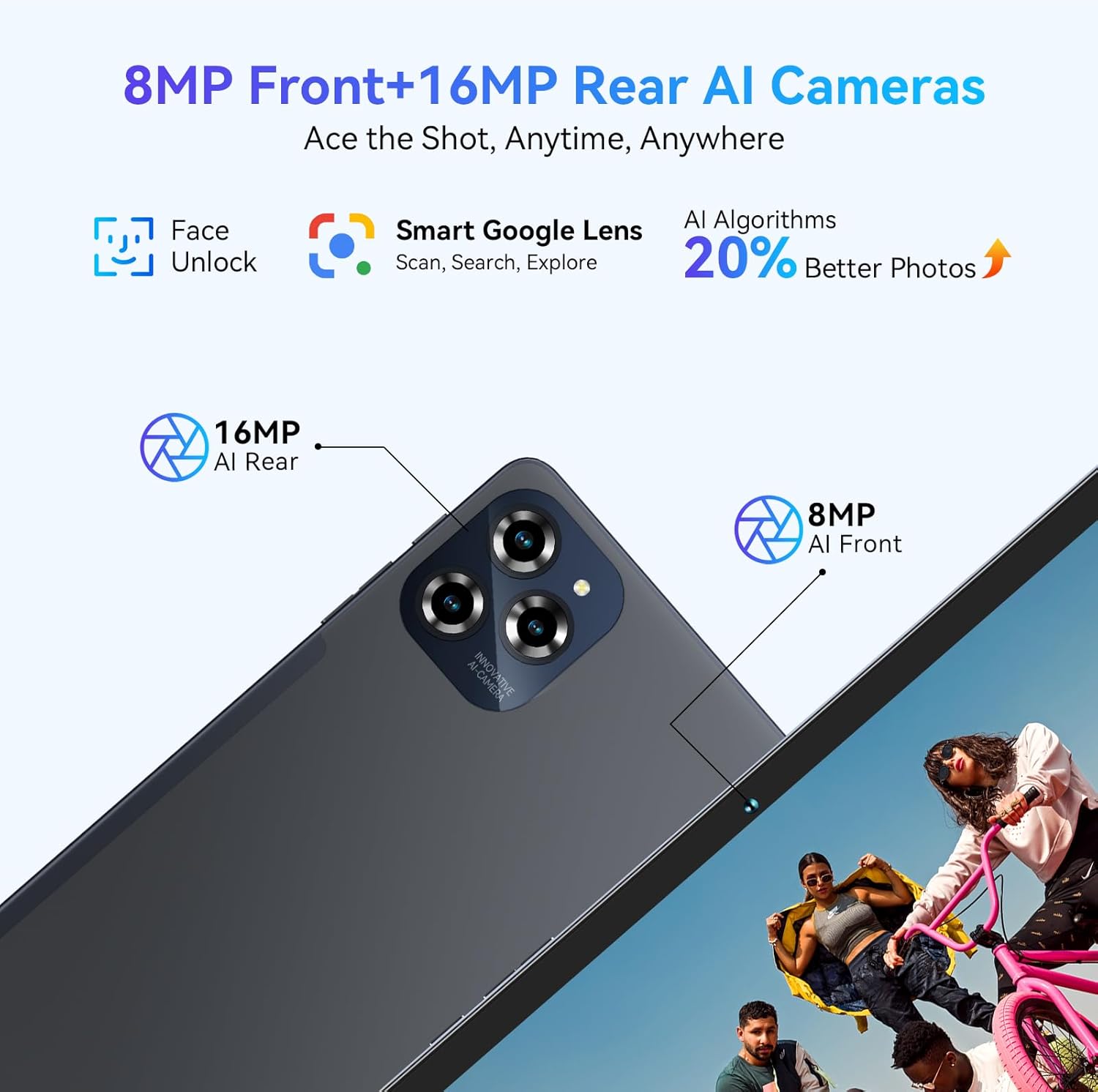
Image: 8MP Front + 16MP Rear AI Cameras.

Image: AI Magic features for photo enhancement.
5.4 Connectivity
The device supports dual-band 5G Wi-Fi for fast internet speeds and Bluetooth 5.0 for stable wireless connections with accessories.
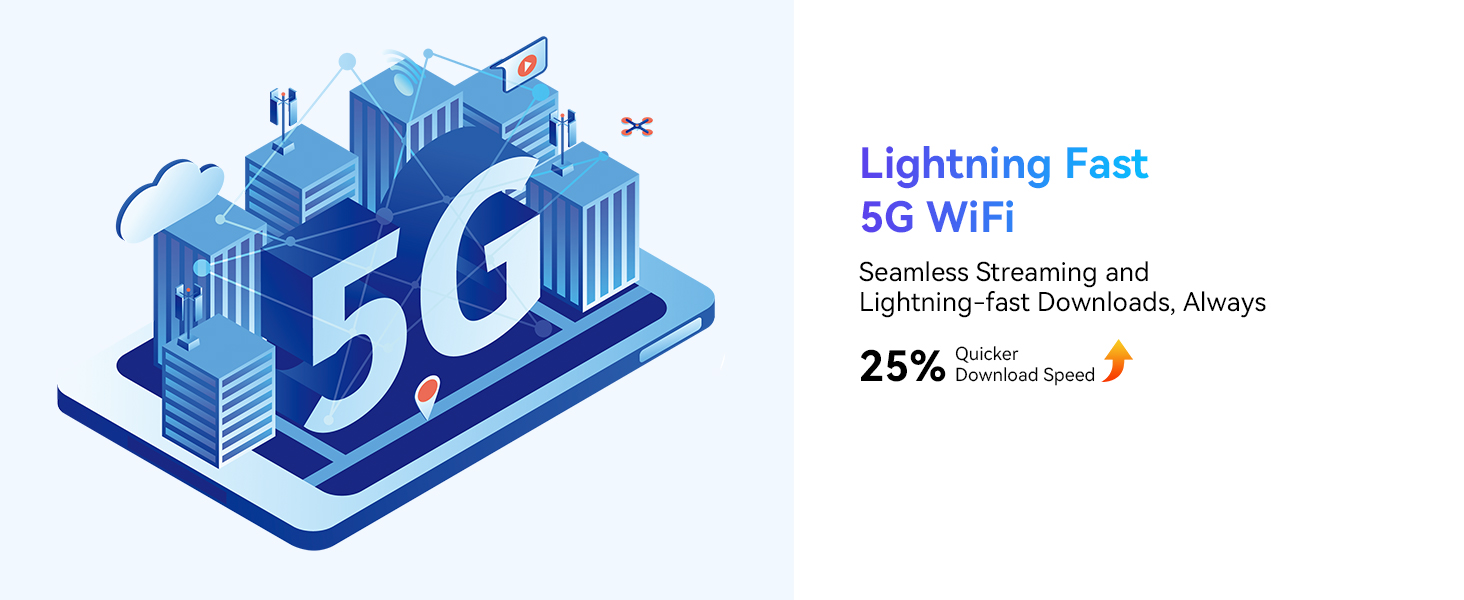
Image: Lightning Fast 5G WiFi.
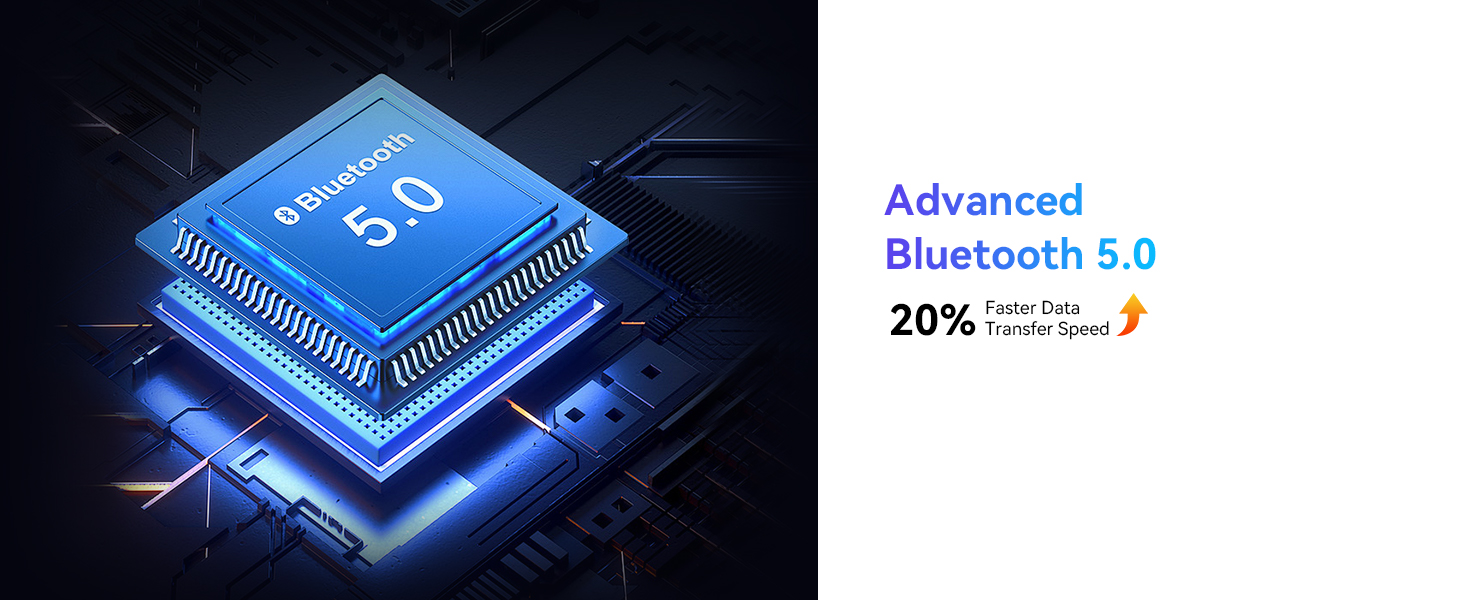
Image: Advanced Bluetooth 5.0.
5.5 Battery and Charging
The 8000mAh battery provides extended usage, with up to 12 hours of video playback. The tablet supports 18W fast charging, allowing it to reach 50% charge in approximately 40 minutes.

Image: 8000mAh Mega Battery with 18W Fast Charging.
5.6 Android 16 and AI Integration
The tablet runs on Android 16, offering enhanced privacy and cross-device collaboration. It integrates with Google Gemini AI for intelligent resource scheduling and voice interaction.

Image: Android 16 features for easier work and life.
5.7 Using App Split-Screen
To use the split-screen feature for multitasking:
- Open the first application you wish to use.
- Swipe up from the bottom of the screen and hold to access the recent apps view.
- Tap the app icon at the top of the first app's card and select 'Split screen'.
- Choose a second application from the recent apps list or the app drawer to open it in the other half of the screen.
Video: Instructions on how to use the app split-screen feature on your device.
6. Maintenance
6.1 Cleaning the Device
Use a soft, lint-free cloth to clean the screen and body of the tablet. Avoid using harsh chemicals or abrasive materials that could damage the surface.
6.2 Software Updates
Ensure your device is connected to a stable network and has at least 30% battery. When an Android 16 system update is available, you will receive a notification. Click 'Update Now' to start the process. The device will automatically complete the installation and restart. All existing data will be retained after the update.

Image: Android 16 system update process.
7. Troubleshooting
7.1 Wi-Fi Not Connecting or Keeps Dropping
If you experience issues with Wi-Fi connectivity, try resetting your network settings:
- Go to Settings > System > Reset options.
- Select Reset Bluetooth & Wi-Fi.
- Confirm the reset. This will reset all Wi-Fi and Bluetooth settings.
Video: Guide to troubleshooting Wi-Fi connection issues by resetting network settings.
7.2 Device Lagging or Freezing
If your tablet is experiencing lag or freezing, consider the following steps:
- Close Background Apps: Swipe up from the bottom of the screen and hold to access recent apps. Swipe up on individual app cards or tap 'Clear all' to close them.
- Uninstall Unused Apps: Long-press on an app icon, then drag it to 'Uninstall' or select 'Uninstall app' from the menu.
- Restart the Device: Press and hold the Power Button, then select 'Restart'. If unresponsive, press and hold the Power Button for more than 10 seconds to force a reboot.
Video: Solutions for device lagging or freezing, including closing apps, uninstalling, and restarting.
8. Specifications
| Feature | Specification |
|---|---|
| Brand | TABWEE |
| Model Name | W90 |
| Operating System | Android 16 |
| Processor | Unisoc T615 Octa-Core |
| RAM Memory | 24 GB (8GB actual + 16GB expansion) |
| Storage Capacity | 256 GB ROM, expandable up to 2TB TF |
| Screen Size | 11 Inches |
| Display Resolution | 1920 x 1200 Pixels (FHD) |
| Display Type | LCD |
| Maximum Display Brightness | 389 Nits |
| Rear Camera | 16 MP |
| Front Camera | 8 MP |
| Wireless Technology | 5G Wi-Fi (802.11ac), Bluetooth 5.0 |
| Battery Capacity | 8000 mAh |
| Charging | 18W Fast Charging |
| Item Weight | 395 Grams |
| Item Dimensions (L x W x Thickness) | 9.7"L x 7.5"W x 0.6"Th |
| Human-Interface Input | Touchscreen with Stylus Support |
| UPC | 810199725215 |
9. Warranty and Support
The TABWEE W90 tablet comes with a standard 2-year manufacturer's warranty. You can also enjoy a 30-day free return and exchange policy. For any questions or support needs, please contact us through your order page or official channels. We aim to respond within 12 hours.
Image: After-sales service and support information.
For more information on returns and refunds, please visit: https://www.aftersales.store/refund/


