
1. Introduction
The celonix PortaPack H4M + HackRF One R10C Signature Edition Kit is a portable software-defined radio (SDR) development platform. It features a 3.2-inch LCD touchscreen, intuitive navigation controls, and wide-band coverage from 1 MHz to 6 GHz. This kit is designed for engineers, hobbyists, educators, and researchers for capturing, replaying, and analyzing signals across a broad frequency range. It includes built-in applications such as spectrum analyzers, ADS-B viewers, GPS simulation, and data decoders, making it suitable for academic study, prototyping, and lab demonstrations. The kit is packaged with a transparent protective shell and an antenna set, offering a versatile and compact solution for electronics learning, signal exploration, and advanced engineering projects.
Key Features:
- Broadband Research Tool: Covers 1 MHz to 6 GHz frequency range with sample rates from 2 Msps to 20 Msps, designed for electronics experiments, RF development, and academic study.
- Intuitive Display & Controls: Equipped with a 3.2-inch 240×320 matte LCD touchscreen, bright and clear. Includes direction keys, rotary wheel, and selection button for smooth operation.
- Data Capture & Replay: Record and store raw signal data for offline analysis, demonstrations, or playback – ideal for lab use and documentation.
- Pattern Detection & Identification: Identify signal patterns and spectral activity for spectrum study and electronic engineering projects.
- Preloaded Applications: Includes a variety of tools such as spectrum visualizers, ADS-B viewer, GPS simulation utilities, TPMS analyzers, and more – tailored for education and professional research.
2. What's in the Box
The celonix PortaPack H4M + HackRF One R10C Signature Kit includes the following components:
- PortaPack H4M + HackRF One R10C SDR Development Board
- Transparent Protective Shell (pre-installed)
- Antenna Set (various types for different frequency ranges)
- USB Cable (for power and data transfer)
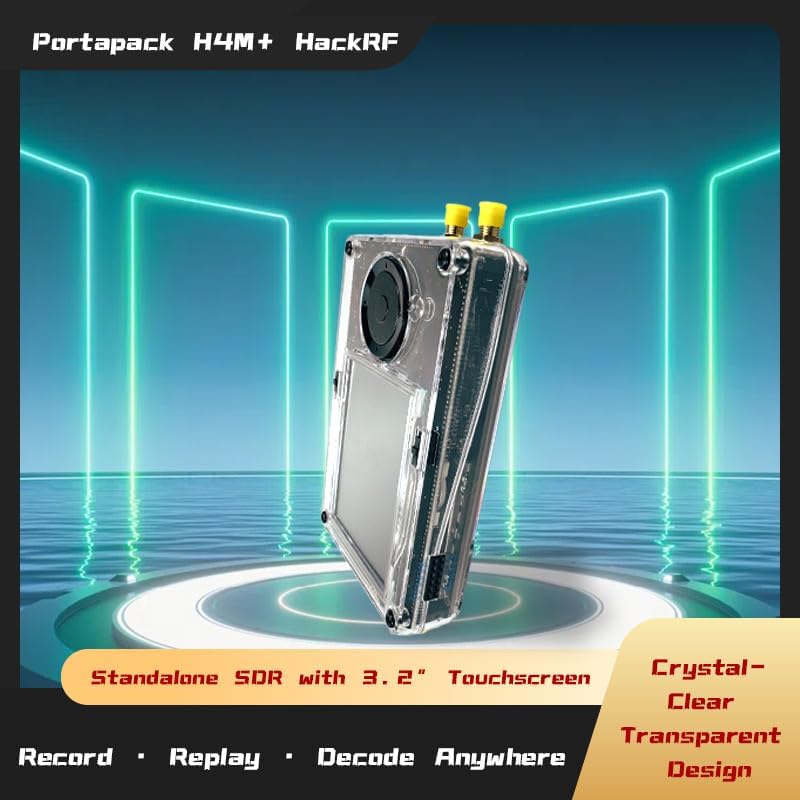
Figure 2.1: The celonix PortaPack H4M + HackRF One R10C SDR Development Board, showcasing its transparent casing and included antennas, ready for use.

Figure 2.2: A detailed view of the PortaPack H4M + HackRF One R10C's transparent shell, highlighting the internal circuitry and design.
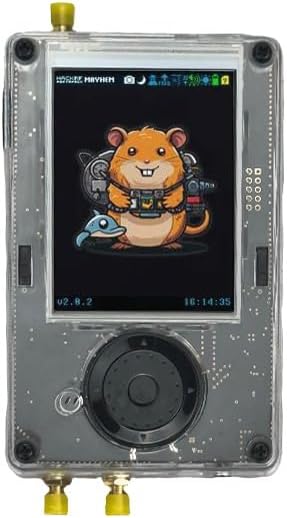
Figure 2.3: The front of the PortaPack H4M + HackRF One R10C, featuring its 3.2-inch LCD screen, directional keys, and rotary wheel for navigation.
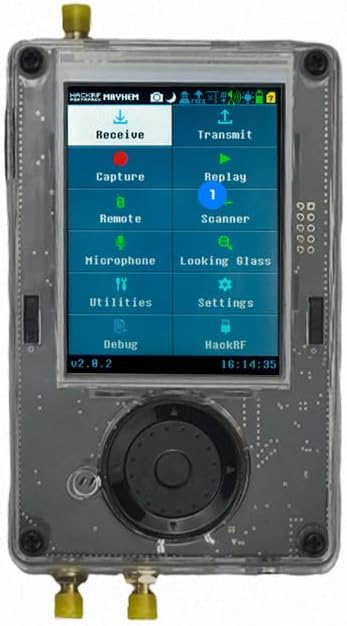
Figure 2.4: A view of the PortaPack H4M + HackRF One R10C's user interface, illustrating the main menu with options for signal capture, replay, scanning, and device settings.

Figure 2.5: The side profile of the PortaPack H4M + HackRF One R10C, detailing the USB port and the SMA antenna connectors.
3. Setup
To begin using your PortaPack H4M + HackRF One R10C, follow these general setup steps:
- Unboxing and Inspection: Carefully remove all components from the packaging. Inspect the device and accessories for any signs of damage.
- Connect Antennas: Attach the appropriate antennas to the SMA connectors on the device. Ensure they are securely fastened.
- Power On: Connect the device to a power source using the provided USB cable. The device should power on and display the main menu on the LCD screen.
- Initial Configuration: Use the touchscreen and navigation controls to select desired applications or adjust settings as needed.
Video 3.1: This video demonstrates the unboxing of the PortaPack H4M+ HackRF Kit, showing the device and its initial power-on sequence, highlighting the transparent casing and user interface.
4. Operating Instructions
The PortaPack H4M + HackRF One R10C offers a range of functionalities accessible through its intuitive interface. Below are general guidelines for operation:
- Navigation: Use the rotary wheel and directional keys to navigate through menus and select options. The touchscreen allows for direct interaction with on-screen elements.
- Application Selection: From the main menu, select the desired application (e.g., 'Capture', 'Replay', 'Scanner', 'Spectrum Analyzer').
- Frequency Adjustment: Within applications, use the controls to set the desired frequency range and sample rates.
- Signal Capture/Replay: Follow on-screen prompts to initiate signal capture or replay. Captured data can be stored for later analysis.
- Settings: Access the 'Settings' menu to configure device parameters, display options, and other advanced features.
5. Specifications
| Feature | Detail |
|---|---|
| Brand | celonix |
| Model Name | H4M |
| Frequency Range | 1 MHz to 6 GHz |
| Sample Rates | 2 Msps to 20 Msps |
| Display | 3.2-inch 240×320 matte LCD touchscreen |
| Operating System | Linux |
| Processor Brand | ARM |
| Number of Processors | 1 |
| RAM | LPDDR4 |
| Connectivity Technology | USB |
| Included Components | USB cable, Antenna set |
6. Maintenance
To ensure the longevity and optimal performance of your PortaPack H4M + HackRF One R10C, adhere to the following maintenance guidelines:
- Cleaning: Use a soft, dry cloth to clean the device. Avoid using harsh chemicals or abrasive materials that could damage the screen or casing.
- Storage: Store the device in a cool, dry place away from direct sunlight, extreme temperatures, and high humidity.
- Software Updates: Regularly check for and install firmware updates to ensure you have the latest features and bug fixes. Refer to the manufacturer's website for update instructions.
- Battery Care: If the device has an internal battery, avoid fully discharging it for extended periods. Charge the device regularly, even when not in use, to maintain battery health.
7. Troubleshooting
If you encounter issues with your PortaPack H4M + HackRF One R10C, consider the following troubleshooting steps:
- Device Not Powering On: Ensure the USB cable is securely connected to both the device and a working power source. Try a different USB cable or power adapter.
- No Signal Reception/Transmission: Verify that the antennas are correctly attached and that you are using the appropriate antenna for the frequency range. Check the software settings for correct frequency and gain configurations.
- Screen Unresponsive: If the touchscreen is unresponsive, try restarting the device. Ensure the screen is clean and free from debris.
- Software Glitches: Restart the device. If the issue persists, consider performing a firmware update or factory reset (refer to advanced user guides for specific instructions).
- Connectivity Issues: Ensure the USB cable is functioning correctly for data transfer. If connecting to a computer, check driver installations.
For more detailed troubleshooting or persistent issues, please refer to the official celonix support resources or community forums.
8. Warranty and Support
celonix products are typically covered by a limited warranty against defects in materials and workmanship. The specific terms and duration of the warranty may vary by region and product. Please retain your proof of purchase for warranty claims.
For technical support, warranty information, or service requests, please visit the official celonix website or contact their customer service department. Online resources, including FAQs, user guides, and community forums, may also be available to assist you.
Contact Information: Refer to the celonix official website for the most up-to-date contact details and support options.