
1. Introduction
This manual provides essential information for the safe and efficient operation of your Wielio Smart Projector. Please read these instructions thoroughly before using the product and retain them for future reference.

Image 1: Wielio Smart Projector Overview
2. What's in the Box
Verify that all items are present upon unboxing:
- Wielio Smart Projector
- Remote Control (2*AAA Batteries Not Included)
- HDMI Cable
- Power Adapter
- User Manual
3. Key Features
The Wielio Smart Projector is designed with advanced functionalities for an enhanced viewing experience:
- Integrated Smart TV Operating System: Access over 10,000 applications including Prime Video and YouTube directly from the projector.
- Advanced Wireless Connectivity: Features Bluetooth 5.2 and WiFi 6 for lag-free wireless projection and audio connections.
- Automatic Image Correction: Auto Keystone correction adjusts vertical ±30° and horizontal ±15° distortion.
- Adjustable Projection Size: Easily zoom the screen from 50% to 100%.
- High-Quality Display: Native 1080P resolution with 4K content support and HDR10 for enhanced contrast and color accuracy.
- Quiet Operation: Operates at less than 30 dB noise level.
- Flexible Placement: A 120° adjustable stand allows for versatile projection angles, including ceiling projection.

Image 2: Wielio Smart Projector Feature Overview

Image 3: Advanced Display and Connectivity Features
4. Setup Guide
4.1 Initial Placement and Power Connection
- Place the projector on a stable, flat surface.
- Connect the power adapter to the projector and then to a power outlet.
- Press the power button to turn on the projector.
4.2 Adjusting Projection Angle and Focus
The projector features a 120° rotatable stand for flexible positioning. Adjust the stand to direct the projection onto your desired surface (wall or ceiling).

Image 4: 120° Adjustable Stand for Ceiling Projection
The projector includes automatic keystone correction. For optimal clarity, ensure the projector is as perpendicular to the projection surface as possible. Manual focus adjustment may be available via a focus ring on the lens or through software settings.

Image 5: Intelligent Image Adjustment Features
4.3 Network and Bluetooth Connection
- Navigate to the 'Settings' menu on the projector's interface.
- Select 'Network' and connect to your desired WiFi 6 network.
- For Bluetooth audio, select 'Bluetooth' in the settings and pair with your Bluetooth speaker or headphones.
5. Operating Instructions
5.1 Navigating the Smart OS and Apps
The projector runs on a Smart TV Operating System. Use the remote control to navigate through the home screen and access pre-installed applications like Netflix, YouTube, and Prime Video. Additional apps can be downloaded from the integrated app store.

Image 6: Accessing Pre-loaded Applications
5.2 Wireless Screen Mirroring
Mirror content from your Android, iOS, or Windows devices wirelessly using the 5G WiFi connection. Select the 'Mirror' option on the projector's home screen and follow the on-screen instructions to connect your device.

Image 7: Wireless Screen Mirroring in Use
5.3 Wired Connections
The projector supports HDMI and USB inputs for connecting external devices such as laptops, gaming consoles, or USB drives. Use the provided HDMI cable or connect a USB device to the corresponding ports on the projector.

Image 8: Multi-Device Connectivity Ports
5.4 Adjusting Projection Size (Zoom)
To adjust the size of the projected image, use the zoom function available in the projector's settings. This allows you to scale the image from 50% to 100% without moving the projector.
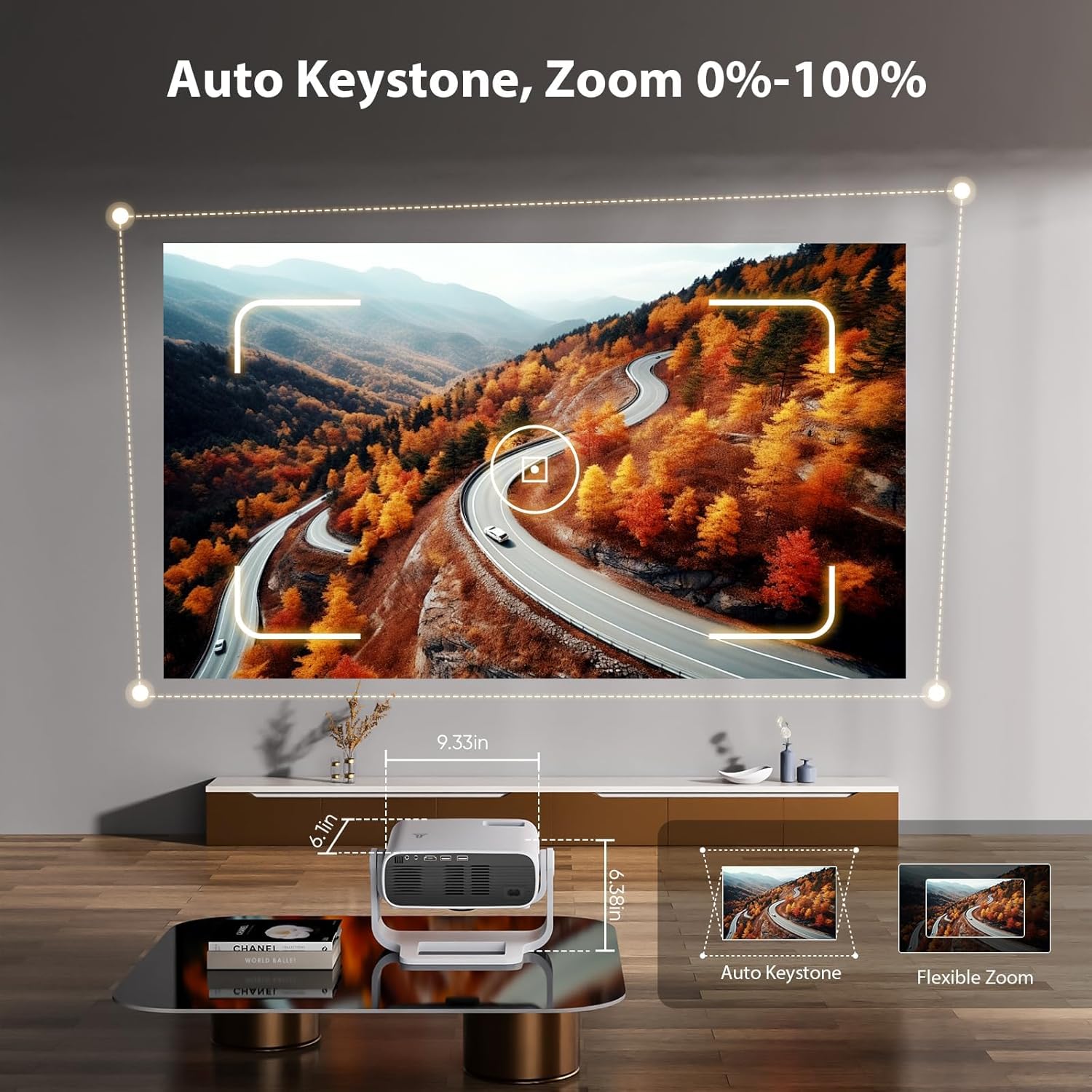
Image 9: Auto Keystone and Zoom Functionality
6. Maintenance
Regular maintenance ensures optimal performance and longevity of your projector:
- Lens Cleaning: Gently clean the projector lens with a soft, lint-free cloth. Avoid abrasive materials or harsh chemicals.
- Ventilation: Ensure the projector's ventilation openings are clear and unobstructed to prevent overheating. Do not place the projector on soft surfaces that may block airflow.
- Storage: When not in use, store the projector in a cool, dry place away from direct sunlight and extreme temperatures.
7. Troubleshooting
If you encounter issues, refer to the following common problems and solutions:
| Problem | Possible Cause | Solution |
|---|---|---|
| No image projected | Power cable disconnected, projector off, input source not selected. | Check power connection, turn on projector, select correct input source (HDMI, USB, etc.). |
| Blurry image | Incorrect focus, keystone distortion, projection distance. | Adjust focus manually or use auto keystone correction. Ensure projector is within optimal projection distance. |
| No sound | Volume too low, external audio device not connected, incorrect audio output selected. | Increase volume, check Bluetooth connection or wired audio cable, select correct audio output in settings. |
| WiFi/Bluetooth connectivity issues | Out of range, incorrect password, interference. | Ensure devices are within range, re-enter password, minimize interference from other devices. |
| Apps not loading/streaming | Poor internet connection, app error, outdated app. | Check internet connection speed, restart the app, update the app if available. |
8. Specifications
| Feature | Detail |
|---|---|
| Brand | Wielio |
| Model | 4K-Black |
| Display Resolution | Native 1920 x 1080 (1080P), Supports 4K |
| Brightness | 450 ANSI Lumens |
| Connectivity Technology | Bluetooth 5.2, HDMI, USB, VGA, Wi-Fi 6 |
| Special Features | Smart TV Operating System, Built-in Speakers, Manual Focus, 4P/4D Keystone Correction, Bi-directional Bluetooth, 120° Rotatable Stand, Sealed Optical Engine, <30dB Low Noise |
| Recommended Uses | Business, Education, Gaming, Home Cinema |
| Item Weight | 3.58 pounds |
| Product Dimensions | 6.37 x 6.1 x 9.33 inches |
9. Warranty and Support
Wielio provides comprehensive customer support for your projector:
- Support Period: 2-year support period from the date of purchase.
- Services: Includes free replacement and repair services for eligible issues.
- Technical Assistance: Professional after-sales technical support is available.
- Response Time: Customer service team responds to inquiries within 24 hours.
For assistance, please contact our customer support team.
10. Product Videos
Wielio New 2025 Smart Projector with Wifi and Bluetooth
Video 1: An overview of the Wielio Smart Projector, highlighting its WiFi and Bluetooth capabilities and smart features.
Wielio New Smart Projector
Video 2: A demonstration of the Wielio Smart Projector's features and ease of use.
2025 new smart projector with wifi and bluetooth
Video 3: Further details on the smart projector's WiFi and Bluetooth connectivity and overall functionality.