
1. Product Overview
The WAVLINK Thunderbolt 5 Docking Station (Model UTD59) is a high-performance 12-in-1 docking solution designed to expand the connectivity and power delivery capabilities of your Thunderbolt 5 or Thunderbolt 4 enabled laptop. It offers advanced features for data transfer, display output, and charging.
Key Features:
- Thunderbolt 5 Technology: Up to 120Gbps maximum transfer bandwidth (boost mode) for high-speed data.
- Power Delivery: Provides up to 140W Power Delivery to your host laptop.
- Display Support: Supports a single 8K@144Hz display or dual 8K@60Hz setups. Windows 11 users can achieve triple 4K@144Hz external displays.
- High-Speed Data Ports: Includes four USB-A 3.2 Gen 2 ports (10Gbps) and three downstream Thunderbolt 5 ports (80Gbps, with 15W & 30W PD).
- Network Connectivity: Features a 2.5G Ethernet port for stable, high-speed wired network connections.
- Media Card Reader: Integrated SD 4.0 card reader with speeds up to 312MB/s.
- Cooling System: Equipped with an active cooling fan, metal heat sink, side airflow vents, and a cooling silicone base to maintain optimal performance.
- Security: Built-in Kensington lock slot for anti-theft protection.
Package Contents:
- WAVLINK Thunderbolt 5 Docking Station (UTD59)
- Power Adapter
- Thunderbolt 5 Cable
- User Manual

Image: Contents of the WAVLINK Thunderbolt 5 Docking Station package, including the dock, power adapter, Thunderbolt 5 cable, and user manual.
2. Port Layout
Familiarize yourself with the various ports on the WAVLINK Thunderbolt 5 Docking Station to ensure correct connections.

Image: Diagram illustrating the front and rear ports of the WAVLINK Thunderbolt 5 Docking Station. The front includes an Audio Combo Jack (3.5mm), SD/Micro SD 4.0 Card Reader, 2x USB-A 10Gbps ports, Thunderbolt 5 Host (140W PD3.1), Thunderbolt 5 Downstream (30W PD), and a Power Button. The rear includes a K-Slot-Port, 2x Thunderbolt 5 Downstream (15W PD), 2x USB-A 10Gbps ports, RJ45 Ethernet (2.5Gbps), and DC IN 20V.
- Front Panel:
- Audio Combo Jack (3.5mm)
- SD/Micro SD 4.0 Card Reader (312MB/s)
- 2x USB-A 3.2 Gen 2 (10Gbps)
- Thunderbolt 5 Host Port (140W Power Delivery 3.1)
- Thunderbolt 5 Downstream Port (30W Power Delivery)
- Power Button
- Rear Panel:
- K-Slot-Port (Kensington Lock)
- 2x Thunderbolt 5 Downstream Ports (15W Power Delivery each)
- 2x USB-A 3.2 Gen 2 (10Gbps)
- RJ45 Ethernet Port (2.5Gbps)
- DC IN 20V (Power Input)
3. Setup Instructions
Follow these steps to set up your WAVLINK Thunderbolt 5 Docking Station.
- Connect Power: Connect the provided power adapter to the "DC IN 20V" port on the rear of the docking station and plug it into a power outlet.
- Connect to Host Device: Use the included Thunderbolt 5 cable to connect your laptop's Thunderbolt 5 or Thunderbolt 4 port to the "Thunderbolt 5 Host" port on the front of the docking station. Ensure your laptop's USB-C port supports Thunderbolt 4 or 5 for maximum performance.
- Connect Displays: Connect your external monitors to the available Thunderbolt 5 downstream ports using appropriate USB-C to DisplayPort/HDMI cables (not included). Refer to the "Display Configurations" section for supported resolutions and refresh rates.
- Connect Peripherals:
- Plug USB devices (keyboard, mouse, external drives) into the USB-A 3.2 Gen 2 ports.
- For wired network access, connect an Ethernet cable to the "RJ45 Ethernet" port.
- Insert SD or Micro SD cards into the respective card reader slots.
- Connect headphones or speakers to the 3.5mm Audio Combo Jack.
- Power On: Press the Power Button on the front of the docking station. The indicator light will illuminate.
Note: For optimal performance, ensure your computer's USB-C port supports Thunderbolt 4 or 5. Supported resolution and refresh rates are dependent on the host device's specifications and display capabilities. USB-C to HDMI/DP cables are not included.
4. Operating Instructions
4.1 Display Configurations
The docking station supports various display setups depending on your operating system and host device capabilities. Support for Display Stream Compression (DSC) technology is required to achieve maximum resolutions and refresh rates.
- Windows 11 (with Thunderbolt 5 port):
- Single Display: Up to 8K@144Hz
- Dual Display: Up to 8K@60Hz
- Triple Display: Up to 4K@144Hz
- Windows 11 (with Thunderbolt 4 port):
- Single Display: Up to 8K@60Hz
- Dual Display: Up to 6K@60Hz
- macOS (14.6 or later):
- M4 Base/Pro/Max: Single 8K@60Hz, Dual 6K@60Hz
- M1/M2/M3 Pro/Max: Single 6K@60Hz, Dual 6K@60Hz
- M3 Base: Single 6K@60Hz
- M1/M2 Base: Single 4K@60Hz
- Note: macOS supports a maximum of two external displays. Triple display is not supported on macOS.

Image: A MacBook Pro connected to the WAVLINK Thunderbolt 5 Docking Station, demonstrating dual 6K@60Hz extended displays and a single 8K@60Hz display setup. This setup is supported on all M4 Mac models with macOS 14.6 or later.

Image: A Windows laptop connected to the WAVLINK Thunderbolt 5 Docking Station, showcasing a triple 4K@144Hz extended display setup and a single 8K@144Hz display. This configuration requires a Thunderbolt 5 port and Windows 11 or higher.
4.2 Data Transfer
Leverage the high-speed ports for efficient data management:
- Thunderbolt 5 Ports: Experience up to 120Gbps dynamic bandwidth for rapid file transfers, ideal for large media files and demanding applications.
- USB-A 3.2 Gen 2 Ports: Connect your USB devices for data transfer speeds of up to 10Gbps.
- SD 4.0 Card Reader: Import photos and videos quickly with speeds up to 312MB/s.

Image: A diagram illustrating the next-gen Thunderbolt 5 speed, highlighting up to 120Gbps dynamic bandwidth. A comparison shows a 150GB file transfer taking 25 seconds with Thunderbolt 5 versus 1 minute with Thunderbolt 4.
4.3 Charging Capabilities
The docking station provides robust charging for your devices:
- Host Charging: The Thunderbolt 5 Host port delivers up to 140W Power Delivery to your connected laptop. Your laptop must support PD 3.1 to achieve 140W fast charging.
- Downstream Charging:
- One Thunderbolt 5 Downstream port on the front provides 30W Power Delivery.
- Two Thunderbolt 5 Downstream ports on the rear provide 15W Power Delivery each.
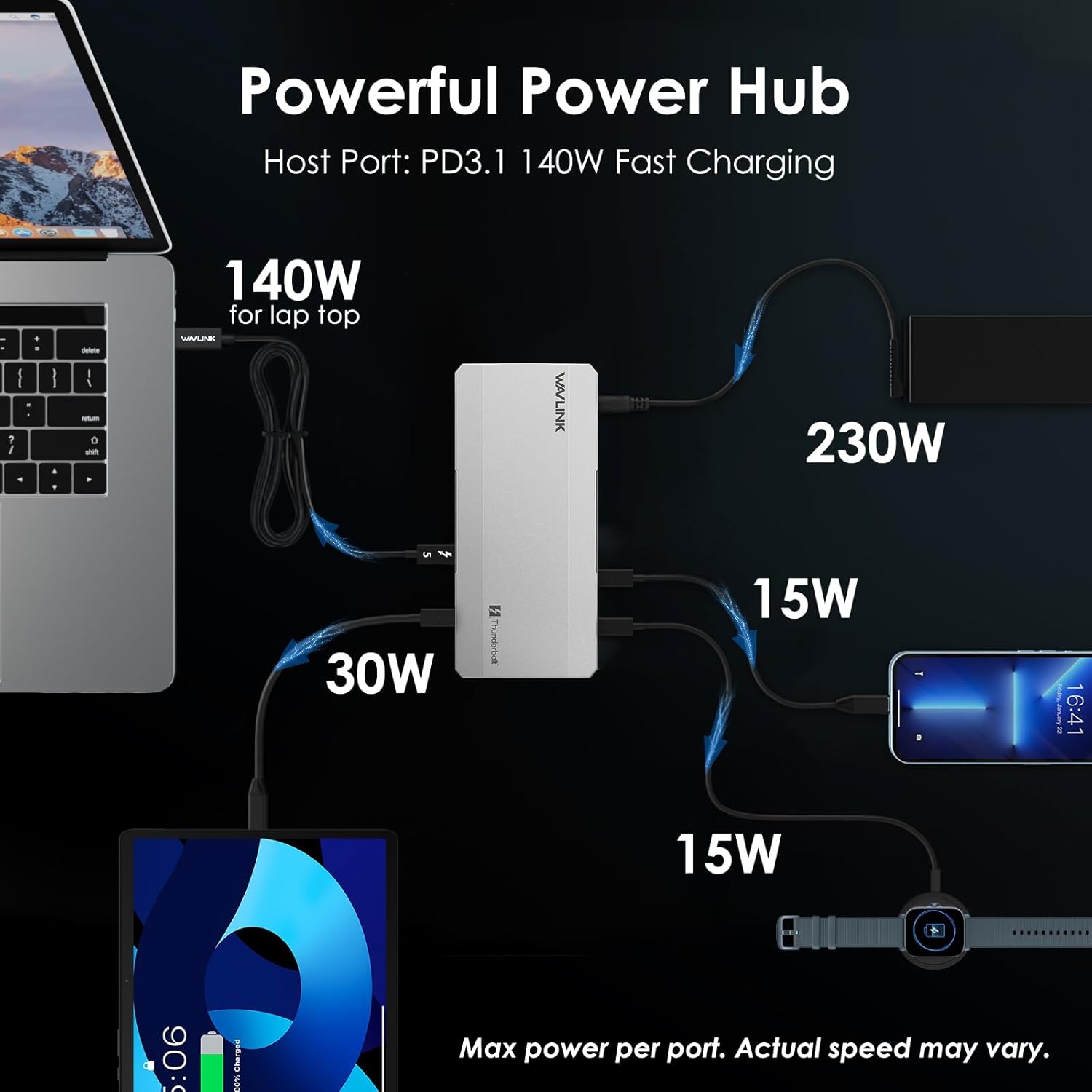
Image: A diagram showing the WAVLINK Thunderbolt 5 Docking Station as a powerful power hub, delivering 140W to a laptop, 30W to a tablet, and 15W to a smartphone and smartwatch. The total power input is 230W.
5. Maintenance
To ensure the longevity and optimal performance of your WAVLINK Thunderbolt 5 Docking Station, follow these maintenance guidelines:
- Cleaning: Use a soft, dry cloth to clean the exterior of the docking station. Avoid using liquid cleaners or aerosols, which may damage the device.
- Ventilation: Ensure the docking station is placed in a well-ventilated area. Do not block the side airflow vents. The active cooling fan and metal heat sink are designed to dissipate heat efficiently.
- Temperature: Operate the device within recommended temperature ranges. Avoid exposing it to extreme heat or cold.
- Cable Management: Organize cables to prevent strain on ports and accidental disconnections.
- Power Off: When not in use for extended periods, power off the docking station using the front power button to conserve energy and prolong component life.

Image: A visual representation of the WAVLINK Thunderbolt 5 Docking Station's cooling system, featuring an active cooling fan, metal heat sink, side airflow vents, and a cooling silicone base, all designed to maintain full performance.
6. Troubleshooting
If you encounter issues with your WAVLINK Thunderbolt 5 Docking Station, refer to the following common solutions:
- No Display Output:
- Ensure the Thunderbolt 5 cable is securely connected to both the dock's host port and your laptop.
- Verify that your laptop's USB-C port supports Thunderbolt 4 or 5.
- Check display cables and ensure they are properly connected to both the dock and the monitors.
- Confirm your operating system and display drivers are up to date.
- For resolutions higher than 6K or refresh rates above 60Hz, ensure both your monitor and host GPU support Display Stream Compression (DSC).
- Note: macOS supports a maximum of two external displays.
- No Power Delivery to Laptop:
- Ensure the power adapter is correctly connected to the dock and a working power outlet.
- Verify that your laptop supports PD 3.1 for 140W fast charging.
- Check the Thunderbolt 5 cable for damage; use the included cable for best results.
- USB Devices Not Recognized:
- Try connecting the USB device to a different USB-A port on the dock.
- Ensure the device drivers are installed on your computer.
- Restart your computer and the docking station.
- Slow Data Transfer:
- Ensure you are using the correct ports for high-speed devices (e.g., Thunderbolt 5 ports for NVMe drives).
- Verify that your external storage devices support the advertised speeds.
- Network Connection Issues:
- Check the Ethernet cable connection to both the dock and your router/modem.
- Ensure your network drivers are updated.
- Overheating:
- Ensure the docking station has adequate ventilation and its vents are not obstructed.
- Reduce the number of high-power devices connected if the issue persists.
If you are unsure about compatibility or continue to experience issues, please consult our pre-sales support team.
7. Specifications
| Feature | Detail |
|---|---|
| Brand | WAVLINK |
| Model Number | UTD59 |
| Hardware Interface | Thunderbolt |
| Number of Ports | 12 |
| Total USB Ports | 4 (USB-A 3.2 Gen 2) |
| Data Transfer Rate | Up to 120 Gigabits Per Second (Thunderbolt 5) |
| Power Delivery (Host) | 140W Max (PD 3.1) |
| Power Delivery (Downstream TB5) | 1x 30W, 2x 15W |
| Ethernet | 2.5G Ethernet |
| Card Reader | SD 4.0 (312MB/s) |
| Compatible Devices | Windows 10/11 & macOS 10.15.x and later, ChromeOS 100.x and later. Supports full-featured USB-C, USB4, Thunderbolt 3/4/5 systems. |
| Minimum Required OS | Windows 11 |
| Operating System | Windows, macOS |
| Enclosure Material | Plastic (with metal heat sink) |
| Color | White |
8. Warranty and Support
The WAVLINK Thunderbolt 5 Docking Station (Model UTD59) comes with a 2-Year Manufacturer Warranty.
For technical assistance, setup inquiries, or warranty claims, please contact WAVLINK's dedicated technical support team:
- Phone Support: +1 8889730883 (UTC-5) Mon - Fri 9AM - 6PM
- Email Support: Contact@wavlink.com
- Online Resources: Visit the official WAVLINK website for drivers, FAQs, and additional support.
9. Product Videos
Watch these official product videos for a visual guide to the WAVLINK Thunderbolt 5 Docking Station's features and capabilities.
WAVLINK Thunderbolt 5 Docking Station Overview
Video: An official overview of the WAVLINK Thunderbolt 5 Docking Station, showcasing its design, ports, and key features. This video provides a quick visual introduction to the product.
Detailed Look at the WAVLINK Intel Certified Thunderbolt 5 Docking Station
Video: A more in-depth presentation of the WAVLINK Intel Certified Thunderbolt 5 Docking Station, detailing its advanced functionalities, connectivity options, and performance benefits for various computing environments.


