
Introduction
The MAIWO K3015CF6 is a versatile 6-bay CFast Card Reader and 1-to-5 Offline Cloner designed for efficient data management. It supports CFast 2.0 cards and offers both online read/write capabilities via USB 3.0 and standalone offline cloning. This manual provides detailed instructions for setting up, operating, and maintaining your device.
Package Contents
Please verify that all items are present in your package:
- 1x MAIWO CFast Card Reader & Cloner (K3015CF6)
- 1x USB-C to USB-C + USB-A Cable
- 1x 12V/5A Power Supply
- 1x Quick Start Guide

Product Overview
Familiarize yourself with the physical components and indicators of your MAIWO CFast Card Reader & Cloner.
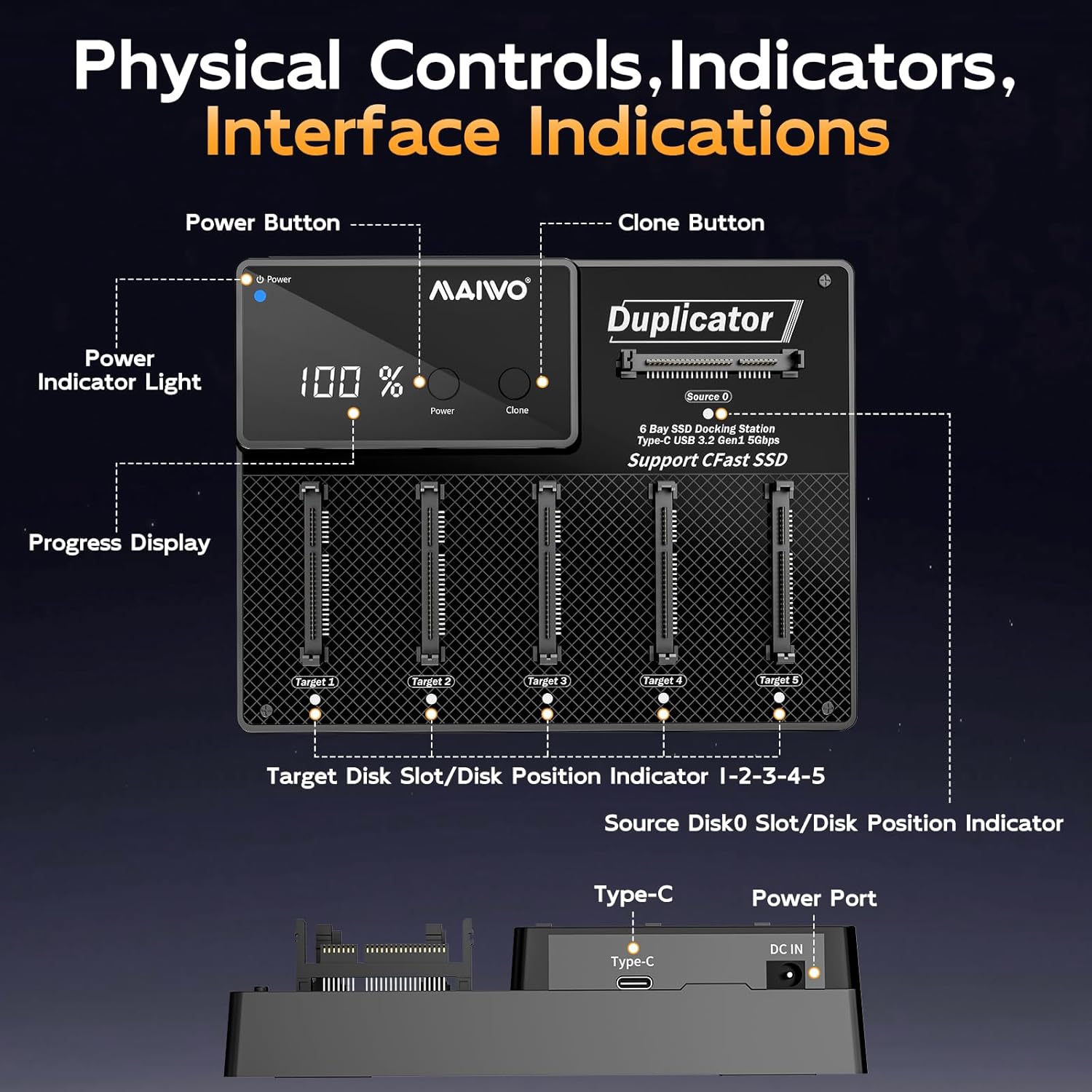
- Power Button: Turns the device on or off.
- Clone Button: Initiates the offline cloning process.
- Power Indicator Light: Indicates power status.
- Progress Display: Shows cloning progress or other status information.
- CFast Card Slots (Source 0, Target 1-5): Bays for inserting CFast cards.
- Type-C Port: USB 3.1 data transfer interface for PC connection.
- DC IN Port: For connecting the 12V/5A power supply.
Indicator Lights
The device uses indicator lights to communicate its status:
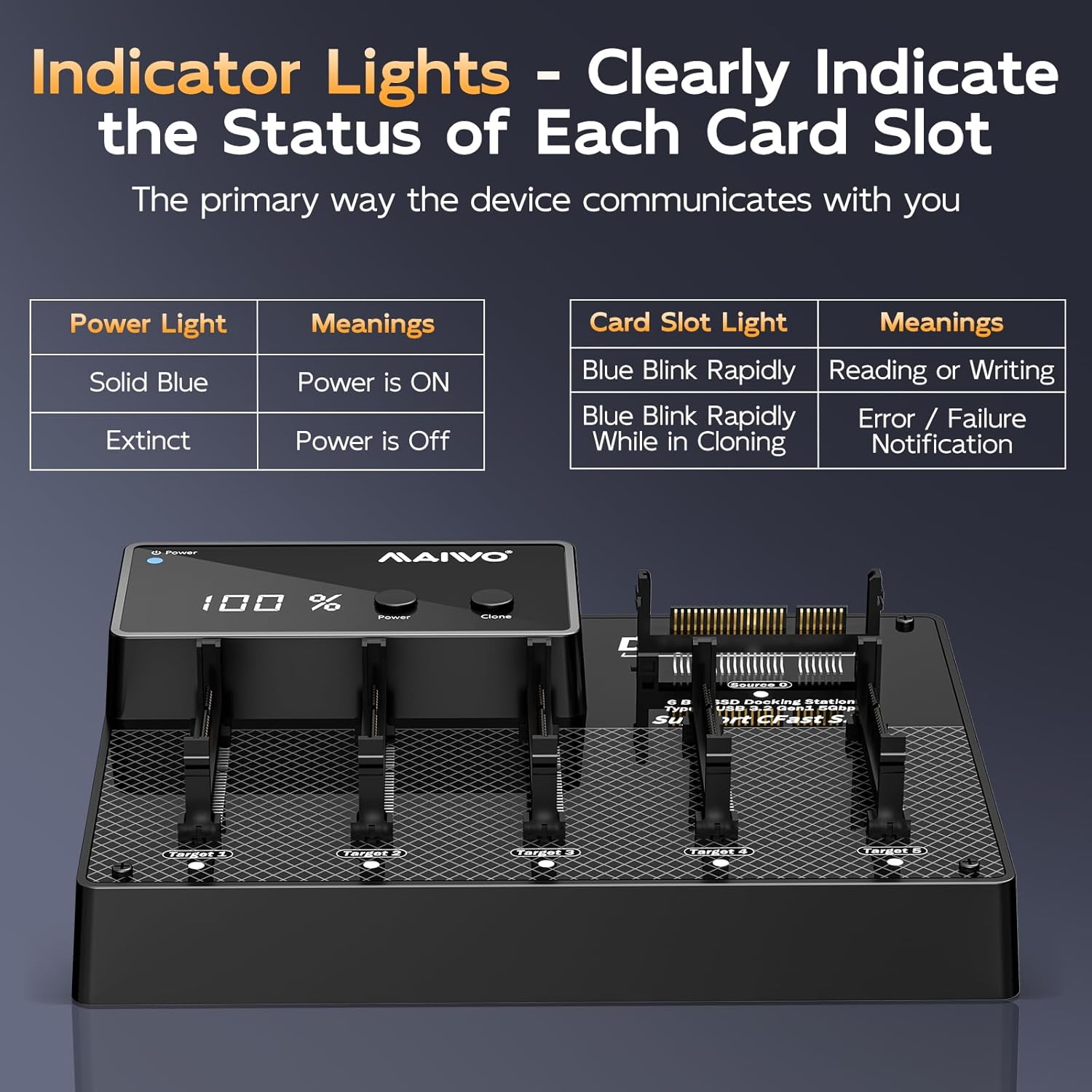
| Indicator | Status | Meaning |
|---|---|---|
| Power Light | Solid Blue | Power is ON |
| Power Light | Extinct | Power is OFF |
| Card Slot Light | Blue Blink Rapidly | Reading or Writing |
| Card Slot Light | Blue Blink Rapidly While in Cloning | Error / Failure Notification |
Setup
Follow these steps to set up your MAIWO CFast Card Reader & Cloner:
- Connect Power: Plug the provided 12V/5A power adapter into the DC IN port on the back of the device, then connect the adapter to a power outlet.
- Power On: Press the Power button on the device. The Power Indicator Light should turn solid blue.
- (Optional) Connect to PC: If you intend to use the device as a card reader, connect the USB-C end of the provided cable to the Type-C port on the device, and the other end (USB-C or USB-A) to your computer.

Operating Instructions
Online Read & Write Operations (PC Connected)
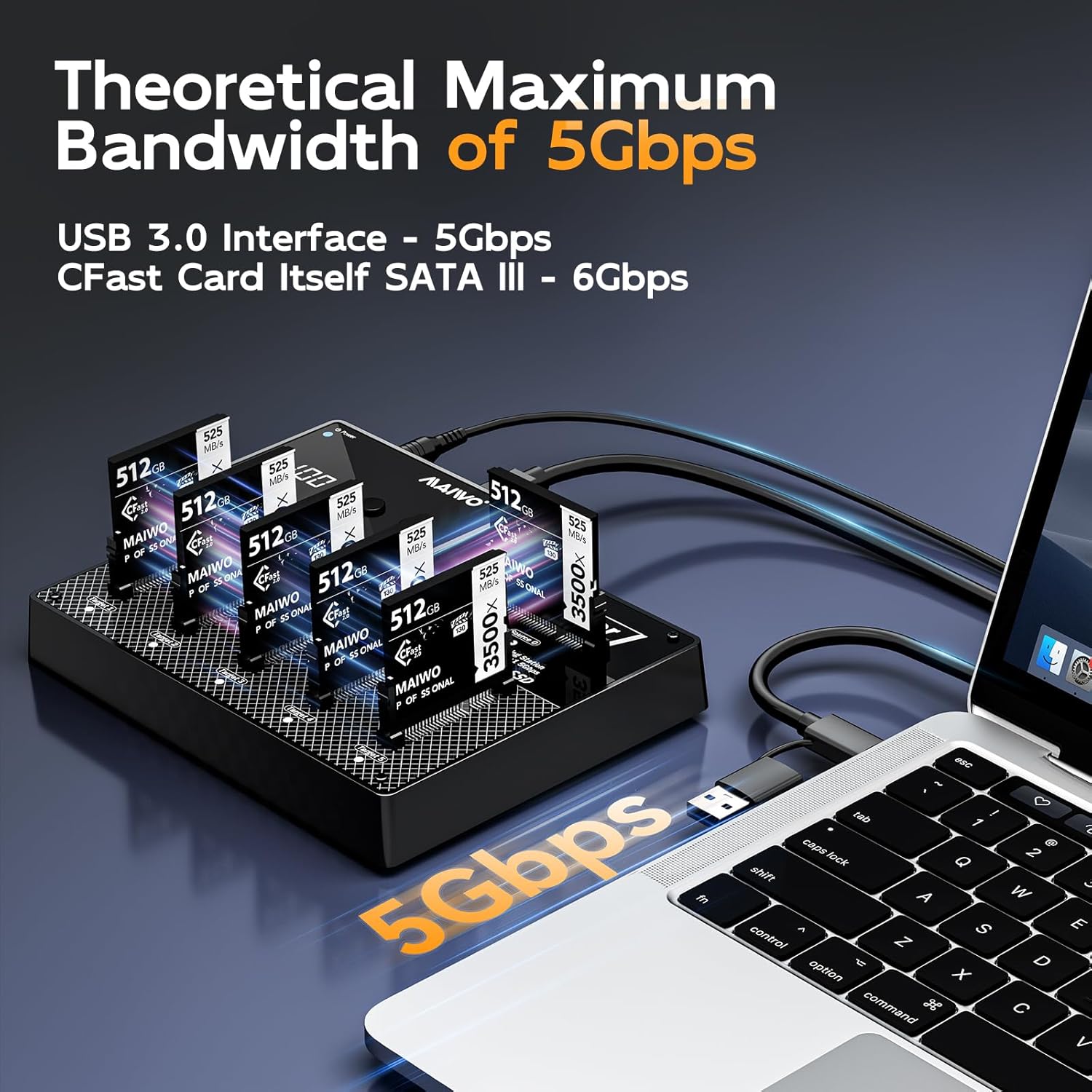
When connected to a computer, the device functions as a multi-card reader, allowing independent access to each CFast card.
- Ensure the device is powered on and connected to your computer via the USB cable.
- Insert CFast cards into any of the available slots (Source 0, Target 1-5).
- Your computer's operating system (Windows, macOS, Linux) will detect the inserted cards as separate drives.
- You can now read from or write to the CFast cards as you would with any external storage device.

Offline Cloning Process (Standalone Operation)
The device supports 1-to-5 offline cloning without requiring a computer.
- Prepare Cards: Ensure the source CFast card (the card you want to copy from) is inserted into the Source 0 slot. Insert up to five destination CFast cards (the cards you want to copy to) into the Target 1 through Target 5 slots.
- Capacity Requirement: Each target card must have equal or greater physical storage capacity than the source card.
- Power On: Ensure the device is powered on.
- Initiate Cloning: Press and hold the Clone button for approximately 3-5 seconds until the cloning process begins. The progress display will show the cloning percentage, and the target card slot lights will blink rapidly.
- Completion: The cloning process is complete when the progress display shows 100% and the indicator lights for the target cards stop blinking.
- Safe Removal: Once cloning is complete, power off the device before removing the CFast cards.


Maintenance
To ensure the longevity and optimal performance of your MAIWO CFast Card Reader & Cloner, follow these maintenance guidelines:
- Cleaning: Use a soft, dry cloth to clean the exterior of the device. Avoid using liquid cleaners or solvents.
- Storage: Store the device in a cool, dry place away from direct sunlight and extreme temperatures.
- Handling: Handle CFast cards and the device with care to prevent physical damage to connectors and slots.
- Heat Dissipation: The device features an aluminum alloy chassis for passive cooling. Ensure adequate airflow around the device during operation to prevent overheating.

Troubleshooting
If you encounter issues with your device, refer to the following common problems and solutions:
- Device Not Powering On:
- Ensure the 12V/5A power adapter is securely connected to both the device and a working power outlet.
- Verify the power outlet is functional.
- CFast Cards Not Detected (PC Connected):
- Check if the USB cable is securely connected to both the device and the computer.
- Try a different USB port on your computer.
- Ensure the CFast cards are fully inserted into their respective slots.
- Test with a different CFast card to rule out card issues.
- Offline Cloning Fails or Stops:
- Ensure the source card is in the Source 0 slot and target cards are in Target 1-5 slots.
- Verify that all target cards have equal or greater capacity than the source card.
- Check for any error indications on the card slot lights (rapid blinking during cloning indicates an error).
- Ensure the cards are properly seated.
- Try cleaning the card contacts and reinserting.
- Slow Data Transfer Speed:
- Ensure you are using a USB 3.0 compatible port on your computer for optimal speeds.
- The actual speed may vary depending on the CFast card's speed and your computer's system performance.
Specifications
| Feature | Detail |
|---|---|
| Model Number | K3015CF6 |
| Brand | MAIWO |
| Color | Black |
| Hardware Interface | USB Type C |
| Special Feature | Plug and Play |
| Compatible Devices | Desktops, Gaming Consoles, Laptops, Tablets |
| Total USB Ports | 6 (for CFast cards) |
| Data Transfer Rate | 5 Gigabits Per Second (USB 3.1) |
| Operating System Compatibility | Windows, Mac OS, Linux |
| Enclosure Material | Acrylonitrile Butadiene Styrene (ABS) |
| Item Dimensions (L x W x H) | 3.46"L x 2.24"W x 1.5"H |
| Item Weight | 2 Pounds |
| Power Supply | 12V/5A |
| Max Capacity | 3TB (6 x 512GB CFast cards) |

Warranty and Support
The MAIWO K3015CF6 CFast Card Reader & Cloner comes with a 12-month warranty from the date of purchase, covering manufacturing defects. For technical support, warranty claims, or further assistance, please contact MAIWO customer service through the retailer where you purchased the product or visit the official MAIWO website for contact information.
Please retain your proof of purchase for warranty purposes.