
1. Introduction
This manual provides essential information for setting up, operating, and maintaining your SGIN S15 15.6 Inch Laptop. Designed for versatility, this laptop is suitable for academic tasks, creative projects, business needs, and personal use. It features a 15.6-inch Full HD IPS anti-glare display, a Celeron N5100 processor, 16GB DDR4 RAM, and a 1024GB SSD.
Key features include:
- Immersive 15.6-inch FHD IPS (1920×1080) Anti-Glare Display with 180° viewing.
- Powerful Celeron N5100 processor (4 cores, 4 threads, up to 2.8GHz).
- 16GB DDR4 RAM and 1024GB SSD for fast performance and ample storage.
- Pre-installed Windows 11 Pro operating system.
- Long-lasting 7000mAh battery for up to 8 hours of continuous use.
- Efficient dual cooling fans for sustained performance.
- Rich connectivity with HDMI, Type-C, 3.5mm TRRS jack, memory card slot, and USB 3.2 ports.
- Advanced wireless connectivity with WiFi 6 and Bluetooth 5.2.
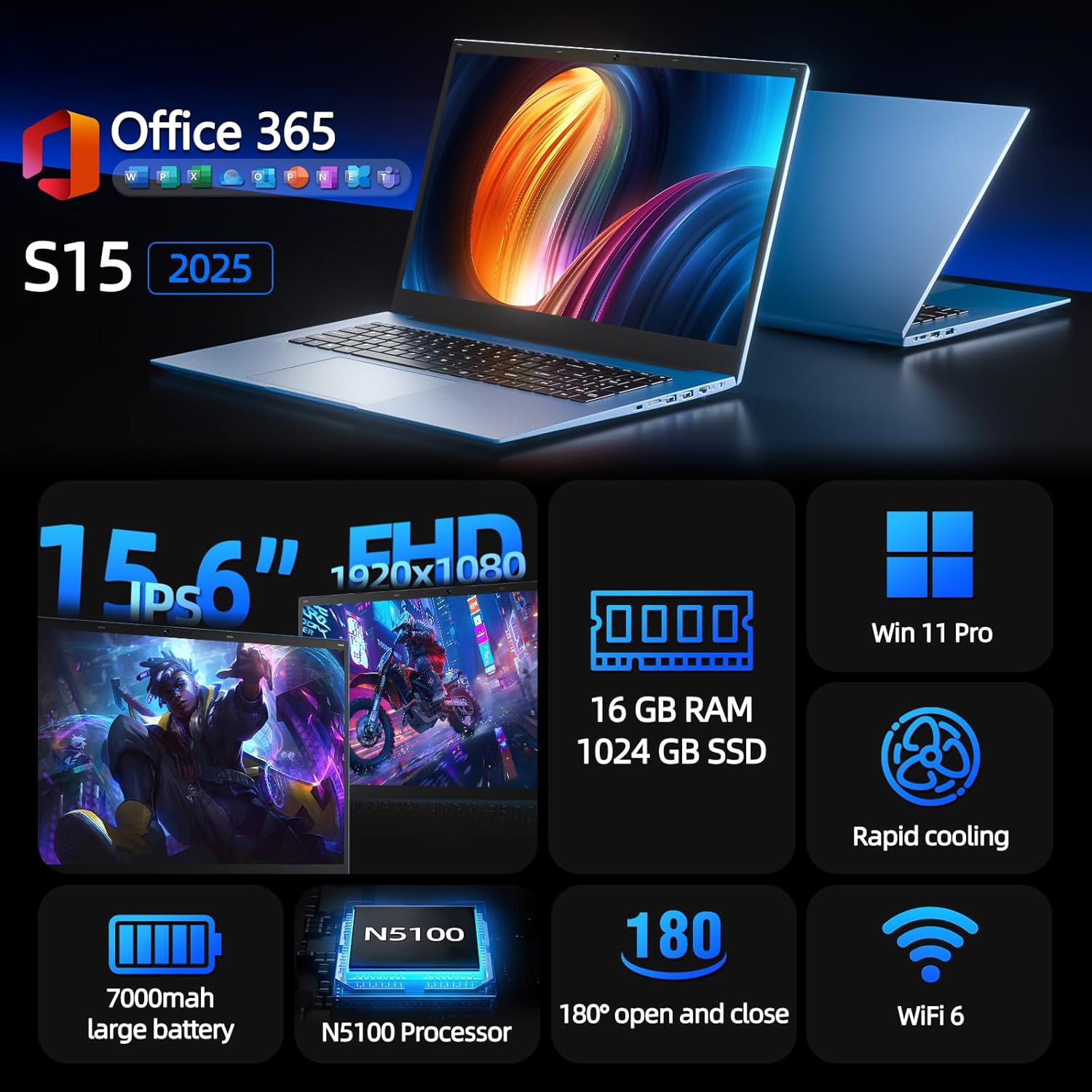
Image 1.1: The SGIN S15 laptop, showcasing its sleek design and 15.6-inch display.
2. What's in the Box
Upon opening the package, you will find the following items:
- SGIN S15 15.6 Inch Laptop
- Power Adapter/Charger
- User Manual (this document)
- Quick Start Guide
The laptop is securely packaged to prevent damage during transit.
Video 2.1: An unboxing demonstration of the SGIN S15 laptop, showing the contents of the package and initial impressions.
3. Setup
3.1 Initial Power-on and Charging
Before first use, ensure the laptop is connected to the power adapter and fully charged. Locate the DC power port on the side of the laptop and plug in the charger. The charging indicator light will illuminate.

Image 3.1: The SGIN S15 laptop with its power adapter connected, ready for initial charging and setup.
3.2 Operating System Setup (Windows 11 Pro)
Your SGIN S15 laptop comes with Windows 11 Pro pre-installed. Follow the on-screen prompts to complete the initial setup process:
- Language and Region Selection: Choose your preferred language and region.
- Keyboard Layout: Select your keyboard layout.
- Connect to Network: Connect to a Wi-Fi network to proceed with updates and account setup.
- Updates: The system will check for and download necessary Windows updates. This may take some time.
- Microsoft Account: Sign in with an existing Microsoft account or create a new one. This is required for full functionality and access to Microsoft services.
- Personal or Work Use: Select whether the device is for personal use or for work/school.
Once these steps are completed, your laptop will be ready for use.

Image 3.2: The Windows 11 Pro operating system interface on the SGIN S15 laptop.
4. Operating the Laptop
4.1 Display and Viewing
The SGIN S15 features a 15.6-inch Full HD IPS (1920x1080) anti-glare display, providing clear and vibrant visuals with wide viewing angles. The 180° lay-flat hinge allows for flexible screen positioning, making it easy to share content or adjust for optimal viewing comfort.

Image 4.1: The 15.6-inch IPS FHD display of the SGIN S15, highlighting its visual clarity and wide viewing angle.
4.2 Touchpad and Keyboard
The laptop is equipped with a large, responsive touchpad for precise navigation. The keyboard is designed for comfortable typing, suitable for extended work or study sessions.
4.3 Performance and Multitasking
Powered by the Intel Celeron N5100 processor and 16GB DDR4 RAM, the SGIN S15 offers smooth multitasking and efficient performance for everyday tasks, from browsing the web to running productivity applications.

Image 4.2: Overview of the SGIN S15 laptop, highlighting its processor, RAM, SSD, and Windows 11 Pro.
4.4 Battery Life and Cooling
The 7000mAh battery provides up to 8 hours of usage, ideal for on-the-go productivity. Dual cooling fans ensure efficient heat dissipation, maintaining optimal performance even under load.

Image 4.3: Visual representation of the SGIN S15's 7000mAh battery and efficient cooling system.
4.5 Connectivity
The laptop offers a variety of ports for connecting peripherals and external devices:
- HDMI output
- Type-C port (rechargeable)
- 3.5mm TRRS audio jack
- Memory card slot (TF card up to 1TB)
- USB 3.2 ports
For wireless connectivity, it supports WiFi 6 for fast and stable internet access, and Bluetooth 5.2 for connecting wireless accessories.
Image 4.4: Detailed view of the SGIN S15 laptop's multiple interfaces, including HDMI, Type-C, USB 3.2, and audio jack.
5. Maintenance
5.1 General Care
- Keep the laptop clean by gently wiping surfaces with a soft, dry cloth.
- Avoid exposing the laptop to extreme temperatures, direct sunlight, or high humidity.
- Do not place heavy objects on the laptop.
- Ensure proper ventilation by not blocking the cooling vents.
5.2 Software Updates
Regularly check for and install Windows updates to ensure your system has the latest security patches and performance improvements. You can typically find update options in the Windows Settings menu.
6. Troubleshooting
If you encounter any issues with your SGIN S15 laptop, consider the following basic troubleshooting steps:
- No Power: Ensure the power adapter is securely connected to both the laptop and a working power outlet. Check if the battery is charged.
- Screen Issues: If the screen is blank or flickering, try restarting the laptop. Ensure no external display is connected or try connecting one to check if the issue is with the laptop's display.
- Slow Performance: Close unnecessary applications, check for background processes, and ensure your system is up-to-date. Consider running a disk cleanup or defragmentation.
- Connectivity Problems: For Wi-Fi issues, restart your router and the laptop. For Bluetooth, ensure the device is discoverable and within range.
- Software Glitches: Restarting the laptop often resolves minor software issues. If persistent, check for software updates or consider reinstalling the problematic application.
For more complex issues, refer to the official SGIN support resources or contact customer service.
7. Specifications
| Feature | Specification |
|---|---|
| Brand | SGIN |
| Model Number | SGIN-S15 |
| Screen Size | 15.6 Inches |
| Display Resolution | 1920 x 1080 pixels (FHD IPS Anti-Glare) |
| CPU Manufacturer | Intel |
| CPU Model | Celeron N5100 (4 Cores, 4 Threads) |
| CPU Speed (Max) | 2.8 GHz |
| RAM | 16GB DDR4 |
| Storage | 1024GB SSD (Expandable with TF card up to 1TB) |
| Operating System | Windows 11 Pro |
| Battery Capacity | 7000mAh (52 Watt Hours) |
| Wireless Connectivity | WiFi 6 (802.11ax), Bluetooth 5.2 |
| Ports | HDMI, Type-C, 3.5mm TRRS Jack, Memory Card Slot, USB 3.2 |
| Webcam | Yes |
| Human Interface Input | Touch Pad |
| Color | Gray |

Image 7.1: The SGIN S15 laptop highlighting its 1024GB SSD storage capacity.
8. Warranty and Support
The SGIN S15 laptop comes with a 1-year protection plan. For any inquiries, technical assistance, or warranty claims, please utilize the 24/7 customer instant help services provided by SGIN. Refer to your quick start guide or product packaging for specific contact information.