
1. Introduction
The NETUM NT-EM61 is a compact, industrial-grade embedded barcode scanner module designed for seamless integration into various systems. It supports both 1D and 2D barcode types, offering multiple communication interfaces for flexible connectivity. This manual provides essential information for setting up, operating, maintaining, and troubleshooting your NT-EM61 scanner module.
2. Product Overview
2.1 Key Features
- High-Performance Hybrid Scanning: Supports a wide range of 1D and 2D barcode symbologies, including EAN-13, QR Code, PDF417, and DataMatrix.
- Excellent Motion Tolerance: Captures barcodes quickly and accurately even when the target or device is in motion, ensuring reliable reading in dynamic environments.
- Multiple Communication Interfaces: Offers USB, TTL, RS232, and RS485 connections for versatile system integration.
- Industrial-Grade Durability: Engineered to withstand extreme temperatures (-20°C to +60°C), shocks, and vibrations, making it suitable for harsh industrial settings.
- Compact and Lightweight Design: Measures 77.8 × 66.4 × 44.7 mm and weighs approximately 70 g, facilitating easy installation in space-constrained applications.
2.2 Package Contents
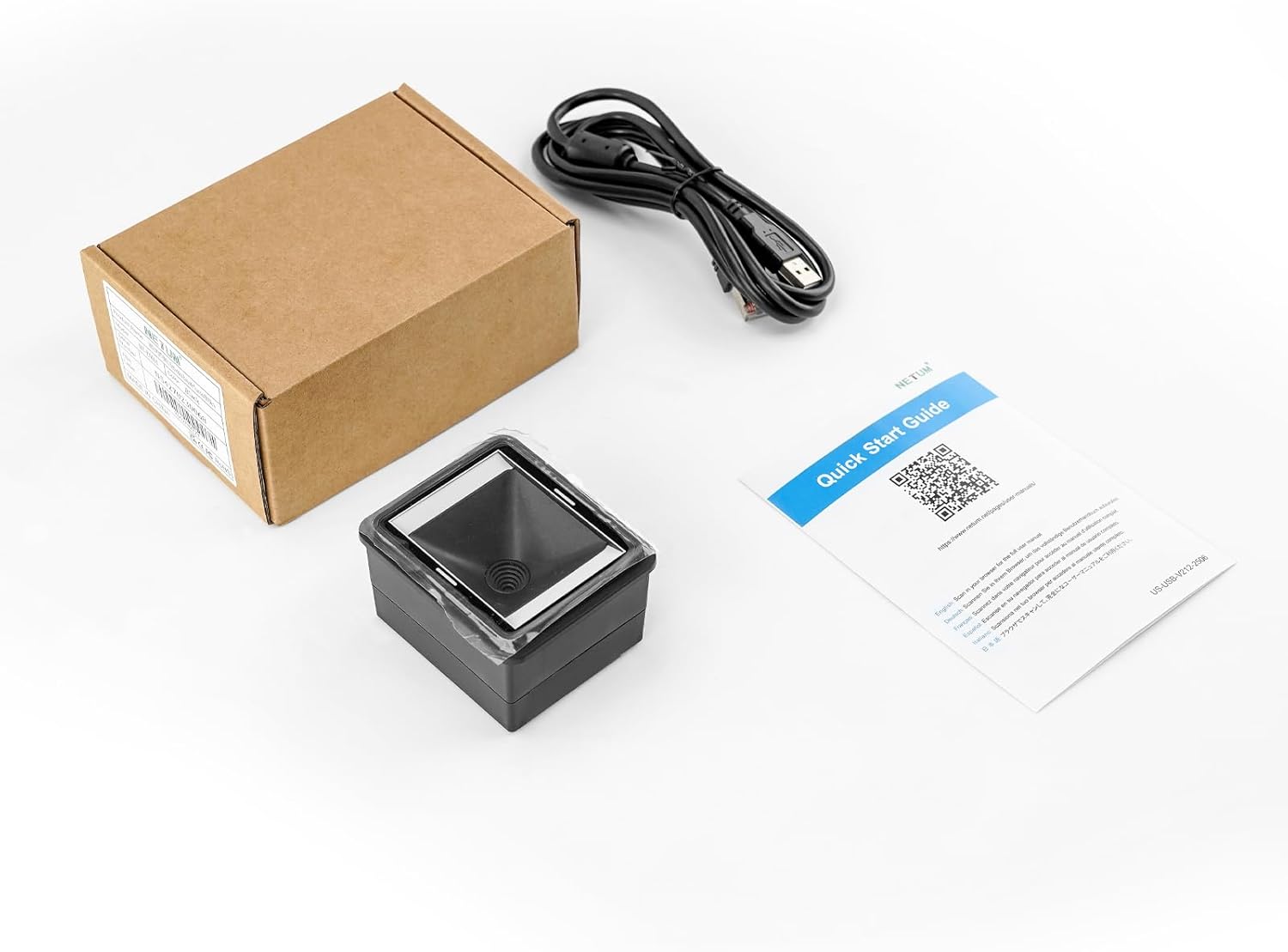
This image shows the typical contents of the NT-EM61 package: the barcode scanner module itself, a USB connection cable, and a Quick Start Guide which contains essential setup information and configuration barcodes.
- NETUM NT-EM61 Barcode Scanner Module
- USB Connection Cable (1.6 meters)
- Quick Start Guide
2.3 Physical Description and Dimensions

This diagram provides the physical dimensions of the scanner: 7.7 cm height, 6.5 cm width, and 4.6 cm depth. It also highlights the Ethernet-style port for USB connection and a smaller USB-C port, indicating its compact design for integration.
The NT-EM61 features a compact, rectangular design with a scanning window on the top surface. Connection ports are located on the side for easy integration. Its small footprint allows for discreet embedding into various devices and systems.
3. Setup
3.1 Connecting the Scanner

The image shows the NT-EM61 scanner module connected to a laptop, illustrating a typical setup for testing or integration into a desktop environment. The USB cable provides both power and data communication.

This image displays the scanner module alongside its included USB cable, which is 1.6 meters long, providing ample reach for integration into various systems.
- USB Connection: Connect the provided USB cable to the scanner's main port (RJ45-style) and the other end to an available USB port on your host device (PC, laptop, POS system). The scanner will typically be recognized as a keyboard (USB HID) or a virtual COM port (USB COM) depending on its configuration.
- TTL/RS232/RS485: For these interfaces, specialized cables and integration with your system's serial ports are required. Refer to the detailed programming guide (available online) for specific wiring and communication protocols.
3.2 Driver Installation
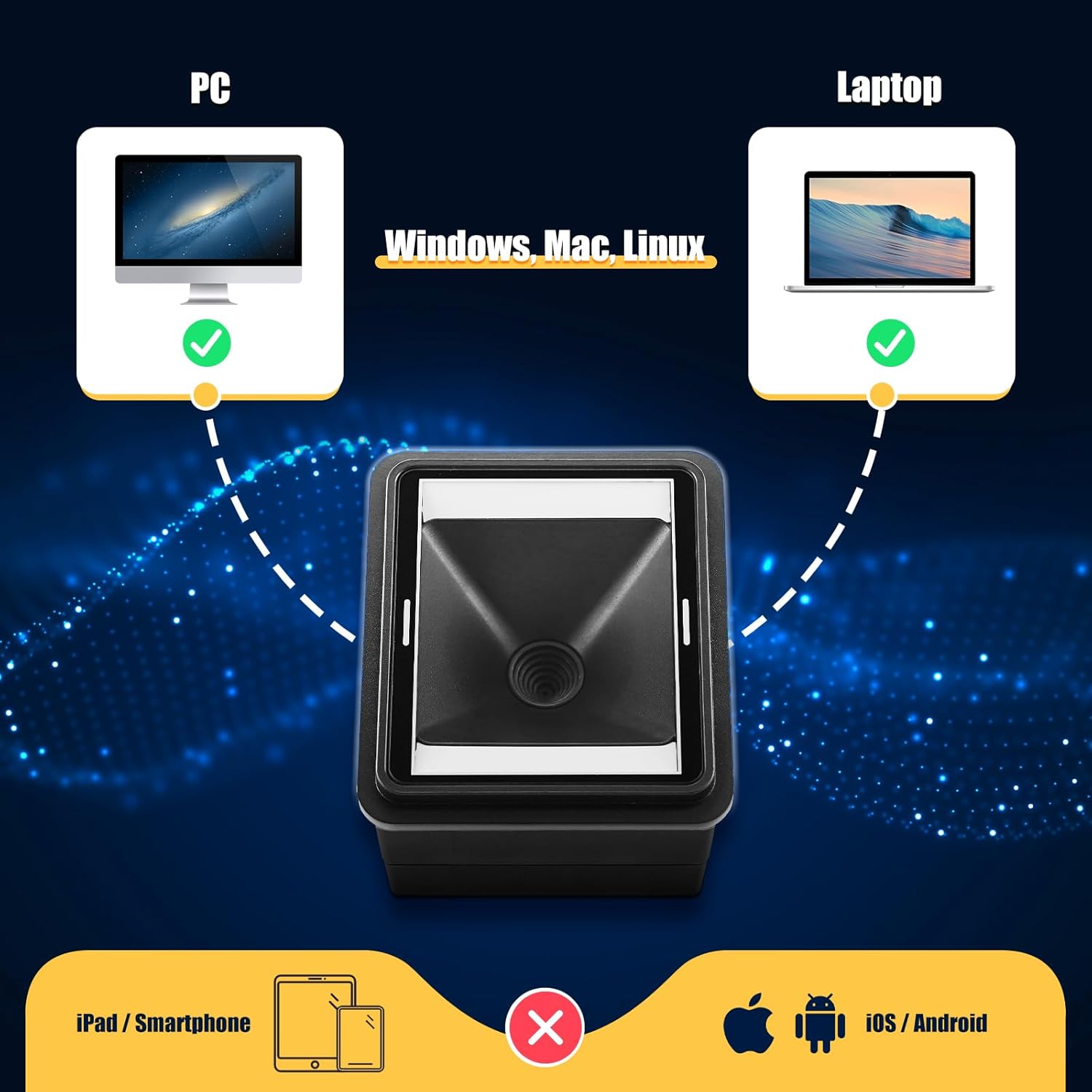
This graphic confirms the NT-EM61's broad compatibility, illustrating its connection to both desktop and laptop computers. It supports major operating systems including Windows, Mac, and Linux, making it suitable for various computing environments.
For USB HID mode, the scanner is generally plug-and-play and does not require specific driver installation on Windows, macOS, or Linux systems. It functions as a standard keyboard input device. For USB COM, TTL, RS232, or RS485 modes, specific drivers or configuration might be necessary depending on your operating system and application. Consult the online user manuals for detailed driver information.
4. Operating Instructions
4.1 Basic Scanning

The image shows the NT-EM61 module embedded in a point-of-sale system, demonstrating its automatic scanning feature. As a product with a barcode is moved near the scanner's window, the device detects and reads the barcode without manual triggering.

This image illustrates the NETUM NT-EM61's versatile scanning capabilities, showing it can accurately read diverse barcode formats such as standard 1D, 2D QR codes, inverted codes, and stacked codes like PDF417.
The NT-EM61 features automatic scanning. Once powered on and connected, simply present a barcode within the scanner's field of view. The scanner will automatically detect and decode the barcode. A successful scan is typically indicated by an audible beep and a green LED flash.
4.2 Scanning Performance

This diagram highlights the scanner's advanced imaging system, capable of reading barcodes from any angle (360 degrees) without precise alignment, ensuring fast and accurate data capture.
The scanner is designed for high-speed and accurate decoding, even with barcodes that are poorly printed, damaged, or displayed on screens. Its excellent motion tolerance allows for efficient scanning of items in motion. The wide viewing angle ensures that barcodes can be read from various orientations without needing precise alignment.
5. Configuration
5.1 Using Configuration Barcodes

This image indicates the NT-EM61's compatibility with multiple character encodings such as GBK, UTF-8, and Unicode, allowing it to process and output data correctly for diverse international applications.
The NT-EM61 scanner can be configured by scanning special programming barcodes found in the Quick Start Guide or the comprehensive user manual available online. These barcodes allow you to adjust settings such as:
- Interface type (e.g., USB HID, USB COM)
- Terminator characters (e.g., CR, TAB)
- Baud rate (for serial interfaces)
- Barcode symbology enable/disable
- Character encoding (e.g., GBK, UTF-8, Unicode)
- Volume of the beep sound
Always refer to the latest full user manual for a complete list of configuration options and their corresponding barcodes.
6. Maintenance
6.1 Cleaning the Scanner
To ensure optimal scanning performance, keep the scanner's window clean. Use a soft, lint-free cloth lightly dampened with water or a mild, non-abrasive cleaning solution. Do not use harsh chemicals or abrasive materials, as these can scratch the scanning window and impair performance.
6.2 Environmental Conditions
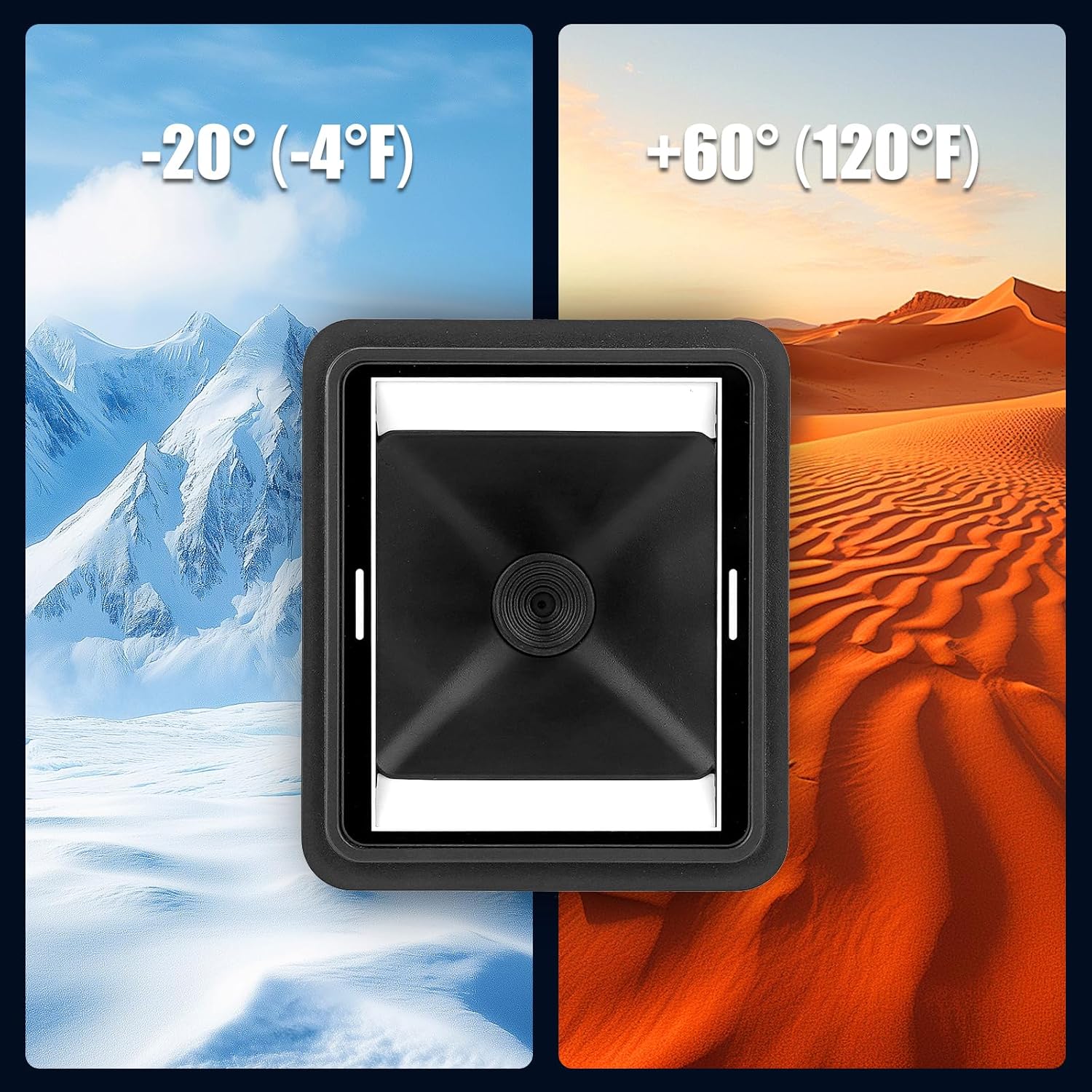
This image highlights the industrial-grade durability of the NT-EM61, showing its capability to function effectively across a wide temperature range, from freezing conditions of -20°C (-4°F) to hot environments of +60°C (120°F).
The NT-EM61 is designed for industrial use and can operate in temperatures ranging from -20°C (-4°F) to +60°C (120°F). Avoid exposing the scanner to extreme humidity, direct sunlight for prolonged periods, or corrosive substances. Ensure proper ventilation if integrated into an enclosed system to prevent overheating.
7. Troubleshooting
7.1 Common Issues and Solutions
| Issue | Possible Cause | Solution |
|---|---|---|
| Scanner does not power on. | No power supply; loose cable connection. | Ensure the USB cable is securely connected to both the scanner and the host device. Verify the host device is powered on. |
| Scanner does not read barcodes. | Barcode damaged/unreadable; incorrect symbology enabled; dirty scanning window; scanner not in correct mode. | Try scanning a known good barcode. Clean the scanning window. Ensure the required barcode symbology is enabled (refer to configuration). Verify the scanner is in the correct interface mode (e.g., USB HID). |
| Scanned data is incorrect or incomplete. | Incorrect character encoding; missing terminator character; host application issue. | Check the scanner's character encoding settings. Configure the appropriate terminator character (e.g., CR, TAB). Test with a simple text editor to rule out host application issues. |
| Scanner beeps but no data appears. | Incorrect interface mode (e.g., USB COM instead of USB HID); host application not ready to receive input. | Ensure the scanner is configured for the correct interface mode for your application. Verify the cursor is active in the input field of your host application. |
If you encounter issues not listed here, please refer to the comprehensive online manual or contact NETUM support.
8. Specifications
| Feature | Specification |
|---|---|
| Brand | NETUM |
| Model | NT-EM61 |
| Dimensions (L x W x H) | 77.8 x 66.4 x 44.7 mm (approx. 14.2 x 10.2 x 6.2 cm package) |
| Weight | Approx. 70 g (200 g package) |
| Scan Type | 1D and 2D CMOS Imager |
| Interfaces | USB (HID, COM), TTL, RS232, RS485 |
| Connectivity Technology | Wired (USB Cable) |
| Power Source | Wired Electric (typically via host USB) |
| Operating Temperature | -20°C to +60°C (-4°F to 120°F) |
| Storage Temperature | -40°C to +70°C (-40°F to 158°F) |
| Humidity | 5% to 95% (non-condensing) |
| Compatible Peripherals | Desktop Computer, Laptop, POS Systems |
| Real Viewing Angle | 66 Degrees |
9. Warranty and Support
9.1 Warranty Information
NETUM products typically come with a standard manufacturer's warranty. Please refer to the warranty card included with your product or visit the official NETUM website for detailed warranty terms and conditions specific to the NT-EM61 module.
9.2 Technical Support
For technical assistance, additional documentation, or to download the latest drivers and full user manuals, please visit the NETUM official support page:
You may also contact NETUM customer service through the contact information provided on their official website.


