
1. Product Overview
The VSDINSIDE K1 Pro Macro Keyboard is a wired, full-key programmable mechanical keyboard designed for enhanced productivity and gaming. It features an on-board keypad with a smart display screen and multi-function knobs, allowing for custom macros, shortcuts, and media control. The keyboard incorporates a gasket mount design, RGB backlighting, and hot-swappable switches for a personalized and comfortable user experience.
2. What's in the Box
Upon opening your VSDINSIDE K1 Pro Macro Keyboard package, please ensure all the following items are present:
- VSDINSIDE K1 Pro Macro Keyboard
- USB-A to USB-C Cable
- Keycap Puller
- 3 Extra Replaceable Switches
- User Manual (this document)
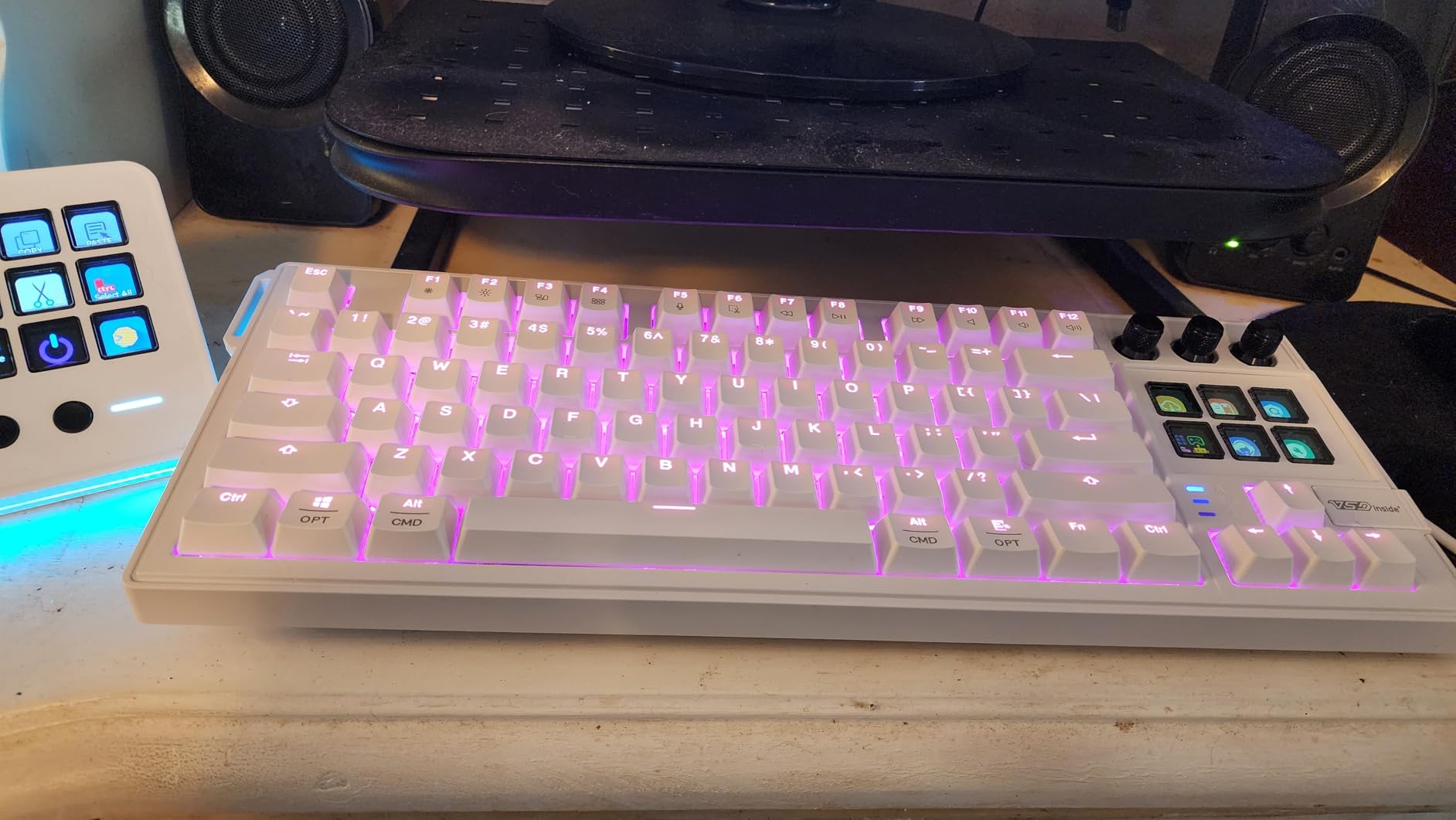
Image: Contents of the VSDINSIDE K1 Pro Macro Keyboard package, including the keyboard, USB cable, keycap puller, and extra switches.
3. Setup Guide
3.1 Connecting the Keyboard
- Locate the USB-C port on the VSDINSIDE K1 Pro keyboard.
- Connect one end of the provided USB-A to USB-C cable to the keyboard.
- Connect the USB-A end of the cable to an available USB port on your computer (Windows or macOS).
- The keyboard will automatically power on and the RGB backlighting will illuminate.
3.2 Software Installation (VSD Craf Software)
To unlock the full potential of your K1 Pro keyboard, including macro programming, custom LCD icons, and advanced stream controller functions, install the VSD Craf software.
- Visit the official VSDINSIDE website or the web-based interface at https://device.vsdinside.com/auth to download the latest VSD Craf software for your operating system (Windows/macOS).
- Follow the on-screen instructions to complete the software installation.
- After installation or any software update, it is recommended to reset your device for optimal performance.

Image: The VSD Craf software interface, demonstrating full-key programmable and macro customization options.
4. Operating Instructions
4.1 Full-Key Programmable On-Board Keyboard
The K1 Pro allows you to program every key on the keyboard. This includes assigning single shortcuts, complex macros, or multi-step operation flows. Use the VSD Craf software to record and edit macros to enhance your workflow and gaming efficiency.
- Macro Recording: Open the VSD Craf software, navigate to the macro recording section, and follow the prompts to record your desired key sequences.
- Key Assignment: Assign recorded macros or custom shortcuts to any key on the keyboard via the software interface.
4.2 Stream Controller Deck Function (LCD Keys & Knobs)
The integrated stream controller deck features 6 LCD keys and 3 multi-function knobs, offering extensive customization for streaming, gaming, and productivity.
- Switchable Pages: The knobs allow you to switch between unlimited customizable pages, each containing unique functions assigned to the 6 LCD keys.
- Custom Icons & Animations: Personalize each LCD key with images and animations (JPG, PNG, GIF) for quick visual recognition of assigned functions. This feature requires the VSD Craf software.
- Action Assignment: Assign individual actions or sequences (e.g., launching applications, executing game combos, controlling media playback) to the LCD keys.

Image: The K1 Pro Macro Keyboard highlighting its programmable LCD keys and knobs for one-tap execution of shortcuts and macros.

Image: Close-up of the LCD keys displaying customizable icons and animated GIFs for personalized recognition.

Image: The VSD Craf software interface illustrating the simple drag-and-drop method for assigning applications to LCD keys.
4.3 Smart Display Screen & Multi-function Knob
The built-in TFT color display and multi-function knobs provide real-time updates and customization options directly on the keyboard.
- Display Customization: Use the knobs to switch and customize GIFs, adjust volume, view date and time, and change backlighting settings.
- Note: Screen images/GIFs and date/time calibration require software installation under Windows/macOS and a wired connection.
4.4 RGB Backlight & Ergonomic Design
The K1 Pro features dynamic RGB backlighting and an ergonomic design for comfort during extended use.
- RGB Effects: The keyboard supports multiple dynamic RGB effects, monochrome, and multi-color modes with over 16.8 million colors. Adjust effects and colors via LCD keys, software, or dedicated shortcut keys.
- Adjustable Stands: The keyboard includes 3°, 6°, and 13° adjustable stands to reduce wrist fatigue.
- Concave Keycaps: Designed for comfortable typing.
- Non-slip Feet: Ensures keyboard stability on any desk surface.

Image: Detailed view of the K1 Pro's ergonomic features, including adjustable stands and concave keycaps, along with its anti-static USB connection.
4.5 Hardware-Only Mode vs. App-Controlled Mode
The K1 Pro offers two operational modes:
- Hardware-Only Mode: Provides quick access to basic functions like RGB controls, volume adjustment, and OS switching (Windows/Mac) without software.
- App-Controlled Mode: Unlocks advanced features such as unlimited scenes, 100+ downloadable plugins, customizable icons, and multi-task execution via the VSD Craf software.
Video: This video demonstrates the various functions and customization options of the VSDINSIDE K1 Pro Mechanical Keyboard, including custom icons, macro pad keys, and lighting effects. It showcases Windows/Mac mode switching, lighting brightness and speed adjustments, one-click webpage opening, and application launching, as well as multiple preset scenes and GIF animations on the LCD keys.
5. Maintenance
5.1 Hot-Swappable Switches and Keycaps
The VSD K1 Pro is designed with a hot-swappable PCB, allowing for easy replacement of switches and keycaps without soldering. This enables full personalization of your typing experience.
- Removing Keycaps: Use the provided keycap puller to gently remove keycaps. Hook the puller onto the keycap and pull upwards.
- Removing Switches: Use the switch puller to carefully grip the switch from its top and bottom clips, then pull it straight out.
- Installing New Switches: Align the pins of the new 3-pin or 5-pin switch with the holes on the PCB. Press down firmly until the switch clicks into place. Ensure pins are not bent.
- Installing New Keycaps: Align the new keycap with the switch stem and press down gently until it is secure.

Image: A close-up view of the hot-swappable linear red switches on the K1 Pro keyboard, illustrating the ease of customization.
5.2 Cleaning the Keyboard
Regular cleaning helps maintain the keyboard's performance and appearance.
- Disconnect the keyboard from your computer before cleaning.
- Use a soft, lint-free cloth slightly dampened with water or a mild cleaning solution to wipe down the keycaps and surface.
- For deeper cleaning, remove keycaps and use compressed air to clear debris from between switches.
- Avoid using harsh chemicals or abrasive materials that could damage the keyboard.
6. Troubleshooting
6.1 Keyboard Not Responding
- Ensure the USB-C cable is securely connected to both the keyboard and your computer.
- Try connecting the keyboard to a different USB port on your computer.
- Test the keyboard on another computer to rule out system-specific issues.
- If using a USB hub, try connecting directly to the computer.
6.2 RGB Lighting Issues
- Check the lighting settings via the LCD keys or the VSD Craf software to ensure desired effects are enabled and brightness is adjusted.
- If specific LEDs are not functioning, and the keyboard is under warranty, contact customer support.
6.3 Software/Macro Issues
- Ensure you have the latest version of the VSD Craf software installed.
- After any software installation or update, reset the device as recommended.
- Verify that macros are correctly recorded and assigned within the software.
- If issues persist, try reinstalling the VSD Craf software.
7. Specifications
| Brand | VSDINSIDE |
| Model Name | VSD K1 Pro |
| Connectivity Technology | USB-C (Wired) |
| Keyboard Description | Wired Mechanical Gaming Streaming Keyboard with Full-Key Programmable, Macro Recording, RGB Backlight, Hot-Swappable Switches and Smart LCD Display |
| Switch Type | Linear Mechanical Switches (Linear Red Switches), quiet and smooth |
| Keycap Type | Concave Keycaps |
| Backlighting | RGB (16.8 million colors, multiple dynamic effects) |
| Layout | QWERTY |
| Number of Keys | 87 |
| Compatible Devices | Laptop, PC, Windows, macOS |
| Minimum OS Version | Mac OS 11 Big Sur, Windows 10 |
| Product Dimensions | 5.75"L x 15.2"W x 1.69"H |
| Durability | Rated for 50 million keystrokes |
| Special Features | Advanced 5-layer dampening structure, Gasket mount, Hot-swappable, Smart display LCD screen, Stream controller deck with multi-function LCD keys and knob, Ergonomic adjustable stands |
8. Warranty & Support
8.1 Product Warranty
The VSDINSIDE K1 Pro Macro Keyboard comes with a 12-month warranty from the date of purchase. This warranty covers manufacturing defects and issues arising from normal use. It does not cover damage caused by misuse, accidents, unauthorized modifications, or natural disasters.
Please retain your proof of purchase for warranty claims.
8.2 Customer Support
For technical assistance, troubleshooting, or warranty inquiries, please contact VSDINSIDE Official customer support. You can typically find contact information on the product packaging, the official VSDINSIDE website, or through your retailer.
When contacting support, please have your product model (VSD K1 Pro) and proof of purchase ready.


