
1. Introduction
Thank you for choosing the QZT Mini WiFi Camera. This compact and versatile device is designed for discreet surveillance and recording, offering 1080p HD video, motion detection, and real-time viewing via a smartphone application. Please read this manual carefully to ensure proper setup and operation of your camera.

Image: Overview of the QZT Mini WiFi Camera and its key features accessible via the smartphone application.
2. Product Overview
The QZT Mini WiFi Camera features a main unit connected to a flexible lens cable, allowing for discreet placement. It supports 2.4GHz Wi-Fi connectivity for remote access and includes a rechargeable battery for portable use.
Components and Controls

Image: Detailed diagram illustrating the camera's dimensions, ports, and controls including the SD card slot, USB connection, ON/OFF switch, and reset button.
- Main Unit: Houses the electronics, battery, and control ports.
- Flexible Lens Cable: Connects the main unit to the camera lens for versatile positioning.
- SD Card Slot: For local video storage (supports up to 256GB, card not included).
- USB Connection: For charging and data transfer.
- ON/OFF Switch: Powers the device on or off.
- Reset Button: Used to restore factory settings or resolve connectivity issues.
3. Package Contents
Please check the package for the following items:
- QZT Mini WiFi Camera Unit (Main unit with flexible lens)
- Rechargeable Battery
- USB Charging Cable
- Instruction Manual
- Mounting Accessories (may vary)
4. Setup
4.1 Charging the Camera
Before first use, fully charge the camera. Connect the USB charging cable to the camera's USB port and to a power source (e.g., wall charger, power bank, or computer USB port).

Image: The camera can be charged via a wall charger, power bank, or directly from its battery connection.
4.2 Inserting the SD Card
Insert a compatible Micro SD card (up to 256GB, Class 10 or higher recommended) into the SD card slot on the main unit. Ensure the card is inserted correctly with the contacts facing down. The camera will not record without an SD card.
4.3 Downloading the App
Search for the 'Smart HD' app (or specified app in the manual) on your smartphone's app store (iOS or Android) and install it.
4.4 Connecting to Wi-Fi
- Power on the camera using the ON/OFF switch.
- Open the 'Smart HD' app on your smartphone.
- Follow the in-app instructions to add a new device. This typically involves scanning a QR code on the camera or connecting to the camera's temporary Wi-Fi hotspot.
- Connect the camera to your home or office 2.4GHz Wi-Fi network. Note: The camera only supports 2.4GHz Wi-Fi, not 5GHz.
- Once connected, you should see the camera's live feed in the app.
5. Operating Instructions
5.1 Basic Recording
The camera can record continuously or based on motion detection. Ensure an SD card is inserted for local storage. You can manage recording settings through the smartphone app.
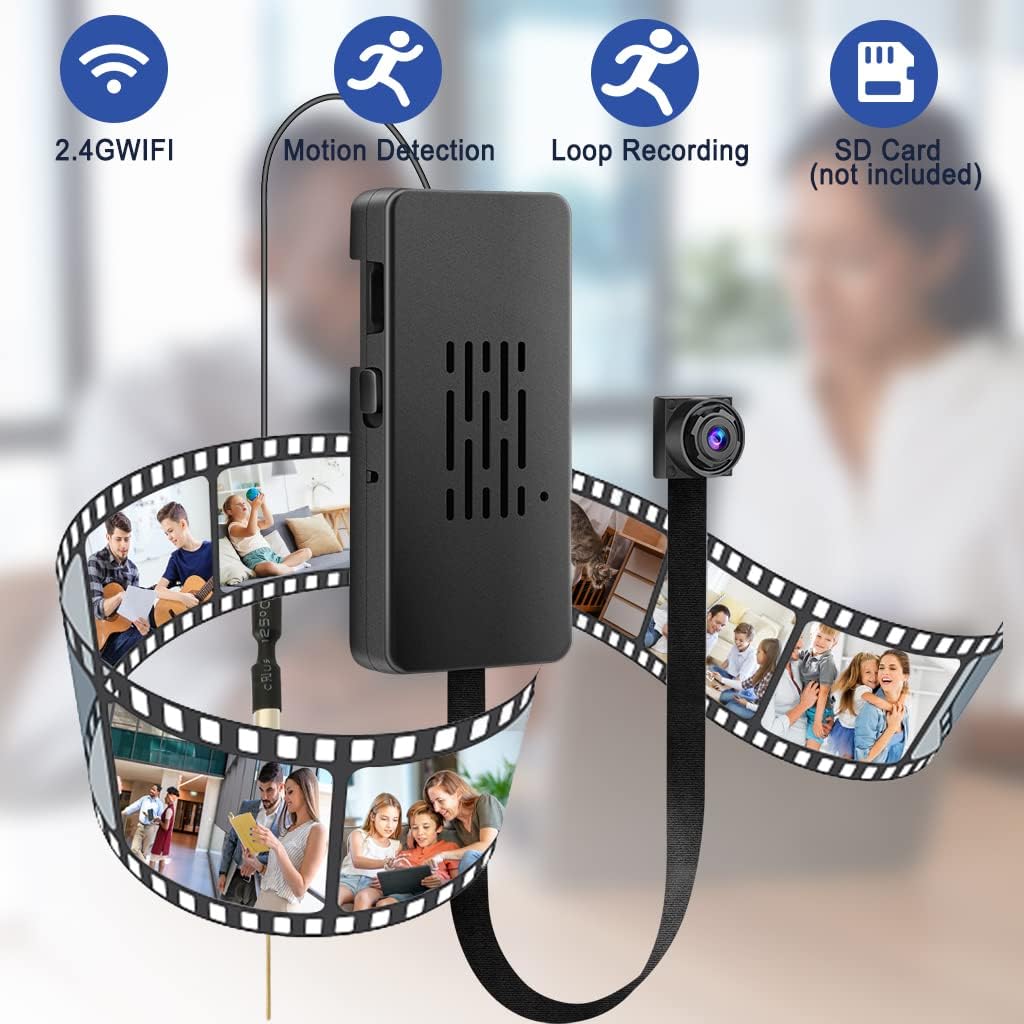
Image: The camera is designed for capturing various moments, from family activities to general surveillance.
5.2 Real-time Viewing
Access the 'Smart HD' app to view the camera's live feed from anywhere with an internet connection. The camera supports 1080p HD resolution for clear video.
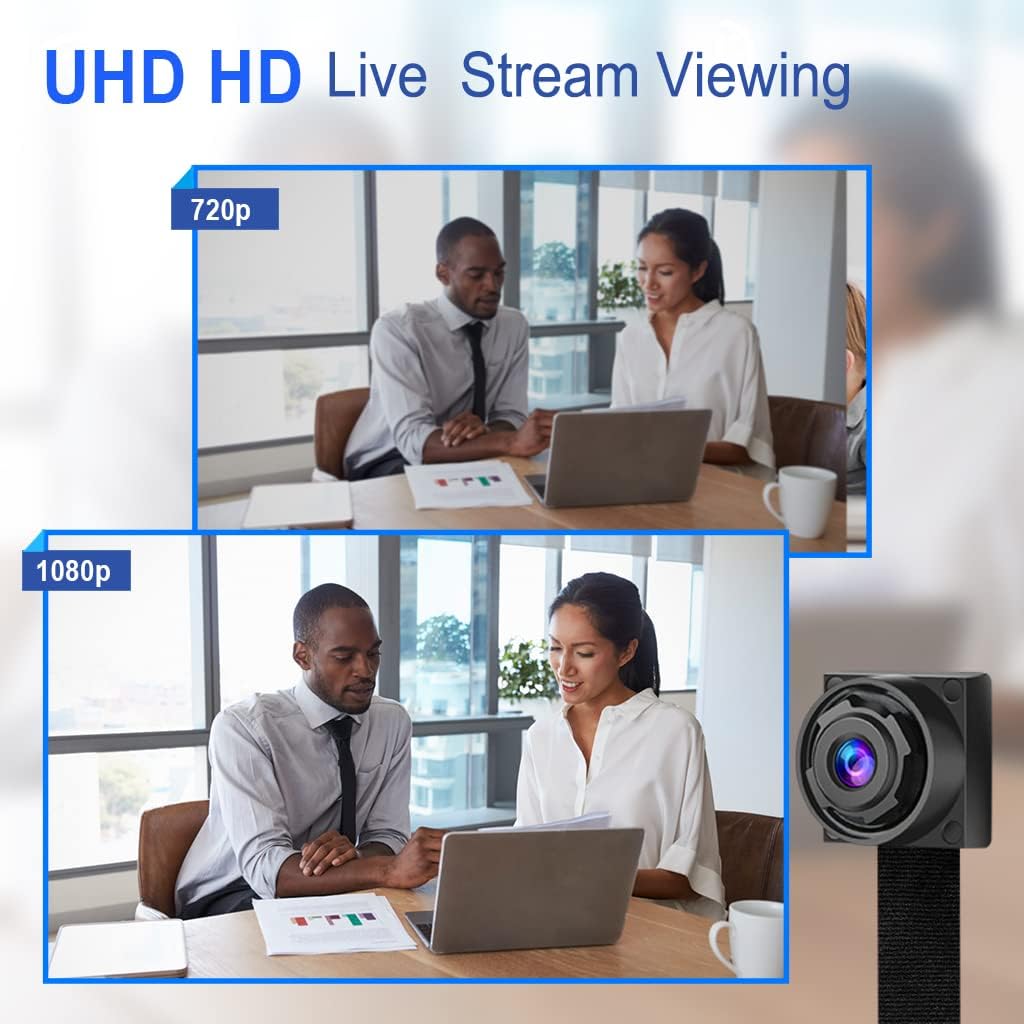
Image: Visual comparison of 720p and 1080p video quality, highlighting the enhanced detail of 1080p.
5.3 Motion Detection and Alarms
Enable motion detection in the app to receive instant notifications on your smartphone when movement is detected. The camera will automatically start recording when motion is triggered.
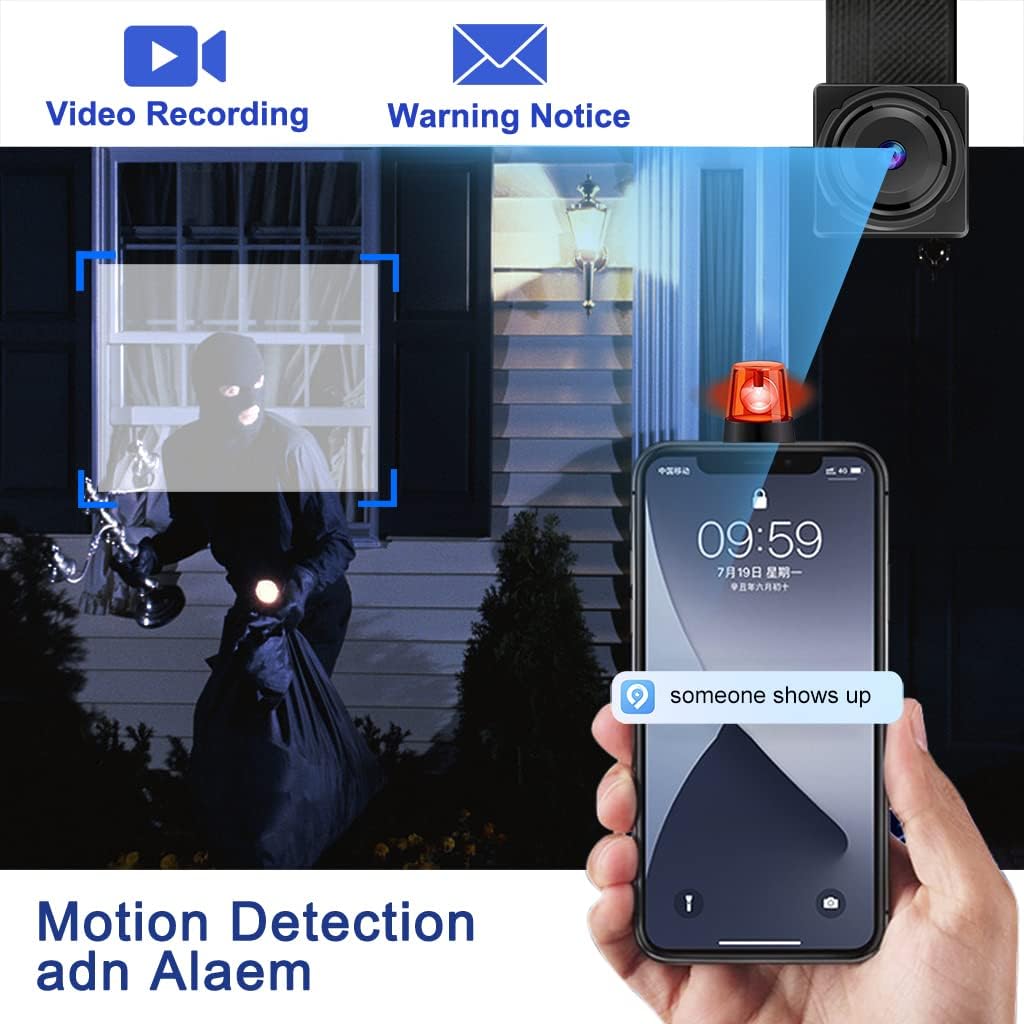
Image: The camera's motion detection feature sends alerts to your phone when activity is detected.
5.4 Loop Recording
When the SD card is full, the camera will automatically overwrite the oldest video files to continue recording. This ensures continuous surveillance without manual intervention.
5.5 Versatile Placement
The camera's compact size and flexible lens allow for discreet placement in various indoor environments, such as offices, homes, or personal spaces.

Image: Examples of discreet camera placement in various indoor settings.
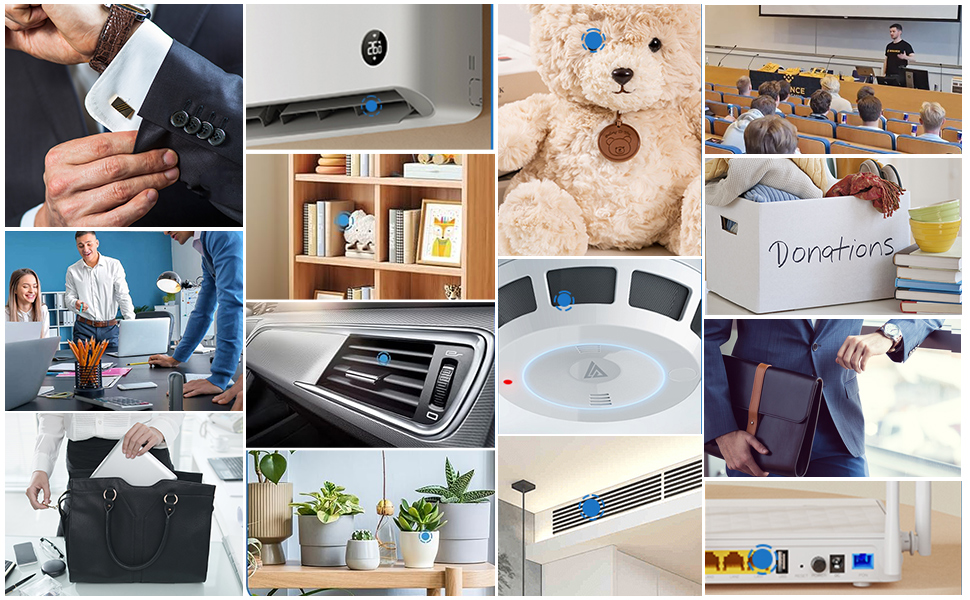
Image: The camera's small size allows for integration into diverse environments for discreet monitoring.
6. Maintenance
- Cleaning: Use a soft, dry cloth to clean the camera lens and main unit. Avoid using liquid cleaners or abrasive materials.
- Battery Care: To prolong battery life, avoid extreme temperatures and fully charge the camera before long periods of inactivity.
- Storage: Store the camera in a cool, dry place away from direct sunlight and moisture.
- Firmware Updates: Check the app regularly for any available firmware updates to ensure optimal performance and security.
7. Troubleshooting
- Camera not connecting to Wi-Fi:
- Ensure your Wi-Fi network is 2.4GHz. The camera does not support 5GHz.
- Check Wi-Fi password accuracy.
- Move the camera closer to the Wi-Fi router.
- Reset the camera using the reset button and try connecting again.
- No recording or SD card error:
- Ensure the SD card is inserted correctly.
- Format the SD card through the app or on a computer.
- Try a different SD card (Class 10 or higher recommended).
- Short battery life:
- Continuous recording and frequent motion detection alerts consume more power.
- Ensure the camera is fully charged before use.
- Consider connecting the camera to a continuous power source for extended operation.
- App not showing live feed:
- Check your smartphone's internet connection.
- Ensure the camera is powered on and connected to Wi-Fi.
- Restart the app or your smartphone.
8. Specifications
| Feature | Detail |
|---|---|
| Brand | QZT |
| Model Name | C10TUYA |
| Connectivity Technology | Wireless (Wi-Fi 2.4GHz) |
| Special Feature | HD Resolution |
| Indoor/Outdoor Use | Indoor |
| Color | Black |
| Batteries Required | Yes |
| Video Capture Resolution | 1080p |
| Video Capture Format | AVI |
| Item Dimensions | 24 x 5 x 2 cm |
| Recommended Use | Surveillance / Spy |
9. Warranty and Support
QZT products are designed for reliability and performance. For warranty information, technical support, or service inquiries, please refer to the contact information provided on the product packaging or the official QZT website. Keep your purchase receipt as proof of purchase.
