
1. Introduction
The OTTOCAST E2 AI Box is a revolutionary 3-in-1 solution designed to transform your car's infotainment system. It provides wireless CarPlay, wireless Android Auto, and a full Android 13 operating system, all in one compact device. This manual will guide you through the setup, operation, and features of your OTTOCAST E2 AI Box to ensure a seamless and enhanced driving experience.
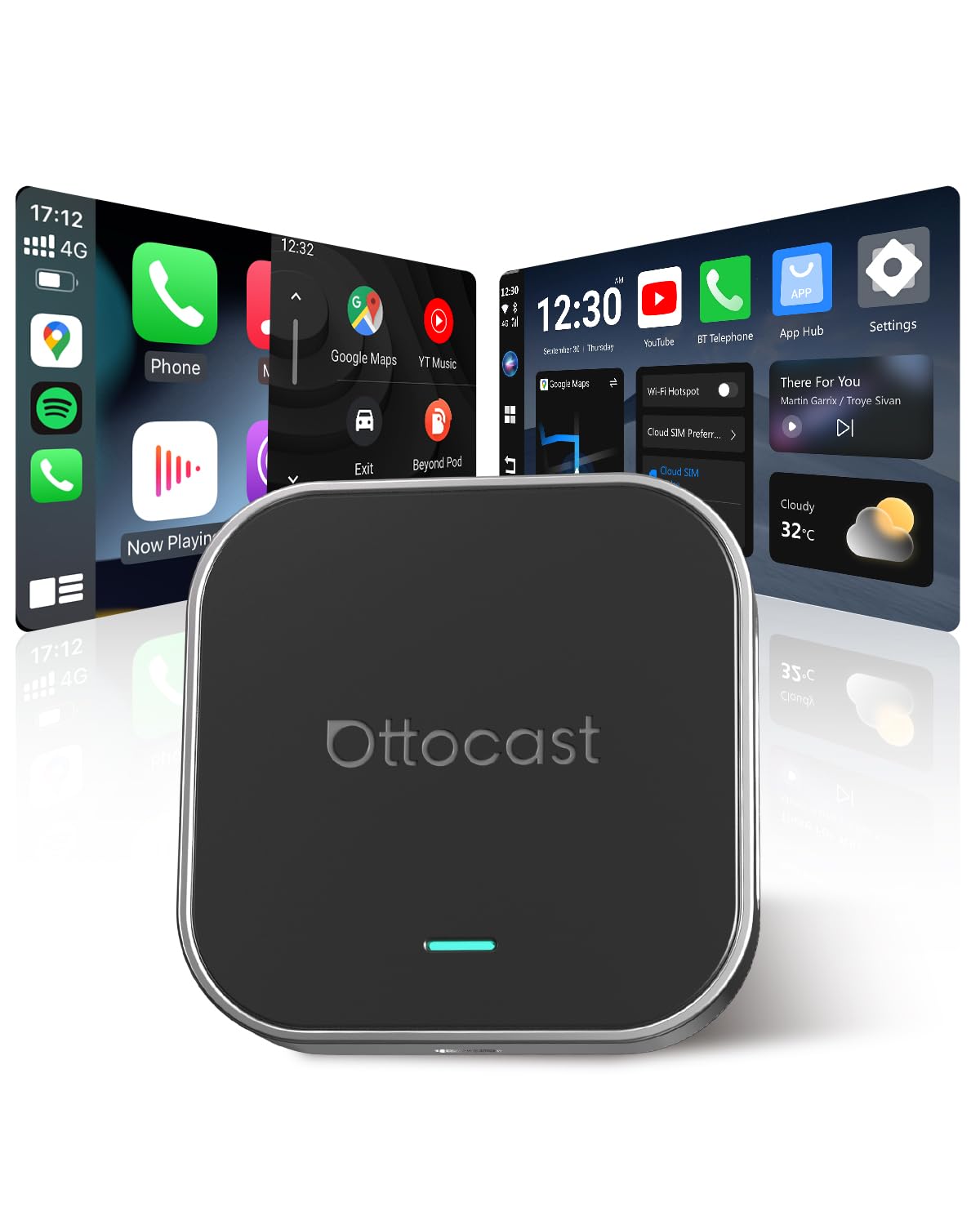
Image: The compact OTTOCAST E2 AI Box device.
2. What's in the Box
Upon unboxing your OTTOCAST E2 AI Box, you should find the following components:
- OttoAiBox E2
- USB-A to USB-C Cable
- USB-C to USB-C Cable
- Y-Cable (optional, for low-power ports)
- User Manual

Image: All components included in the OTTOCAST E2 AI Box package.
Unboxing Video
Video: An unboxing video demonstrating the contents and initial setup of a similar CarPlay Netflix device.
3. Product Overview and Key Features
The OTTOCAST E2 AI Box offers a comprehensive set of features to enhance your in-car experience:
- 3-in-1 Functionality: Seamlessly switch between wireless CarPlay, wireless Android Auto, and a full Android 13 operating system.
- Infinite Entertainment: Access popular apps like Netflix, YouTube, TikTok, Prime Video, and Google Maps directly on your car screen. Supports MicroSD cards up to 256GB for offline media.
- Powerful Performance: Equipped with an 8-core processor, 4GB RAM + 64GB ROM, Bluetooth 5.0, and dual-band WiFi (2.4/5GHz) for fast and stable operation.
- Flexible Connectivity: Connect via phone hotspot, car WiFi, Nano SIM, or Cloud SIM.
- AIcontrol App: Control your car's screen directly from your smartphone, ideal for rear passengers or cars without touchscreens.
- Split Screen Mode: Enjoy navigation and entertainment simultaneously with customizable screen ratios (7:3 / 5:5 / 3:7).
- Desktop Customization: Personalize your Android desktop with preferred apps, icons, and wallpapers.
- Original Control Support: Maintain control using your car's original touch screen, knob, buttons, and steering wheel controls.

Image: The OTTOCAST E2 AI Box highlighting its core 3-in-1 functionalities.

Image: Demonstrates wireless connectivity for navigation, music, calls, and calendar.

Image: Illustrates the transition from cluttered cables to elegant wireless simplicity.

Image: Details the powerful internal components of the OTTOCAST E2 AI Box.

Image: Your car becomes an entertainment hub with access to numerous apps.

Image: The device supports MicroSD cards for offline content, ensuring entertainment even without a signal.
Product Features Video
Video: A detailed product description showcasing the features and capabilities of the AI Box.
Video: A user guide demonstrating the various functions and applications of the device in action.
4. Setup Guide
Follow these steps to set up your OTTOCAST E2 AI Box:
- Connect the Device: Plug the OTTOCAST E2 into your car's USB port using the provided USB-A to USB-C or USB-C to USB-C cable. The device will automatically boot into the Android 13 interface.
- Pair Your Smartphone: Activate Bluetooth and Wi-Fi on your smartphone. On your car's display, open the "Multiplay App" to initiate pairing. Select your phone from the available devices and confirm the pairing.
- Enjoy Wireless Connectivity: Once paired, your smartphone will connect to the E2 via Bluetooth, enabling wireless CarPlay or Android Auto.
- Power Connection (Optional): If you experience disconnections or restarts, your car's USB port might not provide sufficient power. Use the included Y-cable to connect the E2 to both the car's USB port (for data) and an additional power source (like a car charger or power bank) for stable power.

Image: Visual guide for quick setup and connection.

Image: Explanation of the Y-cable for stable power supply.
Installation Videos
Video: Instructions on how to connect the OttoAiBox E2 via wired CarPlay.
Video: An official installation guide for Ottocast devices.
Video: Demonstrates how to connect the Ottocast Play2Video Ultra, applicable to E2 setup.
5. Operating Instructions
The OTTOCAST E2 AI Box provides a user-friendly interface with various control options:
- Navigation: Use pre-installed navigation apps like Google Maps.
- Media Playback: Stream videos from Netflix, YouTube, Prime Video, or play music from Spotify and other apps.
- App Management: Download and install any app from the Google Play Store.
- Split Screen: Utilize the split screen feature to run two applications simultaneously (e.g., navigation and video).
- AIcontrol App: Download the exclusive AIcontrol app on your smartphone to remotely control the car's display. This is particularly useful for passengers or vehicles without touchscreens. Download AIcontrol App
- System Updates: The device supports Over-The-Air (OTA) updates to ensure you always have the latest Android 13 features and improvements.

Image: Demonstrates multitasking with split-screen functionality.

Image: Personalize your desktop layout with apps and widgets.

Image: The device supports multiple control methods, including voice, knob, steering wheel, and touchscreen.

Image: The device supports online updates to keep your system current.
6. Compatibility
The OTTOCAST E2 AI Box is compatible with most cars that come with factory-wired CarPlay or Android Auto. Please note the following:
- Not Compatible: BMW and Tesla vehicles are not supported.
- Mode Switch: The device features a rear switch (CP for CarPlay cars / AA for Android Auto cars). Set it according to your vehicle's system. If your car supports both wired CarPlay and Android Auto, you do not need to change the switch; both modes will function perfectly.

Image: Illustrates broad car compatibility and the mode selection switch.
Compatibility Video
Video: Learn how to verify if your vehicle supports wired CarPlay.
7. Troubleshooting
- Frequent Disconnections or Restarts: If the device frequently disconnects or restarts, it is likely due to insufficient power from your car's USB port. Use the included Y-cable to provide additional power from a car charger or power bank. Refer to the "Setup Guide" section for Y-cable connection details.
- No Display After Connection: Ensure your car has factory-wired CarPlay or Android Auto. Check the mode switch on the back of the E2 (CP for CarPlay, AA for Android Auto) and set it correctly. Reconnect the device.
- App Issues: Ensure the device is connected to the internet (via Wi-Fi, hotspot, or SIM) for app downloads and updates. Check for system updates in the device settings.
8. Specifications
| Feature | Detail |
|---|---|
| Brand | OTTOCAST |
| Model | OTTOCAST E2 |
| Product Dimensions | 7.7 x 7.7 x 1.5 cm; 80 grams |
| Compatible Devices | iOS 10+ phones support wireless CarPlay; Android 11+ phones support wireless Android Auto. Models with factory-wired CarPlay or Android Auto (not compatible with BMW and Tesla). |
| Additional Features | 3-in-1 AI Box; converts wired CarPlay/Android Auto to wireless; open Android 13 system (supports app downloads); supports Nano SIM and microSD cards; online updates; AIcontrol app for screen control. |
| Audio Output Mode | Stereo, Surround |
| Connectivity Technology | Bluetooth, Ethernet, USB, Wi-Fi |
| Controller Type | Original control methods (touch screen/knob/console/steering wheel); AIcontrol app. |
| Video Encoding | H.264, H.265/HEVC |
| Supported Media Format | 4K |
9. Maintenance
To ensure the longevity and optimal performance of your OTTOCAST E2 AI Box, please follow these general maintenance guidelines:
- Keep the device clean and free from dust and debris. Use a soft, dry cloth for cleaning.
- Avoid exposing the device to extreme temperatures, direct sunlight for prolonged periods, or excessive moisture.
- Handle the device and cables with care to prevent physical damage.
- Regularly check for and install system updates to benefit from performance improvements and new features.
10. Warranty and Support
For warranty information, technical support, or any inquiries regarding your OTTOCAST E2 AI Box, please refer to the contact details provided in the included User Manual or visit the official OTTOCAST website. Ensure you retain your proof of purchase for warranty claims.


