
VTech CS900
VTech CS900 DECT Cordless Phone User Manual
Model: CS900
Introduction
The VTech CS900 DECT Cordless Phone is designed for clear and convenient communication. This manual provides detailed instructions to help you set up, operate, and maintain your phone, ensuring you can fully utilize its features such as call blocking, caller ID, a comprehensive phonebook, and hands-free calling.
Setup
What's in the Box:
- 1 Base Unit
- 1 Cordless Handset
- 1 AC Power Adapter
- 1 Telephone Line Cord
- 2 Rechargeable Batteries
- Quick Start Guide
Initial Setup Steps:
- Connect the Base Unit: Plug the AC power adapter into the base unit and a wall outlet. Connect the telephone line cord to the base unit and a telephone wall jack.
- Install Batteries: Open the battery compartment on the back of the handset. Insert the two supplied rechargeable batteries, ensuring correct polarity. Close the compartment cover.
- Charge the Handset: Place the handset on the base unit to charge. The handset will display a charging indicator. Allow at least 16 hours for the initial charge to ensure optimal battery performance.

Image: The VTech CS900 DECT Cordless Phone handset resting in its base unit, ready for use.
Operating Instructions
Making and Receiving Calls:
- To Make a Call: Press the TALK button, then dial the number. Alternatively, dial the number first and then press TALK.
- To Receive a Call: When the phone rings, press the TALK button.
- To End a Call: Press the END button or place the handset back on the base unit.
Call Blocking:
The CS900 allows you to block up to 60 unwanted numbers. This feature helps reduce spam and nuisance calls.
- During a call from an unwanted number, press the BLOCK button (often represented by a shield icon).
- Follow the on-screen prompts to confirm blocking the number.
- To manually add a number to the block list, navigate to the 'Call Blocker' menu in the handset settings and enter the number.

Image: The phone's display showing a 'BLACK LIST' menu with several blocked numbers, illustrating the call blocking feature.
Caller ID and Call Waiting:
When subscribed to Caller ID service, the phone displays the caller's number and name (if available) before you answer. Call Waiting alerts you to a second incoming call while you are already on the phone.
- To View Caller ID Log: Press the CID button (often an arrow icon) to scroll through recent calls.
- To Answer a Waiting Call: During a call, press the FLASH or TALK button to switch to the incoming call.

Image: A hand holding the VTech CS900 handset, with the screen displaying a list of incoming call numbers, demonstrating the Caller ID feature.
Phonebook:
Store up to 60 names and numbers in the phonebook for quick dialing.
- To Add a Contact: Press the MENU button, navigate to 'Phonebook', select 'Add New Entry', and enter the name and number.
- To Dial from Phonebook: Press the PHONEBOOK button (often a book icon), scroll to the desired contact, and press TALK.

Image: The VTech CS900 handset on its base, with the screen showing a contact name 'KAREL' and indicating a capacity of '60 Contacts' for the phonebook.
Hands-Free Speakerphone:
Engage in conversations without holding the handset, ideal for multitasking.
- During a call, press the SPEAKER button (often a speaker icon) to activate the speakerphone.
- Press the SPEAKER button again to switch back to the handset.

Image: A woman sweeping while talking on the VTech CS900 phone, illustrating the hands-free speakerphone function.
Adjusting Ringer Volume:
Customize the ringer volume to your preference.
- While the phone is idle, press the VOLUME UP or VOLUME DOWN buttons (often arrow keys) to adjust the ringer volume.
- You can also adjust in the settings menu.
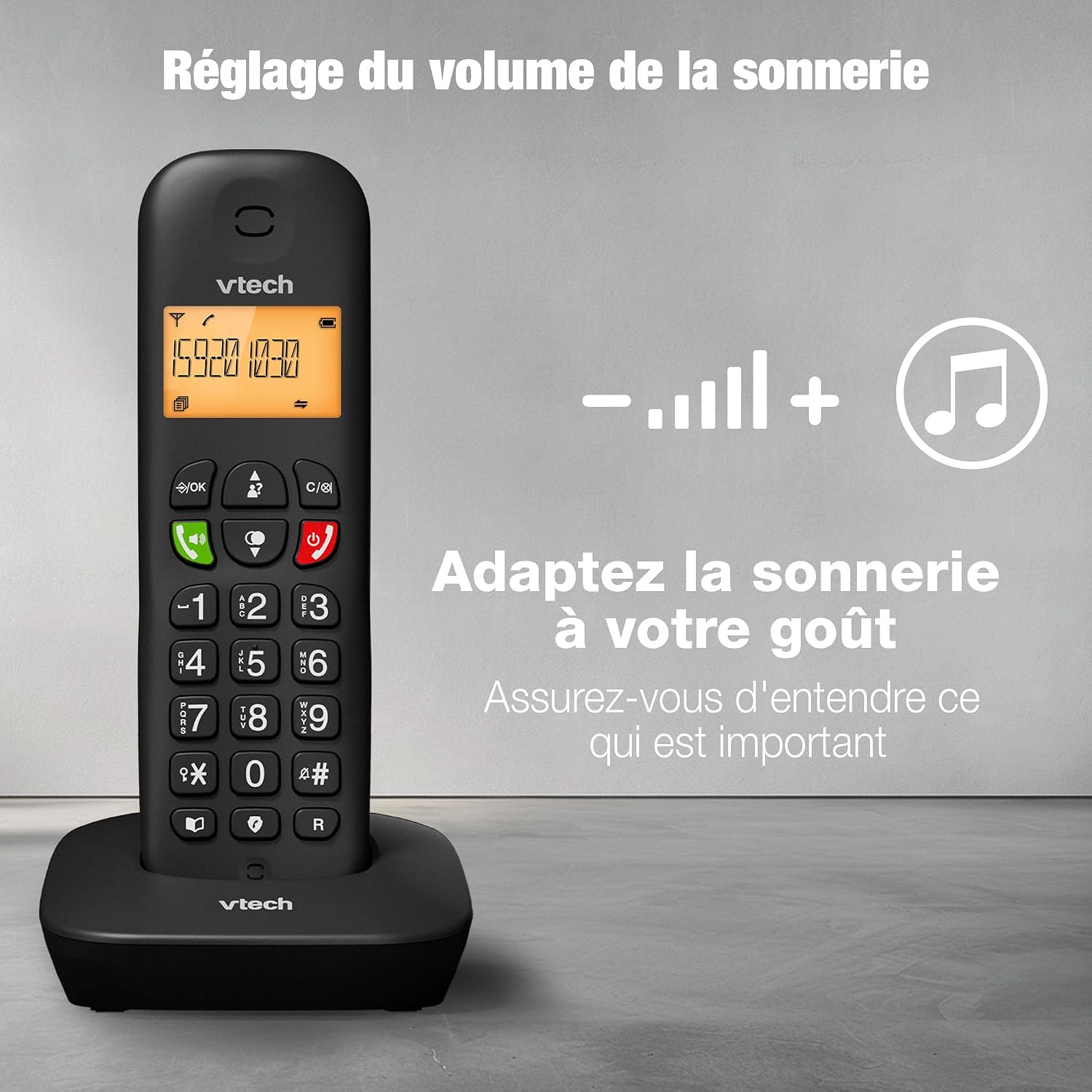
Image: The VTech CS900 handset on its base, with an overlay showing volume controls and a musical note icon, indicating ringer volume adjustment.
Backlit Display:
The amber backlit display ensures clear readability of names, numbers, and settings in various lighting conditions.

Image: The VTech CS900 handset in a dimly lit environment, with its amber backlit screen clearly visible, highlighting its readability in low light.
Redial Last Number:
Quickly redial the last number called.
- Press the REDIAL button (often a curved arrow icon) to view the last dialed numbers.
- Select the desired number and press TALK to redial.

Image: A close-up of the VTech CS900 handset's keypad, with a man in the background, highlighting the redial button for quick access to frequently called numbers.
Battery Life and ECO Mode:
The phone offers up to 13 hours of talk time and 200 hours of standby time. ECO mode helps conserve battery power.

Image: The VTech CS900 handset on its base, with a sun and moon icon, and a woman talking on the phone, symbolizing long battery life for day and night use.
Maintenance
Cleaning the Phone:
- Wipe the phone and base unit with a soft, damp cloth.
- Do not use cleaning sprays or liquid cleaners, as they may damage the finish or electrical components.
Battery Care:
- Only use the supplied rechargeable batteries or approved replacements.
- If the phone will not be used for an extended period, remove the batteries to prevent leakage.
- Dispose of used batteries responsibly according to local regulations.
Troubleshooting
| Problem | Solution |
|---|---|
| No dial tone | Ensure the telephone line cord is securely connected to both the base unit and the wall jack. Check if the AC power adapter is properly connected. |
| Handset does not charge | Verify the handset is correctly placed on the base unit. Clean the charging contacts on both the handset and base unit with a dry cloth. Ensure batteries are installed correctly. |
| Low ringer volume | Adjust the ringer volume using the volume buttons on the handset or through the settings menu. |
| Display is dim or hard to read | Ensure the handset batteries are fully charged. The backlit display should provide sufficient contrast in most conditions. |
| Cannot reject an incoming call directly | This model may require answering the call briefly and then hanging up to disconnect. Consult your service provider for call rejection options. |
| Poor sound quality | Move closer to the base unit. Ensure there are no large metal objects or other electronic devices interfering with the signal. |
Specifications
- Model Number: CS900
- Product Dimensions (L x W x H): 8.41 x 8.51 x 17.53 cm (3.31 x 3.35 x 6.90 inches)
- Item Weight: 330 g
- Battery Type: 2 Non-standard rechargeable batteries (included)
- Talk Time: Up to 13 hours
- Standby Time: Up to 200 hours
- Display: Backlit LCD
- Phonebook Capacity: 60 entries
- Call Block Capacity: Up to 60 numbers
- Power Source: Corded Electric
- Telephone Type: Cordless
- Compatible Devices: Public Switched Telephone Network (PSTN)

Image: The VTech CS900 handset on its base, with dimensions labeled in both inches and centimeters.
Warranty Information
Specific warranty details for the VTech CS900 DECT Cordless Phone may vary by region and retailer. Please refer to the warranty card included with your purchase or contact your point of sale for comprehensive information regarding warranty coverage and terms. Information regarding spare parts availability is currently unavailable.
Support
For further assistance or technical support, please contact VTech through the following channels:
- Website: https://www.vtechphones.eu/fr-fr
- Email: services-fr@vtechphones.eu
Related documentsCS900


Ask a question about this manual
Ask about setup, troubleshooting, compatibility, parts, safety, or missing instructions. Manuals+ will review the question and use this page’s manual context to help answer it.