
1. Introduction
This manual provides detailed instructions for the installation, operation, and maintenance of your MakeSkyBlue 60A MPPT Solar Charge Controller V124 with CloudBOX. This advanced controller is designed for stable, efficient, and intelligent solar charging in various applications, including home, RV, cabin, and off-grid power systems.
Key Features:
- Upgraded 60A MPPT Controller with CloudBOX: New generation controller for stable, efficient, and intelligent solar charging.
- Advanced MPPT Charging Technology: True 100% MPPT algorithm and intelligent DSP control for faster, more precise power point tracking, improving efficiency by up to 30% compared to PWM controllers.
- Smart Battery Management: Automatic detection of 12V/24V/48V systems and 3-stage charging (Bulk, Absorption, Float). Supports AGM, Gel, and Flooded batteries.
- Comprehensive Protection System: Protection against overcharge, over-discharge, overheating, reverse polarity, and short circuit.
- User-Friendly & Expandable Design: LCD display for real-time data and charging status. Supports parallel connection.
2. Safety Information
Please read all instructions and warnings carefully before installation and operation. Failure to follow these instructions may result in electric shock, fire, or severe injury.
General Safety Precautions:
- Install the controller in a well-ventilated area, away from flammable materials.
- Ensure proper grounding of the system.
- Do not disassemble or attempt to repair the controller. Contact qualified personnel for service.
- Keep children away from the solar power system components.
Electrical Safety:
- Always disconnect the solar panel array and battery bank before installing or servicing the controller.
- Use appropriate circuit breakers and fuses for all connections.
- Ensure all wiring is correctly polarized (+ to + and - to -). Reverse polarity can damage the controller and other components.
- Use insulated tools to prevent accidental short circuits.
- Verify that the solar panel open-circuit voltage (VOC) does not exceed the controller's maximum input voltage (160VDC).
3. Product Overview
The MakeSkyBlue 60A MPPT Solar Charge Controller V124 is a robust device designed for optimal solar energy harvesting. It features a durable aluminum casing for heat dissipation and an intuitive LCD display for monitoring.
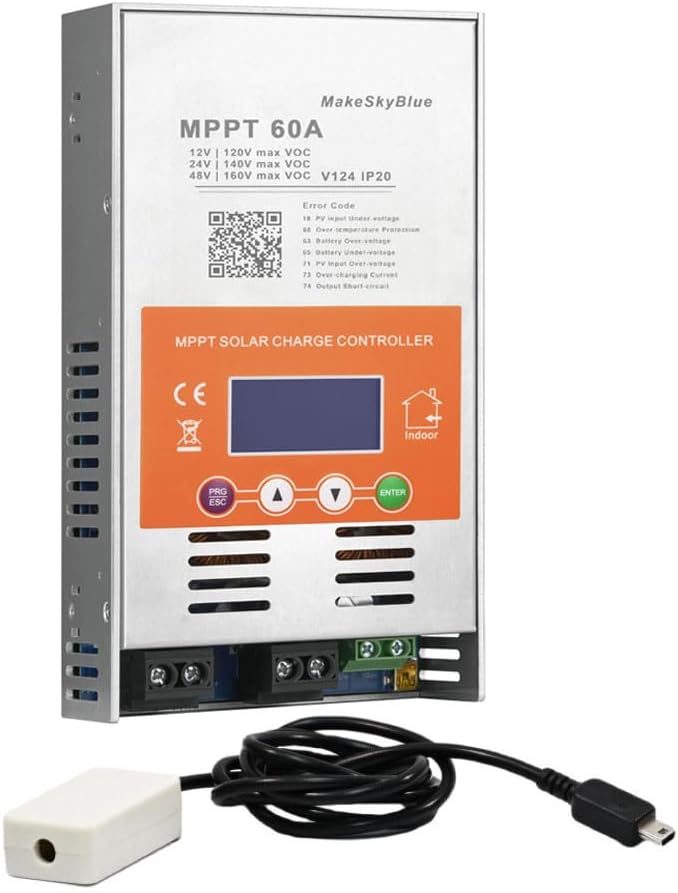
Figure 1: MakeSkyBlue 60A MPPT Solar Charge Controller V124 with CloudBOX
Components:
- MPPT Solar Charge Controller Unit
- CloudBOX (for remote monitoring/control)
- User Manual
Physical Description:
The controller features a metallic enclosure with ventilation slots and a cooling fan for temperature management. The front panel includes an LCD display and control buttons. Connection terminals for solar input, battery, and DC load are located at the bottom.

Figure 2: Controller Dimensions (8.46 x 4.52 x 1.96 inches)
LCD Display:
The LCD provides real-time data and status indicators. It typically shows:
- PV Input Voltage (PV)
- Battery Voltage (BATT)
- Charging Current (CHARGE)
- Load Output (LOAD)
- Operating Mode (e.g., 24H for continuous load, 00H for light control)
- Temperature (TEMP)
- Error Codes (FAULT)
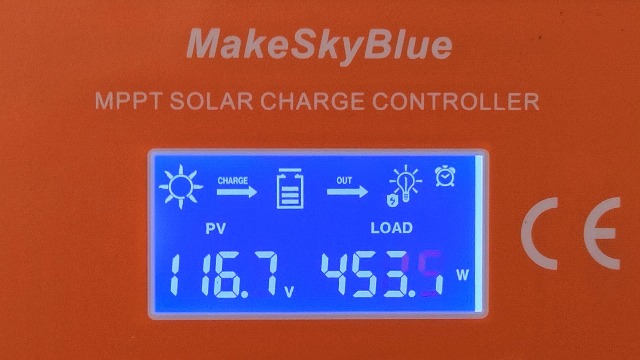
Figure 3: LCD Display Interface
4. Setup and Installation
Proper installation is crucial for the safe and efficient operation of your solar charge controller. Follow these steps carefully.
4.1 Mounting the Controller:
- Choose a dry, well-ventilated indoor location, protected from direct sunlight, high temperatures, and moisture.
- Ensure adequate clearance (at least 75mm) around all sides of the controller for proper airflow and heat dissipation.
- Securely mount the controller to a stable surface using appropriate screws.

Figure 4: Temperature Protection and Mounting Considerations
4.2 Wiring Connections:
Connect the components in the following order to prevent damage:
- Connect the Battery: Connect the battery to the controller's battery terminals (+ to + and - to -). Ensure a secure connection. The controller will automatically detect the system voltage (12V/24V/48V).
- Connect the Solar Panels: Connect the solar panel array to the controller's PV input terminals (+ to + and - to -). Ensure the PV open-circuit voltage does not exceed 160VDC.
- Connect the DC Load (Optional): Connect your DC loads to the controller's load terminals (+ to + and - to -).

Figure 5: Typical System Wiring Diagram
4.3 Parallel Connection (Optional):
The controller supports parallel connection for expanding your solar power system. Refer to the official video for detailed instructions on parallel setup and communication line configuration.
Video 1: HHJ60-PRO Paralleling Guide. This video demonstrates the installation and configuration of multiple controllers for parallel operation, including wiring and communication settings.
5. Operating Instructions
After successful installation, the controller will power on and display the main interface. Use the control buttons to navigate and adjust settings.
5.1 LCD Display Navigation:
Use the "Up" and "Down" arrow buttons to cycle through different display interfaces, showing PV voltage, battery voltage, charging current, load status, temperature, and error codes.
Video 2: MPPT Controller Connected | Real-Time LCD Display Demo. This video illustrates how to navigate the LCD display to view real-time system data.
5.2 Parameter Settings:
To enter the settings interface, press the "PRG/ESC" button. Use the "Up" and "Down" arrows to adjust values and "ENTER" to confirm. Key settings include:
- d00 (Load Operating Mode): Configure how the DC load operates (e.g., 24H for continuous, 00H for light control, 1H-23H for timed operation).
- d01 (Charging Voltage): Set the boost charging voltage.
- d02 (Float Charging Voltage): Set the float charging voltage.
- d03 (Low Voltage Protection): Set the battery low voltage disconnect (LVD) threshold.
- d04 (Battery Voltage Calibration): Calibrate the displayed battery voltage if it differs from a multimeter reading.
- d05 (Parallel Communication Code): Define the communication address for parallel operation (lowest code acts as master).
- d06 (Battery Type): Select the battery type (e.g., Sealed, Gel, Flooded, Lithium Iron Phosphate). Choosing "USE" allows manual settings for d01, d02, and d03.
- d07 (System Voltage): Configure the system voltage (e.g., 12V, 24V, 48V).
Video 3: D01-D06 Parameter Setting Information. This video guides you through adjusting various operational parameters of the controller.
6. Maintenance
Regular maintenance ensures optimal performance and longevity of your solar charge controller.
- Cleanliness: Keep the controller clean and free from dust and debris. Use a dry cloth for cleaning.
- Connections: Periodically check all wiring connections for tightness and corrosion.
- Ventilation: Ensure the ventilation openings are not blocked to allow for proper heat dissipation.
- Firmware Updates: Check the manufacturer's website for any available firmware updates for improved performance or new features.
7. Troubleshooting
If you encounter issues with your controller, refer to the following common problems and their solutions. The LCD display may show error codes to help diagnose the problem.
Error Codes:
| Code | Description | Possible Cause / Solution |
|---|---|---|
| E1 | PV input over-voltage | PV array voltage exceeds maximum allowed. Reduce the number of solar panels in series. |
| E2 | PV input under-voltage | PV array voltage is too low. Check solar panel connections, ensure sufficient sunlight. |
| E3 | Over temperature Protection | Controller is overheating. Ensure adequate ventilation and ambient temperature. |
| E4 | Battery over-voltage | Battery voltage exceeds the set over-voltage protection. Check battery settings (d01, d02). |
| E5 | Battery under-voltage | Battery voltage is below the set low voltage protection. Charge battery or reduce load. |
| E6 | PV input over-current | PV array current exceeds maximum allowed. Check PV array configuration. |
| E7 | Output short-circuit | Short circuit detected on the load output. Disconnect load, check wiring, and reconnect. |
| E8 | Output over-load | Load current exceeds maximum allowed. Reduce the connected load. |
General Troubleshooting Tips:
- If the controller is not charging, ensure solar panels are receiving adequate sunlight and all connections are secure.
- If the load is not working, check the load operating mode (d00) and ensure the battery has sufficient charge.
- For persistent issues, power cycle the controller by disconnecting the solar panels, then the battery, waiting a few minutes, and reconnecting in the correct order (battery first, then solar).
8. Specifications
| Feature | Specification |
|---|---|
| Model | 60A-V124 |
| System Voltage | 12V/24V/48V Auto-detection |
| Max PV Input Voltage | 160VDC |
| Rated Charge Current | 60A |
| Battery Types Supported | AGM, Gel, Flooded, Lithium |
| Charging Algorithm | 3-Stage (Bulk, Absorption, Float) |
| Display Type | LCD |
| Material | Aluminum |
| Item Weight | 3.5 pounds |
| Package Dimensions | 8.46 x 4.52 x 1.96 inches |
| Included Components | Solar Charge Controller, CloudBOX, User Manual |
9. Warranty and Support
For warranty information, technical support, or service inquiries, please contact MakeSkyBlue customer service through the retailer where the product was purchased or visit the official MakeSkyBlue website. Please have your product model and purchase date available when contacting support.

