
1. Introduction
This manual provides essential information for setting up, operating, maintaining, and troubleshooting your BOOX Palma 2 Pro ePaper eBook Reader. Please read this manual thoroughly before using the device to ensure proper functionality and longevity.
2. Setup
2.1. What's in the Box
The BOOX Palma 2 Pro package includes the device. Please note that the InkSense Plus stylus is sold separately.
2.2. Initial Power On and Charging
To power on your device, press and hold the power button located on the side. If the device does not turn on, it may require charging. Connect the device to a power source using the provided USB-C cable. The charging indicator will illuminate.
2.3. SIM Card Installation
The Palma 2 Pro features a hybrid SIM slot, supporting either dual SIM cards or a single SIM card with expandable storage. To install, locate the SIM tray on the side of the device. Use the SIM ejector tool (not included) to open the tray. Carefully place your SIM card(s) or microSD card into the tray, ensuring correct orientation, then reinsert the tray into the device.

Image: Hybrid SIM slot for dual SIM or single SIM with expandable storage.
2.4. Wi-Fi and Google Account Setup
Upon first boot, follow the on-screen instructions to connect to a Wi-Fi network and log in with your Google account. This enables access to the Google Play Store for app downloads and synchronization of your data.
3. Operating Instructions
3.1. Basic Navigation
The Palma 2 Pro features a responsive touchscreen for navigation. Swipe to browse, tap to select, and use pinch-to-zoom for adjusting content size. Physical buttons on the side can be customized for page-turning or other functions.

Image: Customizing the smart button functions for screenshots, full refresh, or other actions.
3.2. Reading eBooks and Documents
The device supports various file formats including DOC, DOCX, EPUB, GIF, HTML, JPEG, MOBI, PDF, PNG, and TXT. Open your desired file from the library. While reading, you can adjust text size, font, and layout for optimal comfort.
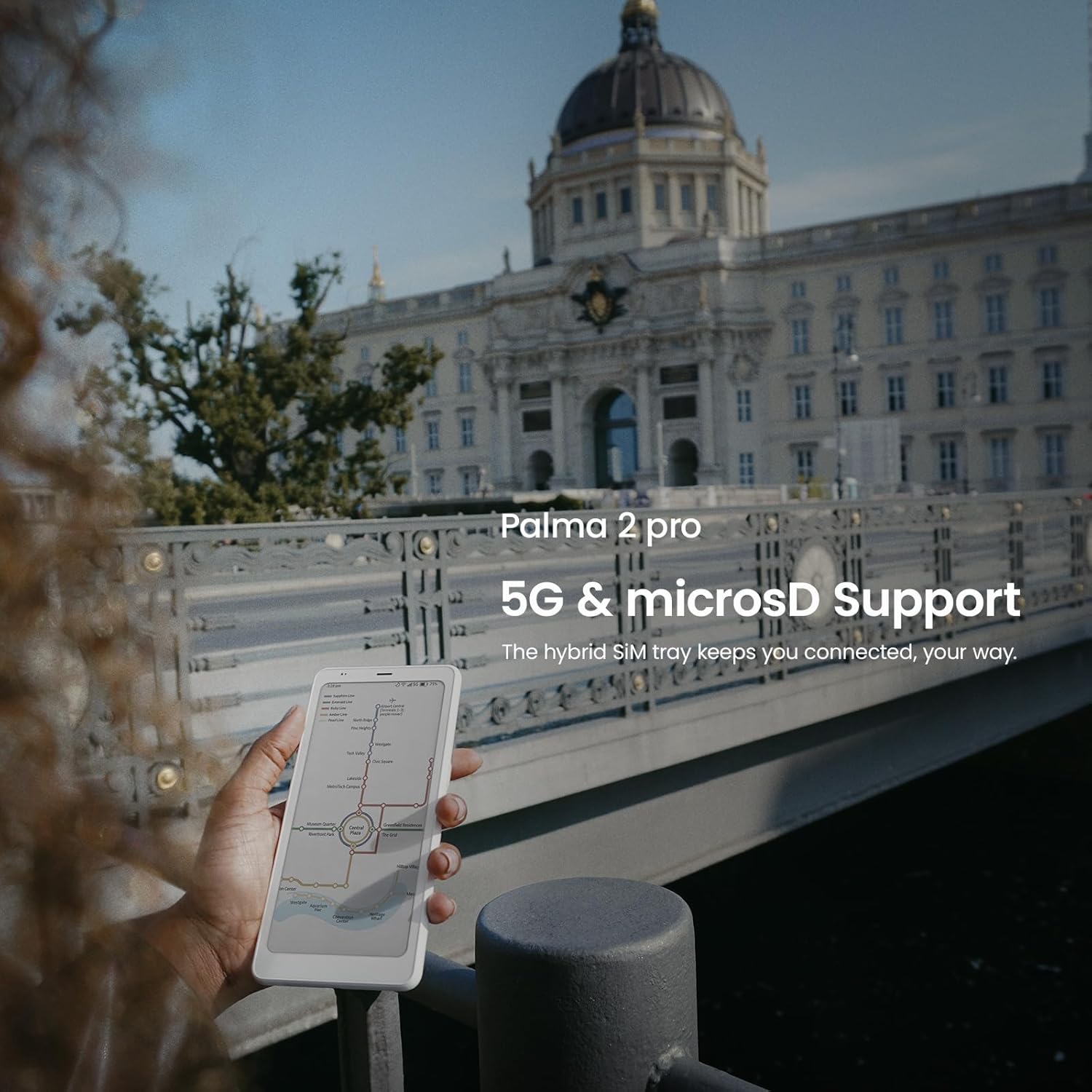
Image: A user holding the BOOX Palma 2 Pro, reading an eBook with natural shades.
3.3. Display Settings and Customization
Adjust the front light and color temperature for comfortable reading in various environments. The device offers multiple refresh modes (e.g., Regal, HD, Speed) and color modes (Optimal, Vivid, Custom) to suit different content types and user preferences. These settings can be accessed through the quick settings panel or the E Ink Wise menu.

Image: Customizing display settings for refresh mode, color mode, and layout.

Image: Front light presets for day, night, and custom adjustments.
3.4. Using the InkSense Plus Stylus (Sold Separately)
If you have the InkSense Plus stylus, you can use it for note-taking, drawing, and annotating documents directly on the ePaper screen. The device functions as a memo pad, allowing you to jot down thoughts and ideas.

Image: Jotting down quick thoughts or notes using the InkSense Plus stylus on the Palma 2 Pro.
Video: Demonstrates using the BOOX ePaper device for planning and goal setting with a stylus.
Video: Overview of the Palma 2 Pro 6.13 Color ePaper device.
3.5. App Management and Connectivity
The Palma 2 Pro comes with a pre-installed Google Play Store, allowing you to download and install various Android applications. It supports Bluetooth for connecting headphones or other accessories, and Wi-Fi for internet access. With a data-only SIM, you can also utilize cellular data for connectivity on the go.
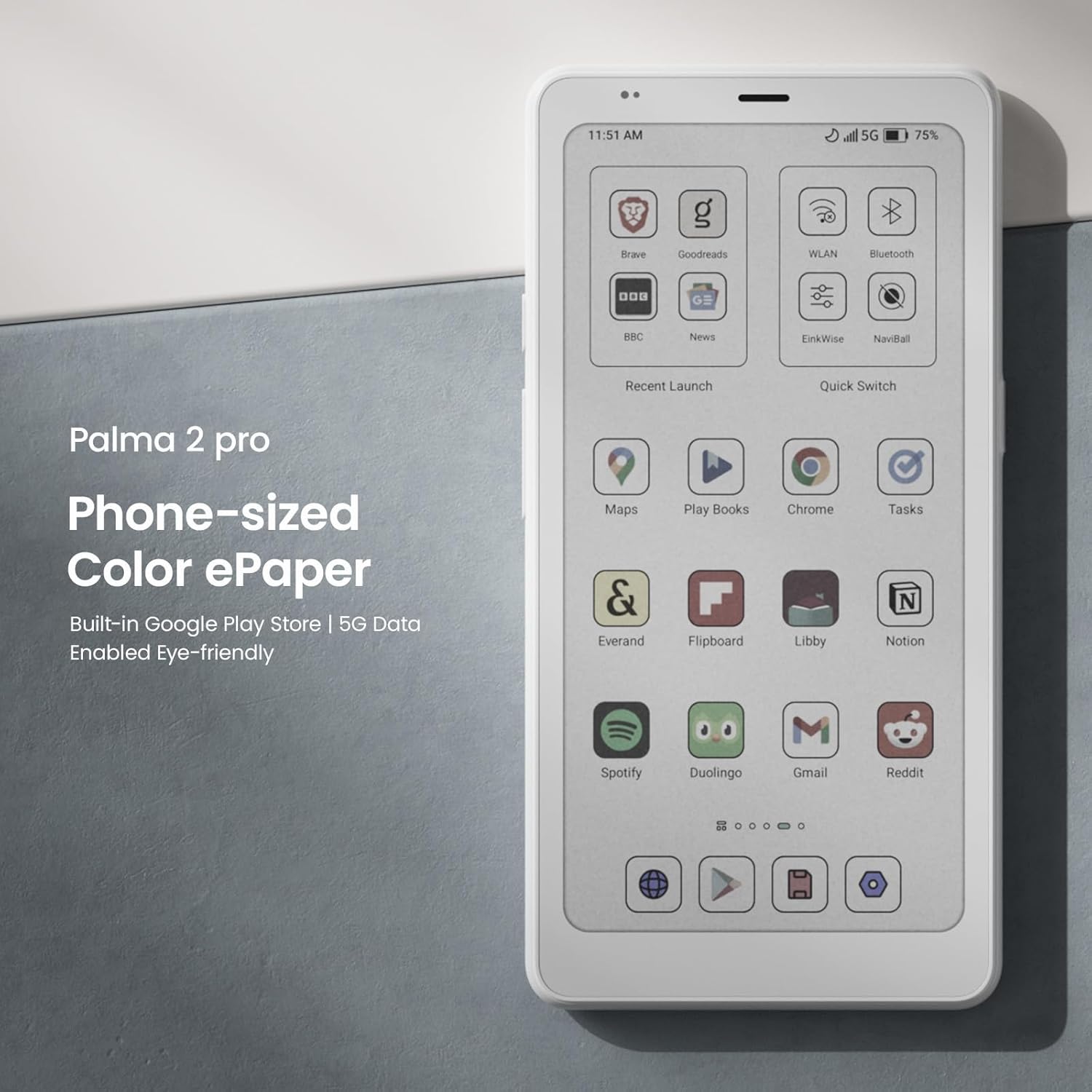
Image: Home screen showing various applications, highlighting the phone-sized color ePaper display.

Image: Mobile data enabled feature with hybrid SIM slot for cellular data and expandable storage.
Video: Demonstrates a 'Low Dopamine Morning Routine' using the BOOX device for reading and planning.
4. Maintenance
4.1. Cleaning the Device
Use a soft, lint-free cloth to gently wipe the screen and body of the device. Avoid using harsh chemicals or abrasive materials, which can damage the ePaper display or the device's finish.
4.2. Battery Care
To prolong battery life, avoid exposing the device to extreme temperatures. Charge the device regularly, but avoid leaving it fully charged or fully depleted for extended periods. Use only the recommended charging accessories.
4.3. Software Updates
Regularly check for and install software updates to ensure optimal performance, security, and access to new features. Updates can typically be found in the device's settings menu under 'System Update'.
4.4. Storage Management
Periodically review and manage your device's storage. Delete unnecessary files or applications to free up space and maintain performance. The device has 128 GB of internal storage and supports expandable storage via microSD card.
5. Troubleshooting
5.1. Device Not Responding
If the device becomes unresponsive, try a forced restart by pressing and holding the power button for approximately 10-15 seconds until the device powers off and restarts.
5.2. Screen Issues
If you experience ghosting or display artifacts, adjust the refresh mode in the display settings. For persistent screen issues, ensure the device is not exposed to physical pressure or extreme temperatures. If the screen is physically damaged, contact customer support.
5.3. Connectivity Problems
If Wi-Fi or Bluetooth is not connecting, ensure the features are enabled in settings. Try restarting the device and your router/Bluetooth accessory. For mobile data issues, verify your SIM card is correctly installed and your data plan is active.
5.4. App Crashes or Performance Issues
If an application crashes frequently or the device performs slowly, try clearing the app's cache or reinstalling the app. Ensure your device's software is up to date. If problems persist, consider a factory reset (see section 5.5).
5.5. Factory Reset
A factory reset will erase all data on your device and restore it to its original factory settings. This can resolve persistent software issues. Before performing a factory reset, back up any important data. The option is typically found in 'Settings > System > Reset options'.
6. Specifications
| Feature | Detail |
|---|---|
| Brand | BOOX |
| Model Name | 6.13 Color |
| Display Technology | Electronic Ink (Kaleido 3) |
| Display Resolution | 824 x 1648 |
| Memory (RAM) | 8 GB |
| Storage Capacity | 128 GB (Expandable) |
| Connectivity Technology | Bluetooth, Wi-Fi, 5G Data Enabled |
| Supported File Formats | DOC, DOCX, EPUB, GIF, HTML, JPEG, MOBI, PDF, PNG, TXT |
| Special Features | Color Temperature Management, Auto Rotation, A-GPS |
| Battery Type | Lithium-Ion (3950mAh) |
| Human-Interface Input | Buttons, Touchscreen |
| Operating System | Android 15 (Better experience with Android 15) |

Image: Key specifications of the BOOX Palma 2 Pro at a glance.
7. Warranty Information
The BOOX Palma 2 Pro comes with a 1-year manufacturer's warranty. This warranty covers defects in materials and workmanship under normal use. It does not cover damage caused by accidents, misuse, unauthorized repairs, or external forces. For detailed warranty terms and conditions, please refer to the official BOOX website or contact customer support.
8. Support
For further assistance, technical support, or to view frequently asked questions, please visit the official BOOX website at BOOX Official Store. You can also find contact information for customer service on their website.


