
1. Introduction
The Linkdaze 10.1-inch Digital Calendar is an integrated family command center designed to streamline household organization. It combines a digital calendar, chore chart, task manager, and digital picture frame into one interactive device. This smart calendar syncs with smartphone calendar applications, offering color-coded schedules and real-time reminders for all family members.

Image: The Linkdaze Digital Calendar functions as an all-in-one family command hub, integrating various organizational tools.
2. Setup Guide
To begin using your Linkdaze Digital Calendar, first power on the device. Connect it to your home WiFi network by following the on-screen prompts. Once connected, you can proceed to sync it with your preferred calendar applications using the AiMOR app.
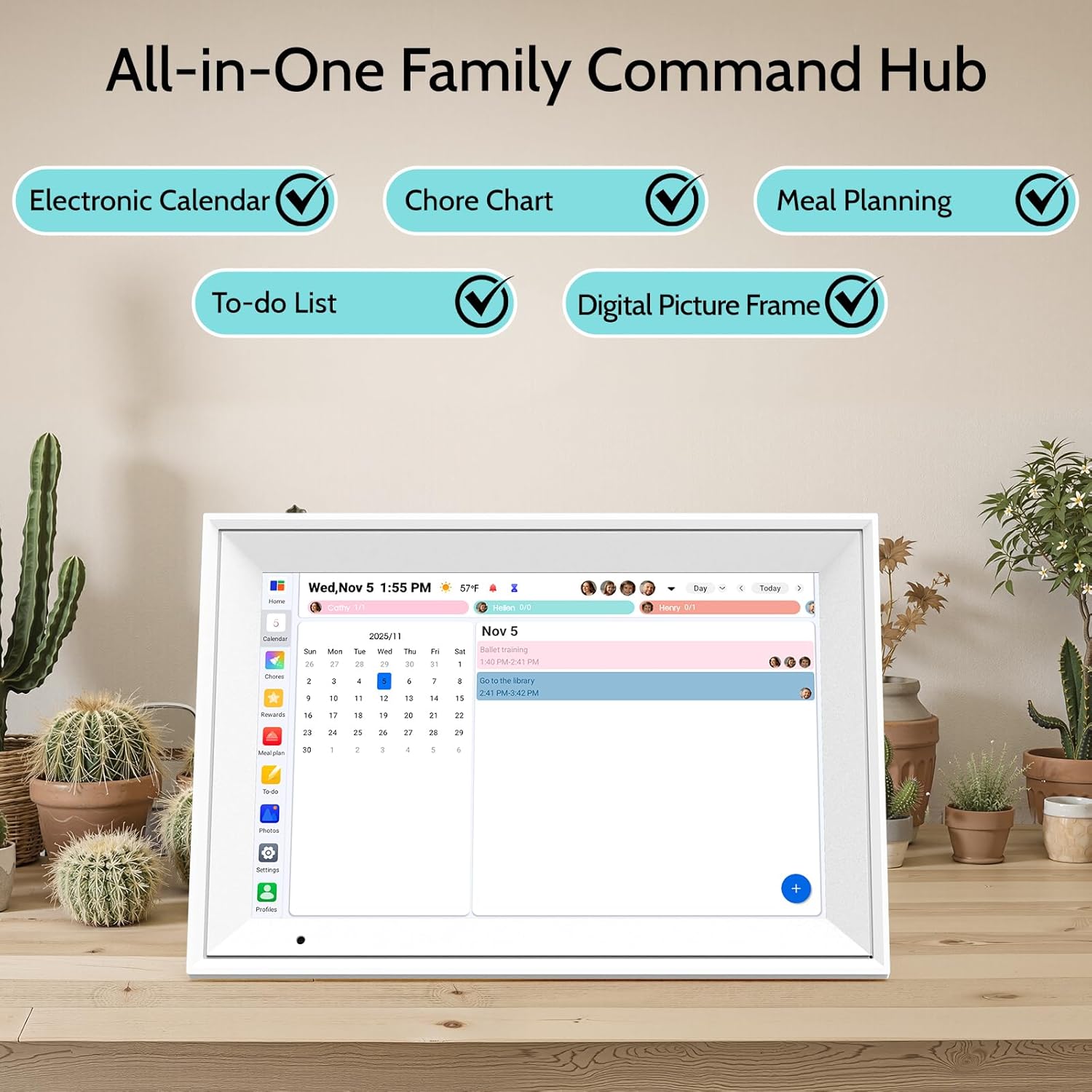
Image: Initial setup involves connecting the calendar to WiFi and syncing with your smartphone via the AiMOR app.
3. Operating Instructions
3.1. Chore Chart & Reward System
The electronic calendar simplifies chore management. Assign tasks with automated reminders and color-code each family member for easy recognition. The system allows for earning points upon task completion, which can be used to unlock rewards, fostering motivation within the family.

Image: The interactive chore chart allows children to manage their tasks directly on the calendar.

Image: The Kids Chore Rewards System motivates children by allowing them to earn points for completed tasks.
3.2. Meal Planning & To-Do List
Plan weekly meals in advance to create balanced menus. Recipes can be saved directly to the digital calendar. The To-Do list module helps consolidate shopping lists, workout goals, and urgent reminders, ensuring multiple priorities are managed effectively.

Image: The calendar assists in planning weekly meals, promoting balanced nutrition.

Image: Stay organized with the To-Do list feature, managing various tasks and reminders.
3.3. Multi-Calendar Synchronization
The calendar supports seamless two-way synchronization with Google Calendar. Other calendar applications such as iCloud, Outlook, Cozi, and Yahoo can be synced via a URL link. Ensure both the AiMOR app and the digital calendar's system are updated to their latest versions for optimal data synchronization.

Image: The calendar supports seamless synchronization with multiple third-party calendar applications.
3.4. Digital Picture Frame Function
When not actively used for scheduling, the smart calendar transitions into a digital photo frame. Use the AiMOR app to upload photos and videos (32GB built-in memory) to display family memories.

Image: The digital calendar transforms into a digital photo frame to showcase family memories.
3.5. AiMOR App & Remote Management
The AiMOR App serves as a mobile command center, allowing you to manage the chore chart, rewards, dinner plan, To-Do list, and sync calendar apps from anywhere.
3.6. AI Import Functions
AI Photo/File Import
Utilize the AI function to import events into the digital calendar by taking a photo of your paper schedule. It also supports PDF, photos, emails, and screenshots.

Image: The AI Photo/File Import feature allows digitizing paper schedules and other documents.
AI Voice Import
Speak your schedule or To-Do list items, and the system will automatically set them as events, eliminating manual input.

Image: Use AI Voice Import to quickly add schedule items by speaking them into the app.
Email Import Event
Send tasks, events, or chores to the calendar's virtual mailbox via email (setup required on first launch), and they will be automatically created on the calendar.

Image: Events can be imported directly from email to the digital calendar.
3.7. Additional Features
The Linkdaze Digital Calendar includes several convenience features:
- Weather: Displays current temperature and a two-day forecast.
- Auto-Rotate: Automatically adjusts screen orientation and content.
- IPS Touchscreen: Provides an intuitive interface for interaction.
- Sleep Mode: Allows setting screen sleep and wake-up times.
- Auto-Brightness: Adjusts screen brightness based on ambient light.

Image: Overview of additional features for enhanced user experience.
4. Maintenance
To ensure optimal performance and longevity of your Linkdaze Digital Calendar, follow these maintenance guidelines:
- Cleaning: Gently wipe the touchscreen with a soft, lint-free cloth. Avoid abrasive cleaners or solvents. Ensure the device is powered off before cleaning.
- Software Updates: Regularly check for and install software updates via the device settings or the AiMOR app. Updates often include performance improvements and new features.
- Power Management: Use only the provided power adapter. Avoid exposing the device to extreme temperatures or direct sunlight for extended periods.
5. Troubleshooting
If you encounter issues with your Linkdaze Digital Calendar, refer to the following common solutions:
- Syncing Issues: If the calendar is not updating, ensure your device is connected to WiFi and that both the calendar's system and the AiMOR app are updated to their latest versions. Verify the URL link for third-party calendar apps is correctly entered.
- Chore Completion Glitches: If completed chores reappear, try editing the specific chore and its points, then re-marking it as complete. If the issue persists, delete and re-add the recurring chore.
- Device Unresponsive: If the touchscreen is unresponsive, try restarting the device by holding down the power button. If the issue continues, perform a factory reset (refer to settings for this option, noting it will erase data).
- WiFi Connection Problems: Ensure your WiFi network is active and the password is correct. Try restarting your router and the digital calendar.
For further assistance, consult the AiMOR App's support section or contact Linkdaze customer service.
6. Product Specifications
| Feature | Detail |
|---|---|
| Size | 10.1 inch |
| Model Number | A5 |
| Brand | Linkdaze |
| Material | Plastic |
| Product Dimensions | 6.93"W x 10.2"H |
| Mounting Type | Desk Mount |
| Item Weight | 1.2 pounds |
| UPC | 765452880692 |
| Included Components | 02 |
| Format | Desk Calendar, Organizer |
| Model Year | 2026 |
7. Warranty and Support
The Linkdaze Digital Calendar comes with a 1-year warranty (as per product specifications). For warranty claims or technical support, please refer to the support section within the AiMOR App or contact Linkdaze customer service directly.
For the latest support information and resources, please visit the official Linkdaze website or refer to the AiMOR application.


