
1. Introduction
The Ajblg F14 Bluetooth Smart Finder is a compact and efficient device designed to help you locate your personal items, such as wallets, cards, or keys, using your Android smartphone. This device integrates seamlessly with the Android Find Hub (or Find My Device) network, providing both short-range sound alerts and long-range location tracking capabilities. Please read this manual carefully to ensure proper use and maximize the benefits of your Smart Finder.
2. Safety Information
- Keep the device away from extreme temperatures and direct sunlight.
- Do not attempt to disassemble or modify the device. This will void the warranty and may cause damage.
- Ensure the battery is inserted correctly according to polarity markings.
- Dispose of batteries responsibly according to local regulations.
- This device is designed for use with Android phones only. It is not compatible with Apple (iOS) or Huawei devices.
3. Package Contents
- 1 x Ajblg F14 Bluetooth Smart Finder
- 1 x User Manual (this document)
Note: 1 AAA battery is required and not included in the package.
4. Product Overview
The Ajblg F14 Smart Finder is designed to be ultra-slim and lightweight, making it ideal for placing in wallets, cardholders, or attaching to other items. It features a power button and an internal speaker for audible alerts.

Figure 1: Ajblg F14 Smart Finder with Android Find Hub interface. The device is shown next to a wallet, and a phone screen displays its location and options like 'Play sound' and 'Mark as lost'.
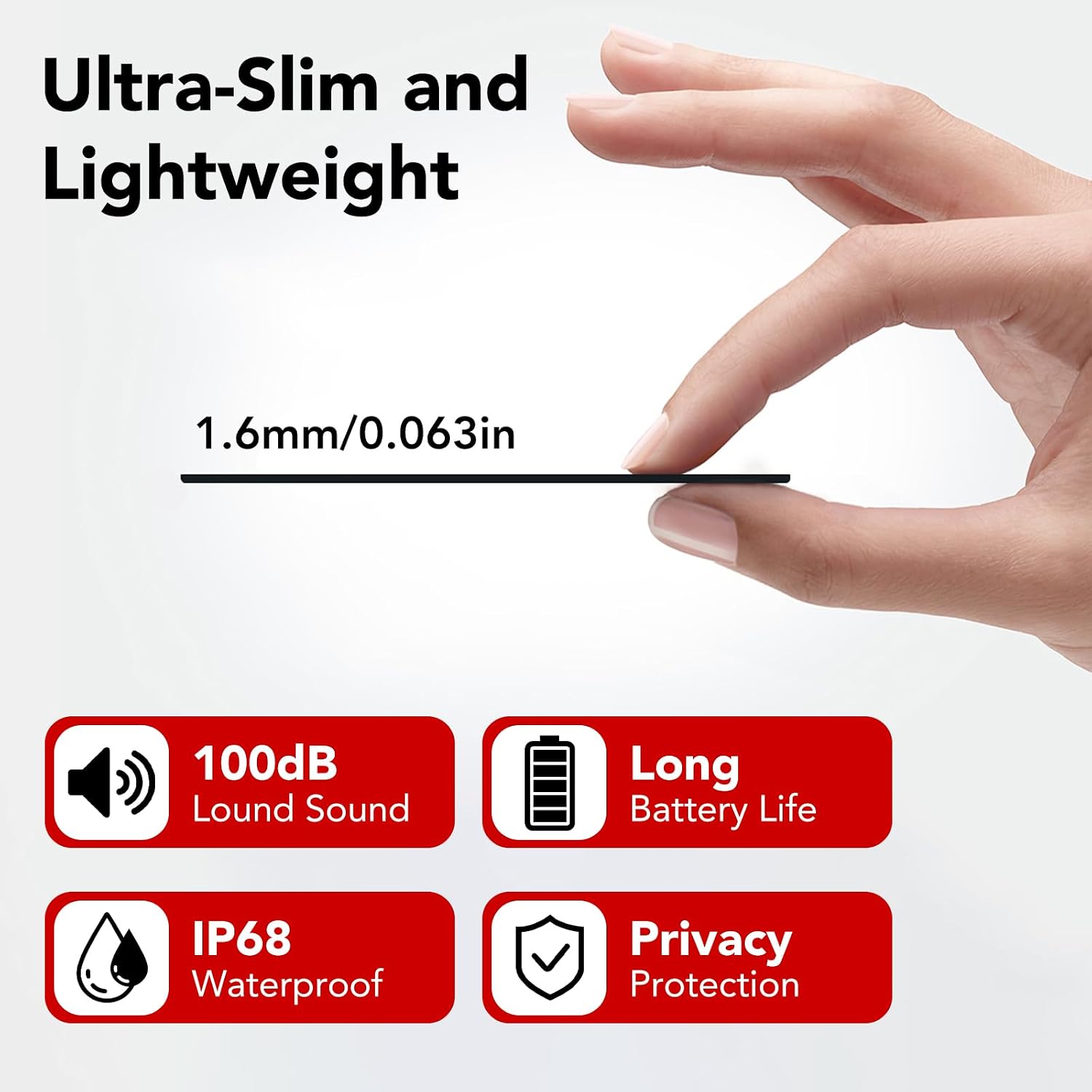
Figure 2: The Ajblg F14 Smart Finder highlighting its ultra-slim design (1.6mm / 0.063in) and features including 100dB sound, long battery life, IP68 waterproof rating, and privacy protection.
5. Setup
5.1. Installing the Battery
- Locate the battery compartment on the Ajblg F14 Smart Finder.
- Open the compartment cover.
- Insert one AAA battery, ensuring correct polarity (+/-).
- Close the battery compartment cover securely.
5.2. Powering On/Off
- To Power On: Press and hold the power button on the device until you hear a short beep or see an indicator light flash.
- To Power Off: Press and hold the power button until you hear a longer beep or the indicator light turns off.
5.3. Pairing with Your Android Device
- Ensure your Ajblg F14 Smart Finder is powered on and within Bluetooth range of your Android phone.
- On your Android phone, ensure Bluetooth is enabled.
- Open the Google Find My Device app (or a compatible Android Find Hub application). If you don't have it, download it from the Google Play Store.
- Follow the in-app instructions to add a new device. The Smart Finder should appear in the list of discoverable devices.
- Select the Ajblg F14 from the list to complete the pairing process.
Note: The Ajblg F14 is compatible with all Android phones that support the Google Find My Device network. It does not support Apple (iOS) or Huawei devices.

Figure 3: The Ajblg F14 Smart Finder is compatible with major Android phone brands including Samsung, Xiaomi, Google, Vivo, OPPO, and OnePlus. Apple and Huawei devices are not supported.
6. Operating Instructions
6.1. Locating Your Item (Play Sound)
When your item is nearby but out of sight, you can make the Smart Finder emit a loud sound to help you pinpoint its exact location.
- Open the Google Find My Device app on your Android phone.
- Select your Ajblg F14 Smart Finder from the list of devices.
- Tap the "Play sound" option. The Smart Finder will emit a loud sound (up to 100dB) for a short period, helping you find your item quickly.

Figure 4: Activating the 'Play sound' feature from the Android Find My Device app to locate your item. The Smart Finder emits a loud sound, up to 100dB.
6.2. Long-Distance Location Tracking
If your item is lost further away, the Android Find Hub network can help you locate it on a map.
- Open the Google Find My Device app on your Android phone.
- Select your Ajblg F14 Smart Finder.
- The app will display the last known location of your Smart Finder on a map. You can get guided directions to its location.

Figure 5: Using the long-distance location feature to see the exact location of your item on a map and receive guided directions.
6.3. Mark as Lost
If your item is lost, you can mark it as lost in the app. This can help secure your device and potentially display a message or contact information to anyone who finds it.
6.4. Share Device Location
You can share the location of your Ajblg F14 Smart Finder with trusted family members or friends.
- In the Google Find My Device app, select your Smart Finder.
- Tap the "Share device" option.
- Follow the on-screen prompts to select contacts and share the device's location.

Figure 6: The 'Share device' feature allows you to share the location of your Smart Finder with family or friends through the app.
7. Maintenance
7.1. Battery Replacement
The Ajblg F14 Smart Finder uses one AAA battery. When the battery is low, you may receive a notification in the Find My Device app, or the device's performance may degrade. Replace the battery as described in Section 5.1.
7.2. Cleaning
Wipe the device with a soft, dry cloth. Do not use harsh chemicals or abrasive cleaners. While the device is IP68 waterproof, avoid submerging it unnecessarily or exposing it to high-pressure water jets.
7.3. Water Resistance
The Ajblg F14 Smart Finder has an IP68 rating, meaning it is protected against dust ingress and can withstand immersion in water up to 1.5 meters for up to 30 minutes. Ensure the battery compartment is securely closed to maintain water resistance.
8. Troubleshooting
| Problem | Possible Cause | Solution |
|---|---|---|
| Device not powering on. | Low or dead battery; incorrect battery insertion. | Replace the AAA battery; ensure correct polarity. |
| Cannot pair with Android phone. | Bluetooth off; device out of range; incompatible phone. | Ensure Bluetooth is on; bring device closer; confirm your phone is Android (not Apple/Huawei). |
| "Play sound" feature not working. | Device out of Bluetooth range; low battery; device powered off. | Bring device closer; replace battery; power on the device. |
| Location not updating on map. | Device out of range of Android Find Hub network; device powered off. | Ensure device is powered on and within range of other Android devices in the network. |
9. Specifications
- Brand: Ajblg
- Model Number: F14
- Connectivity: Bluetooth
- Compatible Devices: Android phones (not compatible with Apple iOS or Huawei)
- Power Source: 1 x AAA Battery (not included)
- Sound Output: Up to 100dB
- Water Resistance: IP68
- Thickness: 1.6mm / 0.063 inches
- Color: Black
10. Warranty and Support
Specific warranty information for the Ajblg F14 Smart Finder is not available in this manual. Please refer to the retailer or your purchase documentation for details regarding warranty coverage and customer support. For technical assistance, please contact the vendor through your purchase platform.