
1. Introduction
This manual provides essential information for setting up, operating, maintaining, and troubleshooting your Lenovo ThinkCentre M710 SFF Desktop PC. Please read this guide thoroughly to ensure proper use and longevity of your device.
The Lenovo ThinkCentre M710 SFF is a compact and efficient desktop computer designed for business and general computing tasks. It features a 6th Gen Intel Core i3 processor, 8GB RAM, and a 256GB Solid State Drive, running on Windows 11 Pro.
2. Safety Information
- Power Supply: Use only the power adapter provided with your computer or a compatible replacement. Ensure the power outlet is properly grounded.
- Ventilation: Do not block ventilation openings. Ensure adequate airflow around the computer to prevent overheating.
- Liquid Exposure: Keep the computer away from liquids. Do not operate with wet hands.
- Cleaning: Disconnect the power before cleaning. Use a soft, dry cloth. Avoid liquid cleaners directly on components.
- Servicing: Do not attempt to service the computer yourself. Refer all servicing to qualified personnel.
3. Package Contents
Verify that all items are present in your package:
- Lenovo ThinkCentre M710 Small Form Factor Desktop PC
- Keyboard
- Mouse
- USB Wi-Fi & Bluetooth Adapter
- Power Cord
4. Setup Guide
4.1 Unpacking
Carefully remove all components from the packaging. Retain packaging materials for future transport or storage.
4.2 Connecting Peripherals
Connect your keyboard, mouse, and monitor to the appropriate ports on the desktop PC. The ThinkCentre M710 SFF provides various ports for connectivity.

Figure 1: Front and Rear View of the ThinkCentre M710 SFF
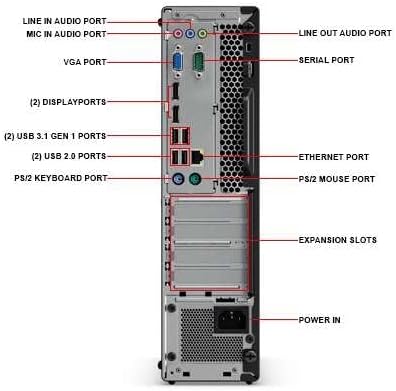
Figure 2: Rear Port Connections
- Keyboard & Mouse: Connect the included keyboard and mouse to the available USB ports. Older PS/2 ports are also available for compatible devices.
- Monitor: Connect your monitor using either the VGA port or one of the two DisplayPort outputs. Ensure your monitor is also powered on.
- USB Wi-Fi & Bluetooth Adapter: Insert the USB Wi-Fi & Bluetooth adapter into any available USB port.
4.3 Power Connection
Connect the power cord to the power input on the rear of the desktop PC, then plug the other end into a wall outlet.
4.4 Initial Boot-up
Press the power button on the front of the desktop. The system will boot into Windows 11 Pro. Follow the on-screen instructions to complete the initial setup, including language selection (English/Spanish/French), network configuration, and user account creation.
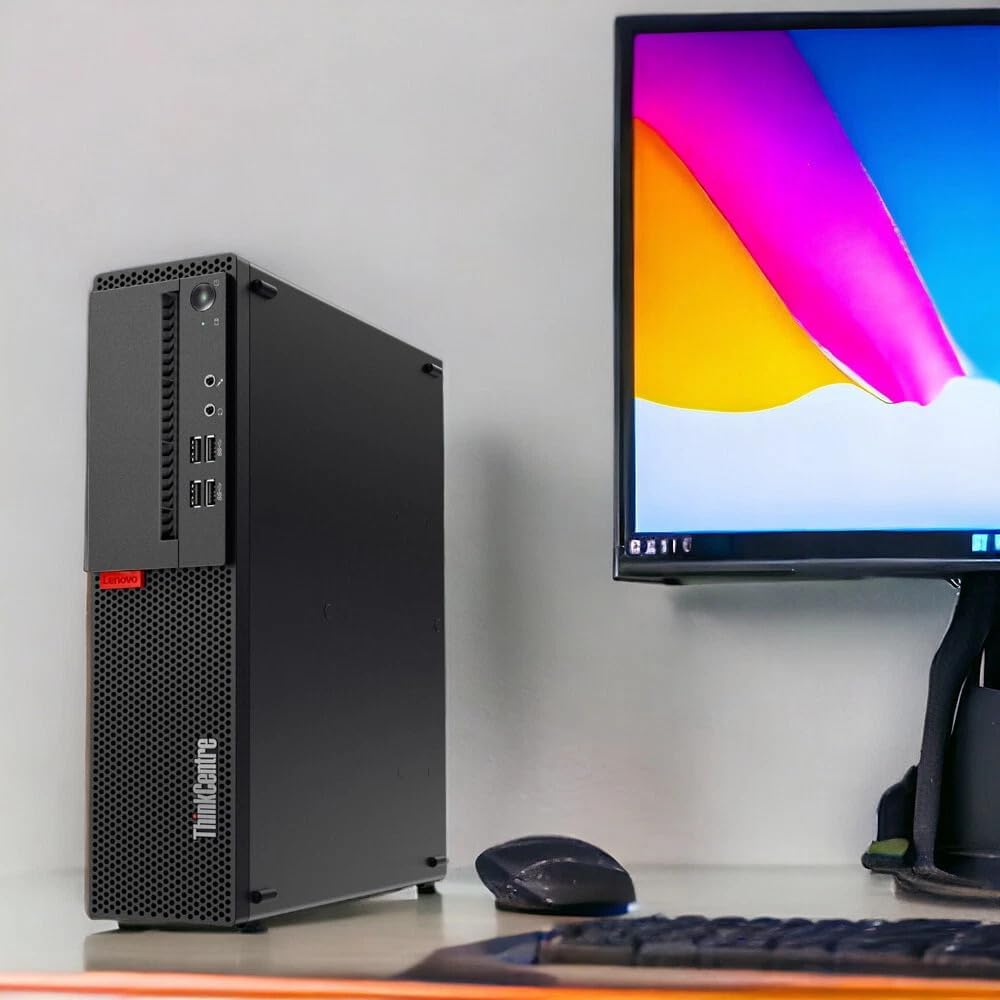
Figure 3: Desktop PC in a typical setup
5. Operating Instructions
5.1 Windows 11 Pro
Your ThinkCentre M710 SFF comes pre-installed with Windows 11 Pro. This operating system offers enhanced security features, productivity tools, and a modern user interface. Familiarize yourself with the Start Menu, Taskbar, and File Explorer for basic navigation.
5.2 Network Connectivity
- Wi-Fi: Once the USB Wi-Fi adapter is installed, Windows 11 will detect available wireless networks. Click the network icon in the taskbar, select your network, and enter the password to connect.
- Bluetooth: To connect Bluetooth devices, go to Settings > Bluetooth & devices, turn on Bluetooth, and select "Add device."
- Ethernet: For a wired connection, plug an Ethernet cable into the RJ-45 port on the rear of the PC.
5.3 Using Ports
- USB Ports: The PC features both USB 3.1 Gen1 (front and rear) and USB 2.0 (rear) ports for connecting external devices like flash drives, external hard drives, and other peripherals.
- Audio Ports: Front panel includes microphone and headphone jacks. Rear panel includes line-in and line-out audio ports.
- Video Output: Use the VGA or DisplayPort outputs to connect to monitors or projectors.
6. Maintenance
6.1 Cleaning
- Exterior: Use a soft, lint-free cloth slightly dampened with water or a mild cleaning solution to clean the exterior surfaces. Avoid harsh chemicals.
- Ventilation: Periodically check and clean the ventilation grilles to prevent dust buildup, which can impede airflow and cause overheating. Use compressed air to gently clear dust.
6.2 Software Updates
Regularly update your Windows 11 operating system and device drivers to ensure optimal performance, security, and compatibility. Go to Settings > Windows Update to check for and install updates.
6.3 Data Backup
It is highly recommended to regularly back up your important data to an external drive or cloud storage to prevent data loss in case of hardware failure or other unforeseen issues.
7. Troubleshooting
If you encounter issues with your ThinkCentre M710 SFF, try the following basic troubleshooting steps:
- No Power:
- Ensure the power cord is securely connected to both the PC and the wall outlet.
- Verify the power outlet is functional by plugging in another device.
- No Display:
- Check that the monitor is powered on and the video cable (VGA or DisplayPort) is securely connected to both the PC and the monitor.
- Try a different video cable or monitor if available.
- No Audio:
- Ensure speakers or headphones are properly connected to the audio jacks.
- Check the volume settings in Windows and on your audio device.
- Verify that audio drivers are installed and up to date in Device Manager.
- Network Connectivity Issues:
- For Wi-Fi, ensure the USB Wi-Fi adapter is properly inserted and Wi-Fi is enabled in Windows settings.
- For Ethernet, check the cable connection and router status.
- Restart your router/modem and the PC.
- Slow Performance:
- Close unnecessary applications running in the background.
- Check for malware or viruses using Windows Security.
- Ensure Windows and drivers are up to date.
If these steps do not resolve the issue, please refer to the support section.
8. Specifications
Key technical specifications for the Lenovo ThinkCentre M710 SFF Desktop PC:
| Feature | Specification |
|---|---|
| Processor | 6th Gen Intel Core i3-6100 (3.7 GHz Dual Core) |
| Operating System | Windows 11 Pro (Multi-Language Support) |
| Memory (RAM) | 8 GB DDR3 SDRAM |
| Storage | 256 GB Solid State Drive (SSD) |
| Graphics | Integrated Intel HD Graphics 520 |
| Video Output | 1x VGA, 2x DisplayPort |
| USB Ports | 4x USB 3.1 Gen1 (Front), 2x USB 3.1 Gen1 (Rear), 2x USB 2.0 (Rear) |
| Audio Ports | Front: Microphone (3.5mm), Headphone (3.5mm); Rear: Line-in, Line-out |
| Network | Ethernet (RJ-45), Wi-Fi (via USB adapter) |
| Wireless Connectivity | Bluetooth (via USB adapter), Wi-Fi (802.11n via USB adapter) |
| Dimensions (Approx.) | Small Form Factor (SFF) |
| Included Peripherals | Keyboard, Mouse |
9. Warranty Information
This Lenovo ThinkCentre M710 SFF Desktop PC comes with a 90-day warranty. This warranty covers hardware defects under normal use. For specific terms and conditions, please refer to the warranty documentation provided at the time of purchase or contact your vendor.
10. Customer Support
If you require further assistance or encounter issues not covered in this manual, please contact your vendor or the Amazon Renewed support team for renewed products. Have your product model number (M710 SFF) and purchase details ready when contacting support.
For general information and drivers, you may visit the official Lenovo support website, though specific support for renewed products may be handled by the reseller.


