1. Introduction
This manual provides detailed instructions for the installation and operation of the Ezonetronics Wireless CarPlay and Android Auto Decoder Kit (Model: RM-LH2523F). This device integrates advanced smartphone connectivity into your vehicle's original infotainment system, enhancing your driving experience with navigation, communication, and entertainment features.
The kit is designed for specific Land Rover and Jaguar models equipped with an 8-inch OEM display. Please verify your vehicle's compatibility before proceeding with installation.
2. Compatible Models
This CarPlay decoder kit is compatible with the following Land Rover and Jaguar models featuring an 8-inch OEM display:
| Brand | Car Model | Years | Screen Size |
|---|---|---|---|
| Land Rover | Range Rover Evoque | 2016-2018 | 8 inch |
| Discovery 5 | 2016-2018 | ||
| Discovery Sport | 2016-2018 | ||
| Jaguar | XE/XEL | 2016-2018 | |
| XF/XFL/XJL | 2016-2018 | ||
| F-Type | 2019 | ||
| F-Pace | 2017-2019 |
If you are unsure about compatibility, please contact Ezonetronics support with a photo of your vehicle's system version and central control unit.

Image: Compatible Model List for Land Rover and Jaguar vehicles.

Image: Visual guide for compatible 8-inch Harman style screens versus incompatible Bosch or 10.25-inch screens.
3. Package Contents
Please check the box for the following items:
- 1 x Ezonetronics CarPlay & Android Auto Decoder Unit
- 1 x Power Cable
- 1 x LVDS OUT Cable
- 1 x LVDS IN Cable
- 1 x RCA/USB Cable
- 1 x Instruction Manual (this document)

Image: The decoder unit with its dimensions and various connection cables included in the package.
4. Setup and Installation
The installation of this decoder kit is designed to be non-destructive, utilizing original car cables without cutting or breaking. It is not necessary to disassemble the original screen. However, professional installation is recommended.
4.1 Wiring Diagram
Follow the wiring diagram carefully to ensure correct connections. Incorrect wiring can lead to malfunctions.

Image: Detailed wiring diagram showing connections between the decoder unit, factory LVDS cabling, factory power cabling, and the car's head unit.
4.2 DIP Switch Settings
The DIP switches on the decoder unit must be configured according to your specific car model and screen size. Refer to the table below for the correct settings. After modifying the DIP settings, restart the system for changes to take effect.
| Car Model | Year | Screen Size | DIP Switch Setting |
|---|---|---|---|
| Discovery Sport/Evoque | 2017-2018 | 8 inch | 3 5 ON |
| Freelander | 2016-2018 | 8 inch | 2 3 4 ON |
| Discovery 5 | 2017-2018 | 8 inch | 2 5 ON |
| XE/XF/XJL | 2016-2018 | 8 inch | 5 ON |
| E/F-PACE | 2017 | 8 inch | 2 5 ON |
| F-TYPE | 2019 | 8 inch | 2 5 7 ON |
Note: Ensure the knob is set to "ON". After changing DIP settings, restart the system for them to take effect.

Image: Table illustrating the correct DIP switch configurations for various Land Rover and Jaguar models.
5. Operating Instructions
This decoder kit allows seamless integration of Wireless CarPlay and Android Auto, along with retaining original vehicle functions.
5.1 Wireless CarPlay and Android Auto
The kit supports both wired and wireless CarPlay and Android Auto. It features built-in 2.4 GHz and 5.8 GHz Wi-Fi for optimal connection and Bluetooth 5.0 technology. Once connected, you can access online maps, music, podcasts, and sync phone information directly on your car's display.
- CarPlay: Connect your iPhone wirelessly or via USB. The system will automatically connect, mirroring your iPhone's interface on the car screen.
- Android Auto: Connect your Android phone wirelessly or via USB. Android Auto will display compatible apps and features on the car screen.

Image: The CarPlay interface displayed on the vehicle's screen, showing navigation, music, and communication apps.

Image: The Android Auto interface displayed on the vehicle's screen, showing navigation, music, and communication apps.
5.2 Intelligent Voice Control
The system supports voice commands through Siri for Apple CarPlay and Google Assistant for Android Auto. This allows for hands-free operation, enhancing safety while driving.
- Siri: Activate Siri to make calls, use maps (Google Maps, Waze Maps, Apple Maps), play music from iTunes or Apple Music, and access news.
- Google Assistant: Use Google Assistant to read messages aloud, navigate, play music, and more.
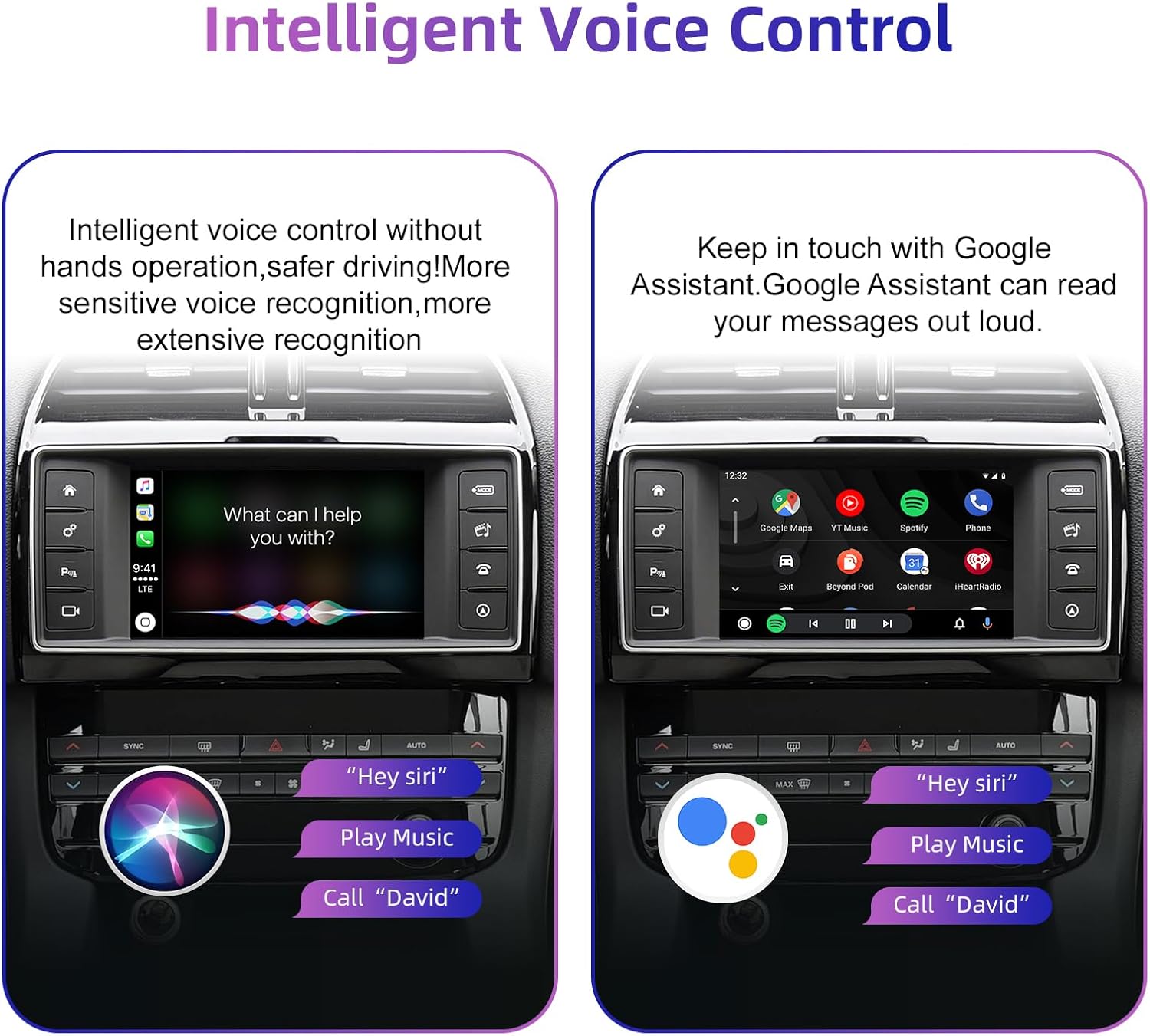
Image: Demonstrates voice control activation for Siri and Google Assistant, showing commands like "Play Music" and "Call David".
5.3 Retaining Original Car Functions
The original vehicle functions are maintained after installing the decoder kit. You can switch between the original OEM system and the CarPlay/Android Auto interface with a single button press.
- Steering Wheel Controls: Continue to use your steering wheel buttons for volume, track changes, and voice activation.
- Central Control Panel: The original central control panel buttons remain functional.
- Touch Screen: The original touch screen functionality is preserved for both the OEM system and the new interface.

Image: Illustrates how steering wheel buttons, the central control panel, and the touch screen continue to function with the integrated system.

Image: Shows the continued functionality of voice control, touch screen, steering wheel controls, and knob controls with the new system.
5.4 Online Navigation
Utilize your preferred navigation applications directly on your car's display. The system supports various mapping options and provides real-time traffic information throughout your journey.
- Compatible with Google Maps, Waze, Apple Maps, Naver Maps, and T Maps.

Image: A car's display showing a navigation map with a route highlighted.

Image: Displays various navigation app icons (Waze, Google Maps, Apple Maps, Naver Maps, T Maps) available through the system.
5.5 Bluetooth Audio Output
The system utilizes the factory car Bluetooth for audio output, which significantly reduces interference and provides a faster sound response.
- Pair your car's Bluetooth with your smartphone.
- Connect to CarPlay or Android Auto.
- Select the car's Bluetooth as the sound output source.

Image: Steps for pairing car Bluetooth, connecting CarPlay, and selecting sound output to the car's Bluetooth system.
5.6 Rear View Camera Support
The decoder kit supports both original factory rear cameras and parking sensors, as well as aftermarket rear cameras and 360-degree systems. It is compatible with front camera DVR recorders (PAL/NTSC/CVBS input).

Image: A car's display showing a rear view camera feed with parking guidelines, demonstrating support for aftermarket cameras.

Image: Highlights support for original rear cameras, factory parking sensors, and aftermarket rear cameras/360 systems.
6. Maintenance
To ensure the longevity and optimal performance of your Ezonetronics Decoder Kit, follow these general maintenance guidelines:
- Keep the unit and connections clean and free from dust and debris.
- Avoid exposing the unit to extreme temperatures, direct sunlight for prolonged periods, or excessive moisture.
- Do not use harsh chemicals or abrasive cleaners on the unit or your car's display. Use a soft, dry cloth for cleaning.
- Ensure all cables are securely connected and not pinched or damaged.
7. Troubleshooting
Most issues encountered during installation or operation are often related to incorrect connections or settings. If you experience problems, please review the following:
- No Display/Incorrect Display: Double-check all LVDS cable connections and ensure the DIP switch settings are correct for your vehicle model and screen size.
- No Audio: Verify Bluetooth pairing between your phone and the car's original system, and ensure the correct audio output is selected.
- Intermittent Connection: Check Wi-Fi and Bluetooth connections on your smartphone and ensure there are no obstructions or excessive interference.
- Controls Not Responding: Confirm that the system is correctly switched to the CarPlay/Android Auto interface and that all original car controls are functioning correctly in the OEM system.
If problems persist after checking connections and settings, please contact Ezonetronics customer support for assistance.
8. Specifications
| Feature | Detail |
|---|---|
| Model | RM-LH2523F |
| Brand | Ezonetronics |
| Dimensions (L x W x H) | 25 x 22 x 10 cm (approx. package size) |
| Weight | 1.3 Kilograms |
| Connectivity Technology | Wi-Fi (2.4 GHz & 5.8 GHz), Bluetooth 5.0 |
| Compatible Peripherals | Smartphones (iOS and Android) |
| Additional Features | Wireless Apple CarPlay, Wireless Android Auto, Voice Control (Siri/Google Assistant), Supports OEM controls, Rear Camera Input (PAL/NTSC/CVBS) |
| Manufacturer | Rhythm Electronics Limited |
9. Warranty and Support
Ezonetronics products are designed for reliability and performance. For specific warranty information, please refer to the documentation included with your purchase or contact Ezonetronics customer service.
For technical support, installation guidance, or troubleshooting assistance, please reach out to Ezonetronics directly. Providing your product model (RM-LH2523F) and a detailed description of your issue will help expedite support.
You can typically find contact information on the Ezonetronics official website or through your point of purchase.