
Jansite B0FV8RZHDC
Jansite 7-inch Wireless Motorcycle CarPlay & Android Auto GPS Navigation System User Manual
Model: B0FV8RZHDC
Brand: Jansite
Introduction
This manual provides detailed instructions for the installation, operation, and maintenance of your Jansite 7-inch Wireless Motorcycle CarPlay & Android Auto GPS Navigation System. Designed specifically for BMW motorcycles, this device offers seamless integration with your smartphone for navigation, communication, and entertainment, enhancing your riding experience with advanced features and robust design.
Safety Information
Always prioritize safety while operating your motorcycle. Ensure the device is securely mounted and all connections are stable before riding. Do not attempt to adjust settings or interact with the screen in a way that distracts you from the road. Utilize voice control features to maintain focus on driving. Always wear appropriate safety gear, including a helmet with Bluetooth communication capabilities for hands-free operation.
What's in the Box
- Motorcycle Carplay Screen
- Mounting Bracket Kit
- Power Cable
- Instruction Manual
- Hex Wrench
- Electrical Tape
- Cable Ties
Setup and Installation
The Jansite motorcycle CarPlay system is designed for plug-and-play installation on BMW motorcycles equipped with a 4-pin connector. Ensure you are using an original BMW bracket, as third-party mounts are not compatible with this motorcycle GPS navigation system.
- Prepare the Mounting Bracket: Assemble the fixed bracket components. The double-ball multi-angle adjustable lock allows for flexible positioning.
- Install the Device to the BMW Navigation Base: Securely attach the assembled bracket to your motorcycle's original BMW navigation base.
- Connect the Power Cable: Connect the power port of the bracket to the CarPlay screen. The system uses a 4-pin connector for power.
- Verify Installation: Once connected, the installation is complete. The screen should power on with the motorcycle's ignition.

Image: Components of the mounting bracket being assembled, showing the adjustable ball joints.

Image: Step-by-step visual guide for attaching the CarPlay screen to the motorcycle's handlebar mount, highlighting the BMW-specific connector.

Image: A detailed view of the 4-pin power connector, ensuring a secure and waterproof connection to the device.
Installation Video Guide
Operating Instructions
Wireless CarPlay & Android Auto Connectivity
The system supports both wireless Apple CarPlay and Android Auto. Please make sure your phone supports wireless CarPlay or Android Auto before purchasing.
- Enable Bluetooth on your Smartphone: Turn on Bluetooth on your iPhone or Android device.
- Pair with the CarPlay Screen: On the CarPlay screen, select either "CarPlay" or "Android Auto". The screen will display a device name (e.g., "F601_A2165810").
- Connect from your Phone: On your smartphone, search for the device name in your Bluetooth settings and select it to pair. Confirm any pairing requests on both devices.
- Access Features: Once connected, your phone's CarPlay or Android Auto interface will appear on the motorcycle screen, allowing access to navigation, calls, music, and messaging.

Image: Visual guide illustrating the Bluetooth pairing process between a smartphone and the CarPlay screen for both Apple CarPlay and Android Auto.
Voice Control (Siri & Google Assistant)
Utilize voice commands to control various functions without taking your hands off the handlebars, enhancing safety and convenience.
- Activate Voice Assistant: Depending on your connected device, say "Hey Siri" or "Hey Google" to activate the voice assistant.
- Issue Commands: You can ask for directions, make calls, play music, or send messages using voice commands.

Image: An illustration of a rider using voice commands like "Hi Google, Go Home" or "Hey Siri, Play Music" to interact with the CarPlay screen.
Navigation
Access your preferred navigation apps directly from the screen. The 7-inch high-definition IPS display with 1600x600 resolution provides clear and detailed map views, reducing the need for frequent screen adjustments.
- Select Navigation App: Tap on your desired map application (e.g., Apple Maps, Google Maps, Waze) from the CarPlay/Android Auto interface.
- Enter Destination: Use the touchscreen or voice commands to enter your destination.
- Follow Directions: Visual and audio turn-by-turn directions will be provided.
Music and Media Playback
Enjoy your favorite music and podcasts through the dual Bluetooth connectivity. Pair your smartphone and a Bluetooth-enabled headset/helmet for crystal-clear audio output.
- Connect Audio Devices: Pair your Bluetooth headset or helmet with the CarPlay screen for audio output.
- Select Media App: Open your music or podcast app (e.g., Spotify, Apple Music) from the screen.
- Control Playback: Use the touchscreen or voice commands to control playback (play, pause, skip tracks).
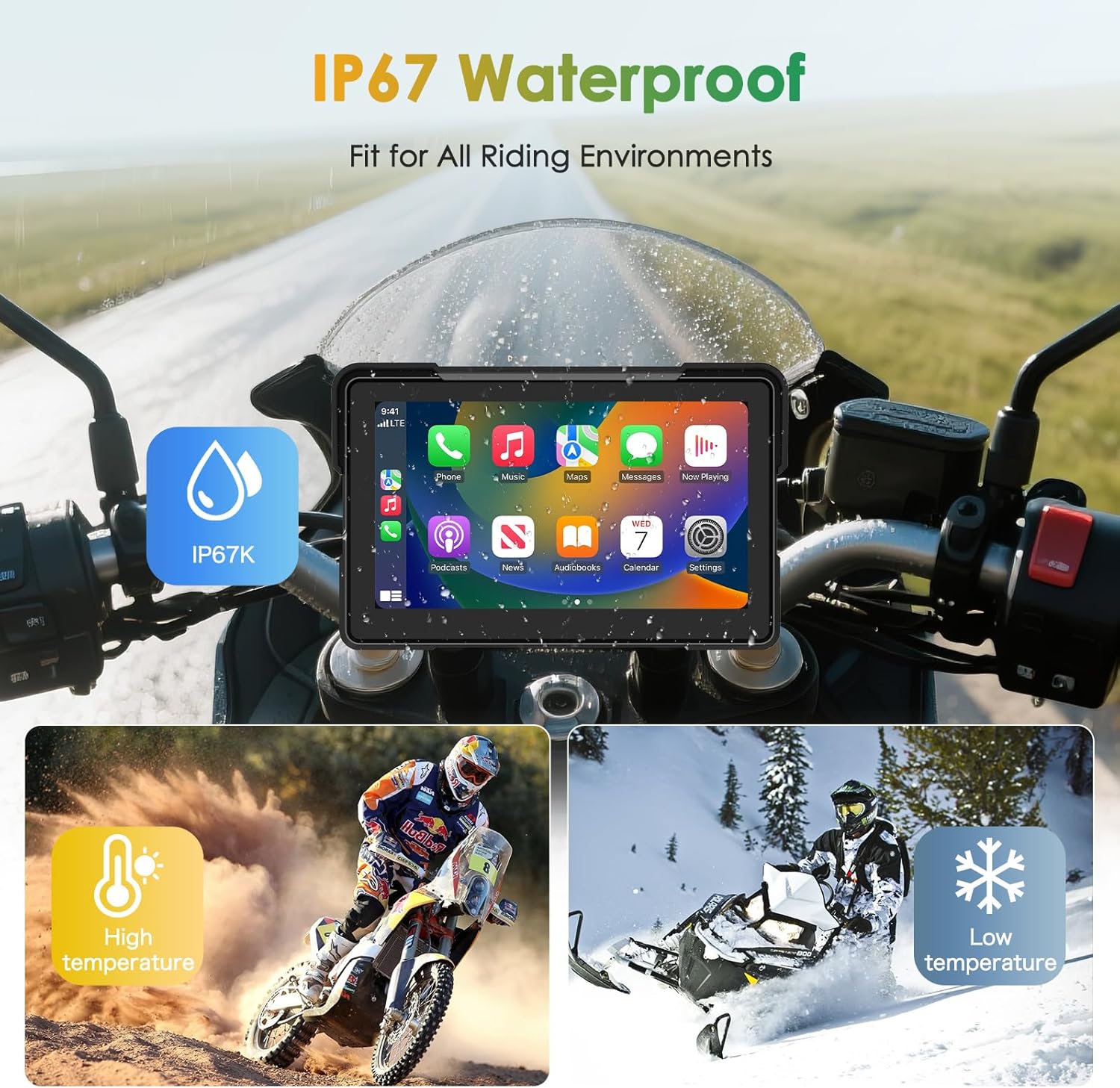
Image: A rider on a motorcycle with a Bluetooth headset connected to the CarPlay screen, displaying music playback information.
Phone Calls
Make and receive hands-free calls while riding, ensuring you stay connected safely.
- Initiate Call: Use voice commands or tap the phone icon on the screen to access your contacts and make a call.
- Receive Call: Incoming calls will be displayed on the screen. You can accept or decline using the touchscreen or voice commands.
- Audio Output: Call audio will be routed through your paired Bluetooth headset/helmet.
Screen Features
- Anti-glare Screen: The screen features an anti-glare design and a sun visor to ensure clear visibility even in direct sunlight.
- IP67 Waterproof: The device is IP67 waterproof, making it suitable for all riding environments and works great in high or low temperatures.
- Responsive Touchscreen: The capacitive touchscreen responds quickly and accurately, reducing accidental taps.

Image: The CarPlay screen shown on a motorcycle in rainy, hot, and cold environments, emphasizing its IP67 waterproof rating and anti-glare properties.
General Operation Overview Video
Maintenance
- Cleaning: Use a soft, damp cloth to clean the screen. Avoid abrasive cleaners or solvents that could damage the display.
- Storage: When not in use for extended periods, store the device in a cool, dry place away from direct sunlight.
- Cable Inspection: Periodically check all cables and connections for wear or damage. Ensure waterproof connections are sealed properly.
Troubleshooting
| Issue | Possible Cause | Solution |
|---|---|---|
| Device does not power on. | Loose power connection, no power from motorcycle. | Check all power cable connections. Ensure motorcycle ignition is on. Verify the 4-pin connector is fully seated. |
| Unable to connect to CarPlay/Android Auto. | Bluetooth not enabled, phone not compatible, incorrect pairing process. | Ensure smartphone Bluetooth is on. Verify phone supports wireless CarPlay/Android Auto. Follow pairing instructions carefully. Restart both devices if necessary. |
| Screen glare/poor visibility. | Direct sunlight, brightness settings. | Adjust screen brightness in settings. Utilize the built-in sun visor. Reposition the screen if possible. |
| Audio issues (no sound, distorted sound). | Bluetooth headset not paired, volume too low, interference. | Ensure Bluetooth headset is properly paired and connected. Check volume levels on both the screen and headset. Move away from potential sources of interference. |
Specifications
| Feature | Detail |
|---|---|
| Brand | Jansite |
| Vehicle Service Type | BMW (4-pin connector specific) |
| Screen Size | 7.0 inches |
| Display Type | IPS |
| Resolution | 1600x600 |
| Special Feature | IP67 Waterproof, Anti-glare Screen |
| Connectivity Technology | Dual Bluetooth, Wireless CarPlay, Wireless Android Auto |
| Map Type | Phone Map (via CarPlay/Android Auto) |
| Mounting Type | Handlebar Mount (BMW original bracket compatible) |
| Human-Interface Input | Touchscreen, Voice Control (Siri, Google Assistant) |
| Memory Storage Capacity | 64 GB (for dash cam/media storage, if applicable) |
| Item Weight | 0.7 Kilograms |
Warranty Information
This product comes with a 1-year warranty. For warranty claims or detailed information, please refer to the product packaging or contact Jansite customer support.
Customer Support
For further assistance, technical support, or inquiries, please visit the Jansite Store on Amazon or refer to the contact information provided in your product packaging.
Ask a question about this manual
Ask about setup, troubleshooting, compatibility, parts, safety, or missing instructions. Manuals+ will review the question and use this page’s manual context to help answer it.