
Introduction
Thank you for choosing the Bextgoo 2026 Pro Spy Pen Camera. This device is designed for discreet video recording and photo capture in 1080P Full HD. This manual provides detailed instructions to help you get started and utilize all features effectively.
What's in the Box
Please check the package contents to ensure all items are present:
- 1 x Bextgoo Pen Camera
- 1 x 64GB Memory Card (pre-installed)
- 5 x Replacement Refills
- 1 x Screwdriver
- 1 x USB Cable
- 1 x Card Reader
- 1 x Reset Pin
- 1 x Camera Instruction Manual (this document)

Product Overview
The Bextgoo 2026 Pro Spy Pen Camera integrates a writing pen with a hidden camera, offering 1080P HD video and photo capabilities. It features a simple one-button operation and includes a 64GB memory card for immediate use.
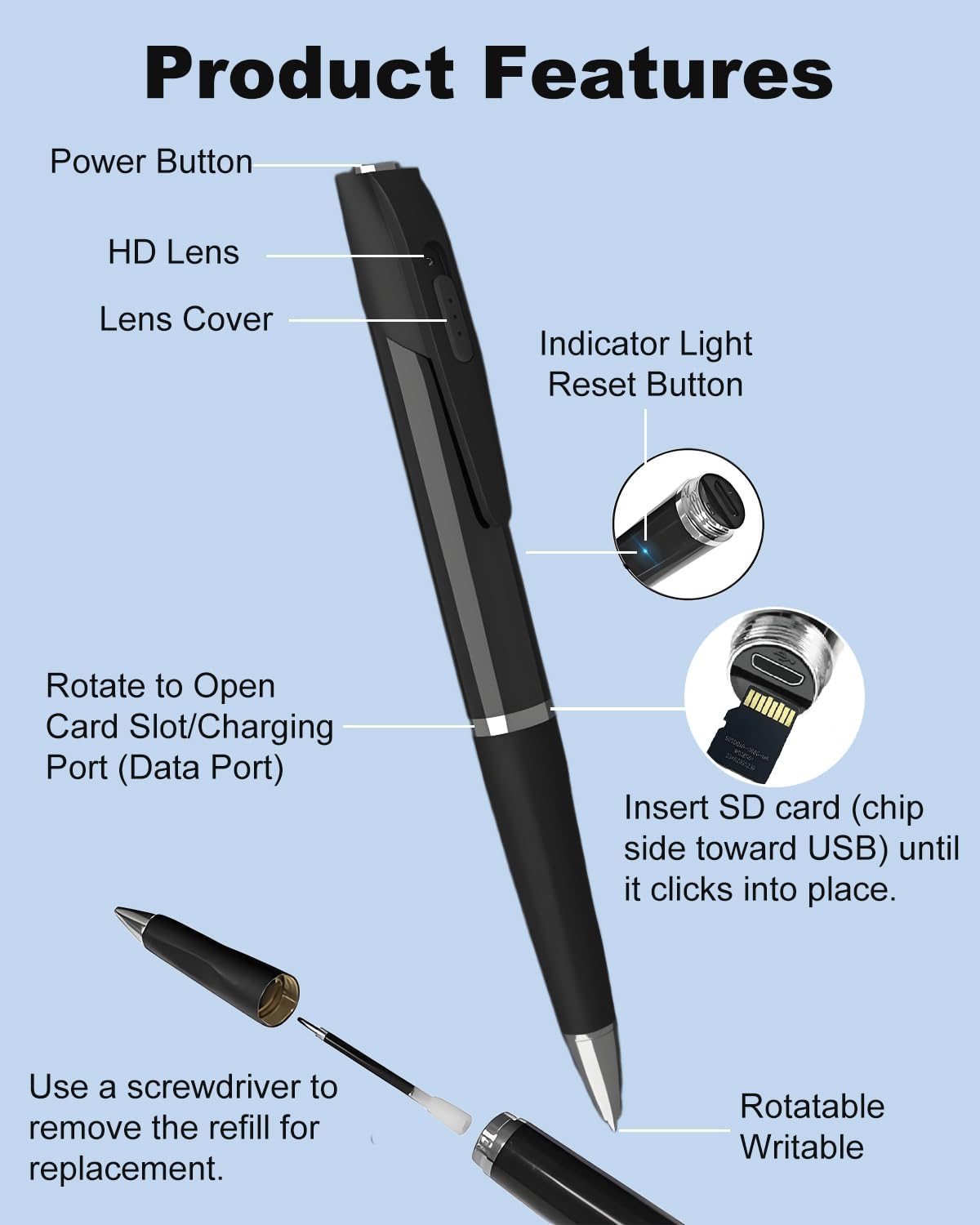
- Power Button: Controls power on/off, video recording, and photo capture.
- HD Lens: Captures 1080P video and photos.
- Lens Cover: Protects the camera lens.
- Indicator Light: Provides status feedback (e.g., recording, charging).
- Reset Button: Used to reset the device if it becomes unresponsive.
- Card Slot/Charging Port: Houses the microSD card and serves as the charging/data transfer port.
- Rotatable Writable Tip: Standard pen functionality.

Setup
1. Charging the Device
Before first use, fully charge the pen camera. Connect the pen to a USB power source (e.g., computer USB port or USB wall adapter) using the provided USB cable. The indicator light will show charging status and turn off when fully charged.

2. Inserting the Memory Card
The 64GB memory card is typically pre-installed. If not, or if you are replacing it, rotate the pen to expose the card slot. Insert the microSD card with the chip side facing towards the USB port until it clicks into place. The device supports up to 128GB microSD cards.

3. Setting Date and Time Stamp
To set the correct date and time stamp for your recordings:
- Connect the pen camera to your computer using the USB cable.
- Open the removable disk drive that appears.
- Create a new text file named "time.txt" in the root directory of the memory card.
- Open "time.txt" and enter the current date and time in the format: YYYY-MM-DD HH:MM:SS (e.g., 2026-02-12 14:30:00).
- Save the file and safely eject the pen camera from your computer.
- The time stamp will be updated the next time the camera is powered on.
Operating Instructions
The Bextgoo pen camera features a simple one-button operation. The LED indicator light will guide you through different modes, but it turns off during recording to ensure discretion.

Power On/Off
- Power On: Long press the power button until the indicator light turns on (e.g., blue light).
- Power Off: Long press the power button again until the indicator light turns off. The device will save any active recording before powering down.
Video Recording
- While the device is powered on, press the power button once.
- The indicator light will flash (e.g., blue light flashes then turns off) to indicate that video recording has started.
- To stop recording, press the power button once again. The indicator light will turn back on, and the video file will be saved automatically.
Photo Taking
- While the device is powered on, press the power button twice quickly.
- The indicator light will flash briefly to indicate a photo has been taken and saved.
File Management
Accessing Files
To view or transfer your recorded videos and photos:
- Via USB Cable: Connect the pen camera to your computer using the provided USB cable. The device will appear as a removable disk. You can then copy files directly.
- Via Card Reader: Remove the microSD card from the pen camera and insert it into the provided card reader. Connect the card reader to your computer's USB port. The card will appear as a removable disk.
Loop Recording
The pen camera supports loop recording. When the memory card is full, the oldest files will be automatically overwritten by new recordings. This ensures continuous operation without manual deletion of old files.
Automatic Save on Low Battery
The device is equipped with an auto-save function. If the battery runs low during recording, the current file will be saved automatically before the device powers off, preventing data loss.
Maintenance
Replacing Ink Refills
To replace the ink refill:
- Unscrew the pen tip counter-clockwise.
- Use the provided screwdriver to gently remove the old refill.
- Insert a new refill and screw the pen tip back on clockwise.
Cleaning
Wipe the pen camera with a soft, dry cloth. Avoid using liquid cleaners or abrasive materials, as they may damage the device or lens.
Troubleshooting
| Problem | Possible Cause | Solution |
|---|---|---|
| Device does not power on. | Low battery. | Charge the device fully. |
| Device is unresponsive. | System crash. | Use the reset pin to press the reset button. |
| Cannot record video/take photos. | Memory card full or not inserted correctly. | Check memory card insertion. Transfer files to free up space or replace the card. |
| Video quality is poor. | Insufficient lighting; dirty lens. | Ensure adequate lighting. Clean the camera lens gently. |
| Incorrect date/time stamp. | Time not set or file corrupted. | Follow the "Setting Date and Time Stamp" instructions. |
Specifications
- Model Number: WSV16
- Video Capture Resolution: 1080p Full HD
- Media Type: Micro SD Card (64GB included, supports up to 128GB)
- Battery: 500mAh rechargeable (1 A battery included)
- Continuous Video Recording Time: Up to 75 minutes
- Total Working Time: Up to 150 minutes (depending on usage)
- Product Dimensions: 5.8 x 0.61 x 0.61 inches
- Item Weight: 4.2 ounces
- Color: Black
- Exposure Control Type: Automatic
- Shooting Modes: Night (implied by product description, though not a distinct mode button)
Warranty and Support
Bextgoo is committed to providing high-quality products. For any questions, technical support, or warranty inquiries, please contact Bextgoo customer service through the retailer's platform or visit the official Bextgoo store page on Amazon.
Amazon Store Page: Bextgoo Official Store