
Introduction
This manual provides essential information for setting up, operating, maintaining, and troubleshooting your Raemond K90 12-inch Android Tablet. Please read it thoroughly to ensure optimal performance and longevity of your device.
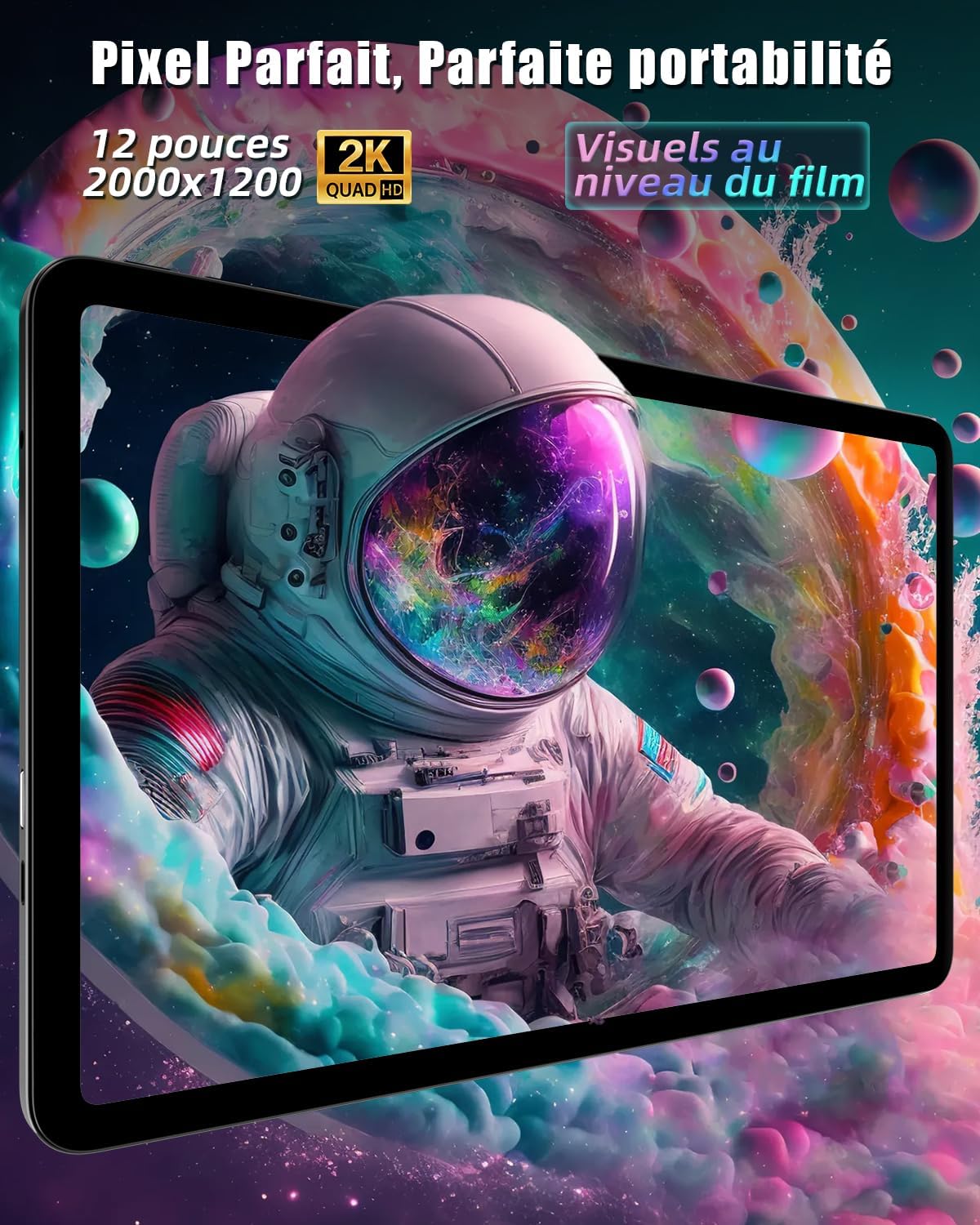
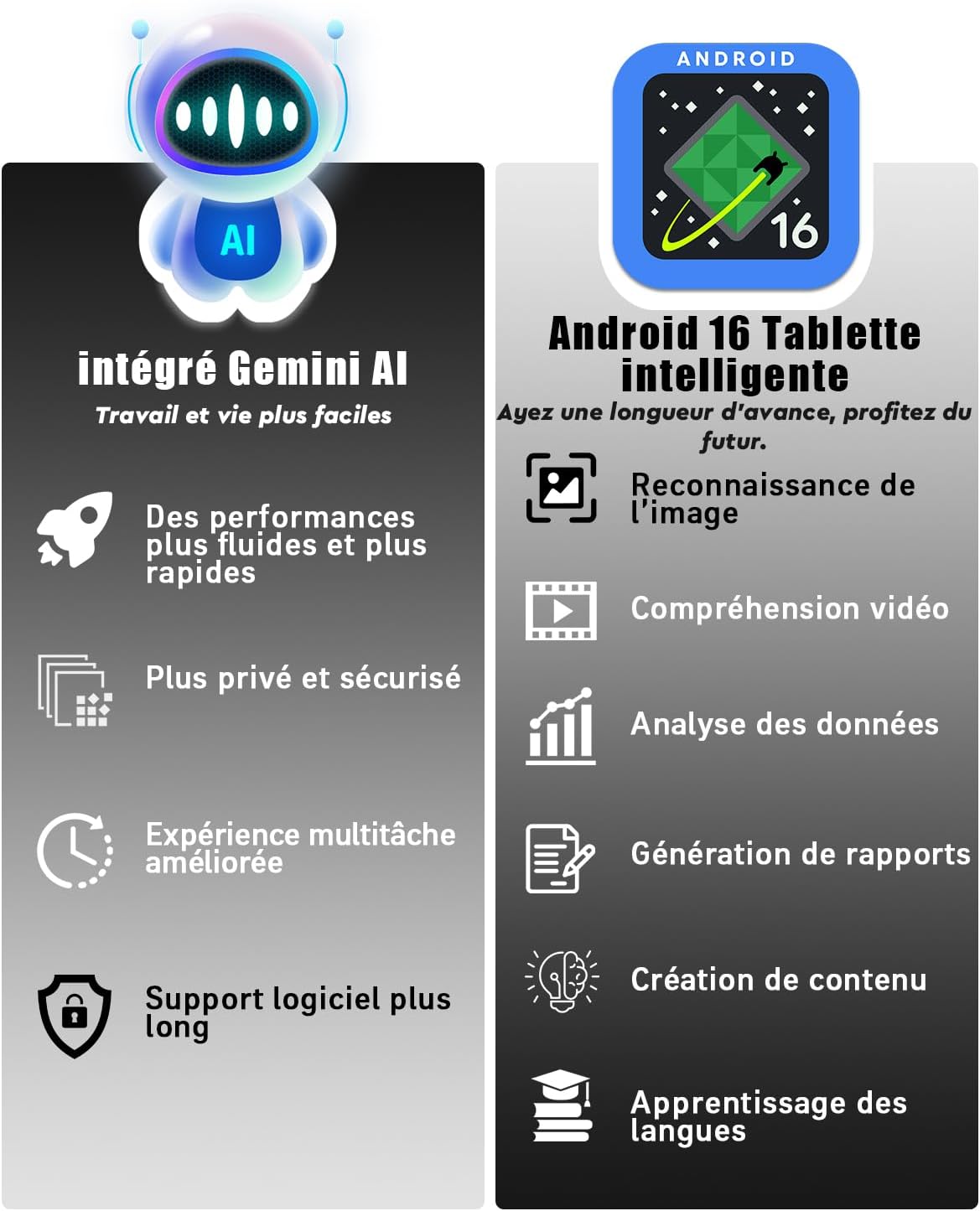
The Raemond K90 tablet features a 12-inch 2K IPS display, powered by a T615 Octa-Core processor. It runs on Android 16 with integrated Gemini AI, offering 28GB RAM (8GB physical + 20GB virtual) and 128GB internal storage, expandable up to 2TB. The tablet includes a 16MP rear camera, an 8MP front camera, Face ID, dual-band Wi-Fi, GPS, and an 8000mAh battery.
Device Overview
Front and back view of the Raemond K90 tablet, showcasing its sleek design and camera placement.
The Raemond K90 tablet displayed with its charging cable and adapter.
Setup
1. Initial Charging
Before first use, fully charge the tablet using the provided USB Type-C cable and 5V/2A charger. The tablet supports 18W fast charging. A full charge ensures optimal battery calibration.

Image illustrating the tablet connected to its charger via a USB Type-C cable.
2. Power On/Off
- To power on: Press and hold the power button until the Raemond logo appears.
- To power off: Press and hold the power button, then select 'Power off' from the options.
- To restart: Press and hold the power button, then select 'Restart' from the options.
3. Initial Configuration
Upon first startup, follow the on-screen prompts to:
- Select your language.
- Connect to a Wi-Fi network.
- Sign in with your Google account or create a new one.
- Set up screen lock (PIN, pattern, password, or Face ID).
4. Inserting a MicroSD Card
The tablet supports microSDXC cards up to 2TB for expanded storage. Locate the SIM/microSD card tray on the side of the tablet, use the ejector tool (if provided) to open it, and carefully insert the microSD card into the designated slot. Ensure the tablet is powered off before inserting or removing the card.
Operating Instructions
1. Basic Navigation
The Raemond K90 uses a capacitive touchscreen for navigation. Use gestures such as tap, swipe, pinch-to-zoom, and long-press to interact with the interface.
2. Face ID Setup and Usage
To set up Face ID:
- Go to Settings > Security & privacy > Face unlock.
- Follow the on-screen instructions to register your face. Ensure good lighting and hold the tablet at eye level.
Once set up, Face ID can be used to unlock your tablet by simply looking at the front camera.
3. Connectivity
- Wi-Fi: Connect to 2.4G or 5G Wi-Fi networks via Settings > Network & internet > Internet.
- Bluetooth: Pair with Bluetooth 5.2 devices (e.g., headphones, keyboards) via Settings > Connected devices > Bluetooth.
- GPS: The tablet supports GPS, Beidou, GLONASS, and Galileo for accurate location services. Ensure location services are enabled in Settings > Location.

Visual representation of the tablet's Wi-Fi, Bluetooth, and GPS capabilities.
4. Camera Usage
The tablet features a 16MP rear camera and an 8MP front camera.
- Open the Camera app to capture photos and videos.
- Tap the screen to focus, and use the on-screen controls to switch between front/rear cameras, modes, and settings.

Image highlighting the tablet's 16MP rear and 8MP front cameras.
5. Audio
The tablet is equipped with stereo speakers and a 3.5mm headphone jack for audio output. Supported audio formats include AAC, AMR, FLAC, M4A, MP3, OGG, and WAV.
6. Gemini AI Features
Leverage the integrated Gemini AI for enhanced productivity:
- Voice Commands: Use voice commands for quick information retrieval and task execution.
- Real-time Translation: Facilitate multilingual communication with instant translation features.
- Content Generation: Generate creative content such as text and proposals.

Illustration of the tablet's Android 16 operating system and Gemini AI integration.
7. Widevine L1 Support
The tablet supports Widevine L1, enabling high-definition streaming content from supported platforms.

The tablet screen showing a video streaming interface, demonstrating its capability for entertainment.
Maintenance
1. Battery Care
The 8000mAh Lithium-ion battery provides an average of 6 hours of usage. To prolong battery life:
- Avoid extreme temperatures.
- Do not let the battery drain completely regularly.
- Use the original charger and cable.
2. Cleaning the Device
Use a soft, lint-free cloth to clean the screen and body of the tablet. Avoid abrasive materials or harsh chemicals. For stubborn smudges, slightly dampen the cloth with water or a screen cleaner designed for electronics.
3. Software Updates
Regularly check for and install software updates to ensure your tablet has the latest features, security patches, and performance improvements. Go to Settings > System > System update.
4. Storage Management
The tablet comes with 128GB of internal storage. To manage storage effectively:
- Regularly delete unnecessary files and apps.
- Utilize cloud storage services.
- Expand storage with a microSDXC card up to 2TB.
Troubleshooting
| Problem | Possible Solution |
|---|---|
| Tablet does not power on | Ensure the battery is charged. Connect to the charger for at least 30 minutes. If still unresponsive, perform a forced restart by holding the power button for 10-15 seconds. |
| Wi-Fi connection issues | Restart the tablet and your Wi-Fi router. Forget the network in settings and reconnect. Ensure you are within range of the Wi-Fi signal. |
| Slow performance | Close unused applications. Clear cache for apps. Check for available software updates. Consider freeing up storage space. |
| Face ID not working | Ensure your face is well-lit and not obstructed. Re-register your face in settings if the issue persists. |
| Battery drains quickly | Reduce screen brightness. Close background apps. Disable unnecessary features like GPS or Bluetooth when not in use. Check battery usage in settings to identify power-hungry apps. |
Specifications
| Feature | Detail |
|---|---|
| Model Name | K90 |
| Model Number | S90J |
| Display Size | 12 Inches |
| Display Type | IPS |
| Max Display Resolution | 2000 x 1200 Pixels (2K UHD) |
| Refresh Rate | 60 Hz |
| Processor | Unisoc T615 Octa-Core (1.8 GHz) |
| RAM | 28 GB (8GB physical + 20GB virtual) |
| Internal Storage | 128 GB |
| Expandable Storage | Up to 2 TB (microSDXC) |
| Operating System | Android 16 |
| Rear Camera | 16 Megapixels |
| Front Camera | 8 Megapixels |
| Battery Capacity | 8000 mAh Lithium-ion |
| Average Battery Life | 6 hours |
| Connectivity | Wi-Fi (802.11a/b/g/n/ac, 2.4G/5G), Bluetooth 5.2, GPS, USB Type-C, 3.5mm Audio Jack |
| Security Feature | Face ID |
| Dimensions (L x W x H) | 28.2 x 17.8 x 0.83 cm |
| Weight | 526 Grams |
| Included Components | K90 Tablet, 1 x charger and charging cable |
| UPC | 739719636476 |
Warranty and Support
1. Warranty Information
The Raemond K90 tablet comes with a 2-year manufacturer's warranty. This warranty covers defects in materials and workmanship under normal use. Please retain your proof of purchase for warranty claims.
2. Customer Support
For technical assistance, setup questions, or any other inquiries, please contact Raemond customer support. Our professional after-sales team is available to provide comprehensive support for your device.

Illustration representing customer support services available for the product.
