
Introduction
The ASUS TUF Gaming A16 is a high-performance gaming laptop designed for immersive gaming and efficient multitasking. It features robust components and a durable build to withstand demanding usage. This manual provides essential information for setting up, operating, maintaining, and troubleshooting your device.
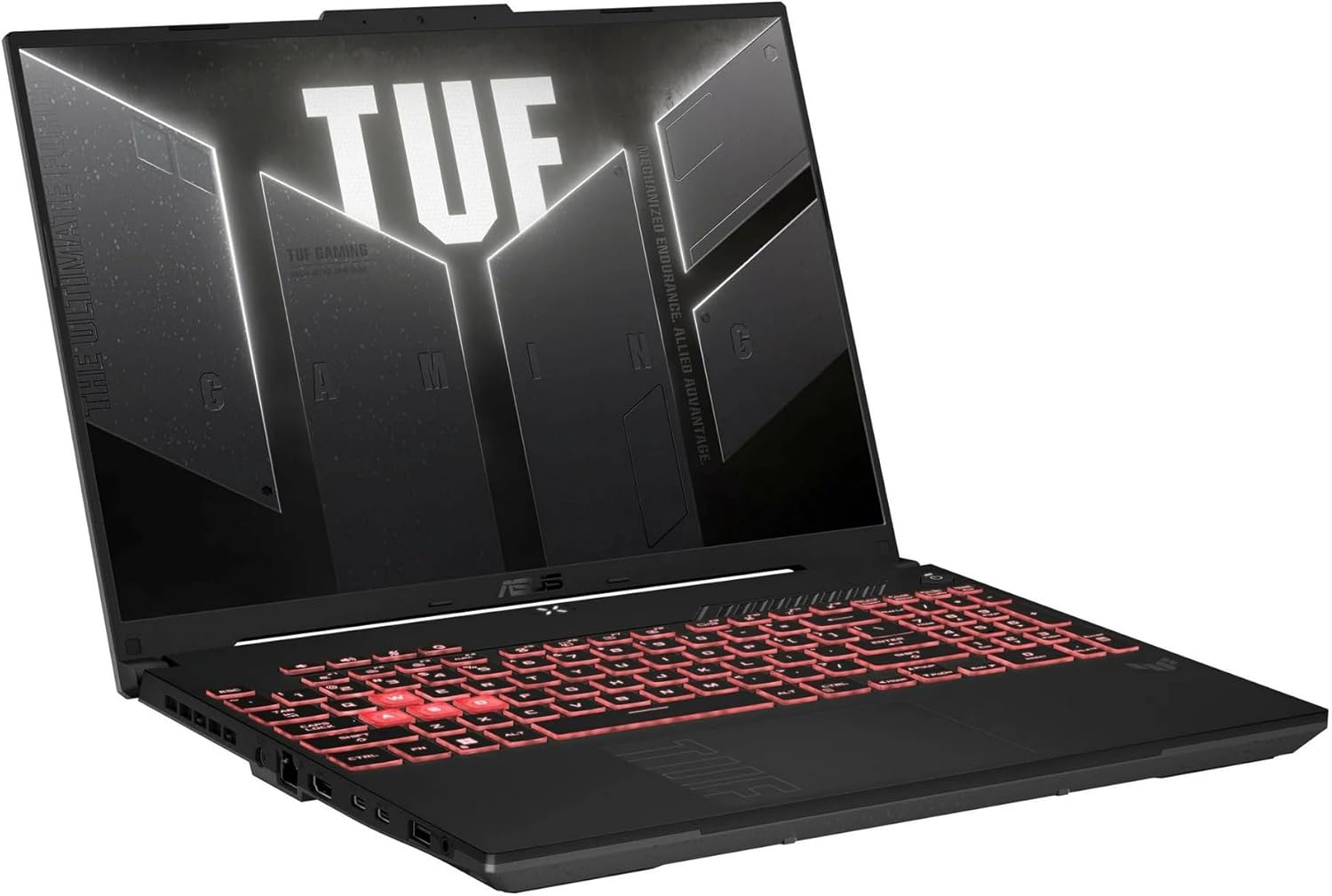
Image: The ASUS TUF Gaming A16 Laptop, shown open at an angle, displaying a vibrant game on its screen. The keyboard is visible, and the laptop's sleek design is highlighted.
Key Features:
- AMD Ryzen 7 7445HS Processor (3.2GHz)
- 16" Full HD+ 145Hz Display
- NVIDIA GeForce RTX 4050 Graphics
- 16GB DDR5 RAM; 512GB SSD
- Backlit Keyboard, Wi-Fi 6(802.11ax) (Dual band) 2*2, Bluetooth, Windows 11, HDMI, USB-C
Setup
Follow these steps to set up your ASUS TUF Gaming A16 Laptop for the first time:
- Unboxing: Carefully remove the laptop and all accessories from the packaging. Ensure all components, including the AC adapter, are present.
- Power Connection: Connect the AC adapter to the laptop's power input port and then plug it into a power outlet. It is recommended to fully charge the battery before initial use.
- Initial Boot: Open the laptop lid and press the power button. The system will guide you through the initial Windows 11 setup process. Follow the on-screen instructions to configure your operating system, language, and user account.
- Network Setup: During the Windows setup, you will be prompted to connect to a Wi-Fi network. Select your preferred network and enter the password.
- Software Updates: After completing the initial setup, connect to the internet and allow Windows to download and install any pending updates to ensure optimal performance and security.
Connecting Peripherals:
Your laptop is equipped with various ports for connecting external devices:
- USB Ports: Connect USB devices such as mice, keyboards, or external storage drives.
- HDMI Port: Connect an external monitor or TV for a larger display.
- USB-C Ports: Utilize these versatile ports for data transfer, display output, or charging compatible devices.
- Audio Jack: Connect headphones or external speakers.

Image: The left side of the ASUS TUF Gaming A16 Laptop, showcasing its various ports including USB, HDMI, and USB-C connections.

Image: The right side of the ASUS TUF Gaming A16 Laptop, displaying additional USB ports and other connectivity options.
Operating
Display:
The 16-inch Full HD+ display with a 145Hz refresh rate provides smooth and vibrant visuals, crucial for gaming and multimedia consumption. Adjust display settings via Windows Display Settings or NVIDIA Control Panel for optimal experience.
Performance:
Equipped with an AMD Ryzen 7 7445HS Processor and NVIDIA GeForce RTX 4050 Graphics, the laptop delivers powerful performance for demanding applications and games. The 16GB DDR5 RAM ensures efficient multitasking, while the 512GB SSD provides fast boot times and quick application loading.
Keyboard and Touchpad:
The backlit keyboard offers comfortable typing and enhanced visibility in low-light conditions. Customize the RGB backlighting effects through the ASUS Armoury Crate software. The precision touchpad supports multi-touch gestures for intuitive navigation.

Image: A top-down view of the ASUS TUF Gaming A16 Laptop's keyboard, highlighting its backlit keys and full layout.
Audio:
Experience immersive audio with the integrated sound system. For enhanced audio quality, connect external headphones or speakers to the audio jack.
Connectivity:
The laptop supports Wi-Fi 6 (802.11ax) for fast and stable wireless internet connections and Bluetooth for connecting wireless peripherals.
Maintenance
Proper maintenance ensures the longevity and optimal performance of your laptop:
- Cleaning: Regularly clean the screen with a soft, lint-free cloth and a specialized screen cleaner. Use compressed air to clear dust from keyboard keys and ventilation grilles.
- Software Updates: Keep your operating system, drivers, and applications updated to the latest versions to ensure security and performance improvements.
- Battery Care: To prolong battery life, avoid fully discharging the battery frequently. If storing the laptop for an extended period, charge it to about 50-60% and store it in a cool, dry place.
- Ventilation: Ensure the laptop's ventilation openings are not obstructed during use to prevent overheating. Use the laptop on a hard, flat surface.
Troubleshooting
Here are solutions to common issues you might encounter:
- Laptop Not Powering On: Ensure the AC adapter is securely connected to both the laptop and the power outlet. Check if the power outlet is functional. If the battery is completely drained, allow it to charge for a few minutes before attempting to power on.
- Display Issues: If the screen is blank or flickering, try adjusting the brightness settings. If an external monitor is connected, ensure the display output settings are correct (e.g., duplicate, extend).
- No Internet Connection: Verify that Wi-Fi is enabled and you are connected to the correct network. Restart your router and modem. Check for any network driver updates.
- Slow Performance: Close unnecessary applications running in the background. Check for sufficient free space on your SSD. Ensure your system drivers are up to date.
- Keyboard/Touchpad Not Responding: Restart the laptop. Check for any driver updates for the keyboard and touchpad.
Specifications
| Feature | Specification |
|---|---|
| Brand | ASUS |
| Model Name | TUF Gaming A16 |
| Standing Screen Display Size | 16 Inches |
| Screen Resolution | 1920 x 1200 pixels |
| Max Screen Resolution | 1920x1200 Pixels |
| Processor | AMD Ryzen 7 7445HS (4.7 GHz) |
| RAM | 16 GB DDR5 |
| Hard Drive | 512 GB SSD |
| Graphics Coprocessor | NVIDIA GeForce RTX 4050 |
| Graphics Card Ram Size | 6 GB |
| Wireless Type | 802.11ax (Wi-Fi 6) |
| Number of USB 3.0 Ports | 3 |
| Operating System | Windows 11 Home |
| Item Weight | 7 pounds |
| Product Dimensions | 20 x 4 x 14 inches |
| Color | Gray |
| Special Feature | Anti Glare Coating, HD Audio, Spill Resistant, TrackPoint |
Warranty and Support
Your ASUS TUF Gaming A16 Laptop comes with a manufacturer's warranty. For detailed information regarding warranty coverage, terms, and conditions, please refer to the documentation included with your product or visit the official ASUS support website.
For technical assistance, troubleshooting, or to access drivers and manuals, please visit the ASUS Support Page.
Additional protection plans are available for purchase to extend coverage beyond the standard warranty period. These plans may include extended service, accidental damage protection, and other benefits.