
1. Introduction
The XTOOL D6 is an advanced OBD2 diagnostic scanner designed for comprehensive vehicle system analysis. It offers full system diagnostics, 15 essential service functions, and supports modern vehicle protocols like FCA AutoAuth and CAN FD. This manual provides detailed instructions for setting up, operating, and maintaining your XTOOL D6 device.

Image 1.1: XTOOL D6 main screen overview, illustrating its diagnostic capabilities and supported features.
2. Package Contents
Verify that all items are present in your package:
- XTOOL D6 Diagnostic Tablet
- Main OBD2 Diagnostic Cable
- USB Cable for PC Connection/Charging
- Power Adapter
- Customized Carrying Case
- User Manual (this document)
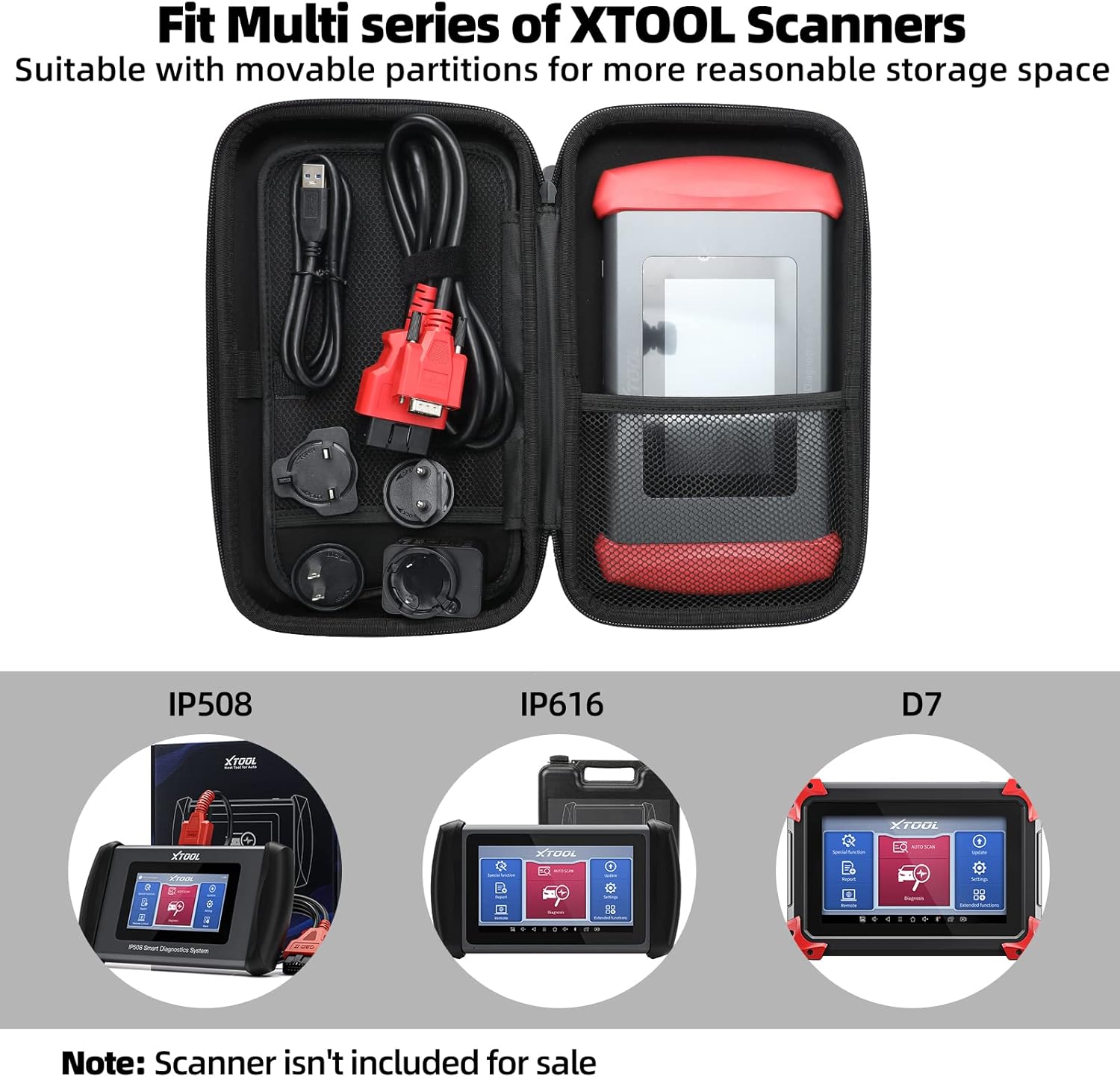
Image 2.1: The XTOOL D6 scanner and its accessories stored within the customized carrying case.
3. Setup
3.1 Initial Power On and Registration
- Press and hold the power button to turn on the device.
- Follow the on-screen prompts to select your language and region.
- Connect the device to a Wi-Fi network for internet access.
- Register your device by creating an XTOOL account or logging in if you already have one. This is essential for software updates and warranty activation.
3.2 Software Updates
The XTOOL D6 offers free lifetime software updates. Regularly updating your device ensures access to the latest vehicle coverage, diagnostic functions, and performance enhancements.
- From the main menu, tap on the Updates icon.
- The system will check for available updates.
- Select the desired updates and tap Download or Install. Ensure a stable internet connection during this process.
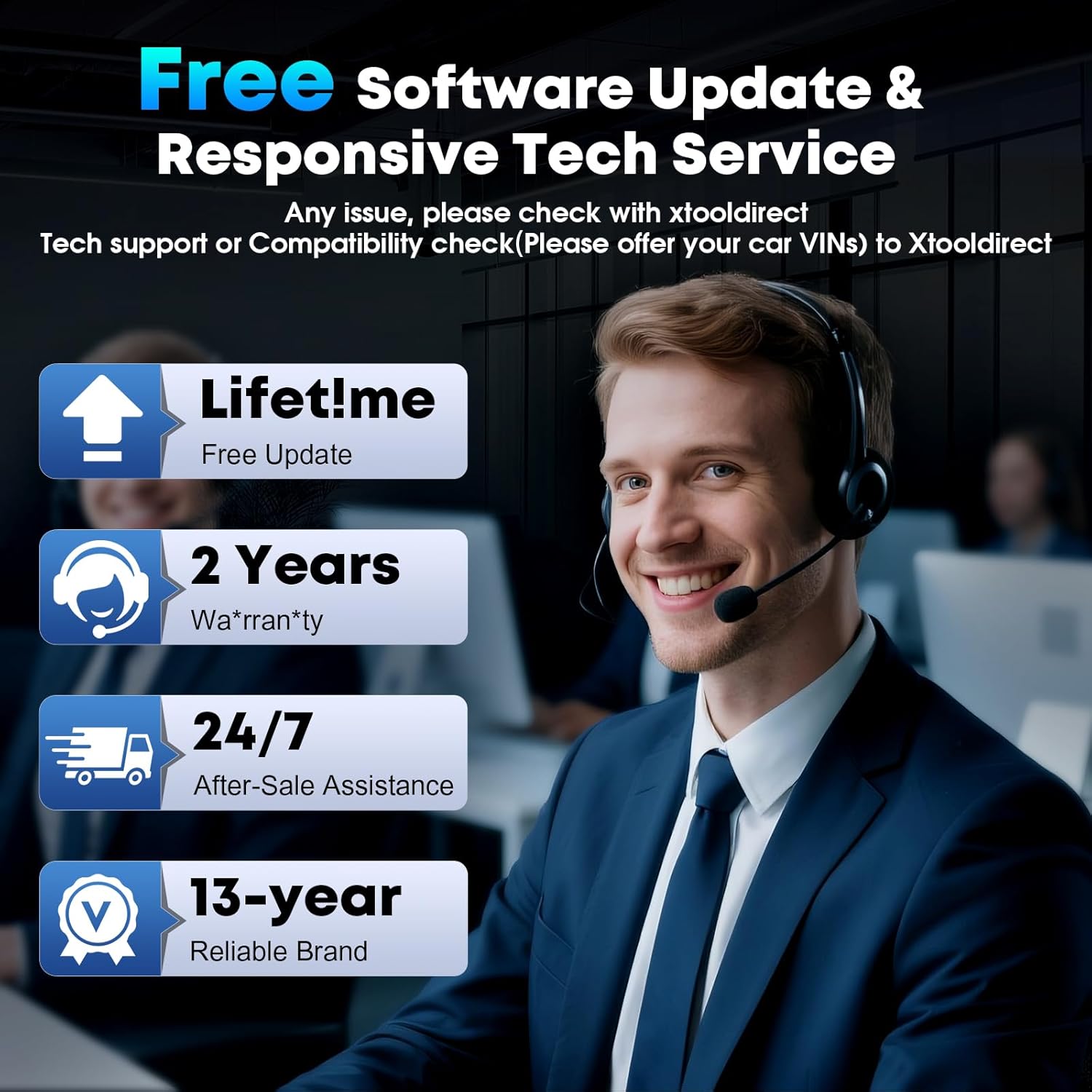
Image 3.1: The XTOOL D6 offers free lifetime software updates and dedicated technical support.
4. Operating Instructions
4.1 Connecting to a Vehicle
- Locate the vehicle's OBD2 port, typically under the dashboard on the driver's side.
- Connect the main diagnostic cable to the XTOOL D6 device.
- Plug the other end of the diagnostic cable into the vehicle's OBD2 port.
- Turn the vehicle's ignition to the ON position (engine off).
4.2 Full System Diagnostics
The XTOOL D6 can perform comprehensive diagnostics on all available electronic control units (ECUs) in a vehicle, including Engine (ECM), Transmission (TCM), ABS, SRS, TPMS, HVAC, and more.
- From the main menu, select Diagnosis or Auto Scan.
- For Auto Scan, the device will automatically identify the vehicle's VIN and scan all systems.
- For Diagnosis, you may need to manually select the vehicle make, model, and year.
- Once connected, you can:
- Read Diagnostic Trouble Codes (DTCs)
- Clear DTCs
- View Live Data Stream (graphical or numerical)
- Perform Actuation Tests
- View Freeze Frame Data
4.3 Special Functions (15+ Relearns)
The D6 offers over 15 essential service functions for common maintenance tasks:
- Oil Reset
- Electronic Parking Brake (EPB) Reset
- Battery Management System (BMS) Reset
- Cam Crank Position/Crankshaft Sensor Relearn (CKP Relearn)
- Throttle Body Relearn
- Tire Pressure Monitoring System (TPMS) Relearn
- ABS Auto Bleed
- Injector Coding
- Suspension Calibration
- Transmission Relearn
- And more.
To access these functions, select Special Function from the main menu and choose the desired service.
4.4 AutoVIN and Live Data
The AutoVIN feature automatically identifies vehicle information for faster diagnostics. The device also displays real-time live data streams, allowing you to monitor up to 4 parameters simultaneously for detailed analysis.
4.5 FCA AutoAuth and CAN FD Support
The XTOOL D6 supports FCA AutoAuth for secure access to 2018+ Chrysler, Jeep, Dodge, and 2017+ Fiat vehicles. It also supports the CAN FD protocol for modern vehicles, including GM 2020+ models. Note: FCA AutoAuth requires account registration via AutoAuth's website, not through XTOOL.
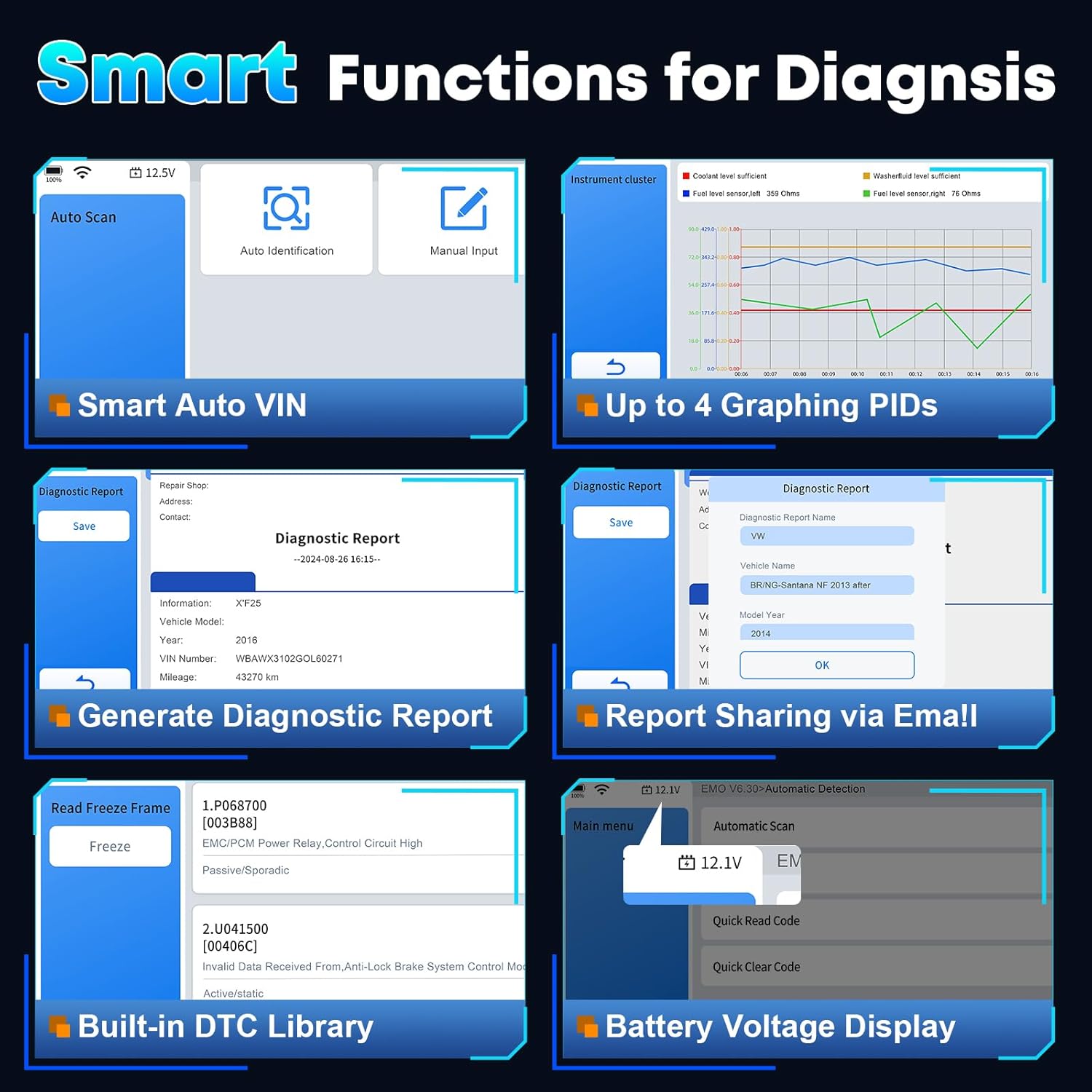
Image 4.1: Overview of smart diagnostic functions available on the XTOOL D6.

Image 4.2: XTOOL D6 extensive vehicle coverage, language support, and protocol compatibility.
5. Maintenance
5.1 Device Care
- Keep the device clean using a soft, dry cloth. Avoid abrasive cleaners.
- Store the device in its customized carrying case when not in use to protect it from drops, scratches, and dust. The case is designed to be waterproof and oilproof.
- Avoid exposing the device to extreme temperatures or direct sunlight for prolonged periods.
- Ensure all cables are properly connected and disconnected to prevent damage to ports.
5.2 Software Management
- Regularly perform software updates as described in Section 3.2.
- Periodically clear diagnostic reports and unnecessary data to free up storage space. The device has 32GB internal storage, expandable via microSD.
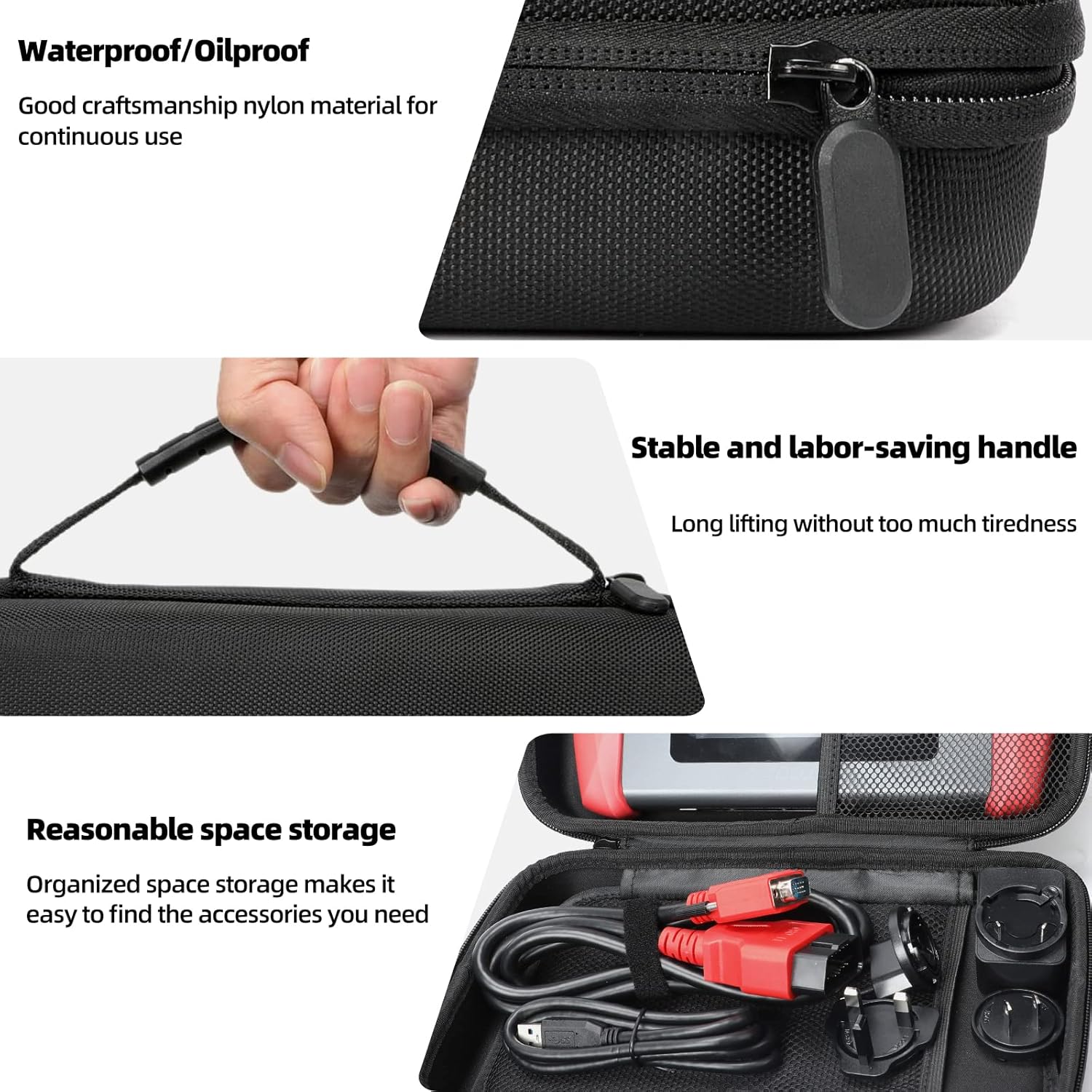
Image 5.1: Features of the XTOOL D6 carrying case, designed for protection and portability.
6. Troubleshooting
If you encounter issues with your XTOOL D6, refer to the following common troubleshooting steps:
- Device not powering on: Ensure the battery is charged. Connect the device to a power source using the provided USB cable and adapter.
- No communication with vehicle: Verify that the diagnostic cable is securely connected to both the D6 and the vehicle's OBD2 port. Ensure the vehicle's ignition is in the ON position. Check for any blown fuses in the vehicle's OBD2 circuit.
- Software freezing or slow performance: Restart the device. Ensure you have the latest software updates installed. Clear unnecessary diagnostic reports to free up storage.
- Wi-Fi connection issues: Check your Wi-Fi router and network settings. Ensure the device is within range of the Wi-Fi signal.
- FCA AutoAuth access issues: Confirm that you have registered and activated your account on the AutoAuth website. Ensure your device is connected to the internet.
For persistent issues, please contact XTOOL customer support.
7. Specifications
| Feature | Specification |
|---|---|
| Brand | XTOOL |
| Model | D6 |
| Operating System | Linux |
| Screen Size | 5.45 Inches HD Touchscreen |
| Battery | 3150mAh Built-in Battery |
| Storage | 32GB (expandable via microSD) |
| Connectivity | Wi-Fi, USB |
| Supported Protocols | CAN FD, FCA AutoAuth, OBD2 standard protocols |
| Vehicle Coverage | 90+ brands, 10,000+ vehicles (1996+ US, 2003+ EU, 2008+ Asian) |
8. Warranty and Support
The XTOOL D6 diagnostic scanner comes with a 2-year warranty, ensuring coverage against manufacturing defects and malfunctions under normal use.
8.1 Technical Support
XTOOL provides responsive technical support. If you have any questions regarding the device's operation, compatibility, or require assistance with diagnostics, please contact XTOOL Direct support.
- For support, please visit the official XTOOL website or refer to the contact information provided with your product packaging.
- When contacting support, please provide your device's serial number (SN) and a detailed description of the issue.


