
1. Product Overview
The WatchGuard Firebox M295 is a rackmount firewall designed to provide enterprise-grade network security for small branches and remote sites. This device integrates advanced security features with high-performance networking capabilities to protect your network infrastructure.
Key features include a compact 1U form factor, a versatile mix of network interfaces, and robust security services for comprehensive threat protection.

Figure 1: Front view of the WatchGuard Firebox M295, showing the network ports and status indicators.
2. Setup and Installation
This section outlines the steps for physically installing and initially configuring your WatchGuard Firebox M295.
2.1 Unpacking and Inspection
Carefully remove the Firebox M295 from its packaging. Inspect the device for any signs of damage during transit. Ensure all components listed in the packing slip are present.
2.2 Rack Mounting
The Firebox M295 is designed for standard 19-inch rack installation. Use the provided rackmount kit to secure the device in your server rack.
- Attach the rackmount ears to the sides of the Firebox M295 using the screws provided.
- Align the Firebox with the desired rack unit space.
- Secure the device to the rack rails using appropriate rack screws.

Figure 2: The WatchGuard Firebox M295 securely installed in a rackmount configuration.
2.3 Connecting Network Interfaces
The Firebox M295 features various network interfaces for flexible deployment:
- 4x 2.5Gb RJ45 Ports: For high-speed Ethernet connections.
- 4x 1Gb RJ45 Ports: Standard Gigabit Ethernet connections.
- 2x 10Gb SFP+ Ports: For high-bandwidth fiber or direct attach copper connections.
Connect your WAN (Internet) and LAN (internal network) cables to the appropriate ports. Refer to the port labels on the device for guidance.

Figure 3: Detailed view of the Firebox M295 front panel, highlighting the various network interface types.
2.4 Power Connection
Connect the power cable to the power inlet on the rear of the Firebox M295 and then to a grounded electrical outlet. Press the power switch to turn on the device.

Figure 4: Rear panel of the Firebox M295, showing the power connection and switch.
2.5 Initial Configuration
For initial configuration, connect a management workstation to a designated management port (often labeled "MGMT" or "0/WAN" depending on configuration). Access the device's web interface or command-line interface (CLI) using the default IP address and credentials. Refer to the WatchGuard documentation for detailed initial setup procedures and security best practices.
Centralized management and monitoring can be performed via WatchGuard Cloud or WatchGuard Dimension.
3. Operation and Features
The Firebox M295 provides a robust suite of security and networking features to protect and manage your network traffic.
3.1 Security Services
The device offers comprehensive security services, including:
- TLS Decryption and Proxy-based Inspection: For deep packet inspection of encrypted traffic.
- Unified Threat Management (UTM): Integrates multiple security functions into a single platform.
- HTTPS Inspection: Scans HTTPS traffic for threats.
Optional security suites (Basic Security Suite, Total Security Suite) can activate additional features such as Intrusion Prevention System (IPS), gateway antivirus, and web filtering.

Figure 5: Overview of security features available with different WatchGuard support and security suite options.
3.2 Networking Capabilities
Advanced networking features ensure resilient and efficient traffic management:
- SD-WAN: Software-Defined Wide Area Network for optimized multi-site connectivity.
- Dynamic Routing: Supports RIP, OSPF, and BGP protocols for efficient route management.
- Link Aggregation: Combines multiple network links for increased bandwidth and redundancy.
- High Availability: Ensures continuous operation through redundant configurations.
4. Maintenance
Regular maintenance ensures the optimal performance and security of your Firebox M295.
4.1 Software Updates
Keep your Firebox firmware up-to-date to benefit from the latest security patches, features, and performance improvements. Software updates are covered under your Standard Support license.
- Periodically check the WatchGuard support portal for new firmware releases.
- Follow the provided instructions for safe firmware upgrades.
4.2 Monitoring
Utilize WatchGuard Cloud or WatchGuard Dimension for centralized visibility and reporting on network activity, security events, and device status. Regular monitoring helps identify potential issues proactively.
4.3 Environmental Considerations
Ensure the Firebox M295 is operated within its specified environmental conditions (temperature, humidity) and that adequate airflow is maintained around the device, especially in rack installations, to prevent overheating.
5. Troubleshooting
This section provides basic troubleshooting steps for common issues. For more complex problems, refer to the WatchGuard knowledge base or contact technical support.
5.1 Power Issues
- No Power: Verify the power cable is securely connected to both the device and a working electrical outlet. Check the power switch position.
- LED Indicators: Observe the status LEDs on the front panel. Consult the WatchGuard documentation for the meaning of different LED states.
5.2 Network Connectivity Problems
- No Internet Access: Check WAN port cable connections. Verify ISP service status. Confirm firewall policies allow outbound traffic.
- Internal Network Issues: Check LAN port cable connections. Verify IP addressing and subnet configurations. Ensure internal firewall rules are correctly configured.
- Port Status: Check the link/activity LEDs on the network ports. A solid green usually indicates a good link, while blinking indicates activity.
5.3 Performance Degradation
- Slow Throughput: Review system logs for high CPU/memory usage or excessive security events. Ensure firmware is up-to-date.
- Intermittent Connectivity: Check for cable faults, network loops, or conflicting IP addresses.
6. Technical Specifications
Below are the key technical specifications for the WatchGuard Firebox M295.
| Feature | Detail |
|---|---|
| Model Number | M295 |
| Manufacturer | WatchGuard |
| Network Interfaces | 4x 2.5Gb RJ45, 4x 1Gb RJ45, 2x 10Gb SFP+ |
| Firewall Throughput | 7.9 Gbps |
| UTM Throughput | 1.85 Gbps |
| HTTPS Inspection Throughput | 1.12 Gbps |
| VPN Throughput | 5.8 Gbps |
| Recommended Users | Up to 100 |
| Branch Office VPN Tunnels | 100 |
| Mobile VPN Tunnels | 100 |
| Dimensions (Package) | 22.2 x 21.2 x 5.3 inches |
| Item Weight | 13.45 pounds |
| UPC | 654522099693 |
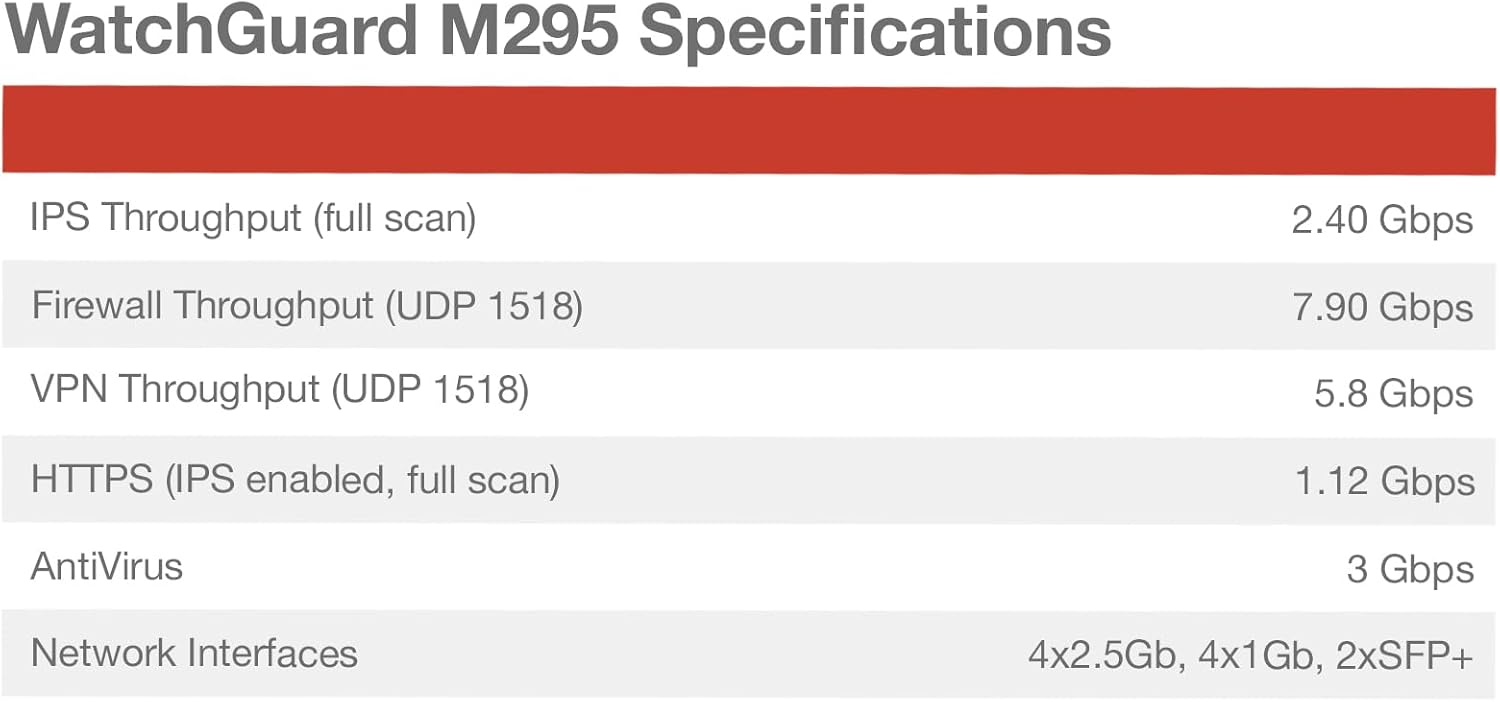
Figure 6: Official specifications table for the WatchGuard Firebox M295.
7. Warranty and Support
Your WatchGuard Firebox M295 includes 1 Year Standard Support, ensuring you have access to necessary resources for maintaining your device.
7.1 Standard Support Coverage
Standard Support provides:
- Software Updates: Access to the latest firmware and software releases.
- Emergency Assistance: 24x7 support for critical issues.
- Routine Support: Business-hours support for general inquiries and non-critical issues.
This support ensures your network remains secure and operational with timely assistance and up-to-date software.
7.2 Contacting Support
For technical assistance or to inquire about your support plan, please visit the official WatchGuard support website or contact their support team directly. Have your product model and serial number ready when contacting support.
WatchGuard Support Portal: https://www.watchguard.com/support


