
Introduction
This manual provides essential information for setting up, operating, and maintaining your TCL 75T7 Series 4K QLED Smart Google TV. Please read it thoroughly to ensure proper use and to maximize your viewing experience.
The TCL 75T7 Series combines advanced picture technology with smart features. Key highlights include Dolby Vision HDR and Atmos, HDR10+, Game Accelerator 288 and VRR for sports and gaming, and a native 144Hz refresh rate.
What's in the Box
Verify that all items are present before proceeding with the setup:
- Power Cable
- Remote Control
- TV Stand
- User Manual (this document)
- Warranty Card

Image: Diagram showing the dimensions of the TCL 75T7 TV with and without its stand, and a list of included accessories.
Setup
Unpacking and Placement
Carefully remove the TV from its packaging. It is recommended that two people handle the TV due to its size and weight. Place the TV on a stable, flat surface or mount it on a wall using a compatible VESA mount (400 x 400 mm).
Dimensions (with stand): 65.6" W x 40.7" H x 13.7" D
Dimensions (without stand): 65.6" W x 37.7" H x 2.7" D
Weight (without stand): 52.9 pounds
Connecting Peripherals
Your TCL 75T7 TV features multiple ports for connecting external devices. Ensure the TV is powered off before making any connections.
- HDMI Inputs (4 total, including 1 eARC): Connect gaming consoles, Blu-ray players, soundbars, and other HDMI-enabled devices. HDMI 1 and HDMI 2 support 4K@144Hz or 1080p/288Hz for optimal gaming.
- USB Ports (2 total: 1x USB 2.0, 1x USB 3.0): For connecting USB flash drives to view photos or videos, or for software updates.
- Ethernet (LAN): For a stable wired internet connection.
- RF Input: For connecting an antenna for over-the-air broadcasts.
- Optical Audio Out: For connecting to soundbars or receivers for digital audio.
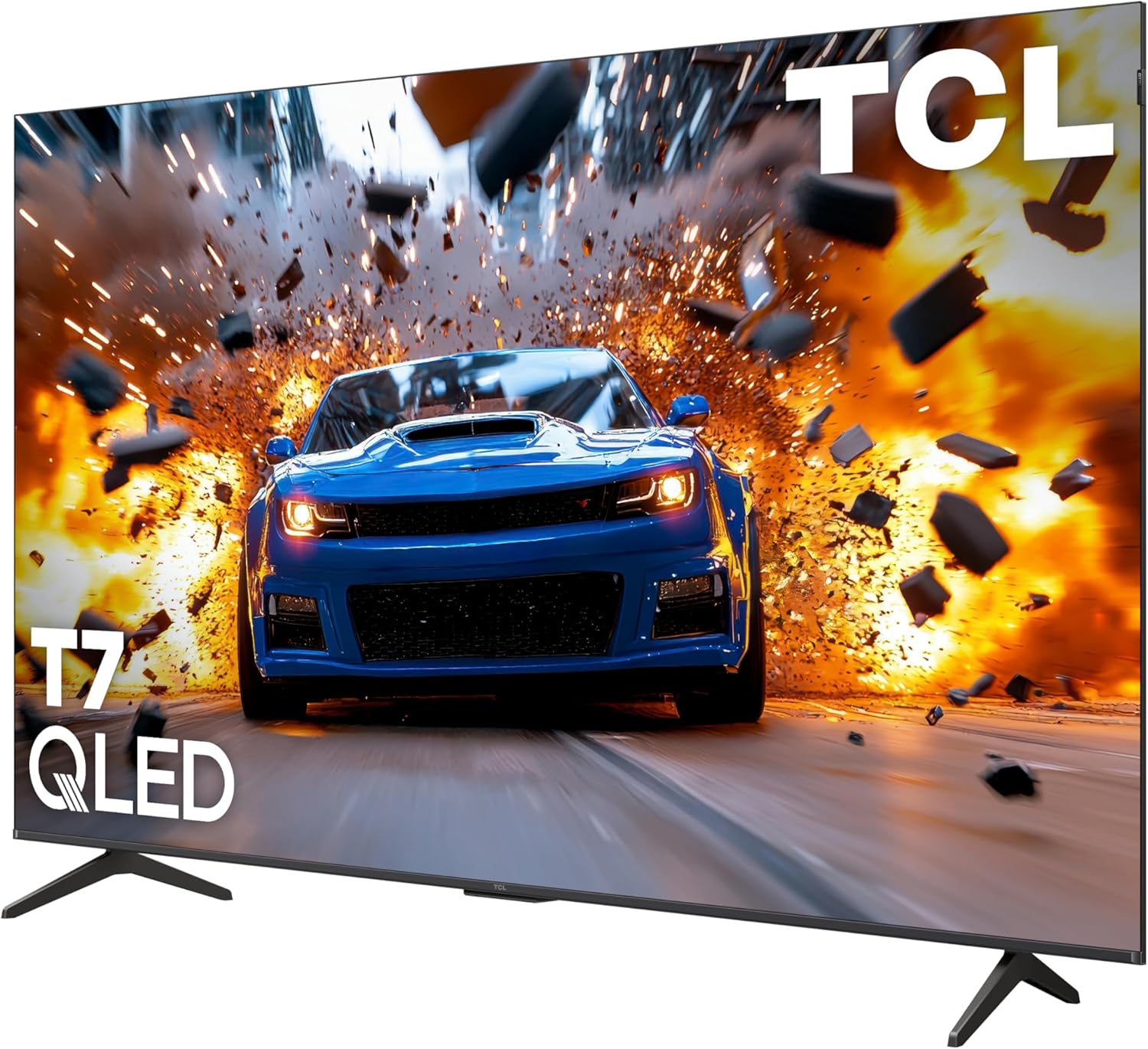
Image: Detailed view of the side panel of the TCL 75T7 TV, highlighting USB, Ethernet, HDMI, Cable/Antenna, and Audio Out ports.
Power Connection
Once all devices are connected, plug the power cable into the TV and then into a wall outlet. The TV will enter standby mode.
Operating Your TCL 75T7 Smart Google TV
Initial Setup and Google TV Interface
Upon first power-on, follow the on-screen instructions to complete the initial setup, including network connection, Google account login, and channel scanning. Your TV runs on the Google TV operating system, providing access to a wide range of streaming applications and content.

Image: The Google TV home screen on the TCL 75T7, showing recommended content and app shortcuts like YouTube, Netflix, and Prime Video.
Remote Control and Voice Commands
The included remote control is backlit for easy use in low-light conditions and supports voice commands. Insert two AAA batteries into the remote. Use the voice button on the remote to activate Google Assistant for hands-free control of your TV, searching for content, or controlling smart home devices.
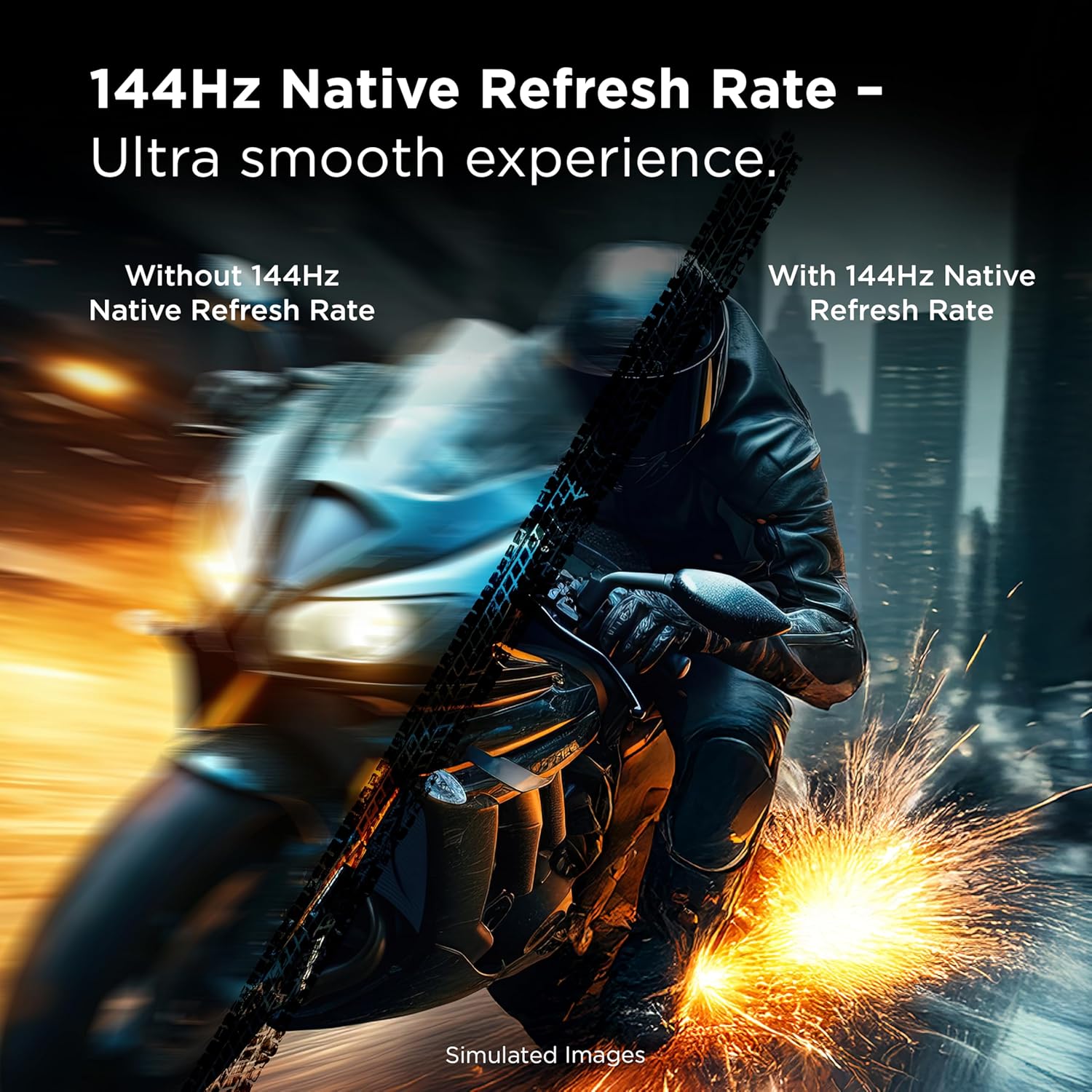
Image: Close-up of the TCL 75T7 TV's backlit voice remote control.
The TV also works with Amazon Alexa and Apple HomeKit for integrated smart home control.
Picture and Audio Settings
Your TV features 4K UltraHD resolution and QLED Quantum Dot Technology for vibrant colors. The TCL AIPQ Pro Processor optimizes picture quality dynamically. Adjust picture modes (e.g., Standard, Movie, Game) to suit your content.
For audio, the TV supports Dolby Atmos, providing advanced spatial audio. Explore sound settings to customize your audio experience.
Gaming Features
The TCL 75T7 is equipped with a 144Hz native panel refresh rate and Game Accelerator 288, offering up to 288 VRR (Variable Refresh Rate) for smooth, lag-free gaming. Auto Game Mode (ALLM) automatically reduces input lag when a gaming console is detected.

Image: A red sports car racing in a futuristic city, representing the Game Accelerator 288 feature.
Motion Clarity
Motion Rate 480 with MEMC (Motion Estimation, Motion Compensation) frame insertion technology enhances motion clarity, making fast-paced scenes in movies, sports, and games appear smoother.

Image: A split image demonstrating the effect of Motion Rate 480, showing a blurred cyclist on the left (without) and a clear cyclist on the right (with).
Maintenance
Cleaning the Screen
To clean the screen, first power off the TV and unplug it. Use a soft, lint-free cloth, slightly dampened with water or a specialized screen cleaner. Do not spray liquid directly onto the screen. Avoid using harsh chemicals or abrasive materials.
Cleaning the TV Body
Wipe the TV frame and stand with a soft, dry cloth. Do not use solvents or alcohol-based cleaners.
Software Updates
Ensure your TV's software is up to date for optimal performance and security. The TV will typically prompt you for available updates, or you can check manually through the settings menu.
Troubleshooting
If you encounter issues with your TCL 75T7 TV, refer to the following common solutions:
- No Power: Ensure the power cable is securely connected to both the TV and a working electrical outlet. Try a different outlet.
- No Picture/Sound: Verify that the correct input source is selected. Check all cable connections (HDMI, antenna, etc.).
- Poor Picture Quality: Adjust picture settings (brightness, contrast, sharpness). Ensure your content source is high-quality. For antenna, try repositioning the antenna or rescanning channels.
- Remote Not Working: Check and replace the batteries (2x AAA). Ensure there are no obstructions between the remote and the TV's IR sensor.
- Network Connection Issues: Restart your router and modem. Reconnect the TV to your Wi-Fi network or try a wired Ethernet connection.
- Smart Features Not Responding: Restart the TV by unplugging it from the power outlet for a few minutes, then plugging it back in. Ensure the TV's software is updated.
For more detailed troubleshooting, consult the full electronic user manual available through the TV's help menu or the TCL support website.
Technical Specifications
| Feature | Specification |
|---|---|
| Brand | TCL |
| Model Name | 75T7 |
| Screen Size | 75 inches |
| Display Technology | 4K UHD, QLED |
| Resolution | 3840 x 2160 (4K UltraHD) |
| Refresh Rate | 144 Hz Native |
| Special Features | 144Hz Refresh Rate, 288Hz Variable Gaming Refresh Rate, Bezel-Less Design, Chromecast, Game Mode |
| Operating System | Google TV |
| HDR Format Supported | Dolby Vision, HDR10, HDR10+, HLG, Open HDR |
| Audio Output Mode | Surround (Dolby Atmos, DTS:X, Dolby Digital Plus) |
| Speaker Max Output Power | 30 watts |
| Connectivity Technology | Ethernet, HDMI, RF, USB, Wi-Fi, Bluetooth |
| HDMI Ports | 4 (including 1 eARC) |
| USB Ports | 2 (1x USB 2.0, 1x USB 3.0) |
| Wireless Technology | Bluetooth, Wi-Fi |
| Screen Mirroring | AirPlay 2, Google Cast |
| VESA Mount Standard | 400 x 400 mm |
| Product Dimensions (WxHxD) | 65.6" x 37.7" x 2.7" (without stand) |
| Item Weight | 52.9 pounds (without stand) |
| Remote Batteries | 2 AAA batteries (required) |
| Model Year | 2025 |
| GTIN (UPC) | 846042049269 |
Warranty and Support
Your TCL 75T7 Series TV comes with a 1 Year Manufacturer Warranty. Please refer to the included Warranty Card for full terms and conditions.
For technical support, product registration, or further assistance, please visit the official TCL support website or contact their customer service. You can also find more information on the TCL Store on Amazon.