
1. Introduction
This manual provides essential information for setting up, operating, and maintaining your TCL 55 Inch Class T7 Series 4K QLED HDR Smart Google TV. Please read this manual thoroughly before using your television to ensure proper and safe operation. Keep this manual for future reference.
2. Setup
2.1. Unboxing and Initial Inspection
Carefully remove the television and all accessories from the packaging. Inspect for any damage. Ensure all components listed in the 'What's in the Box' section are present.

Image: The diagram illustrates the dimensions of the TCL 55T7 TV with and without its stand, along with a list of included accessories such as the TV with Google TV, TV stands, power cable, TV remote + batteries, quick start guide, and warranty information.
2.2. Attaching the Stand
Place the TV screen-down on a soft, flat surface. Align the TV stands with the screw holes on the bottom of the TV. Secure the stands using the provided screws. Ensure the stands are firmly attached before placing the TV upright.
2.3. Connecting Peripherals
Connect your external devices (e.g., cable box, gaming console, soundbar) to the appropriate ports on the back or side of the TV. The TCL 55T7 features multiple HDMI inputs, including one with eARC for enhanced audio return channel functionality, USB ports, Ethernet, and optical audio out.

Image: A detailed view of the rear panel of the TCL 55T7 TV, highlighting various input/output ports including USB 3.0, USB 2.0, Ethernet, HDMI 1 (4K@144Hz), HDMI 2 (4K@144Hz), HDMI 3 (4K@60Hz), HDMI 4 (4K@60Hz / eARC), Cable/Antenna Input, and Audio Out Optical.
2.4. First Power On
Plug the power cable into the TV and then into a wall outlet. Press the power button on the remote control or on the TV itself. Follow the on-screen instructions to complete the initial setup, including network connection and Google TV account login.
3. Operating Your TCL T7 Series TV
3.1. Google TV Interface
The TCL T7 Series TV runs on Google TV, providing a personalized home screen that organizes movies, shows, and live TV from your various streaming services. Content is recommended based on your viewing habits.
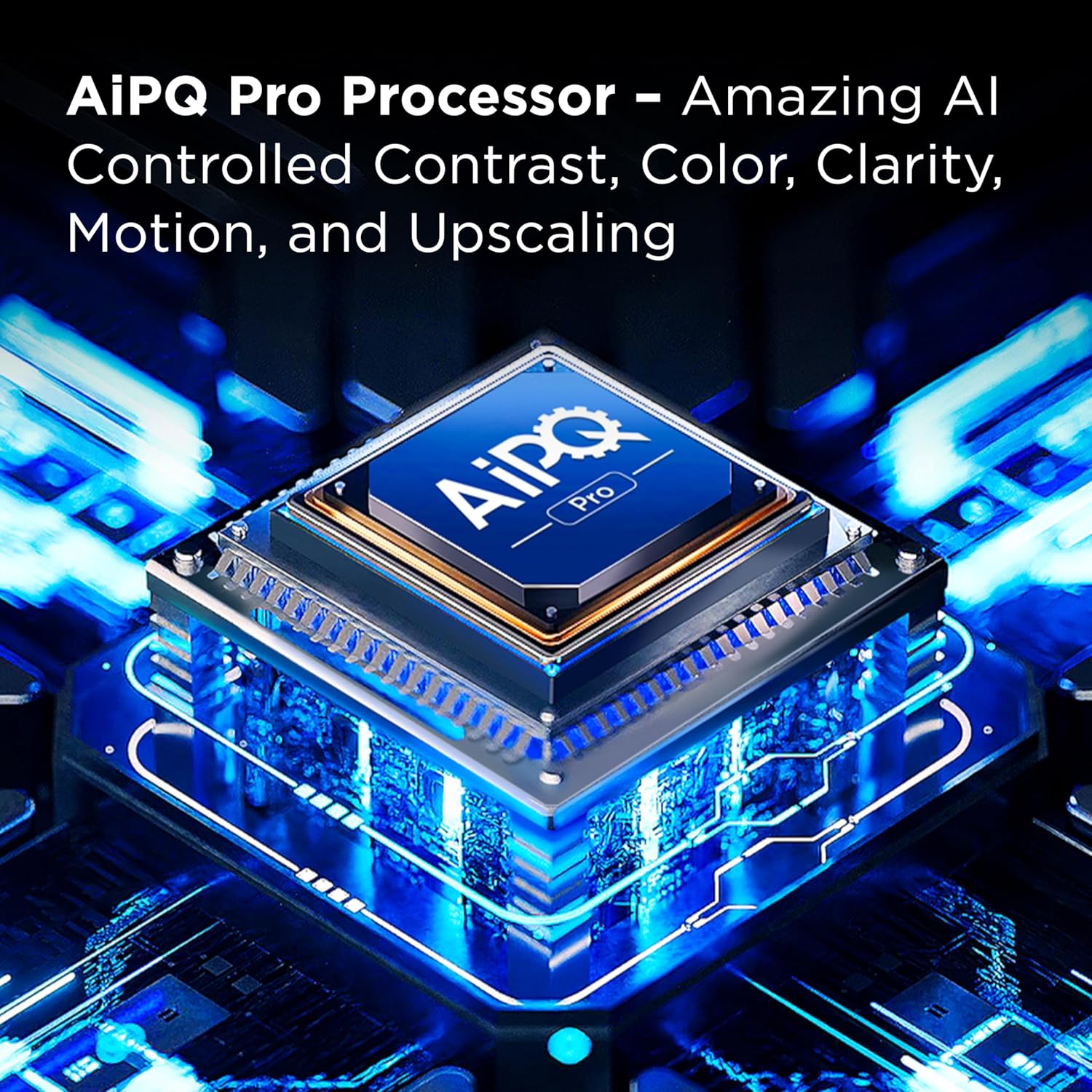
Image: The Google TV home screen is displayed, showing various streaming app icons and content recommendations. A backlit voice remote is also pictured, indicating its functionality for easy navigation and voice control.
3.2. Using the Voice Remote
The included voice remote allows for hands-free control. Press the voice assistant button and speak commands to search for content, control playback, adjust settings, or launch apps. The remote is backlit for easy use in low-light conditions.
Video: This video provides an overview of the TCL T7 Series 4K QLED TV, showcasing its crisp picture quality and readiness for streaming. It highlights the visual performance and smart TV capabilities.
3.3. Accessing Streaming Apps
From the Google TV home screen, navigate to the 'Apps' section to browse and launch your installed streaming applications. You can also download new apps from the Google Play Store.
3.4. Input Selection
To switch between connected devices, press the 'Input' button on your remote control and select the desired HDMI or AV input from the on-screen menu.
4. Key Features
4.1. 4K UltraHD Resolution
Experience incredible detail and clarity with 4K UltraHD resolution, offering four times the pixels of 1080p Full HD televisions.

Image: The TCL 55T7 TV screen shows a vibrant 4K UltraHD image of a blue sports car exploding, emphasizing the high level of detail and resolution.
4.2. QLED (Quantum Dot Technology)
Quantum Dot Technology delivers rich, vibrant colors that cover nearly the entire DCI-P3 color space, bringing images to life with enhanced accuracy and brilliance.

Image: A split screen comparison demonstrating the superior color vibrancy and realism of QLED Quantum Dot Technology compared to a display without QLED.
4.3. 120Hz Panel Refresh Rate
Enjoy an ultra-smooth viewing experience with a native 120Hz panel refresh rate, reducing motion blur in fast-paced movies, video games, and live sports.

Image: A simulated image comparing a display without 120Hz Native Refresh Rate (blurry) to one with 120Hz Native Refresh Rate (clear) during a fast-moving motorcycle scene.
4.4. TCL AIPQ Pro Processor
The powerful TCL AIPQ Pro Processor utilizes advanced AI to intelligently optimize color, contrast, clarity, motion, and upscaling for an unrivaled 4K HDR experience.

Image: A stylized diagram of the TCL AIPQ Pro Processor, illustrating its advanced AI capabilities for optimizing picture quality.
4.5. High Brightness LED Backlight
The High Brightness Direct LED Backlight produces brighter images, ensuring a vibrant picture in virtually any room environment.

Image: A vivid image of a campfire at night, demonstrating the high brightness capabilities of the LED backlight for enhanced viewing.
4.6. HDR PRO+ with Dolby Vision, HDR10+, HDR10, & HLG
Enjoy enhanced contrast, accurate colors, and fine details across a wide range of content, utilizing the most advanced HDR formats including Dolby Vision, HDR10+, HDR10, and HLG.

Image: A split screen comparison showing the difference between a display without HDR PRO+ (less vibrant) and one with HDR PRO+ (more vibrant and detailed) for a landscape with aurora borealis.
4.7. Motion Rate 480 with MEMC Frame Insertion
Motion Rate 480 combines multiple motion enhancement technologies, including MEMC (Motion Estimation, Motion Compensation) frame insertion, for best-in-class motion clarity.

Image: A simulated image comparing a display without Motion Rate 480 (blurry motion) to one with Motion Rate 480 (clear motion) during a fast-moving cycling scene.
4.8. Game Accelerator 240 & Auto Game Mode
For gamers, the Game Accelerator 240 feature provides up to 240 Variable Refresh Rate (VRR) for lag-free gameplay. Auto Game Mode (ALLM) automatically enables the lowest possible input lag and latency for a more responsive gaming experience.
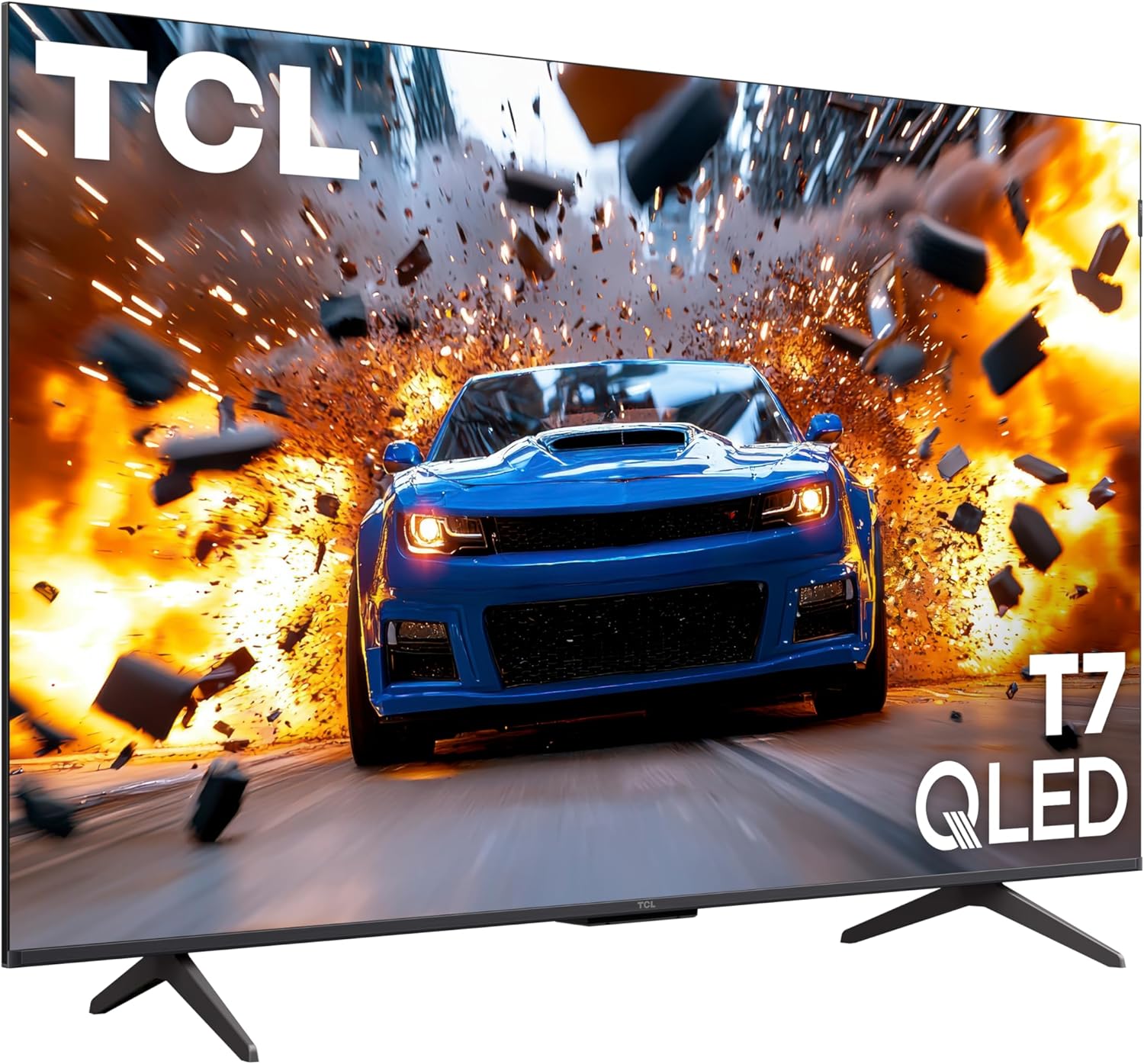
Image: An image promoting Game Accelerator 240, showing military vehicles in a game environment, highlighting its benefit for lag-free gaming.
4.9. Dolby Atmos Audio
Experience advanced spatial audio processing with Dolby Atmos, delivering immersive sound for movies, TV shows, and video games.
4.10. Voice Control & Smart Home Integration
The TV supports voice control through Amazon Alexa, Google Assistant, and Apple HomeKit, allowing for easy hands-free operation and integration into your smart home ecosystem.
4.11. Apple AirPlay 2
Seamlessly share videos, photos, and music from your Apple devices directly to your TCL T7 Series TV using Apple AirPlay 2.
5. Connections and Technical Specifications
5.1. Input/Output Ports
- 4 x HDMI Inputs (including one with eARC)
- USB 3.0
- USB 2.0
- Ethernet
- RF (Cable/Antenna Input)
- Optical Audio Out
- Wi-Fi 5 Connectivity
5.2. General Specifications
| Specification | Value |
|---|---|
| Screen Size | 55 Inches |
| Display Technology | 4K UHD, QLED |
| Resolution | 4K |
| Refresh Rate | 120 Hz |
| Aspect Ratio | 16:9 |
| Product Dimensions | 2.7"D x 48.2"W x 27.9"H |
| Item Weight | 24.3 Pounds |
| Color | Black |
| Included Components | Power Cable, Remote Control, Stand, User Manual, Warranty Info |
6. Maintenance and Care
To ensure the longevity and optimal performance of your TCL T7 Series TV, follow these maintenance guidelines:
- Cleaning the Screen: Gently wipe the screen with a soft, lint-free cloth. For stubborn marks, lightly dampen the cloth with water or a specialized screen cleaner. Avoid harsh chemicals.
- Cleaning the Frame: Use a soft, dry cloth to clean the TV frame.
- Ventilation: Ensure adequate ventilation around the TV. Do not block ventilation openings.
- Power Cord: Regularly check the power cord for any damage. Unplug the TV during electrical storms or when unused for extended periods.
7. Troubleshooting
If you encounter issues with your TV, refer to the following common troubleshooting steps:
- No Power: Ensure the power cable is securely connected to both the TV and the power outlet. Try a different outlet.
- No Picture/Sound: Verify that the correct input source is selected. Check all cable connections (HDMI, AV) are secure.
- Remote Not Working: Replace the batteries in the remote control. Ensure there are no obstructions between the remote and the TV.
- Network Connection Issues: Check your Wi-Fi router and internet connection. Try restarting the TV and your router.
- Picture Quality Issues: Adjust picture settings (brightness, contrast, color) in the TV's menu. Ensure your content source is high quality (e.g., 4K content for 4K display).
8. Warranty and Support
Your TCL 55 Inch Class T7 Series TV comes with a standard manufacturer's warranty. Please refer to the 'Warranty Info' document included in your product packaging for specific terms and conditions. Registering your TV with TCL within 30 days of purchase may qualify you for an extended warranty.
For further assistance, technical support, or service inquiries, please contact TCL Customer Support. Information can typically be found in your User Manual or on the official TCL website.

