
Introduction
This manual provides essential information for setting up, operating, maintaining, and troubleshooting your ADREAMER WinsPad 10 Pro 2-in-1 Tablet Laptop. Please read this guide thoroughly to ensure optimal performance and longevity of your device.
What's in the Box
Verify that all items are present in the package:
- ADREAMER WinsPad 10 Pro Tablet
- Detachable Keyboard
- Type-C Cable
- Power Adapter
Setup
1. Initial Power On
- Connect the power adapter to the tablet's Type-C port and plug it into a power outlet.
- Press and hold the power button located on the side of the tablet until the screen illuminates.
- Follow the on-screen instructions to complete the Windows 11 initial setup, including language, region, and user account creation.
2. Connecting the Detachable Keyboard
The keyboard connects magnetically to the bottom edge of the tablet. Align the magnetic connectors on the keyboard with the corresponding pins on the tablet until it snaps into place. The keyboard will be automatically recognized by the system.

Image: The ADREAMER WinsPad 10 Pro tablet with its detachable keyboard connected, illustrating its use as a laptop.
3. Network Connection
To connect to a Wi-Fi network:
- Go to Settings > Network & internet > Wi-Fi.
- Turn on Wi-Fi and select your desired network from the list.
- Enter the network password if prompted and click Connect.
For Bluetooth device pairing:
- Go to Settings > Bluetooth & devices.
- Turn on Bluetooth and click Add device.
- Select the type of device you want to add and follow the pairing instructions.
Operating Your Device
1. Tablet and Laptop Modes
The ADREAMER WinsPad 10 Pro functions as both a tablet and a laptop. Simply attach the detachable keyboard to switch to laptop mode for typing and productivity. Detach the keyboard for a full tablet experience, ideal for touch-based applications and media consumption.

Image: The ADREAMER WinsPad 10 Pro demonstrating its versatility in both tablet and laptop configurations.
2. Performance and Storage
Your device is equipped with a 12th Gen Intel N150 processor, 8GB LPDDR5 RAM, and a 256GB SSD. This configuration ensures smooth multitasking, quick application loading, and efficient handling of various tasks from office work to entertainment.

Image: Detailed view of the Intel N150 processor specifications and performance comparison.
3. Display and Audio
The 10.1-inch HD IPS touchscreen (1280x800 resolution, 300 nits brightness) provides clear and vibrant visuals. Dual cameras (5MP front, 8MP rear) are integrated for video calls and photography. Dual speakers deliver immersive audio for media playback.
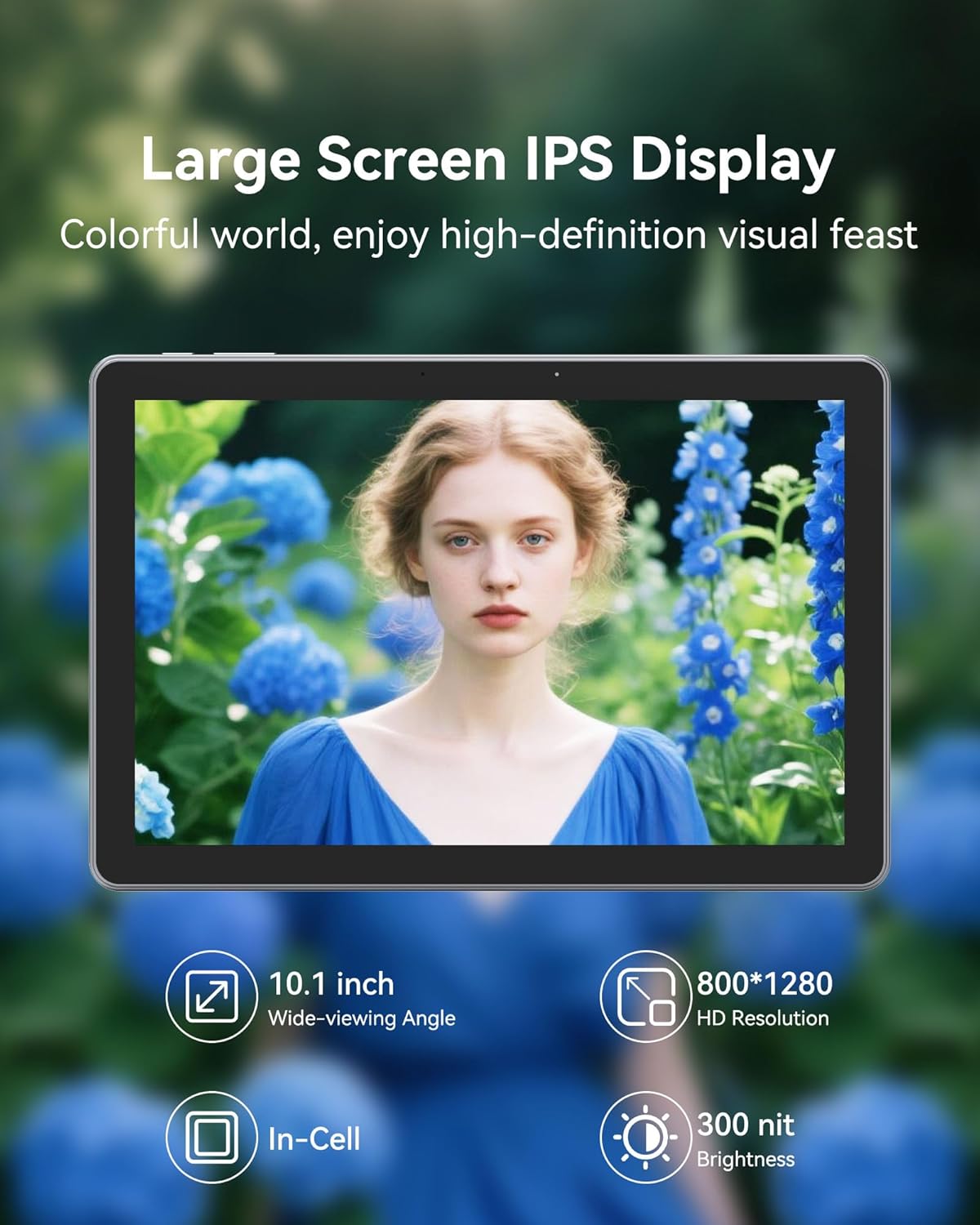
Image: The tablet's display showcasing its high-definition capabilities.
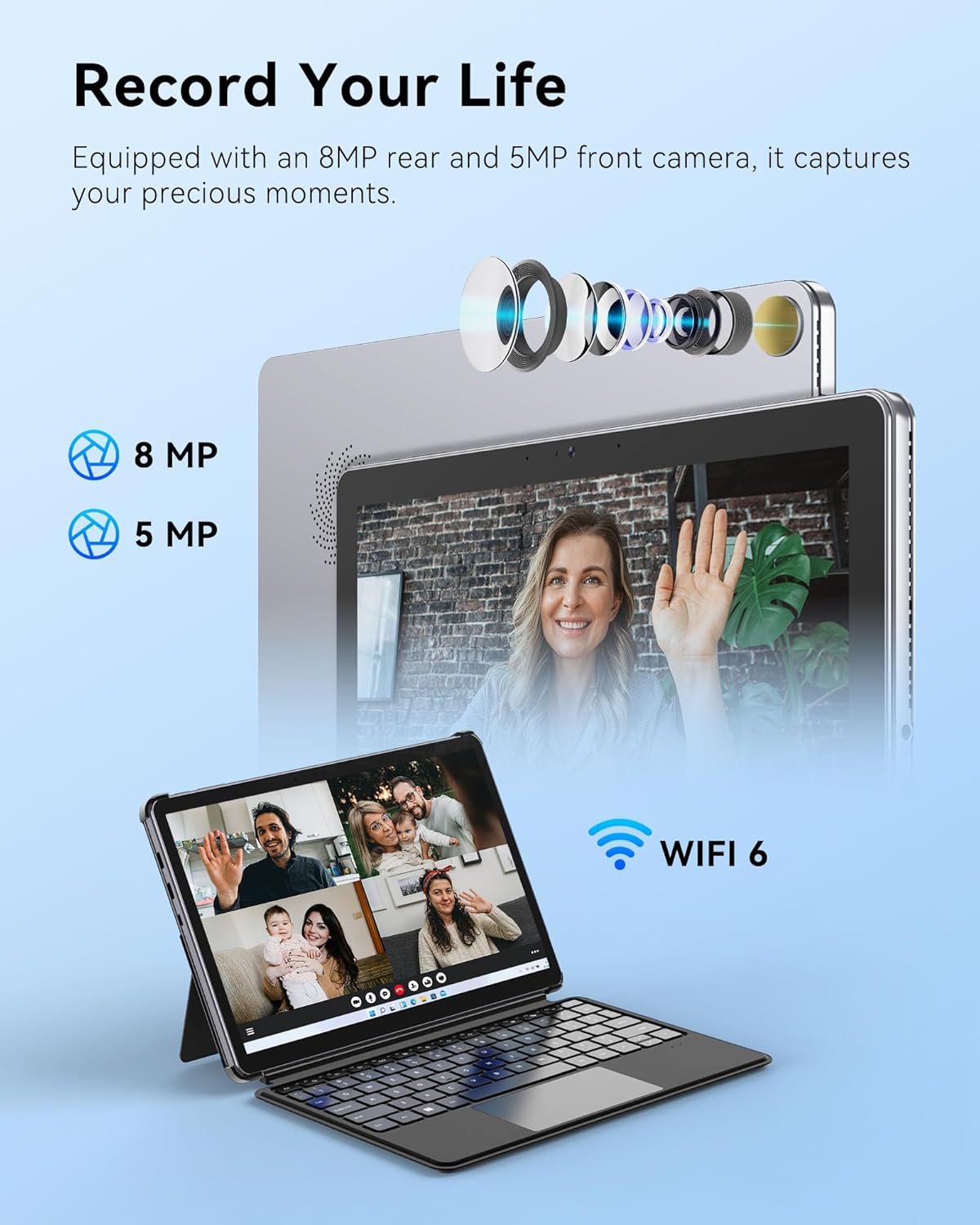
Image: The tablet's camera features for capturing moments and video calls.
4. Connectivity
The tablet includes multiple functional interfaces: two full-function Type-C ports, one Micro HDMI port, one USB 3.0 port, and a 3.5mm headphone jack. It supports WiFi 6 for fast wireless internet and Bluetooth 5.2 for connecting peripherals.

Image: The side view of the tablet showing its various ports and sleek design.
5. Battery and Charging
The 4500mAh battery provides up to 6 hours of typical use. The device supports 30W PD fast charging, allowing a full charge in approximately 2 hours.

Image: Information on the tablet's battery life and fast charging capabilities.
6. Product Overview Video
Video: An official overview of the ADREAMER 10.1" Win 11 Tablet, showcasing its features and 2-in-1 functionality.
Maintenance
1. Battery Care
- Avoid fully discharging the battery frequently.
- Do not expose the device to extreme temperatures.
- If storing the device for an extended period, charge it to approximately 50% and power it off.
2. Cleaning the Device
- Use a soft, lint-free cloth to clean the screen and body.
- For stubborn smudges, slightly dampen the cloth with water or a screen-cleaning solution.
- Avoid using harsh chemicals, abrasive materials, or excessive moisture.
Troubleshooting
Common Issues and Solutions
- Keyboard Disconnection: If the detachable keyboard frequently disconnects, ensure the magnetic connectors are clean and fully engaged. Avoid lifting or moving the tablet by the keyboard alone. If issues persist, gently clean the connector pins on both the tablet and keyboard.
- Charging Issues: Ensure you are using the original ADREAMER power adapter and Type-C cable provided with your device. Some third-party chargers may not provide sufficient power or be compatible, leading to slow or no charging. Verify the charging port is free of debris.
- Device Not Powering On: Connect the tablet to the power adapter and allow it to charge for at least 30 minutes. Then, attempt to power it on again. If it still doesn't turn on, perform a hard reset by holding the power button for 10-15 seconds.
- Slow Performance: Close unnecessary applications running in the background. Check for available Windows updates and install them. Consider running a disk cleanup to free up storage space.
Specifications
| Feature | Specification |
|---|---|
| Brand | ADREAMER |
| Model Name | WinsPad 10 Pro |
| Processor | Intel N150 (4 cores, up to 3.6GHz) |
| Graphics Coprocessor | Intel UHD Graphics (1000MHz) |
| RAM Memory | 8 GB LPDDR5 |
| Hard Drive Size | 256 GB SSD |
| Operating System | Win11 Home |
| Screen Size | 10.1 Inches |
| Display Resolution | 1280 x 800 Pixels (HD IPS Touchscreen) |
| Maximum Display Brightness | 300 Nit |
| Connectivity Technology | Bluetooth 5.2, Micro HDMI, USB 3.0, Dual Type-C, Wi-Fi 6 (802.11ax) |
| Battery Capacity | 4500 mAh |
| Battery Average Life | Up to 6 Hours |
| Front Camera | 5 MP |
| Rear Camera | 8 MP |
| Item Weight | 2.5 Pounds |
| Item Dimensions (L x W x Thickness) | 9.7"L x 6.5"W x 0.37"Th |
| Color | Grey |
Warranty and Support
Warranty Information
Your ADREAMER WinsPad 10 Pro comes with a 1-year manufacturer's limited warranty. This warranty covers defects in materials and workmanship under normal use. Please retain your proof of purchase for warranty claims.
Customer Support
For technical assistance, warranty service, or any questions regarding your device, please contact ADREAMER customer support. Refer to the contact information provided in your product packaging or visit the official ADREAMER website for support resources.