
1. Introduction
This manual provides detailed instructions for the installation, operation, and maintenance of your XTRONS TX123GS Autoradio. Please read this manual thoroughly before using the product to ensure proper functionality and to prevent damage. Keep this manual for future reference.
The XTRONS TX123GS is an advanced 2 DIN car multimedia system featuring a 10.1-inch touch display, powered by Android 14. It offers comprehensive connectivity options including WiFi, 4G, Bluetooth, and USB, along with integrated Apple CarPlay and Android Auto support for seamless smartphone integration. The unit also includes a built-in GPS navigator and a Digital Signal Processor (DSP) for enhanced audio quality.
2. Product Overview
2.1 Key Features
- Display: 10.1-inch touch screen with Android 14 operating system.
- Connectivity: Integrated Wi-Fi, Bluetooth, 4G support, and USB ports.
- Smartphone Integration: Supports both Apple CarPlay and Android Auto.
- Audio Power: 180-watt audio system with integrated DSP for superior sound quality.
- Navigation: Built-in GPS.
- Processor: Octa-core 2.2 GHz 12nm Processor.
- Memory: 4GB RAM + 64GB ROM.
- Video: Supports 2K video playback, H.264, MPEG-4 encoding.
- Media Playback: Capable of reading CD/DVDs.
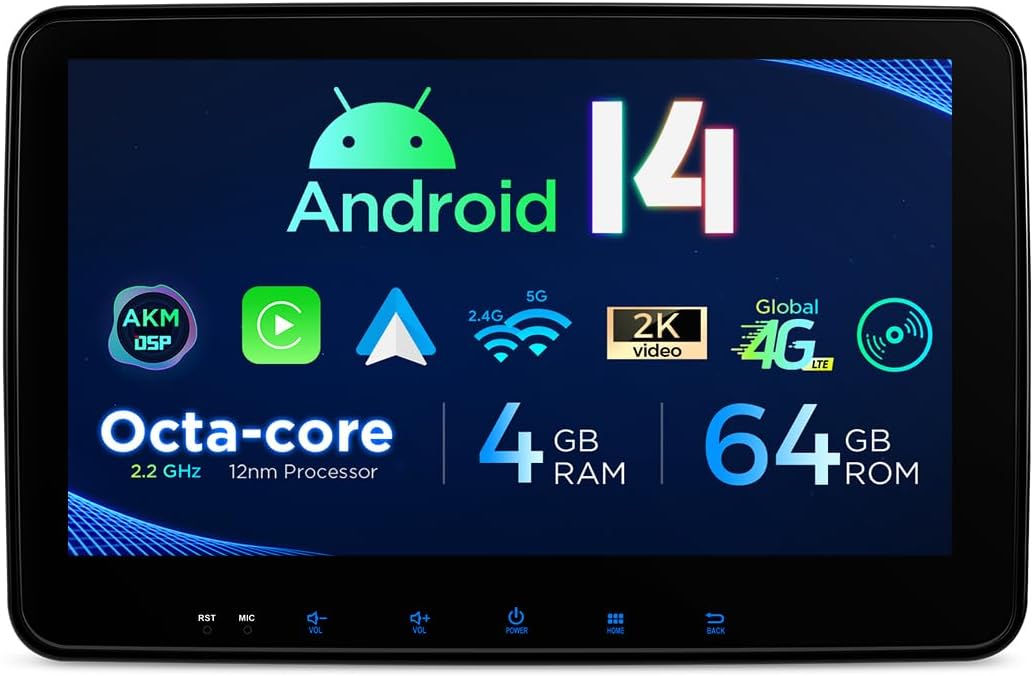
Figure 2.1: Front view of the XTRONS TX123GS display highlighting key specifications like Android 14, Octa-core processor, memory, and connectivity.

Figure 2.2: The 10.1-inch adjustable screen of the TX123GS, displaying the main user interface with media playback and radio functions.
2.2 What's in the Box
The package includes the following components:
- XTRONS TX123GS Autoradio Unit
- Complete Wiring Harness Set
- GPS Antenna
- USB Cables
- Microphone
- Mounting Brackets and Screws
- User Manual
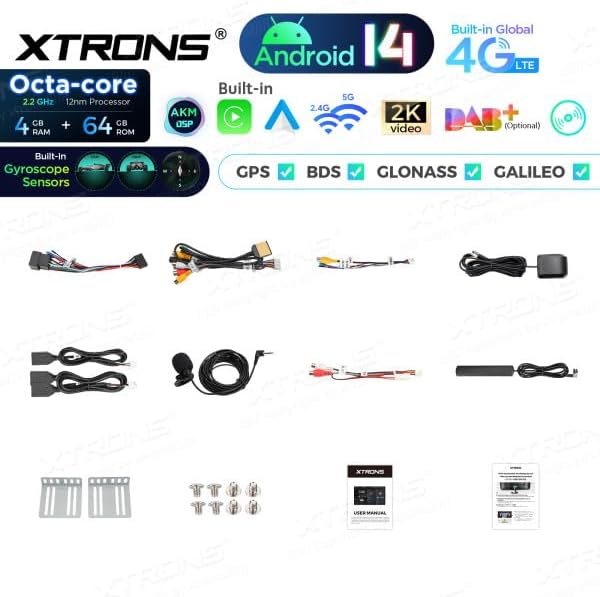
Figure 2.3: All components included in the XTRONS TX123GS package, including the head unit, wiring, and accessories.
3. Setup and Installation
Proper installation is crucial for the optimal performance of your XTRONS TX123GS Autoradio. If you are unsure about any steps, it is recommended to seek professional assistance.
3.1 Safety Precautions
- Disconnect the vehicle's battery before starting installation to prevent electrical shorts.
- Ensure all wiring is correctly connected according to the wiring diagram. Incorrect wiring can damage the unit or the vehicle's electrical system.
- Do not obstruct airbags or other safety features during installation.
- Securely mount the unit to prevent movement during driving.
3.2 Dimensions and Mounting
The XTRONS TX123GS is a 2 DIN unit with a 10.1-inch adjustable display. Ensure your vehicle's dashboard opening is compatible with the unit's dimensions.

Figure 3.1: Dimensional drawing of the TX123GS unit, indicating width, height, and depth for installation planning.
- Carefully remove the existing car stereo and dashboard trim.
- Attach the provided mounting brackets to the sides of the TX123GS unit using the supplied screws.
- Slide the unit into the dashboard opening and secure it using the mounting brackets.
3.3 Wiring Connections
Connect the wiring harness to the corresponding ports on the TX123GS unit and to your vehicle's wiring. Refer to your vehicle's specific wiring diagram if necessary.
- Power Wires: Connect the yellow (constant 12V), red (accessory 12V), and black (ground) wires.
- Speaker Wires: Connect the speaker wires to the vehicle's speakers, ensuring correct polarity.
- Antenna: Connect the radio antenna and the GPS antenna. Position the GPS antenna in a location with a clear view of the sky.
- USB/Auxiliary: Connect any external USB or auxiliary input cables.
- Optional Connections: Connect reverse camera input, steering wheel control wires, or external amplifier outputs as required.
Once all connections are made, reconnect the vehicle's battery and test the unit's functionality.
4. Operating Instructions
The XTRONS TX123GS operates on Android 14, providing a familiar and intuitive user experience.
4.1 Basic Operation
- Power On/Off: Press and hold the power button on the unit or use the vehicle's ignition.
- Volume Control: Adjust volume using the physical buttons or on-screen controls.
- Touch Screen: Navigate the interface by tapping, swiping, and pinching on the 10.1-inch touch screen.
- Home Screen: Access various applications and widgets from the customizable home screen.
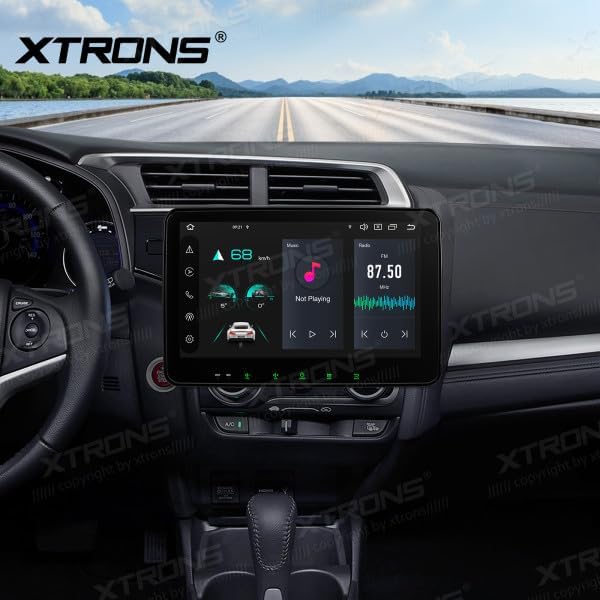
Figure 4.1: The TX123GS unit integrated into a car's dashboard, showing the main media playback screen.
4.2 Android 14 Features
- App Installation: Download and install applications from the Google Play Store.
- Settings: Access system settings for Wi-Fi, Bluetooth, display, sound, and more.
- Multitasking: Utilize split-screen mode to run two applications simultaneously.
4.3 Connectivity (Wi-Fi, 4G, Bluetooth)
- Wi-Fi: Connect to available Wi-Fi networks for internet access, app updates, and online services.
- 4G: Insert a compatible SIM card (if supported by the unit's specific variant) for mobile data connectivity.
- Bluetooth: Pair your smartphone for hands-free calling, audio streaming, and contact synchronization.
4.4 Apple CarPlay and Android Auto
The TX123GS supports both wireless Apple CarPlay and Android Auto for seamless smartphone integration.
- Enable Bluetooth: Ensure Bluetooth is enabled on both your smartphone and the TX123GS.
- Pair Device: Pair your smartphone with the TX123GS via Bluetooth.
- Launch CarPlay/Android Auto: Select the CarPlay or Android Auto icon on the unit's home screen. Follow on-screen prompts to complete the connection.

Figure 4.2: Demonstration of Apple CarPlay and Android Auto functionality on the TX123GS, showing wireless connection options.
4.5 GPS Navigation
The unit comes with a built-in GPS module. Ensure the GPS antenna is properly installed for optimal signal reception.
- Navigation App: Use the pre-installed navigation application or download your preferred app from the Google Play Store.
- Map Updates: Keep your maps updated for accurate navigation.

Figure 4.3: The TX123GS displaying a navigation map and media player simultaneously.

Figure 4.4: Detailed navigation map view on the TX123GS, with a picture-in-picture video window.
4.6 Audio and DSP
The integrated Digital Signal Processor (DSP) allows for advanced audio customization.
- Equalizer: Adjust frequency bands to tailor the sound output to your preference.
- Sound Effects: Explore various sound presets and effects.
- Balance/Fader: Adjust audio distribution between speakers.
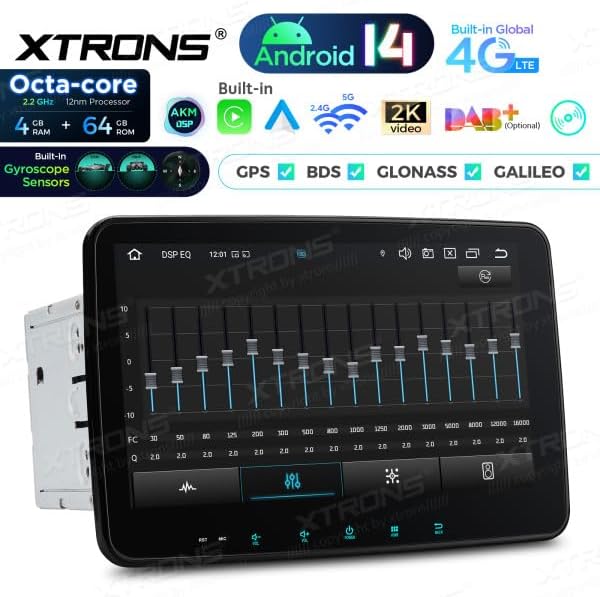
Figure 4.5: The DSP equalizer interface on the TX123GS, allowing fine-tuning of audio output.
5. Maintenance
Regular maintenance helps ensure the longevity and optimal performance of your XTRONS TX123GS Autoradio.
- Screen Cleaning: Use a soft, lint-free cloth to gently wipe the touch screen. Avoid abrasive cleaners or solvents.
- Software Updates: Periodically check for and install system and application updates to ensure security and performance.
- Environmental Conditions: Avoid exposing the unit to extreme temperatures, direct sunlight for prolonged periods, or excessive moisture.
- Cable Connections: Periodically check all wiring connections to ensure they are secure.
6. Troubleshooting
This section addresses common issues you might encounter with your XTRONS TX123GS Autoradio.
6.1 Common Issues and Solutions
- No Power:
- Check all power connections (yellow, red, black wires) for proper contact.
- Verify the vehicle's fuse for the stereo is not blown.
- No Sound:
- Ensure volume is not muted or set to minimum.
- Check speaker wire connections.
- Verify audio output settings in the system.
- GPS Signal Loss:
- Ensure the GPS antenna is installed in a location with a clear view of the sky.
- Check the GPS antenna connection to the unit.
- Bluetooth Connection Issues:
- Ensure Bluetooth is enabled on both devices.
- Delete previous pairings and re-pair the devices.
- Restart both the unit and the smartphone.
- CarPlay/Android Auto Not Connecting:
- Ensure your smartphone is compatible and the app is updated.
- Verify Bluetooth connection is stable.
- Try restarting the unit and your phone.
If problems persist, consult the XTRONS support website or contact customer service.
7. Specifications
| Feature | Specification |
|---|---|
| Brand | XTRONS |
| Model | TX123GS |
| Product Dimensions | 18 x 25.4 x 15.5 cm |
| Item Weight | 2.5 Kilograms |
| Compatible Devices | Smartphone |
| Additional Features | Android Auto, Apple CarPlay |
| Included Components | Autoradio, Wiring Harness |
| Number of Items | 5 (referring to main components) |
| Audio Output Mode | Stereo |
| Surround Configuration | 2.0, 4.0 |
| Wattage | 180 watts |
| Connectivity Technology | Wi-Fi, Bluetooth, 4G, USB |
| Controller Type | Android |
| Video Encoding | H.264, MPEG-4 |
| Color | Black |
8. Warranty and Support
The XTRONS TX123GS Autoradio is covered by a 2-year warranty from the date of purchase. This warranty covers manufacturing defects and malfunctions under normal use.
For warranty claims, technical support, or further assistance, please contact XTRONS customer service through their official website or the retailer where the product was purchased. Please have your proof of purchase and product model number (TX123GS) ready when contacting support.


