1. Introduction
Thank you for choosing the Generic Z30 Smart Wireless Video Doorbell T23. This manual provides essential information for the proper installation, operation, and maintenance of your new video doorbell. Please read it thoroughly before use and retain it for future reference.
2. Product Overview
The Z30 Smart Wireless Video Doorbell T23 is designed to enhance your home security and communication. It features HD video, two-way audio, night vision, and remote monitoring capabilities, allowing you to see and speak with visitors from anywhere using your smartphone.

Image 1: The Z30 Smart Wireless Video Doorbell T23 unit alongside its indoor chime unit.
Key Features:
- HD Video: Capture clear footage with 1072p resolution.
- Two-Way Audio: Communicate directly with visitors through the doorbell and your smartphone.
- Night Vision: Monitor your entryway effectively even in low-light conditions.
- Remote Monitoring: Access live video and receive alerts on your smartphone from anywhere.
- Wireless Connectivity: Utilizes Wi-Fi and Bluetooth for easy setup and operation.
- Long-Lasting Battery: Designed for extended use between charges.
- Outdoor Usage: Constructed for reliable performance in outdoor environments.
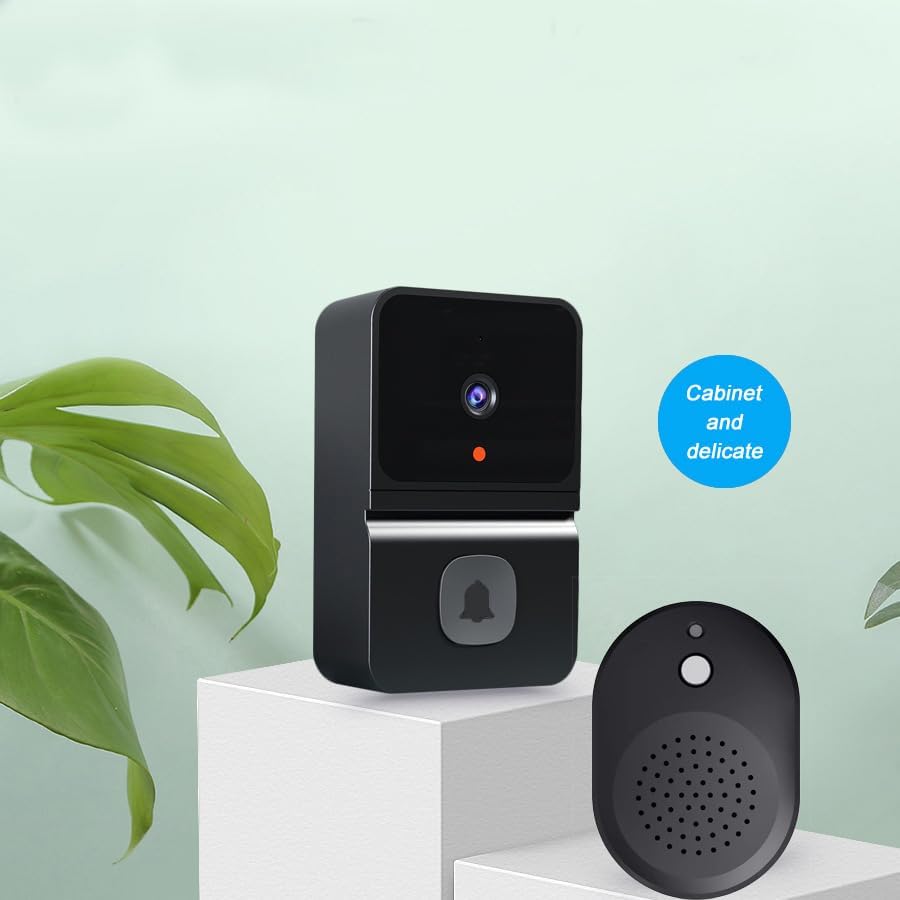
Image 2: The compact and discreet design of the Z30 Smart Wireless Video Doorbell T23 and its accompanying chime unit.
3. What's in the Box
Upon unpacking, please ensure all items are present:
- Z30 Smart Wireless Video Doorbell T23 Unit
- Indoor Chime Unit
- Mounting Screws and Anchors
- USB Charging Cable
- User Manual (this document)

Image 3: Contents of the Z30 Smart Wireless Video Doorbell T23 package, showing the doorbell unit, chime, user manual, USB cable, and mounting hardware.
4. Setup
4.1 Charging the Doorbell
- Connect the provided USB charging cable to the charging port on the doorbell unit.
- Plug the other end into a standard USB power adapter (not included).
- Allow the doorbell to charge fully before initial use. The indicator light will change to confirm charging status.
4.2 App Installation and Pairing
- Download the companion mobile application from your smartphone's app store (search for 'Smart Doorbell' or refer to the QR code in the quick start guide).
- Create an account and log in.
- Follow the in-app instructions to add your Z30 Smart Wireless Video Doorbell T23. This typically involves pressing a pairing button on the doorbell and connecting it to your home Wi-Fi network.
- Ensure your smartphone is connected to a 2.4GHz Wi-Fi network during the pairing process.

Image 4: A smartphone screen showing the live video feed from the Z30 Smart Wireless Video Doorbell T23, indicating successful app pairing and connectivity.
4.3 Installation
The Z30 Smart Wireless Video Doorbell T23 is designed for outdoor use and can be installed as a freestanding unit or mounted. Consider the following for optimal performance:
- Choose a location that provides a clear view of your entryway and is within range of your Wi-Fi network.
- Use the provided mounting screws and anchors to securely attach the doorbell to a wall or door frame at an appropriate height.
- Ensure the doorbell is protected from direct heavy rain if possible, though it is designed for outdoor conditions.

Image 5: The Z30 Smart Wireless Video Doorbell T23 mounted on a door frame, demonstrating a typical installation scenario.
5. Operating Instructions
5.1 Receiving Notifications
When a visitor presses the doorbell button, or motion is detected (if enabled), you will receive a notification on your paired smartphone. The indoor chime unit will also sound.
5.2 Two-Way Audio Communication
- Tap the notification on your smartphone to open the live view.
- Press the microphone icon within the app to speak to the visitor.
- Release the microphone icon to listen to their response.

Image 6: A smartphone screen illustrating the two-way audio feature, allowing clear communication with a person at the door via the doorbell.

Image 7: A delivery person at the door, demonstrating the practical use of the two-way audio feature for receiving packages when you are not home.
5.3 Live View and Recording
- Open the app to access the live video feed from your doorbell at any time.
- The app allows you to manually record video or capture still images during a live view.
- Recorded footage is typically stored in the cloud or on local storage (if a memory card is installed).

Image 8: The Z30 Smart Wireless Video Doorbell T23 also serves as a surveillance device, providing a live feed of your entryway on your smartphone.
5.4 Night Vision
The doorbell automatically switches to night vision mode in low-light conditions, providing clear black-and-white video footage.
5.5 Wi-Fi Signal Penetration
The doorbell is designed for strong signal penetration, maintaining connectivity through various common building materials.
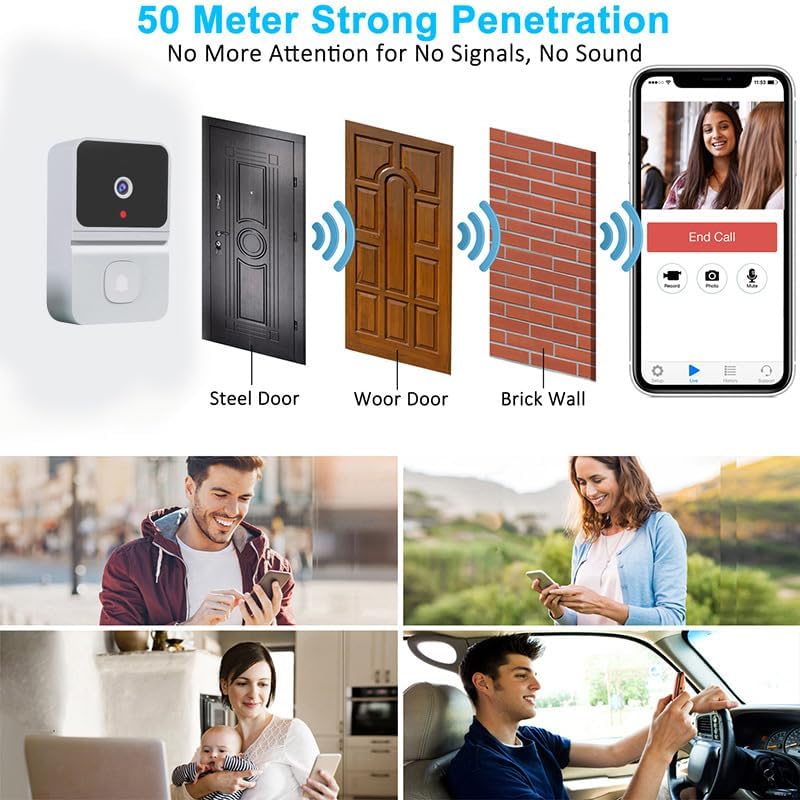
Image 9: A diagram demonstrating the Z30 Smart Wireless Video Doorbell T23's ability to maintain strong Wi-Fi signal penetration through various materials like steel, wood, and brick walls.
6. Maintenance
6.1 Battery Charging
When the battery level is low, you will receive a notification via the app. Recharge the doorbell using the provided USB cable as described in Section 4.1.
6.2 Cleaning
Periodically clean the doorbell's camera lens and surrounding area with a soft, damp cloth to ensure clear video quality. Do not use harsh chemicals or abrasive materials.
6.3 Firmware Updates
Ensure your doorbell's firmware is up to date through the mobile application. Firmware updates often include performance improvements and security enhancements.
7. Troubleshooting
Common Issues and Solutions:
- No Power: Ensure the doorbell is fully charged. Check the USB charging cable and power adapter.
- Cannot Connect to Wi-Fi:
- Verify your Wi-Fi network is 2.4GHz.
- Ensure the doorbell is within range of your Wi-Fi router.
- Restart your router and the doorbell, then attempt pairing again.
- Poor Video Quality:
- Clean the camera lens.
- Check your Wi-Fi signal strength at the doorbell's location.
- No Audio/Poor Audio:
- Ensure your smartphone's volume is up.
- Check microphone and speaker settings in the app.
- Verify network connectivity.
- Doorbell Not Ringing Chime:
- Ensure the indoor chime unit is powered on and paired with the doorbell.
- Check the chime's volume settings.
If you encounter issues not covered here, please refer to the in-app help section or contact customer support.
8. Specifications
| Feature | Specification |
|---|---|
| Model Name | T23 |
| Indoor/Outdoor Usage | Outdoor |
| Compatible Devices | Smartphone (Android controller type mentioned) |
| Power Source | Battery Powered |
| Connectivity Technology | Bluetooth, Wi-Fi |
| Video Capture Resolution | 1072p |
| Effective Still Resolution | 1080p |
| Maximum Webcam Image Resolution | 3 MP |
| Viewing Angle | 180 Degrees |
| Night Vision Range | 15 Millimeters |
| Special Features | 2-Way Audio, Night Vision |
| Product Dimensions (L x W x H) | 3.2 x 1.8 x 2.5 inches |
Image 10: Detailed dimensions of the Z30 Smart Wireless Video Doorbell T23 and its chime unit.
9. Warranty and Support
For warranty information, please refer to the documentation provided at the time of purchase or contact your retailer. For technical support, please consult the help section within the mobile application or reach out to the manufacturer's customer service channels.


