
1. Introduction
Thank you for choosing the Black Shark BH02 Wireless Controller with Charging Dock. This manual provides detailed instructions for setting up, operating, and maintaining your controller to ensure optimal performance across various platforms, including PC, Nintendo Switch, iOS, and Android devices. Please read this manual thoroughly before use.
2. Product Overview
The Black Shark BH02 is a versatile wireless gaming controller designed for an enhanced gaming experience. It features multiple connectivity options, precise controls, and an ergonomic design for comfortable extended play.
Key Features:
- Multi-Platform Compatibility: Supports PC, Nintendo Switch, iOS, and Android.
- Flexible Connectivity: Bluetooth, 2.4G wireless receiver, and wired USB connection.
- High Precision: Equipped with a 6-axis gyroscope for accurate motion sensing and 2000-level sensitivity joysticks.
- Customizable Controls: Four programmable rear keys for personalized gameplay.
- Long-Lasting Battery: Integrated 1000mAh rechargeable lithium-polymer battery.
- Smart Charging Dock: Efficient charging with automatic start and stop functions.
- Ergonomic Design: Comfortable anti-slip grip with laser-textured bumps for secure handling.
Package Contents:
- Black Shark BH02 Wireless Controller
- Charging Dock
- 2.4G Wireless Receiver
- USB-C Charging Cable
- User Manual (this document)

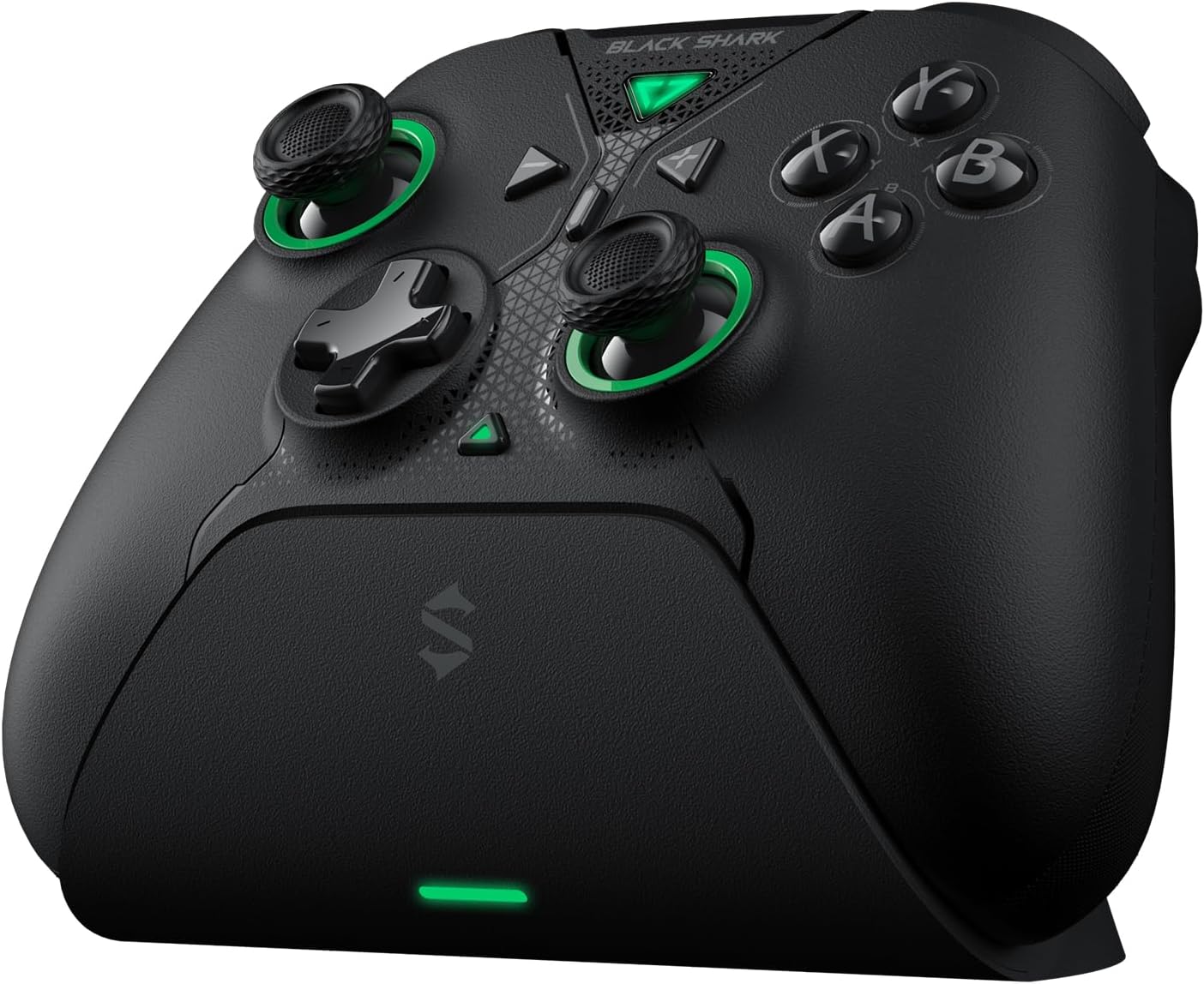
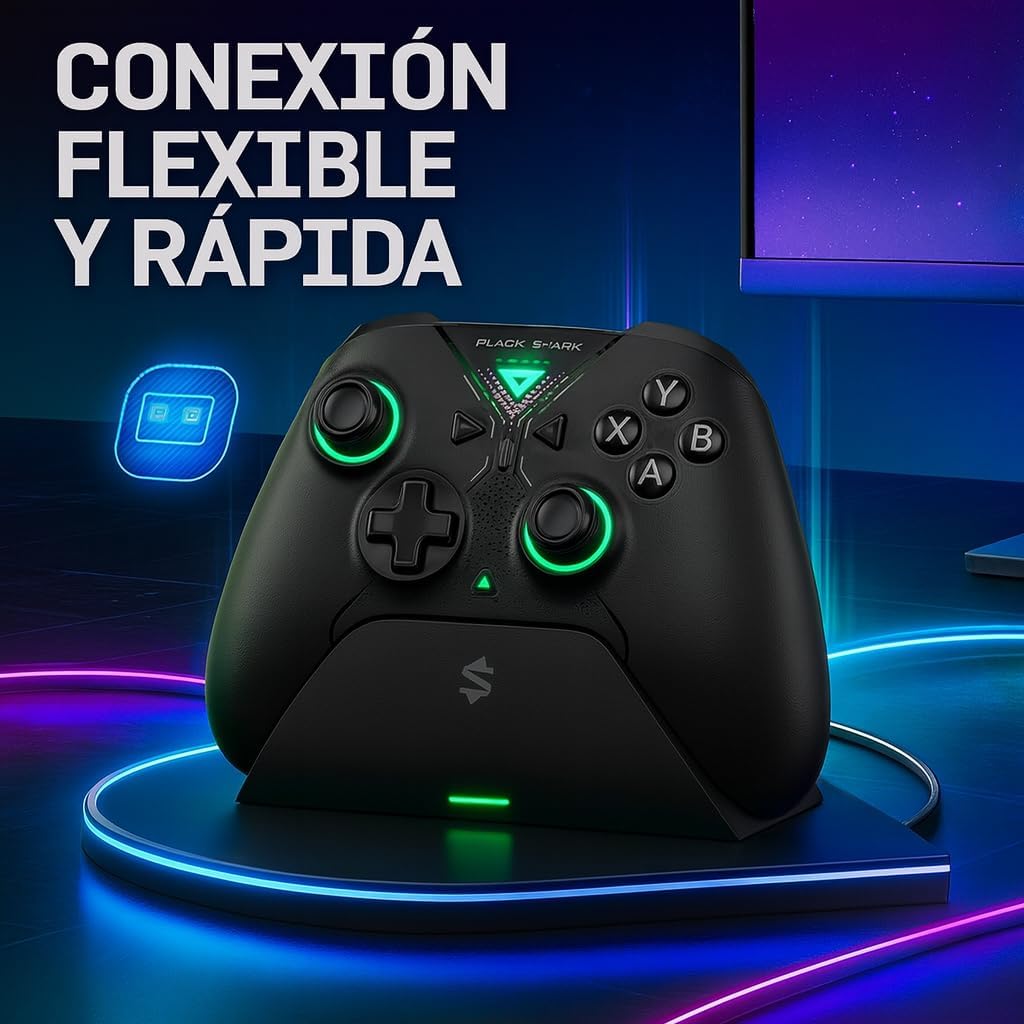
This image shows the Black Shark BH02 wireless controller securely placed on its dedicated charging dock. The controller features a black finish with green accents around the joysticks and buttons, indicating its power status or active connection.
3. Setup
3.1 Initial Charging
- Connect the USB-C charging cable to the charging dock and a power source (e.g., USB wall adapter, PC USB port).
- Place the Black Shark BH02 controller onto the charging dock, ensuring the magnetic pins align. The LED indicator on the controller or dock will show charging status.
- Allow the controller to fully charge before first use. A full charge typically takes approximately 2-3 hours. The smart charging dock will automatically stop charging once the battery is full.
This image displays the Black Shark BH02 wireless controller from the front, detached from its charging dock. It highlights the ergonomic button layout, dual joysticks with green rings, and the central Black Shark logo.
3.2 Connecting to Devices
The Black Shark BH02 controller offers three connection methods:
3.2.1 Bluetooth Connection (PC, iOS, Android, Nintendo Switch)
- Ensure the controller is powered off.
- Press and hold the Bluetooth pairing button (refer to controller diagram for location) until the LED indicator starts flashing rapidly, indicating pairing mode.
- On your device (PC, iOS, Android, or Nintendo Switch), navigate to the Bluetooth settings.
- Search for available devices and select "Black Shark BH02" (or similar name) from the list.
- Once connected, the LED indicator on the controller will become solid.
3.2.2 2.4G Wireless Connection (PC)
- Insert the 2.4G wireless receiver into an available USB port on your PC.
- Power on the Black Shark BH02 controller.
- The controller should automatically connect to the receiver. The LED indicator will become solid once connected.
3.2.3 Wired Connection (PC)
- Connect the USB-C charging cable directly from the controller to a USB port on your PC.
- The controller will be recognized as a wired gamepad. This connection offers a 1000Hz report rate for minimal input lag.
4. Operating Instructions
4.1 Power On/Off
- Power On: Press the central Black Shark logo button to power on the controller.
- Power Off: Press and hold the central Black Shark logo button for 3-5 seconds until the LED indicators turn off. The controller will also automatically power off after a period of inactivity to conserve battery.
4.2 Customizable Rear Keys
The Black Shark BH02 features four customizable rear keys (P1, P2, P3, P4) located on the back of the controller. These can be programmed to replicate other button inputs or complex macros.
- Entering Programming Mode: Press and hold the 'M' button (usually located on the back or bottom) until the indicator light flashes.
- Assigning a Button: Press the rear key you wish to program (e.g., P1), then press the button on the front of the controller you want it to emulate (e.g., 'A' button).
- Exiting Programming Mode: Press the 'M' button again to save the setting and exit programming mode. The indicator light will stop flashing.
- Repeat for other rear keys as desired.
The back of the Black Shark BH02 controller is shown, highlighting the ergonomic grip texture, the four customizable rear paddle buttons, and the magnetic charging pins located at the bottom center for use with the charging dock. Product information and regulatory markings are also visible.
4.3 Gyroscope Functionality
The integrated 6-axis gyroscope provides precise motion control for compatible games. This feature is particularly useful for:
- Nintendo Switch: Supports body sensing for games that utilize motion controls.
- PC: Offers sensory body simulation for a more immersive experience in supported titles.
Ensure your game supports gyroscope input for this feature to function correctly.
5. Maintenance
5.1 Cleaning
- Use a soft, dry cloth to wipe the controller and charging dock.
- For stubborn dirt, slightly dampen the cloth with water or a mild cleaning solution. Avoid harsh chemicals or abrasive materials.
- Do not allow liquids to enter the controller or charging dock.
5.2 Storage
- Store the controller and dock in a cool, dry place away from direct sunlight and extreme temperatures.
- If storing for an extended period, ensure the controller has a partial charge (around 50%) to preserve battery health. Recharge every few months if not in use.
6. Troubleshooting
6.1 Controller Not Connecting
- Check Battery: Ensure the controller is sufficiently charged.
- Re-pair: Delete the controller from your device's Bluetooth list and attempt to pair again.
- 2.4G Receiver: For PC, ensure the 2.4G receiver is securely plugged in and try a different USB port.
- Wired Connection: Test with a wired connection to rule out wireless issues.
- Restart Devices: Restart both the controller and the device you are trying to connect to.
6.2 Buttons or Joysticks Unresponsive
- Restart Controller: Power off and then power on the controller.
- Check for Obstructions: Ensure no debris is lodged around the buttons or joysticks.
- Test on Another Device: If possible, test the controller on a different device to determine if the issue is with the controller or the original device/game.
6.3 Charging Issues
- Check Cable and Adapter: Ensure the USB-C cable and power adapter are working correctly. Try a different cable or adapter.
- Dock Connection: Verify the controller is properly seated on the charging dock and the magnetic pins are making good contact.
- Clean Contacts: Gently clean the charging pins on both the controller and the dock with a dry cloth.
7. Specifications
| Feature | Specification |
|---|---|
| Model | BH02 |
| Connectivity | Bluetooth, 2.4G Wireless, Wired USB |
| Battery Capacity | 1000mAh Lithium-Polymer |
| Gyroscope | 6-axis |
| Joystick Sensitivity | 2000 levels |
| Dimensions (Controller) | Approximately 15.5 x 10.5 x 6.5 cm (estimated from package dimensions) |
| Weight (Controller) | Approximately 600g (total package weight, controller weight may vary) |
8. Warranty and Support
Black Shark products are designed and manufactured to the highest quality standards. For information regarding warranty coverage, technical support, or service inquiries, please refer to the warranty card included with your product or visit the official Black Shark website. Keep your proof of purchase for warranty claims.
Official Black Shark Website: Black Shark Store on Amazon


