1. Introduction
Thank you for choosing the LTC GM051 Wireless Ergonomic Vertical Mouse. This device is designed to provide a comfortable and efficient computing experience with its ergonomic vertical design, multi-device connectivity, and customizable features. This manual will guide you through the setup, operation, and maintenance of your new mouse.

Image 1.1: The LTC GM051 Wireless Ergonomic Vertical Mouse, showcasing its unique vertical design and sleek black finish.
2. Product Overview
2.1. Package Contents
The LTC GM051 package includes the following items:
- LTC GM051 Vertical Mouse
- Type-C Charging Cable
- User Manual Card
- 2.4G USB Receiver (stored in the mouse's bottom compartment)
2.2. Mouse Components

Image 2.1: Side view of the LTC GM051 mouse, highlighting its ergonomic contours.

Image 2.2: The bottom of the LTC GM051 mouse, showing the power switch, light mode button, connection mode indicator, and 2.4G USB receiver storage.
Familiarize yourself with the various buttons and indicators on your mouse:
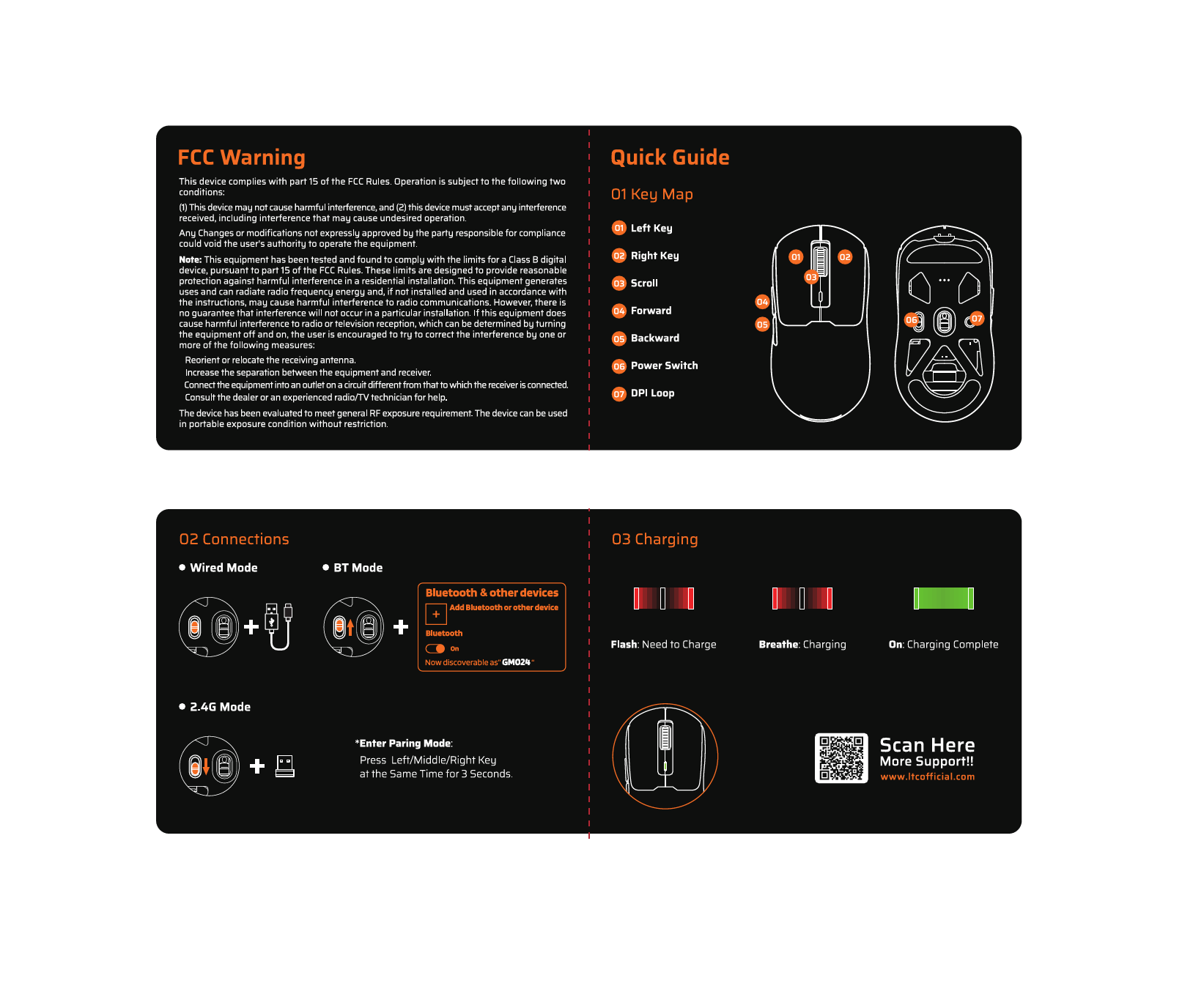
- Left/Right Click Buttons: Standard mouse functions.
- Scroll Wheel/Middle Button: For scrolling and middle-click functionality.
- DPI Adjustable Button: Cycles through DPI settings.
- 5 Side Buttons: Programmable for various shortcuts and functions.
- Connection Mode Key: Switches between Bluetooth, 2.4G, and Wired modes.
- Power Switch: Turns the mouse On/Off and controls RGB lighting.
- Light Mode Button: Adjusts RGB lighting effects.
- 2.4G USB Receiver: For wireless 2.4G connection.
3. Setup and Connectivity
The LTC GM051 mouse offers three connection modes: Bluetooth, 2.4GHz Wireless, and Wired USB-C. It can connect to up to four devices simultaneously.
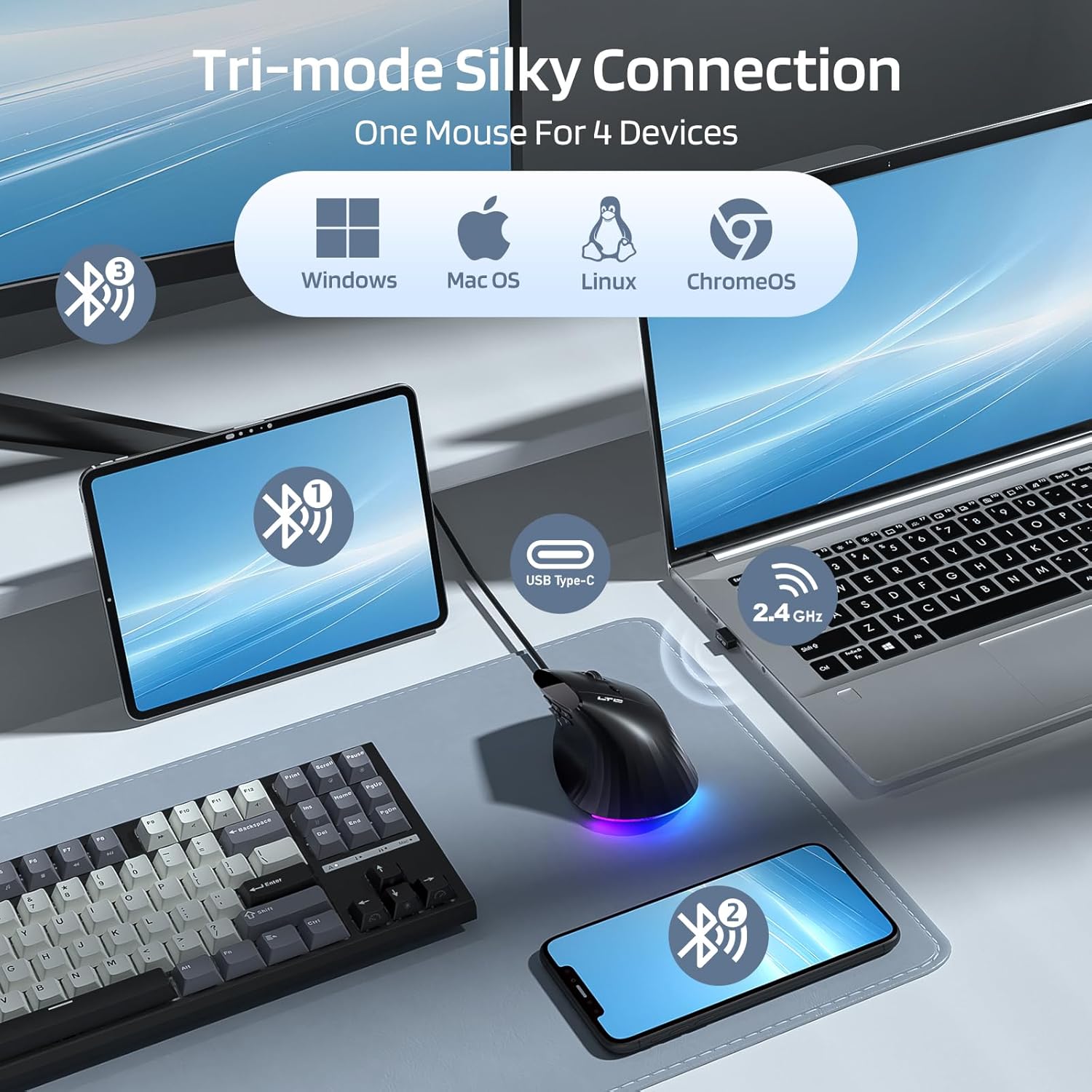
Image 3.1: Diagram illustrating the tri-mode connection options (Bluetooth, 2.4GHz, Wired) and multi-device compatibility for Windows, Mac OS, Linux, and ChromeOS.
3.1. Powering On/Off
Locate the power switch on the bottom of the mouse. Slide it to the 'ON' position to power on the mouse. To turn off the mouse, slide the switch to 'OFF'. The switch also has a position to enable/disable RGB lighting.
3.2. 2.4GHz Wireless Connection
- Remove the 2.4G USB receiver from its storage slot on the bottom of the mouse.
- Plug the USB receiver into an available USB port on your computer.
- Turn on the mouse using the power switch.
- Press the Connection Mode Key (often labeled 'Mode Key' or 'BT' button) on the mouse to select the 2.4G mode. The indicator light will show the active mode.
- The mouse should automatically connect to your computer.
3.3. Bluetooth Connection
- Turn on the mouse using the power switch.
- Press and hold the Connection Mode Key for 3 seconds to enter Bluetooth pairing mode. The indicator light will flash, indicating it is discoverable.
- On your device (PC, Mac, tablet, laptop), navigate to Bluetooth settings.
- Search for new devices and select "GM051" from the list.
- Confirm the pairing on your device. The mouse indicator light will become solid once connected.
Video 3.1: This video demonstrates the RGB lighting effects and the process of connecting the LTC GM051 mouse to a computer via its 2.4GHz USB receiver, highlighting the ease of setup.
3.4. Wired Connection
Connect the mouse to your computer using the provided USB-C cable. The mouse will function in wired mode and charge simultaneously.
4. Operating Instructions
4.1. Ergonomic Design
The LTC GM051 features a 55° handshake angle, promoting a natural wrist and forearm position to reduce strain and fatigue during extended use. This design is particularly beneficial for users seeking to alleviate discomfort associated with traditional mice.

Image 4.1: Illustration of the 55° ergonomic handshake angle of the vertical mouse compared to a traditional mouse, demonstrating reduced wrist pronation.

Image 4.2: Visual representation of the ergonomic benefits, including 55° ergonomic comfort angle, 37% reduction in wrist pressure, and 22% decrease in forearm muscle activity.
4.2. DPI Adjustment
The mouse features a PAW3220 optical sensor with adjustable DPI settings up to 8000 DPI. Press the DPI Adjustable Button (usually located near the scroll wheel or on the side) to cycle through the available DPI levels (e.g., 1600, 2400, 3200, 6400, 8000 DPI). Each press will change the cursor speed, indicated by a brief flash of the RGB lighting or a specific color.

Image 4.3: Display of the mouse's high performance capabilities, showing adjustable DPI settings (1600-8000) and polling rates (125Hz-1000Hz).
4.3. Programmable Buttons
The LTC GM051 is equipped with 9 buttons, including 5 side buttons, which can be programmed for custom functions and shortcuts. This customization enhances efficiency for both office tasks and gaming.

Image 4.4: Detailed diagram labeling the 9 programmable buttons, including DPI Cycle, Right Click, Middle Button, Left Click, Screen Capture, Lock PC, Show Desktop, Forward, Backward, and Mode Key.
To customize button functions, you will need to download and install the professional software. Refer to the software section for more details.
4.4. RGB Lighting
The mouse features adjustable RGB lighting. Use the Light Mode Button (often on the bottom or side) to cycle through different lighting effects or turn the RGB off. The power switch may also have a setting to disable RGB.
5. Customization with Software
For advanced customization of programmable buttons, DPI settings, polling rates, and RGB lighting, the LTC GM051 supports professional software. This software allows you to:
- Assign custom keys and macros.
- Adjust DPI and polling rate precisely.
- Configure RGB lighting effects.
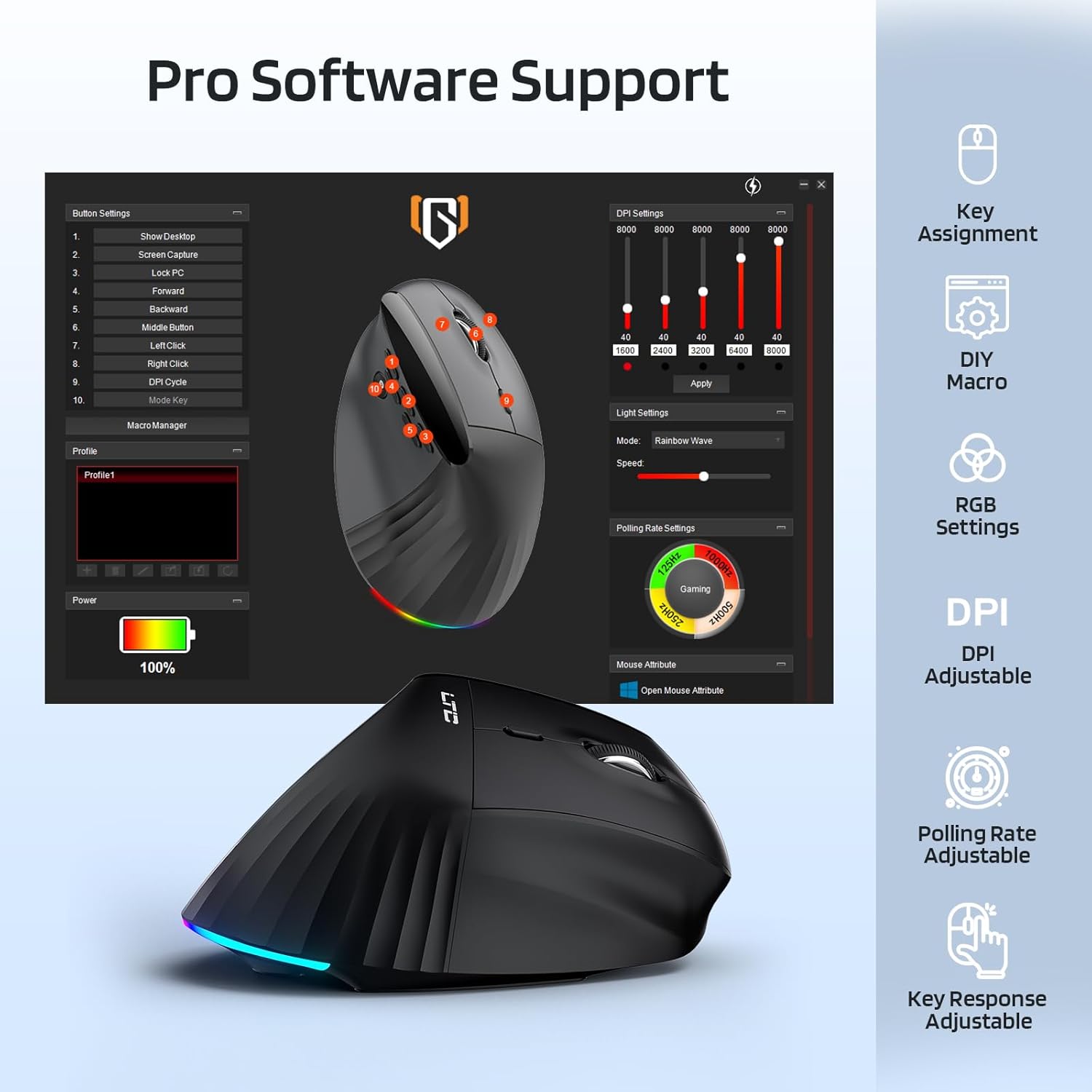
Image 5.1: Screenshot of the professional software interface, showing options for key assignment, DIY macros, RGB settings, DPI adjustment, and polling rate adjustment.
Please visit the official LTC website or refer to the product packaging for instructions on where to download the latest version of the customization software.
6. Charging and Battery
The LTC GM051 is equipped with an 850mAh rechargeable battery, providing long-lasting power for uninterrupted productivity.
6.1. Charging the Mouse
- Connect the provided USB-C charging cable to the charging port on the front of the mouse.
- Plug the other end of the cable into a USB power source (e.g., computer USB port, USB wall adapter).
- The mouse will indicate charging status (e.g., via an LED indicator).

Image 6.1: The LTC GM051 mouse connected via its Type-C cable for charging, with indicators for battery capacity and charging time.
6.2. Battery Life
A full charge typically takes approximately 2 hours. Once fully charged, the mouse can last up to 2 months with RGB lighting turned off, depending on usage.
7. Troubleshooting
If you encounter issues with your LTC GM051 mouse, please refer to the following common solutions:
- Mouse not responding: Ensure the mouse is powered on and fully charged. Try connecting via a different mode (2.4G, Bluetooth, or Wired).
- 2.4G connection issues: Ensure the USB receiver is securely plugged into a working USB port. Try a different USB port. Re-pair the mouse by following the 2.4GHz connection steps.
- Bluetooth connection issues: Ensure Bluetooth is enabled on your device. Make sure the mouse is in pairing mode (flashing indicator). Remove previous pairings of "GM051" from your device's Bluetooth list and try pairing again.
- Cursor movement is erratic or slow: Adjust the DPI settings using the DPI button. Ensure the mouse sensor is clean and operating on a suitable surface.
- Buttons not working as expected: If using custom settings, check the customization software for correct button assignments. Reset the mouse to factory defaults if necessary (refer to software or advanced instructions).
- RGB lighting not working: Ensure the RGB lighting is enabled via the power switch or light mode button. Check software settings if applicable.
8. Specifications
| Model | GM051 |
| Brand | LTC |
| Connectivity Technology | Bluetooth, 2.4GHz Radio Frequency, USB-C Wired |
| Movement Detection Technology | Optical (PAW3220 Sensor) |
| DPI Settings | Up to 8000 DPI (5 adjustable levels) |
| Programmable Buttons | 9 (including 5 side buttons) |
| Battery | 850mAh Rechargeable Lithium Polymer |
| Charging Time | Approx. 2 hours |
| Battery Life | Up to 2 months (RGB off) |
| Product Dimensions | 4.72 x 2.56 x 0.1 inches |
| Item Weight | 4.2 ounces |
| Color | Black |
8.1. Palm Size Recommendation

Image 8.1: Chart providing palm size recommendations (Length A, Width B) for optimal ergonomic fit, suggesting sizes M to L for this mouse model.
9. Warranty and Support
LTC is committed to customer satisfaction. For any inquiries, concerns, or technical assistance regarding your GM051 mouse, please contact our dedicated after-sales support team. Refer to the contact information provided on the product packaging or the official LTC website.