
Yamaha URX44C
Yamaha URX44C 6-in/4-out USB-C Audio/MIDI Interface Instruction Manual
1. Product Overview
The Yamaha URX44C is a versatile 6-in/4-out USB-C Audio/MIDI Interface designed for high-quality audio production. It features 32-bit/192kHz support, four combo inputs, two line inputs, DSP-powered mixing and effects, and comes bundled with Steinberg software. This interface is engineered to provide a smooth and flexible workflow, offering precise control over your mix and effects, making it suitable for both new and experienced audio engineers.
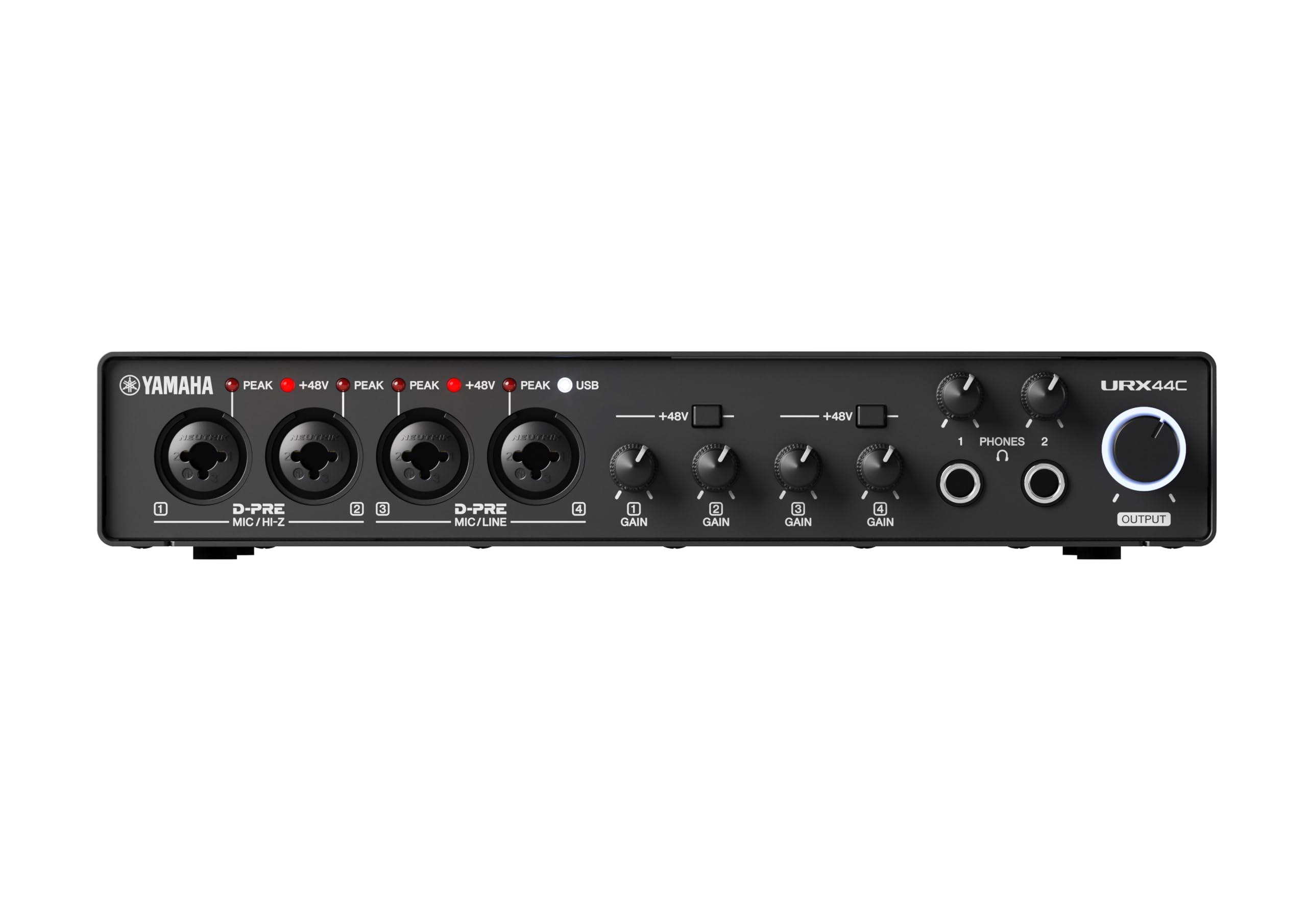
Image 1.1: Front view of the Yamaha URX44C Audio/MIDI Interface.
Key Features:
- 32-bit Integer / 192 kHz USB 3.0 audio interface with 6 x 4 analog I/O and MIDI I/O.
- 4 analog XLR/TRS combo inputs with Class-A D-PRE mic preamps supporting +48V phantom power and 2 HI-Z, 2 TRS line inputs, 4 TRS line outputs and 2 main outputs.
- Rugged full-metal housing for enhanced durability.
- Latency-free DSP-powered monitoring with REV-X reverb, Channel Strip, and Guitar Amp Classics (VST 3 and AU plug-in versions also included).
- Cross-platform compatibility for Windows, macOS, and iOS with Cubase AI, Steinberg Plus, and dspMixFx application included.
2. Initial Setup
Follow these steps to set up your Yamaha URX44C audio interface for the first time.
2.1. System Requirements
- Operating System: Windows, macOS, or iOS.
- Connectivity: USB 3.0 (USB-C port recommended for optimal performance).
- Software: Internet connection required for driver and software downloads (Cubase AI, Steinberg Plus, dspMixFx).
2.2. Driver and Software Installation
- Visit the official Yamaha website for the URX44C model to download the latest drivers and the dspMixFx application.
- Install the drivers according to the on-screen instructions for your operating system. Restart your computer if prompted.
- Install the dspMixFx application and any bundled Steinberg software (Cubase AI, Steinberg Plus) as desired.
2.3. Hardware Connection
- Ensure your computer and the URX44C are powered off.
- Connect the URX44C to your computer using a USB-C cable.
- Connect your microphones, instruments, or line-level devices to the appropriate input jacks (XLR/TRS combo, HI-Z, TRS line inputs).
- Connect your studio monitors or headphones to the main outputs or headphone jacks.
- Power on your computer, then power on the URX44C.
3. Operation
This section details the basic operation of your Yamaha URX44C audio interface.
3.1. Input Level Adjustment
Use the gain knobs on the front panel to adjust the input level for each connected microphone or instrument. Ensure the peak indicators do not light up consistently, which would indicate clipping.

Image 3.1: A user operating the audio interface during a recording session.
3.2. Monitoring
The URX44C offers latency-free DSP-powered monitoring. Use the dspMixFx application to configure your monitoring mix, apply REV-X reverb, Channel Strip, and Guitar Amp Classics effects without burdening your computer's CPU.

Image 3.2: A musician recording vocals using the Yamaha URX44C interface.
3.3. Software Integration
The URX44C integrates seamlessly with Cubase AI, Steinberg Plus, and other major DAWs. Ensure your DAW's audio settings are configured to use the URX44C as the input and output device.
4. Maintenance
Proper maintenance ensures the longevity and optimal performance of your URX44C interface.
- Cleaning: Use a soft, dry cloth to clean the exterior of the unit. Avoid abrasive cleaners or solvents.
- Environment: Keep the device in a clean, dry environment, away from direct sunlight, extreme temperatures, and excessive dust.
- Connections: Periodically check all cable connections for secure fit and signs of wear.
5. Troubleshooting
If you encounter issues with your URX44C, refer to the following common solutions.
5.1. No Sound Output
- Check all cable connections to your speakers/headphones and the URX44C.
- Ensure the output volume knob on the URX44C is turned up.
- Verify that the URX44C is selected as the default audio output device in your computer's sound settings and your DAW.
- Confirm that the dspMixFx application's mixer settings are correctly configured.
5.2. Input Signal Issues
- Check microphone/instrument cables and ensure they are securely connected.
- Adjust the input gain knob for the respective channel.
- If using a condenser microphone, ensure +48V phantom power is enabled for that input.
- Verify that the correct input is selected in your DAW.
5.3. Device Not Recognized
- Ensure the USB-C cable is properly connected to both the interface and your computer.
- Try a different USB-C port or cable.
- Reinstall the latest drivers from the Yamaha website.
- Restart your computer and the URX44C.
6. Specifications
| Feature | Detail |
|---|---|
| Brand | Yamaha |
| Model Number | URX44C |
| Connectivity Technology | USB-C (USB 3.0) |
| Number of Channels | 6-in/4-out |
| Audio Inputs | 4 x XLR/TRS Combo, 2 x TRS Line, 2 x HI-Z |
| Audio Outputs | 4 x TRS Line, 2 x Main Outputs |
| MIDI I/O | Yes |
| Phantom Power | +48V (switchable) |
| Maximum Sample Rate | 192 KHz |
| Bit Depth | 32-bit Integer |
| Compatible Devices | Headphone, Laptop, Personal Computer, Smartphone, Tablet |
| Operating System | Windows, iOS, macOS |
| Supported Software | Cubase AI, Steinberg Plus, dspMixFx |
| Housing | Full-metal |
7. Warranty Information
The Yamaha URX44C comes with a 1-year manufacturer warranty from Yamaha Corporation of America. This warranty applies only to products purchased from an authorized Yamaha retailer within the fifty United States (including the District of Columbia) and used in this area. For complete details and terms, please review the official Yamaha limited warranty for this product on the Yamaha website.
8. Customer Support
For further assistance, technical support, or to access the latest drivers and software, please visit the official Yamaha support website:
You can also contact Yamaha customer service directly through their website for specific inquiries regarding your URX44C interface.
Related documentsURX44C


Ask a question about this manual
Ask about setup, troubleshooting, compatibility, parts, safety, or missing instructions. Manuals+ will review the question and use this page’s manual context to help answer it.