
1. Introduction
Thank you for purchasing the Tecaki M13 Smart Projector. This manual provides essential information for the safe and efficient use of your projector. Please read it thoroughly before use and retain it for future reference.
2. Safety Information
To ensure safe operation and prevent damage, please observe the following:
- Do not look directly into the projector lens when the lamp is on.
- Keep the projector away from water or other liquids.
- Do not block ventilation openings. Ensure adequate airflow around the device.
- Use only the power adapter supplied with the projector.
- Avoid placing the projector on unstable surfaces.
- Do not attempt to disassemble or repair the projector yourself. Contact qualified service personnel.
3. Package Contents
Verify that all items are present in your package:
- Tecaki M13 Smart Projector
- Remote Control
- Power Cord
- HDMI Cable
- User Manual (this document)
4. Product Overview
The Tecaki M13 is a compact and versatile smart projector designed for various entertainment and professional uses. It features an integrated Android TV system, allowing direct access to streaming applications.

Figure 1: Tecaki M13 Smart Projector
Key Features:
- Android TV Integration: Access popular streaming services directly.
- Compact and Lightweight: Weighs approximately 455g, making it highly portable.
- 270° Rotatable Stand: Allows for flexible projection angles, including ceiling projection.
- Native 1080P Resolution with 4K Support: Delivers clear and vibrant images.
- 25000 Lumens Brightness: Ensures a bright display even in moderately lit environments.
- Automatic Keystone Correction & Electric Focus: Simplifies setup by automatically adjusting image shape and sharpness.
- 200-inch Large Screen Projection: Capable of projecting a large display from a short distance (0.9m - 4m).
- Advanced Connectivity: Features Bluetooth 5.3 and Wi-Fi 6 for stable wireless connections.
- Quiet Operation: Designed with a cooling system that keeps noise below 30dB.

Figure 2: Key features of the Tecaki M13 Projector
5. Setup
5.1 Initial Placement
Place the projector on a stable, flat surface. The integrated 270° rotatable stand allows for versatile positioning, including projecting onto walls or ceilings.
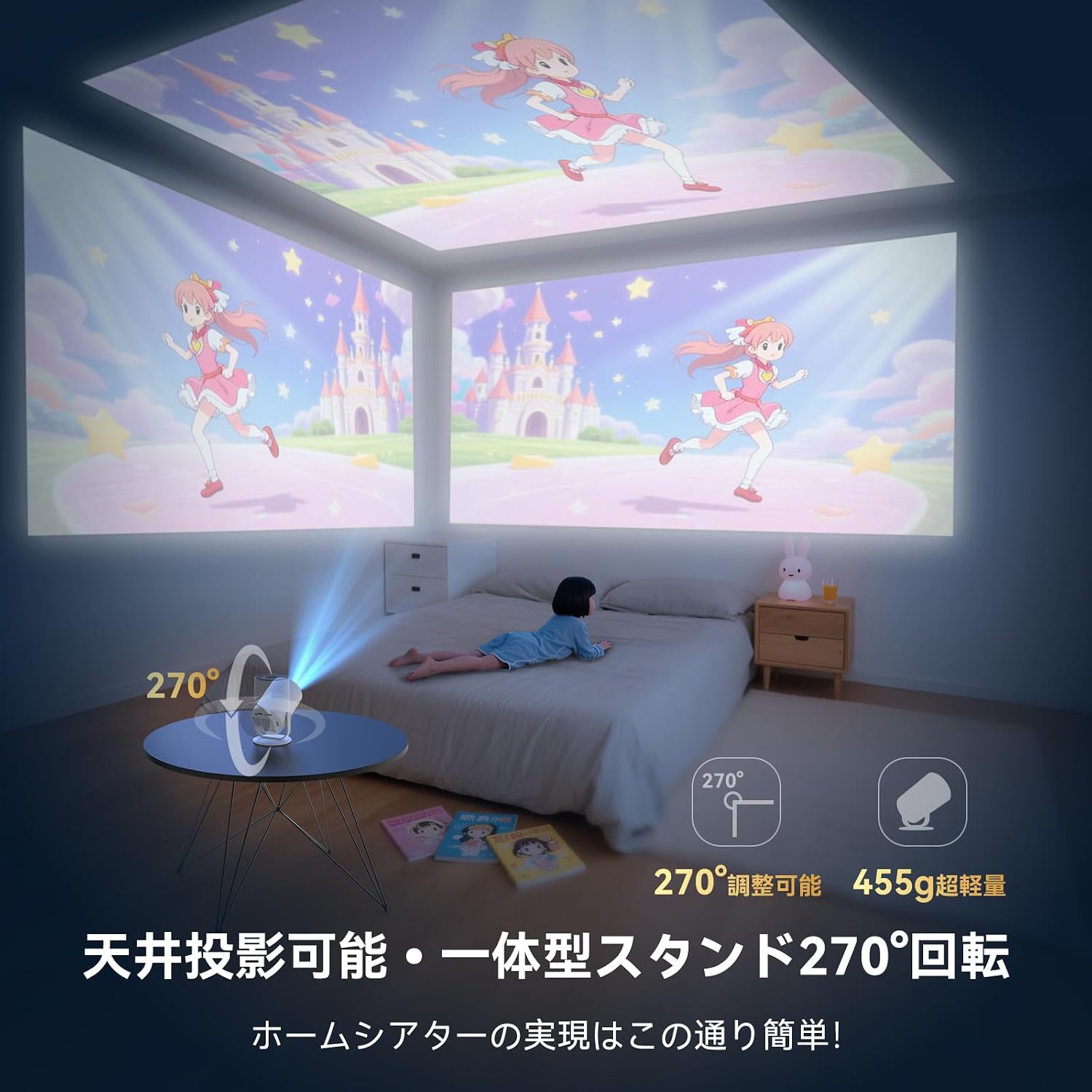
Figure 3: Flexible placement with 270° rotation
5.2 Power Connection
- Connect the power cord to the projector's power input.
- Plug the other end of the power cord into a power outlet.
- Press the power button on the projector or remote control to turn it on.
5.3 Automatic Adjustments
The projector features automatic keystone correction and electric focus. Upon startup or repositioning, the projector will automatically adjust the image to be rectangular and sharp. Fine-tuning can be done via the remote control if needed.

Figure 4: Automatic keystone correction and electric focus
6. Operating Instructions
6.1 Navigating Android TV
The Tecaki M13 runs on Android TV, providing a smart interface for content access. Use the remote control to navigate the menus, select applications, and adjust settings.

Figure 5: Android TV interface
6.2 Adjusting Projection Size and Zoom
The projector supports a projection distance of 0.9m to 4m, capable of producing a screen size up to 200 inches. You can adjust the screen size (zoom) from 50% to 100% using the remote control.
6.3 Audio Output
The projector has a built-in speaker. For enhanced audio, you can connect external speakers or headphones via Bluetooth or the 3.5mm audio jack.
7. Connectivity
The Tecaki M13 offers multiple connectivity options for various devices.
7.1 Wi-Fi Connection (Wi-Fi 6)
Connect the projector to your home Wi-Fi network to access online streaming services and content. Wi-Fi 6 provides a stable and high-speed connection.
7.2 Bluetooth Connection (Bluetooth 5.3)
Pair Bluetooth-enabled devices such as headphones, speakers, or game controllers with your projector.
- Go to the Bluetooth settings on your projector.
- Enable Bluetooth on your external device and set it to pairing mode.
- Select your device from the list on the projector screen to pair.

Figure 6: Bluetooth 5.3 connectivity
7.3 Wired Connections (HDMI, USB, 3.5mm Audio)
The projector includes ports for direct wired connections:
- HDMI: Connect to laptops, game consoles (PS series), DVD players, or TV sticks.
- USB: Connect USB drives for media playback or other compatible USB devices.
- 3.5mm Audio Jack: Connect external wired headphones or speakers.

Figure 7: HDMI, USB, and 3.5mm audio ports
8. Maintenance
Proper maintenance ensures the longevity and optimal performance of your projector.
8.1 Cleaning the Lens
Gently wipe the projector lens with a soft, lint-free cloth specifically designed for optical lenses. Do not use abrasive cleaners or solvents.
8.2 Cleaning the Exterior
Wipe the exterior of the projector with a soft, dry cloth. For stubborn marks, a slightly damp cloth can be used, followed by a dry cloth.
8.3 Ventilation
Ensure that the ventilation openings are clear of dust and obstructions to prevent overheating. Do not place the projector in enclosed spaces that restrict airflow.
9. Troubleshooting
If you encounter issues with your projector, refer to the following common problems and solutions:
| Problem | Possible Cause | Solution |
|---|---|---|
| No image displayed | Power not connected; Input source incorrect; Lens cap on | Check power connection; Select correct input source; Remove lens cap |
| Image is blurry | Focus not adjusted; Projector too far/close | Use electric focus via remote; Adjust projector distance |
| Image is distorted (trapezoid) | Keystone not corrected | Allow auto keystone correction to run; Manually adjust via remote |
| No sound | Volume too low; External audio device not connected/paired | Increase volume; Check Bluetooth pairing or 3.5mm connection |
| Remote control not working | Batteries low/dead; Obstruction between remote and projector | Replace batteries; Ensure clear line of sight |
| Wi-Fi connection unstable | Weak signal; Router issues | Move projector closer to router; Restart router; Check for interference |
If the problem persists after trying these solutions, please contact Tecaki customer support.
10. Specifications
| Feature | Detail |
|---|---|
| Brand | Tecaki |
| Model Number | M13 |
| Native Resolution | 1920 x 1080 (Full HD) |
| Brightness | 25000 Lumens |
| Contrast Ratio | 15000:1 |
| Max Image Size | 200 inches |
| Projection Distance | 0.9m - 4m (Recommended: 1m - 3m) |
| Connectivity | HDMI, USB, 3.5mm Audio Jack, Bluetooth 5.3, Wi-Fi 6 |
| Form Factor | Portable |
| Dimensions (L x W x H) | 10.4 x 9.5 x 18 cm |
| Weight | Approx. 455g |
| Features | Android TV, Built-in Speaker, Auto Keystone Correction, Electric Focus, 270° Rotation, Quiet Cooling System |
11. Warranty and Support
11.1 Manufacturer's Warranty
The Tecaki M13 Smart Projector comes with a one-year manufacturer's warranty from the date of purchase. This warranty covers defects in materials and workmanship under normal use. It does not cover damage caused by misuse, accidents, unauthorized modifications, or external factors.
11.2 Customer Support
For technical assistance, warranty claims, or any questions regarding your Tecaki M13 projector, please contact our customer support team. Refer to your purchase documentation for contact details or visit the official Tecaki website.