
Introduction
This manual provides detailed instructions for the installation, operation, and maintenance of your MekedeTech Android Car Radio. This 9-inch touch screen head unit is designed specifically for Opel Mokka models from 2012 to 2016, offering an upgraded in-car entertainment and navigation experience with Wireless CarPlay, Android Auto, GPS, WiFi, and FM Radio functionalities. Please read this manual thoroughly before installation and use to ensure proper function and safety.
Package Contents
Verify that all items listed below are included in your package. If any items are missing or damaged, please contact customer support.
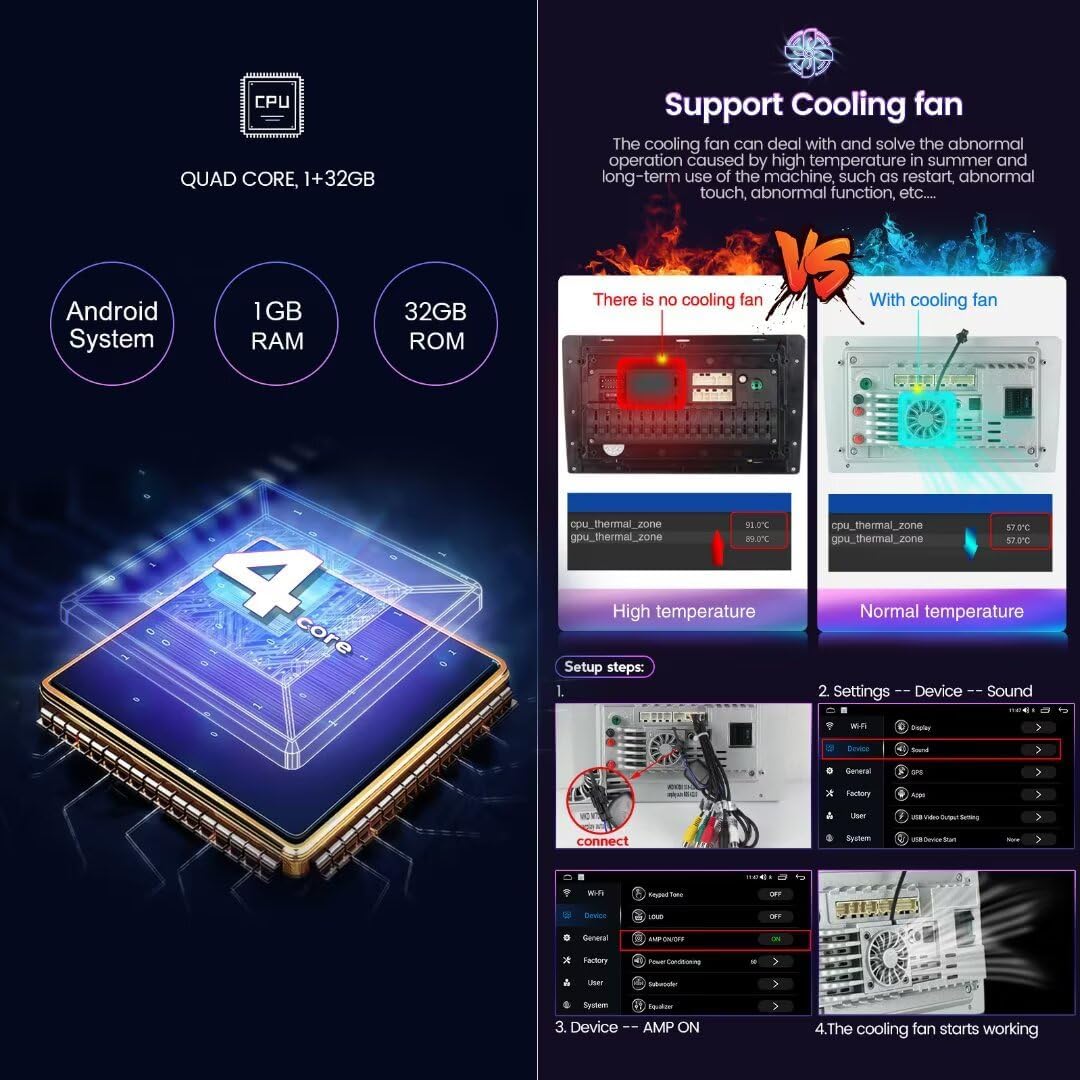
Figure 1: Package Contents. This image displays the various components included with your MekedeTech Android Car Radio. It shows the main head unit, the power cable with an integrated Canbus box, an external microphone, RCA cables for audio/video connections, a cable for a reversing camera, a video output cable, multiple USB extension cables, and a GPS antenna.
- Main Head Unit (9-inch display)
- Power Cable with Canbus Box
- External Microphone (MIC)
- RCA Cable Set
- Reversing Camera Cable
- Video Out Cable
- USB Plug Cables (x2)
- GPS Antenna
- User Manual (this document)
Setup and Installation
This unit is designed for direct integration with Opel Mokka 2012-2016 models. Professional installation is recommended. Ensure the vehicle's ignition is off and the battery is disconnected before beginning installation.
- Preparation: Carefully remove the original car radio and trim panels from your Opel Mokka. Refer to your vehicle's service manual for specific instructions on panel removal.
- Wiring Connection:
- Connect the provided power cable and Canbus box to the vehicle's wiring harness. The Canbus box ensures compatibility with your vehicle's steering wheel controls and other integrated systems.
- Connect the GPS antenna and position it in a location with a clear view of the sky (e.g., dashboard, A-pillar).
- Connect the external microphone for improved call quality. Route the cable discreetly to a suitable location near the driver.
- Connect any additional accessories such as a reversing camera (using the reversing camera cable), USB devices (using the USB plug cables), or external video displays (using the video out cable).
- Unit Installation: Carefully insert the MekedeTech head unit into the dashboard opening. Ensure all cables are properly routed and not pinched. Secure the unit using the original mounting brackets or provided hardware.
- Panel Reassembly: Reattach all trim panels and secure them.
- Power On: Reconnect the vehicle battery. Turn on the ignition and power on the head unit.
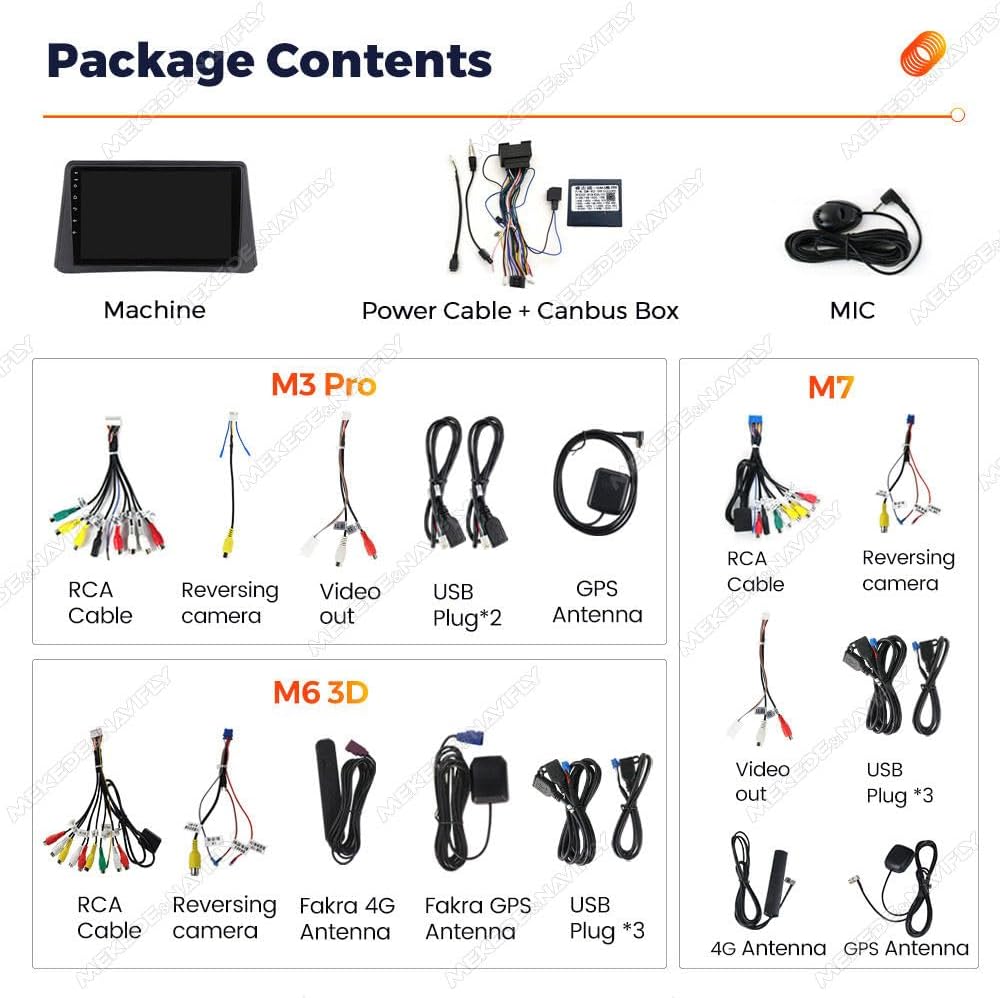
Figure 2: Installation Overview. This image illustrates the appearance of the Opel Mokka dashboard before and after the installation of the MekedeTech Android Car Radio. The "Before installation" section shows the original car radio, while the "After installation" section displays the new 9-inch Android head unit seamlessly integrated into the dashboard.
Operating Instructions
Your MekedeTech Android Car Radio offers a wide range of features. Here are instructions for common operations.
Wireless CarPlay and Android Auto
Connect your iPhone or Android smartphone wirelessly for seamless access to navigation, music, calls, and messages directly on the car radio display.
- Ensure Bluetooth is enabled on your smartphone and the car radio.
- On the car radio, navigate to the "Car Link" or "Phone Link" application.
- Search for and select your phone from the available Bluetooth devices.
- Confirm the pairing code on both devices.
- Once connected, CarPlay (for iPhone) or Android Auto (for Android phones) will launch automatically.
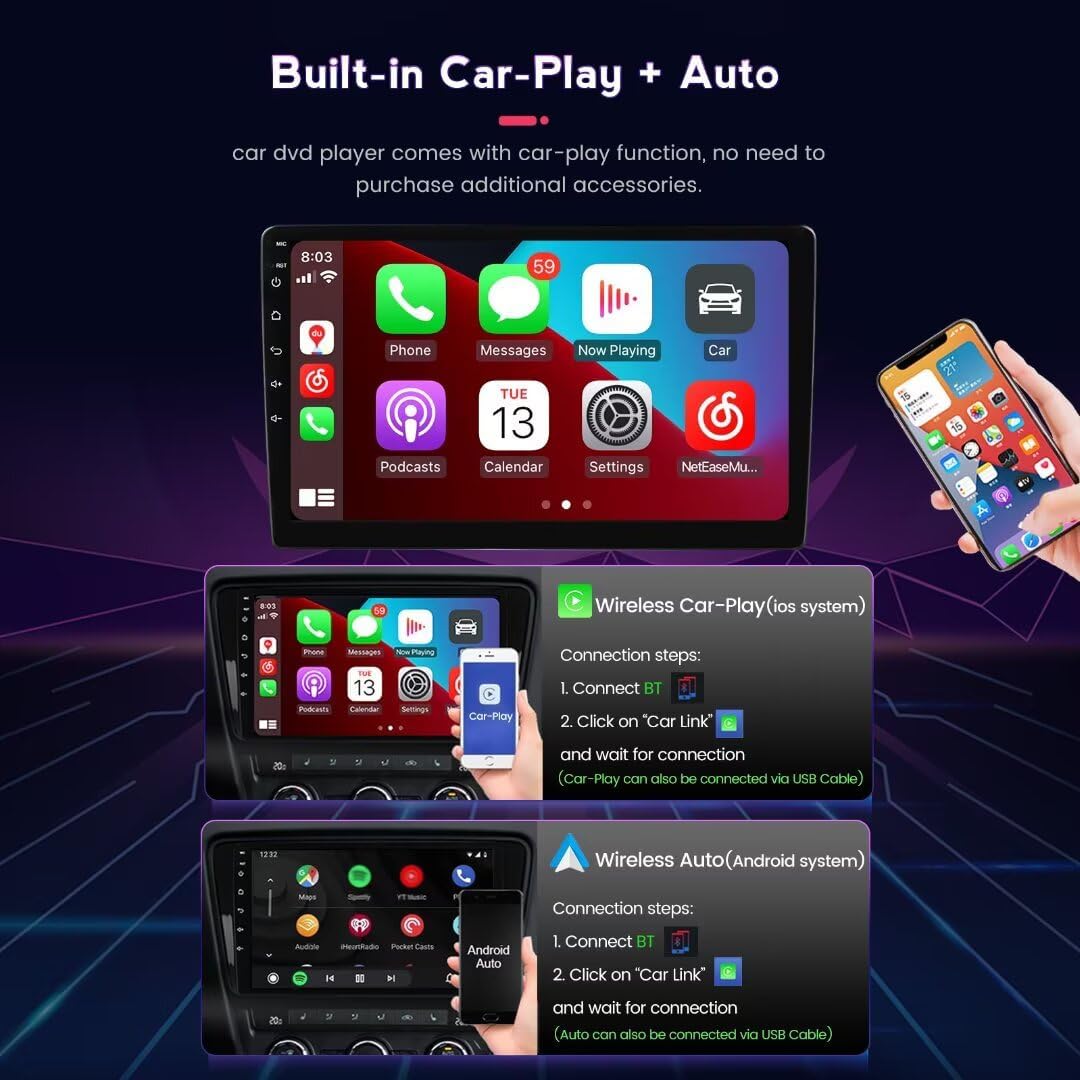
Figure 3: CarPlay and Android Auto Interface. This image demonstrates the user interface for connecting to Wireless CarPlay (for iOS devices) and Wireless Android Auto (for Android devices). It shows the steps to connect via Bluetooth and the "Car Link" application, displaying the familiar app icons for both platforms on the car radio screen.
GPS Navigation
The unit features built-in GPS with support for offline and online maps. Connect to WiFi for live traffic updates.
- Access the navigation application from the main menu.
- Pre-installed maps (e.g., iGO, Navitel, Yandex, Google Maps) are supported.
- Enter your destination to begin route guidance.
Split Screen Functionality
Utilize the split-screen feature to run two applications simultaneously, such as navigation and music playback.
- While an application is open, press and hold the recent apps button or drag an app to one side of the screen (depending on the Android version).
- Select a second application to occupy the other half of the screen.

Figure 4: Split Screen and GPS Navigation. This image illustrates the split-screen capability, showing navigation and music applications running concurrently. It also highlights the GPS navigation feature, displaying various supported map applications like iGO, Navitel, Yandex, and Google Maps, along with detailed map views.
Steering Wheel Control
The integrated Canbus box ensures compatibility with your vehicle's original steering wheel controls. This allows you to manage essential functions like volume, track changes, and call answering without taking your hands off the wheel.
- No additional setup is typically required for basic functions.
- If controls are not functioning, check the Canbus box connection or refer to the system settings for steering wheel control mapping.
FM/RDS Radio
Access local radio stations with clear sound quality and RDS (Radio Data System) information.
- Open the "Radio" application.
- Scan for available stations or manually tune to a frequency.
- RDS provides station information, song titles, and traffic announcements where available.
WiFi Connectivity
Connect to a WiFi hotspot (e.g., from your smartphone) to access online features, download apps, and receive live traffic updates.
- Go to "Settings" > "Network & Internet" > "Wi-Fi".
- Select your desired network and enter the password.
Maintenance
Proper maintenance ensures the longevity and optimal performance of your car radio.
- Screen Cleaning: Use a soft, lint-free cloth slightly dampened with water or a screen cleaner specifically designed for electronics. Do not use harsh chemicals or abrasive materials.
- Software Updates: Periodically check for system updates in the "Settings" menu to ensure you have the latest features and security patches. Connect to a stable WiFi network before performing updates.
- General Care: Avoid exposing the unit to extreme temperatures, direct sunlight for prolonged periods, or excessive moisture.
Troubleshooting
Refer to this section for solutions to common issues. If the problem persists, contact customer support.
| Problem | Possible Cause | Solution |
|---|---|---|
| Unit does not power on. | Loose power connection, blown fuse, vehicle battery disconnected. | Check all power cable connections. Verify vehicle fuses. Ensure battery is connected. |
| No sound. | Volume too low, mute activated, incorrect audio source, loose speaker wires. | Increase volume. Check mute status. Select correct audio source. Verify speaker connections. |
| GPS signal lost or inaccurate. | GPS antenna obstructed or improperly placed, antenna connection loose. | Ensure GPS antenna has a clear view of the sky. Check antenna connection. |
| CarPlay/Android Auto not connecting. | Bluetooth off, phone not paired, "Car Link" app not open, phone software issue. | Ensure Bluetooth is on and paired. Open "Car Link" app. Restart phone and unit. |
| Steering wheel controls not working. | Canbus box not connected correctly, vehicle settings issue. | Verify Canbus box connection. Check unit's steering wheel control settings. |
| Unit overheating. | Poor ventilation, prolonged heavy use. | Ensure adequate ventilation around the unit. Reduce prolonged heavy usage. The unit is designed with cooling fan support to manage temperature during operation. |
Specifications
| Feature | Detail |
|---|---|
| Model | 4-Core 1GB RAM 32GB ROM |
| Operating System | Android 13 OS |
| CPU | 4-Core A53 |
| Memory | 1GB RAM, 32GB ROM |
| Display Size | 9-inch IPS Touch Screen |
| Display Resolution | 1280*720 |
| Connectivity | Wireless (WiFi, Bluetooth) |
| Special Features | Wireless CarPlay, Wireless Android Auto, GPS Navigation, FM RDS Radio, Split Screen, Steering Wheel Control Support, Built-in Microphone |
| Map Type Support | Worldwide (iGO, Navitel, Yandex, Google Maps) |
| Human Interface Input | Touchscreen, Buttons, Keyboard |
| Control Method | Touch |
Warranty
This product comes with a 1-Year Warranty from the date of purchase. The warranty covers manufacturing defects and malfunctions under normal use. It does not cover damage caused by improper installation, misuse, accidents, unauthorized repairs, or normal wear and tear. Please retain your proof of purchase for warranty claims.
Support
For technical assistance, troubleshooting not covered in this manual, or warranty inquiries, please contact MekedeTech customer support through the retailer where the product was purchased or visit the official MekedeTech store online.
MekedeTech Store: https://www.amazon.com/stores/MekedeTech/page/06270556-AA28-48E9-A8CE-D2A8D7D565F9
