
ORICO MR10-US
ORICO MiniRaid MR10-US 10-in-1 Docking Station User Manual
Dual-Bay M.2 NVMe/SATA SSD Enclosure with USB-C Hub for Mac mini M4 Pro
1. Introduction
This manual provides comprehensive instructions for the setup, operation, and maintenance of your ORICO MiniRaid MR10-US 10-in-1 Docking Station. This device is designed to expand the connectivity and storage capabilities of your computer, particularly optimized for Mac mini M4 Pro, Mac Studio, and MacBook Pro models, while also being compatible with Windows and Linux systems.
The docking station features a dual-bay M.2 NVMe/SATA SSD enclosure, multiple USB ports, HDMI 4K@60Hz output, Ethernet, SD/TF card slots, and PD60W charging. It also supports various RAID modes for data management.
2. Package Contents
Please verify that all items are present in the package:
- ORICO MiniRaid SSD Dock/Enclosure x1
- USB-C to USB-C Cable (3.3Ft / 100cm) x1
- 20V 3.25A Power Adapter x1
- Thermal Pad for SSD x2
- Rubber Fastener x1
- User Manual x1

Image: Contents of the ORICO MiniRaid MR10-US package, including the docking station, cables, power adapter, thermal pads, and user manual.
3. Product Overview
The ORICO MiniRaid MR10-US is a compact and versatile docking station designed to enhance your computing experience. It features a robust aluminum alloy shell for durability and efficient heat dissipation.
3.1 Front Ports
- SD/TF 3.0 Card Reader: Supports simultaneous read/write at up to 104MB/s.
- USB-C (10Gbps): For high-speed data transfer.
- Audio Port (3.5mm): For headphones or speakers.
- USB-A (10Gbps): For high-speed data transfer.
- USB-A (5Gbps): For standard data transfer.
3.2 Rear Ports
- DC 20V Power Interface: Connects to the included power adapter.
- PC IN (USB-C PD60W): Connects to your host device (e.g., Mac mini) and provides up to 60W power delivery.
- MODE/SET (RAID Key): Dip switches and set button for configuring RAID modes (RAID 0/1/PM/Clone).
- HDMI (4K@60Hz): For video output to an external display.
- RJ45 Ethernet (1000Mbps): For wired network connection.

Image: Detailed view of the ORICO MiniRaid MR10-US showing all front and rear ports with their respective functions and speeds.
4. Setup Instructions
4.1 SSD Installation (Tool-Free)
- Open the Top Cover: Gently lift the aluminum top cover of the docking station. It is designed to snap off easily without tools.

Image: A hand lifting the top cover of the ORICO MiniRaid MR10-US to reveal the internal SSD slots.
- Insert M.2 SSDs: The enclosure supports two M.2 2230/2242/2260/2280 NVMe or SATA SSDs (up to 8TB each). Align the notch on your SSD with the slot and gently push it in at an angle. Once seated, push the SSD down and secure it with the provided rubber fastener. Apply a thermal pad to the top of each SSD for optimal heat dissipation.
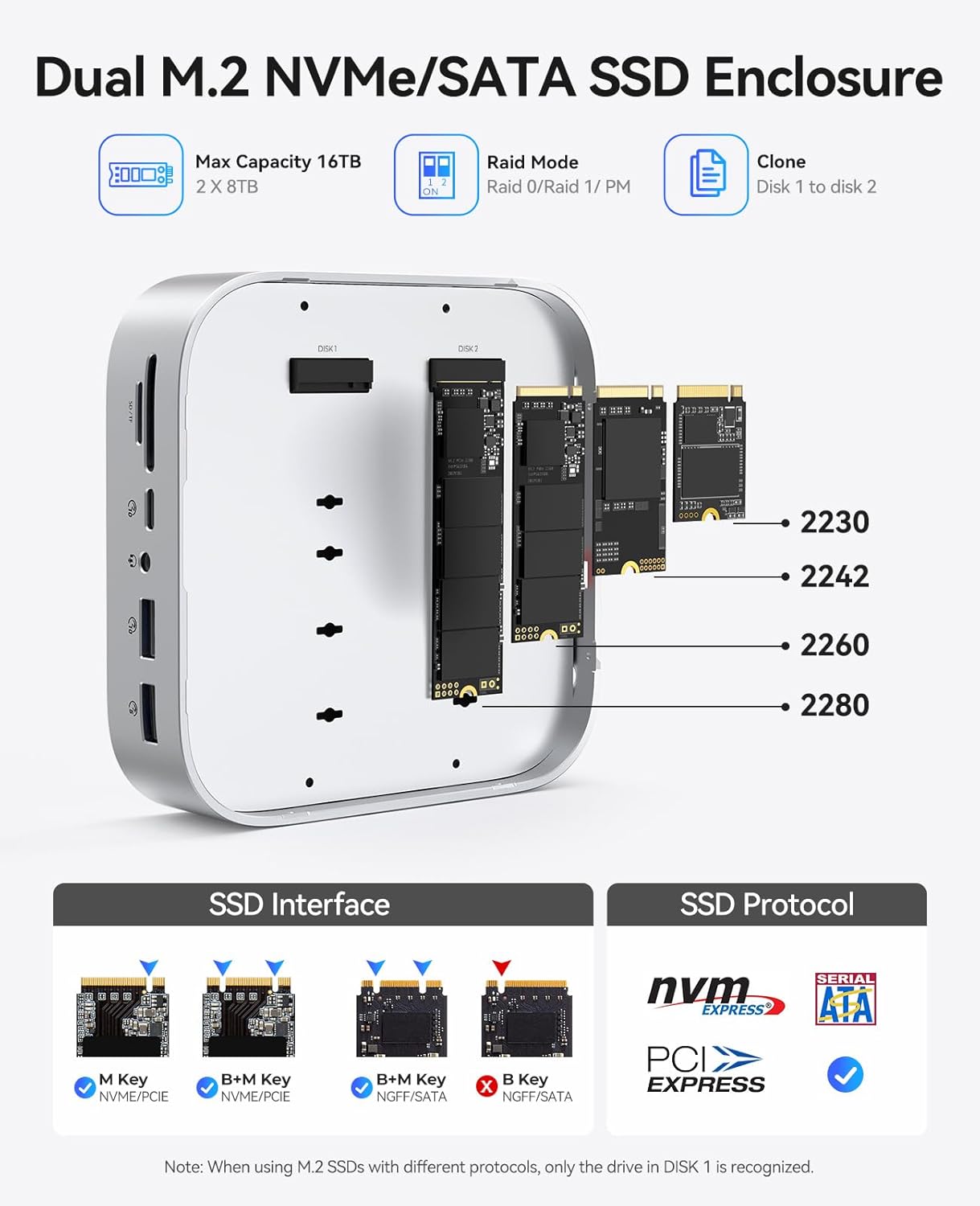
Image: Diagram showing the installation of M.2 SSDs of various sizes into the dual-bay enclosure, highlighting NVMe and SATA compatibility.
Note: When using M.2 SSDs with different protocols, only the drive in Slot 1 is recognized. Do not forcefully bend, shake, or twist the SSD during insertion or removal, as this may damage the M.2 slot or PCB board.
- Close the Top Cover: Place the aluminum top cover back onto the docking station, ensuring it snaps securely into place.
4.2 RAID Mode Configuration
The ORICO MiniRaid MR10-US supports RAID 0, RAID 1, PM (JBOD), and Copy (Offline Clone) modes. Use the dip switches and SET button on the rear of the device to configure your desired RAID mode. Refer to the table below for switch settings.

Image: Visual guide to the RAID mode dip switch settings on the ORICO MiniRaid MR10-US, showing configurations for Copy, PM, RAID 0, and RAID 1.
| Mode | Switch 1 | Switch 2 | Description |
|---|---|---|---|
| Copy | ON | ON | Offline cloning from Disk 1 to Disk 2. Disk 2 capacity must be ≥ Disk 1. |
| PM (JBOD) | OFF | ON | Each SSD is recognized as an independent drive. |
| RAID 0 | ON | OFF | Striping mode for increased speed (requires two SSDs). Data is spread across both drives. |
| RAID 1 | OFF | OFF | Mirroring mode for data redundancy (requires two SSDs). Data is duplicated on both drives. |
Important: After changing the RAID mode, press and hold the SET button for 3-5 seconds until the indicator lights flash to confirm the setting. All data on the SSDs will be erased when changing RAID modes. Back up your data before making any changes.
4.3 Connecting to Host Device
- Connect Power: Plug the 20V 3.25A power adapter into the DC 20V port on the rear of the docking station, then plug it into a power outlet.
- Connect to Computer: Use the provided USB-C to USB-C cable to connect the "PC IN" port on the docking station to a USB-C port on your computer (e.g., Mac mini, MacBook Pro, laptop).
- Connect Peripherals: Connect your monitor to the HDMI port, Ethernet cable to the RJ45 port, and any other USB devices or SD/TF cards to the respective ports.

Image: Step-by-step visual guide on connecting the ORICO MiniRaid MR10-US to a Mac mini, including SSD installation, power, and USB-C connection.
5. Operating Instructions
5.1 Data Transfer and Expansion
Once connected, your computer should automatically detect the docking station and any installed SSDs (depending on the configured RAID mode). You can now use the expanded storage and various ports for data transfer, connecting peripherals, and extending your display.
- USB Ports: Utilize the 10Gbps USB-C and USB-A ports for high-speed external drives or devices. The 5Gbps USB-A port is suitable for standard peripherals like keyboards and mice.
- SD/TF Card Slots: Insert your SD or TF cards to access photos, videos, and other files directly.
- Ethernet: Connect an Ethernet cable for a stable and fast wired network connection.

Image: Illustration of the ORICO MiniRaid MR10-US connected to a computer, showcasing the use of multiple USB ports for various devices and highlighting data transfer speeds.
5.2 Video Output
The HDMI port supports 4K resolution at 60Hz, allowing you to connect an external monitor for extended or mirrored display modes.

Image: A Mac mini connected to the ORICO MiniRaid MR10-US, which is then connected to two external monitors, demonstrating mirror and extend display modes at 4K 60Hz.
5.3 Offline Cloning (Copy Mode)
If you have configured the device to "Copy" mode using the RAID switches, you can perform an offline clone from Disk 1 to Disk 2 without connecting to a computer. Ensure Disk 2 has equal or greater capacity than Disk 1. Follow the instructions in the RAID mode configuration section to set the switches, then press the SET button to initiate cloning. Progress will be indicated by the status lights.

Image: Diagram illustrating the offline cloning procedure from Disk 1 to Disk 2 on the ORICO MiniRaid MR10-US, showing progress indicators.
6. Maintenance
- Cleaning: Use a soft, dry cloth to clean the exterior of the device. Avoid liquid cleaners.
- Heat Dissipation: Ensure the side vents are not obstructed to allow for proper airflow. The intelligent temperature-controlled fan activates automatically at 50°C to maintain optimal operating temperatures.
- Firmware Updates: Check the official ORICO website periodically for any available firmware updates to ensure optimal performance and compatibility.

Image: Exploded view of the ORICO MiniRaid MR10-US highlighting its heat dissipation features, including aluminum alloy shell, thermal pads, cooling fan, and ventilation holes.
7. Troubleshooting
- Device Not Detected:
- Ensure the power adapter is securely connected and the device is powered on.
- Verify the USB-C cable is correctly connected to both the docking station's "PC IN" port and your computer.
- Try a different USB-C port on your computer or a different USB-C cable.
- For SSDs, ensure they are properly seated in their slots and the RAID mode is correctly configured.
- SSD Not Recognized:
- Check if the SSD is compatible (NVMe or SATA M.2 2230/2242/2260/2280).
- If using SSDs with different protocols, ensure the primary drive is in Slot 1.
- If using RAID, ensure the RAID mode is correctly set and confirmed with the SET button. Remember that changing RAID modes will erase data.
- Format new SSDs via your operating system's disk management utility.
- HDMI Output Issues:
- Ensure the HDMI cable is securely connected to both the docking station and the monitor.
- Check your computer's display settings to ensure the external monitor is detected and configured.
- Try a different HDMI cable or monitor.
- Slow Data Transfer:
- Ensure you are using the 10Gbps USB-C or USB-A ports for high-speed devices.
- Verify your connected device (e.g., external SSD) supports 10Gbps speeds.
- Check the quality of your USB cables.
8. Specifications
| Feature | Detail |
|---|---|
| Model | MR10-US |
| Brand | ORICO |
| Interface | USB 3.2 Gen 2 (10Gbps), USB 3.0 Type A (5Gbps), HDMI 4K@60Hz, RJ45 Ethernet (1000Mbps), SD/TF 3.0, 3.5mm Audio, DC 20V Power, USB-C PD60W |
| SSD Compatibility | Dual M.2 NVMe/SATA SSD (2230/2242/2260/2280), up to 8TB per SSD |
| RAID Modes | RAID 0, RAID 1, PM (JBOD), Copy (Offline Clone) |
| Power Delivery | PD60W via USB-C (PC IN port) |
| Cooling | Aluminum alloy shell, intelligent temperature-controlled fan, thermal pads |
| Compatibility | Windows, macOS, Linux systems; Mac mini, Mac Studio, MacBook Pro, Laptops, Desktops |
| Dimensions | 7.09 x 6.65 x 3.46 inches (Package) |
| Item Weight | 5.3 ounces |
9. Warranty and Support
ORICO products typically come with a standard manufacturer's warranty. For specific warranty details, please refer to the warranty card included in your package or visit the official ORICO website.
For technical support, troubleshooting assistance, or product inquiries, please contact ORICO customer service through their official website or the contact information provided in your product documentation.
Official ORICO Website: ORICO Store on Amazon
10. Product Videos
10.1 ORICO Unboxing, Overview and NVME Install
Video Description: This video provides an unboxing experience of the ORICO MiniRaid docking station, followed by an overview of its features and a demonstration of how to install an NVMe SSD. It covers the physical aspects and initial setup steps.
10.2 What to Know! ORICO MiniRaid 10 in 1 docking station
Video Description: This video offers a detailed look at the ORICO MiniRaid 10-in-1 docking station, covering its various ports, features, and how to install M.2 drives. It also explains the different RAID modes and their configurations.
10.3 MiniRaid Dock: Excellent Features, Intermittent Low Noise Issue (Preview)
Video Description: This short preview video highlights the features of the MiniRaid Dock, including its design and functionality. It briefly mentions an intermittent low noise issue, providing a quick overview of the product's pros and cons.
10.4 Ok if you can put up with the noise it makes???? (Preview)
Video Description: This short preview video demonstrates the ORICO MiniRaid docking station in operation, focusing on the noise level produced by the device. It provides a brief auditory assessment for potential users.
Related documentsMR10-US


Ask a question about this manual
Ask about setup, troubleshooting, compatibility, parts, safety, or missing instructions. Manuals+ will review the question and use this page’s manual context to help answer it.