
1. Product Overview
The LEXXSON Motorcycle CarPlay Screen (Model RM-PCD025) is a 5-inch waterproof touch screen designed to integrate wireless CarPlay and Android Auto functionality into your motorcycle. It provides GPS navigation, Bluetooth connectivity, and voice control for enhanced safety and convenience during rides.
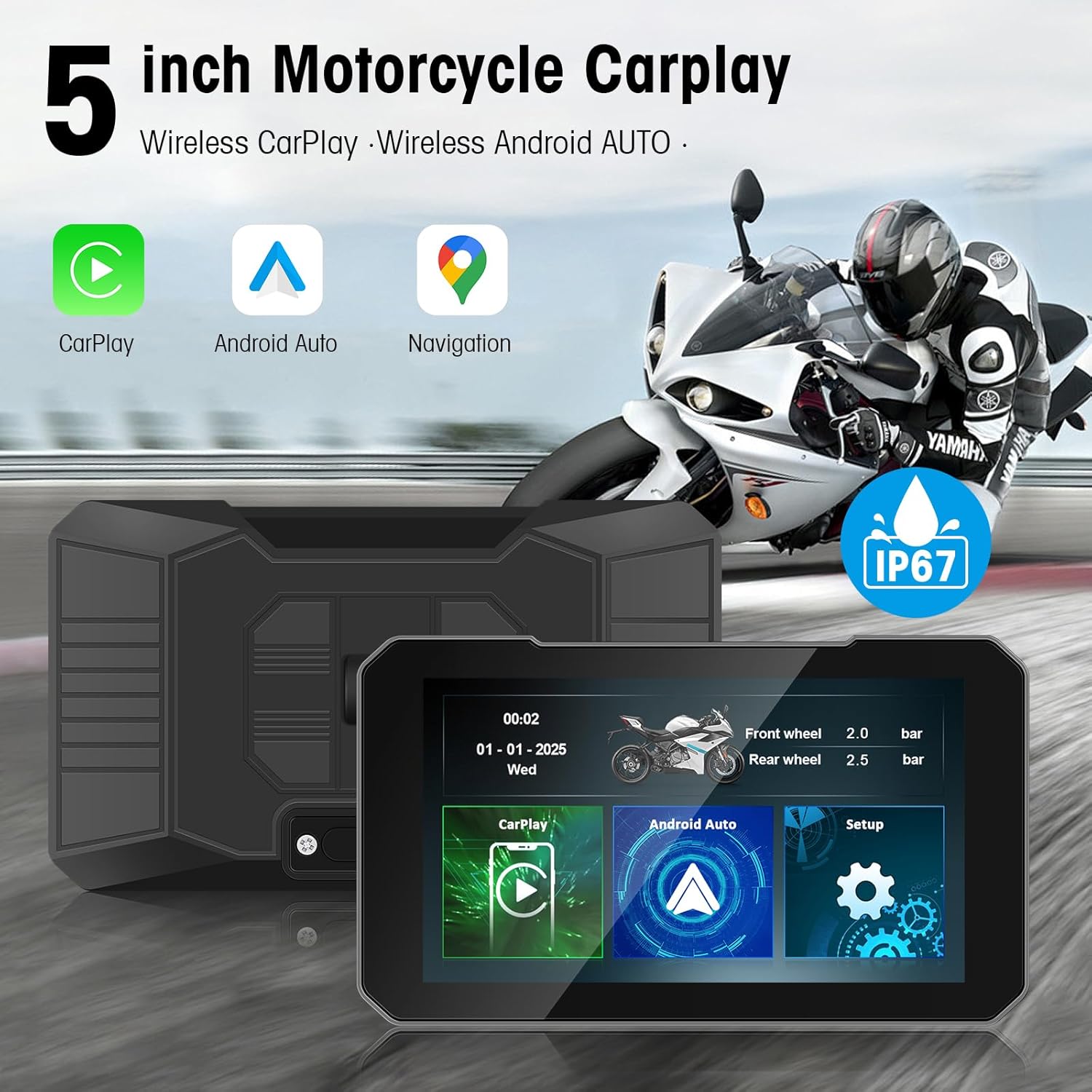
Image: Main unit of the LEXXSON 5-inch Motorcycle CarPlay Screen.
Key Features:
- Wireless CarPlay & Android Auto: Seamlessly connect your smartphone for navigation, calls, and music.
- Siri Voice Control: Utilize voice commands for safe operation while riding.
- Built-in Bluetooth Hands-free: Pair with your phone and Bluetooth helmet/earphone for calls and audio control.
- 5-Inch HD Touch Screen: High-resolution display with responsive touch for clear visuals.
- IP67 Waterproof Rating: Designed to withstand rain and splashes, ensuring reliable performance in various weather conditions.
- Mirror Link Function: Wirelessly sync video and music from your Android/iOS smartphone.
- Wide Compatibility: Suitable for most motorcycle models with easy installation.
2. Package Contents
Verify that all components listed below are included in your package:

Image: All included accessories for the LEXXSON Motorcycle CarPlay Screen.
- LEXXSON Motorcycle CarPlay Screen Unit
- Handlebar Mounting Bracket Kit (includes fasteners, screws, and gaskets)
- Power Cable with Fuse
- Installation Tools (e.g., Allen wrenches, screwdriver)
3. Installation Guide
Follow these steps to properly install your LEXXSON Motorcycle CarPlay Screen:
- Prepare the Mounting Bracket:
- Remove the bracket and buckle components from the product.
- Align the threaded interfaces of the bracket components.
- Insert the longest screw from the accessories through the retention bracket and fastener.
- Secure the screw in place, then install the second screw on the other side.
- Insert the nut into the hole at the other end of the buckle.
- Adjust the bracket to the desired position on your motorcycle's handlebar.
- Install the medium-sized screw to secure the bracket firmly.
- Mount the Display Screen:
- Connect the display screen to the installed stand.
- Insert the nut while removing the shortest screw from the accessories to secure the screen to the stand.
- Connect Power:
- Thread the power cord from top to bottom, routing it safely away from moving parts and heat sources.
- Organize any tangled wires using the included cable ties.
- Plug the power cord into the USB port for use. Ensure a secure connection.
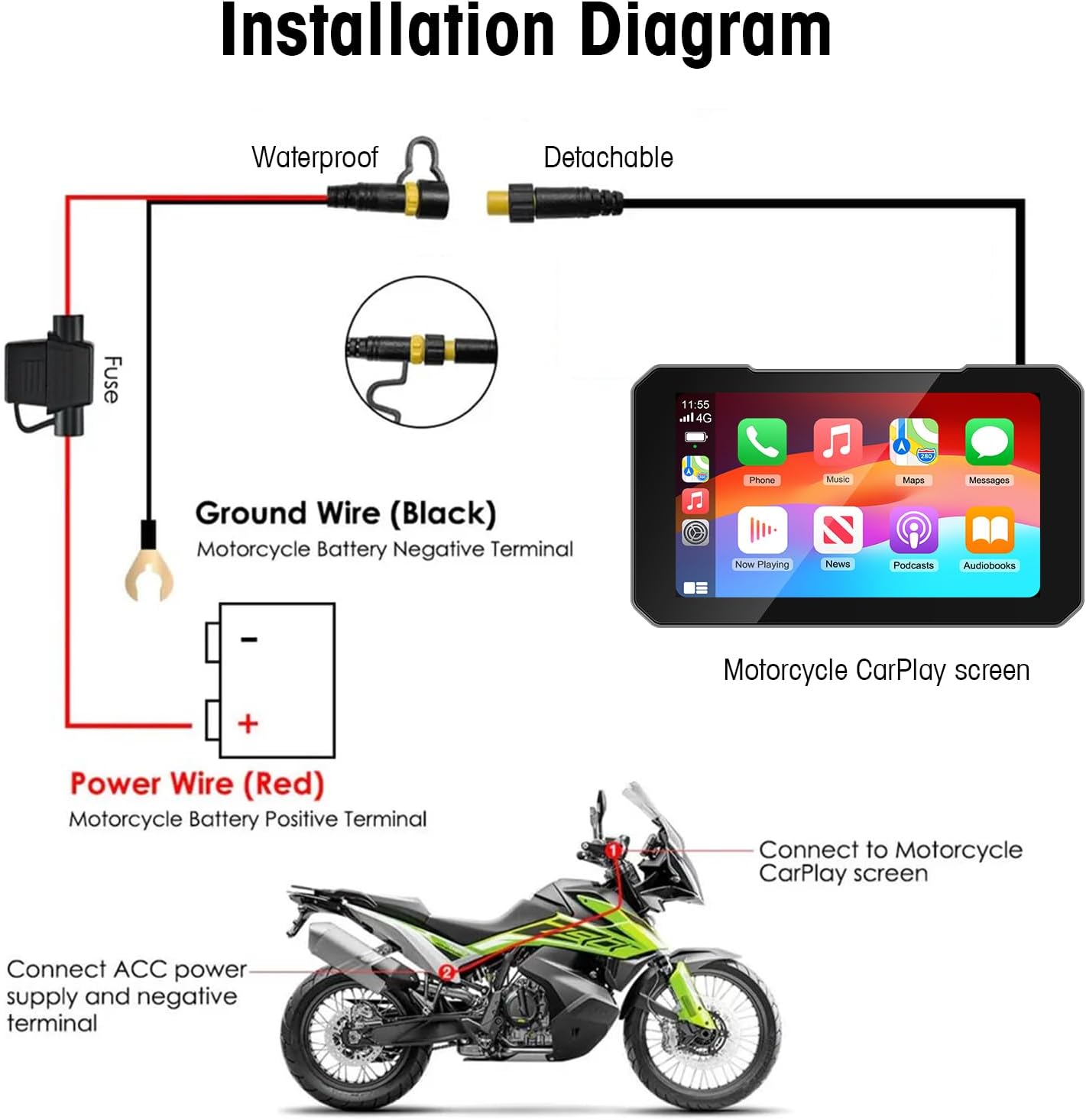
Image: Detailed installation diagram for the CarPlay screen.
Installation Video Guide:
Video: Step-by-step installation and initial setup guide for the LEXXSON Motorcycle CarPlay Screen.
4. Operating Instructions
4.1 Wireless CarPlay / Android Auto Connection
The device supports both Wireless CarPlay for iOS devices and Wireless Android Auto for Android devices. Ensure your phone's Bluetooth and Wi-Fi are enabled.

Image: Wireless CarPlay and Android Auto interfaces.
- Power On: Turn on your motorcycle and the CarPlay screen. The screen will display the main interface with CarPlay and Android Auto options.
- For CarPlay (iOS Devices):
- On the CarPlay screen, tap the "CarPlay" icon.
- On your iPhone, go to Bluetooth settings and find the corresponding device name displayed on the CarPlay screen.
- Tap to connect. Confirm any pairing requests on both devices.
- Once connected, CarPlay will automatically launch on the screen.
- For Android Auto (Android Devices):
- If previously connected to an Apple device, disconnect its Bluetooth connection first.
- On the CarPlay screen, tap the "Android Auto" icon.
- On your Android phone, go to Bluetooth settings and find the corresponding device name displayed on the CarPlay screen.
- Tap to connect. Confirm any pairing requests on both devices.
- Once connected, Android Auto will automatically launch on the screen.
4.2 Navigation and Multimedia
After successful connection, you can access various functions:
- GPS Navigation: Use your preferred navigation apps (e.g., Apple Maps, Google Maps) directly on the screen.
- Music Playback: Stream music from your phone's apps (e.g., Spotify, Apple Music) with audio output to your Bluetooth helmet/earphone.
- Hands-free Calling: Make and receive calls safely using voice commands or the touch screen, with audio through your Bluetooth helmet/earphone.
- Voice Control: Utilize Siri or Google Assistant for hands-free operation of various functions.
- Mirror Link: Wirelessly mirror your smartphone's screen to the CarPlay display for video and music content.

Image: Online navigation and music features.
5. Maintenance
- Cleaning: Use a soft, damp cloth to clean the screen and exterior. Avoid abrasive cleaners or solvents.
- Water Resistance: The device is IP67 waterproof. While it can withstand rain and splashes, avoid submerging it in water for extended periods.
- Storage: When not in use for extended periods, store the device in a cool, dry place away from direct sunlight and extreme temperatures.
- Cable Management: Regularly check power cables and connections for wear or damage. Ensure cables are securely tied and not interfering with motorcycle operation.

Image: The IP67 waterproof feature of the screen.
6. Troubleshooting
| Problem | Possible Cause | Solution |
|---|---|---|
| Device does not power on. | No power connection or faulty fuse. | Check power cable connection to the motorcycle battery. Inspect and replace the fuse if blown. |
| Cannot connect to CarPlay/Android Auto. | Bluetooth/Wi-Fi off, incorrect pairing, or interference. | Ensure phone's Bluetooth/Wi-Fi is on. Forget device on phone and screen, then re-pair. Move away from other wireless devices. |
| No audio output. | Bluetooth helmet/earphone not connected or volume too low. | Verify Bluetooth helmet/earphone is paired and connected. Adjust volume on both the screen and your audio device. |
| Touch screen unresponsive. | Temporary software glitch or screen damage. | Restart the device. If the problem persists, contact customer support. |
7. Product Specifications
| Feature | Detail |
|---|---|
| Brand | LEXXSON |
| Model Name | CarPlay Screen (RM-PCD025) |
| Vehicle Service Type | Motorcycle |
| Screen Size | 5 Inches |
| Special Features | Wireless Android Auto, Built-In Bluetooth, GPS Navigation, Hands-Free Calling, Voice Control |
| Connectivity Technology | Bluetooth, Wireless (Wi-Fi for CarPlay/Android Auto) |
| Waterproof Rating | IP67 |
| Display Type | Capacitive Touch Screen |
| Mounting Type | Handlebar Mount |
| Compatible Devices | Suitable for all Models of Motorcycles, iOS/Android Smartphones |
8. Warranty & Support
8.1 Warranty Information
This LEXXSON product comes with a 1-year warranty from the date of purchase. The warranty covers manufacturing defects and malfunctions under normal use. It does not cover damage caused by misuse, accidents, unauthorized modifications, or improper installation.
Please retain your proof of purchase for warranty claims.
8.2 Customer Support
For technical assistance, troubleshooting, or warranty inquiries, please contact LEXXSON customer support through the following channels:
- Online Support: Visit the official LEXXSON website or the Amazon product page for FAQs and contact options.
- Email: Refer to your product packaging or the official website for customer service email addresses.
When contacting support, please provide your product model number (RM-PCD025) and a detailed description of the issue.

