
1. Introduction
This manual provides detailed instructions for the setup, operation, maintenance, and troubleshooting of your GMKtec Nucbox G10 Mini PC. The Nucbox G10 is a compact and powerful desktop computer designed for various applications, from office tasks to multimedia entertainment, featuring an AMD Ryzen 5 3500U processor, 16GB DDR4 RAM, and a 1TB NVMe SSD.
2. Package Contents
Verify that all items listed below are present in your package:
- GMKtec Nucbox G10 AMD Ryzen 5 3500U Mini PC Computer
- Power Supply & Cable
- HDMI Cable
- VESA Mount and Screws
- User Manual (this document)

Image: Retail Boxed Packaging. This image displays the GMKtec Nucbox G10 Mini PC, power supply, HDMI cable, VESA mount, screws, and user manual, illustrating the complete contents of the product package.
3. Product Overview
3.1 Key Features
- Processor: AMD Ryzen 5 3500U (4 Cores, 8 Threads, up to 3.70GHz Turbo Boost)
- Graphics: Integrated AMD Radeon Vega 8 Graphics (1200 MHz)
- Memory: 16GB Dual Channel DDR4 RAM (expandable up to 64GB)
- Storage: 1TB M.2 2280 NVMe SSD (expandable up to 16TB via dual M.2 2280 PCIe 3.0 slots)
- Network: 2.5GbE Ethernet, WiFi 5, Bluetooth 5.0
- Display Output: Triple 4K display support via HDMI 2.1, DisplayPort 1.4, and Full Function USB-C
- Cooling: Silent Turbo Cooling Fan system

Image: Nucbox G10 Feature Overview. This image provides a visual summary of the mini PC's core components including the AMD Ryzen 5 3500U CPU, Radeon Vega 8 Graphics, DDR4 RAM, M.2 SSD, 2.5GbE LAN, WiFi 5, Bluetooth 5.0, triple display support, and cooling system.
3.2 Ports and Connectors
The Nucbox G10 features a comprehensive set of ports for connectivity:
- Front: 1x CTIA Audio Jack, 2x USB 3.2 (5Gbps), 1x Power Button
- Rear: 1x Type-C (PD Only), 1x USB 2.0, 1x 2.5G Giga LAN, 1x HDMI 2.1 (4K@60Hz), 1x DP 1.4 (4K@60Hz), 1x Full Function USB-C (PD/DP/Data), 1x Kensington Lock slot

Image: Front Panel Ports. This image shows the front of the Nucbox G10, highlighting the power button, two USB 3.2 ports, and the CTIA audio jack.

Image: Rear Panel Ports. This image illustrates the rear of the Nucbox G10, detailing the USB-C (PD Only), USB 2.0, 2.5G LAN, HDMI 2.1, DisplayPort 1.4, Full Function USB-C, and Kensington Lock slot.
4. Setup Guide
4.1 Connecting Peripherals
- Monitor: Connect your monitor(s) to the Mini PC using the HDMI, DisplayPort, or USB-C ports. The Nucbox G10 supports up to three 4K displays simultaneously.
- Keyboard and Mouse: Connect your USB keyboard and mouse to the available USB ports.
- Network: For a wired connection, connect an Ethernet cable from your router/modem to the 2.5GbE LAN port. For wireless, ensure your WiFi network is available.
- Audio: Connect speakers or headphones to the 3.5mm audio jack on the front panel if needed.
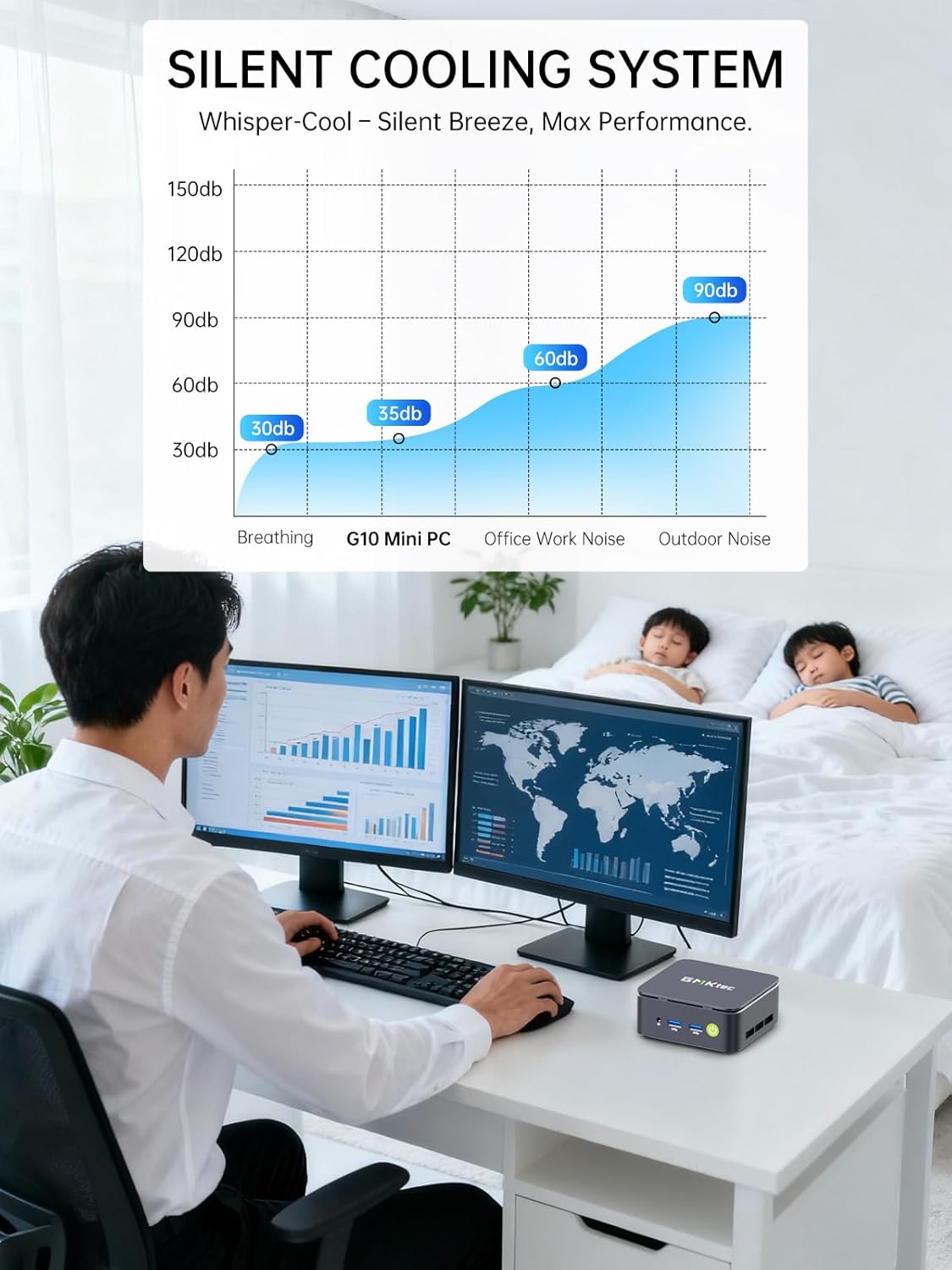
Image: Triple Display Setup. This image demonstrates the Nucbox G10 connected to two vertical monitors and a tablet, showcasing its triple display capability for enhanced productivity.
4.2 Power Connection
Connect the provided power adapter to the DC-in port on the Mini PC, then plug the power cable into a wall outlet. The Mini PC is designed for low power consumption.
4.3 Initial Boot
Press the power button on the front panel. The Mini PC will boot into the pre-installed Windows 11 Pro operating system. Follow the on-screen instructions for initial Windows setup.
5. Operating Instructions
5.1 Power On/Off
- Power On: Press the power button once.
- Power Off: From Windows, go to Start > Power > Shut down. Alternatively, press and hold the power button for 5 seconds to force a shutdown (use only when necessary).
5.2 Operating System
Your Nucbox G10 comes with Windows 11 Pro pre-installed. Ensure you keep your operating system updated for optimal performance and security.
5.3 Network Connectivity
- Wired (Ethernet): Once the Ethernet cable is connected, the system should automatically detect the network.
- Wireless (Wi-Fi): In Windows, click the Wi-Fi icon in the taskbar, select your network, enter the password, and connect.
- Bluetooth: To connect Bluetooth devices, go to Windows Settings > Bluetooth & devices, and pair your device.
6. Maintenance
6.1 Cleaning
Regularly clean the exterior of the Mini PC with a soft, dry cloth. Ensure ventilation openings are free from dust to maintain optimal cooling performance. Do not use liquid cleaners directly on the device.

Image: Ultra Efficient Cooling System. This image provides an internal view of the Nucbox G10, highlighting the silent turbo cooling fan designed for efficient heat dissipation.
6.2 Software Updates
Keep your Windows operating system and drivers updated to ensure system stability, security, and performance. Windows Update can be accessed via Settings > Windows Update.
6.3 Storage and Memory Expansion
The Nucbox G10 supports memory expansion up to 64GB DDR4 RAM and storage expansion up to 16TB via its dual M.2 2280 PCIe 3.0 slots. Consult a qualified technician for hardware upgrades to avoid voiding your warranty or damaging the device.
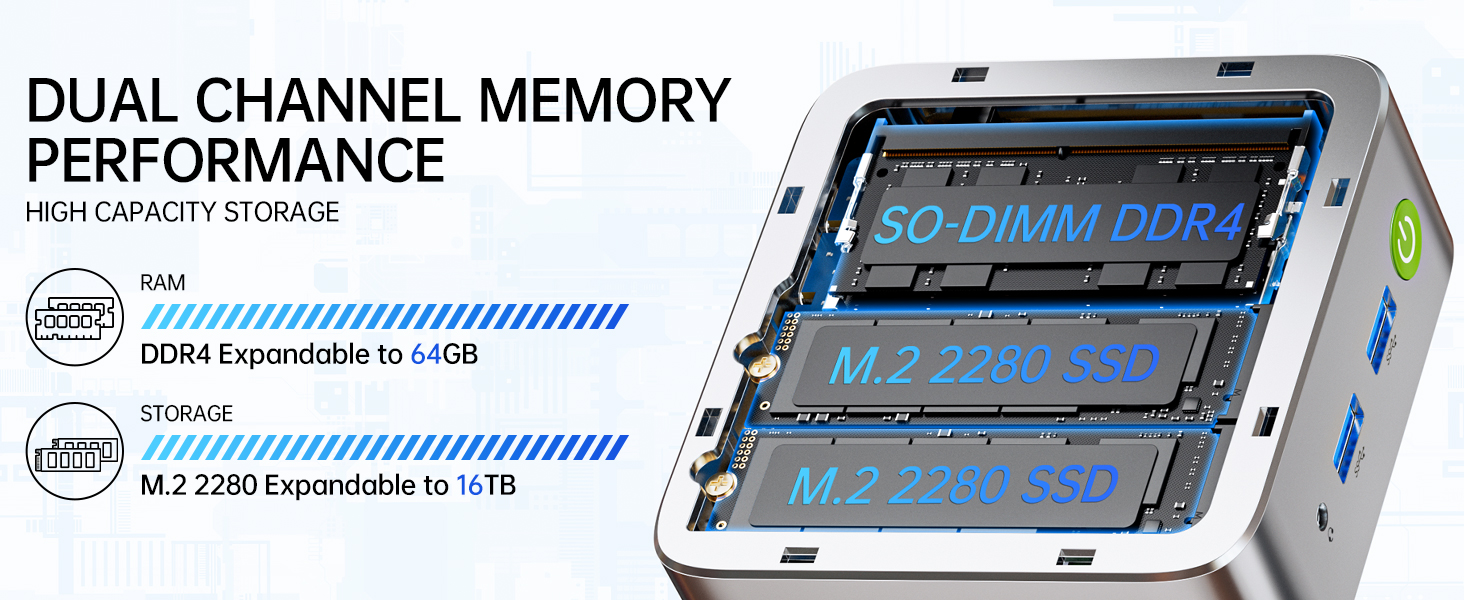
Image: Dual Channel Memory Performance and High Capacity Storage. This diagram illustrates the internal layout for SO-DIMM DDR4 RAM and M.2 2280 SSDs, indicating their expandability.
7. Troubleshooting
If you encounter issues with your Mini PC, refer to the following common problems and solutions:
- No Power:
- Ensure the power adapter is securely connected to both the Mini PC and a working power outlet.
- Verify the power outlet is functional by plugging in another device.
- No Display:
- Check that the HDMI, DisplayPort, or USB-C cable is firmly connected to both the Mini PC and the monitor.
- Ensure the monitor is powered on and set to the correct input source.
- Try connecting to a different display or using a different cable.
- Network Connectivity Issues:
- Wired: Check the Ethernet cable connection. Restart your router/modem.
- Wireless: Ensure Wi-Fi is enabled in Windows settings. Verify your Wi-Fi password. Restart your router.
- Slow Performance:
- Close unnecessary applications running in the background.
- Ensure the system has adequate ventilation and is not overheating.
- Check for and install any pending Windows updates or driver updates.
- Run a disk cleanup to free up storage space.
8. Specifications
| Feature | Specification |
|---|---|
| Brand | GMKtec |
| Model Name | G10 |
| Operating System | Windows 11 Pro |
| CPU Model | AMD Ryzen 5 3500U |
| CPU Speed | 3.7 GHz (Boost) |
| Processor Count | 4 |
| Graphics Coprocessor | AMD Radeon Vega 8 Graphics 1200 MHz |
| RAM Memory Installed | 16 GB DDR4 |
| RAM Memory Maximum Size | 64 GB |
| Memory Speed | 2400 MT/s |
| Memory Storage Capacity | 1 TB NVMe SSD |
| Hard Disk Description | Dual Slot M.2 2280 PCIE Max. 16TB |
| Connectivity Technology | HDMI 2.1, RJ45 2.5GbE LAN, USB 3.2, USB-C (DP/DATA/PD), WIFI5/ BT 5.0 |
| Wireless Compatibility | 802.11a/b/g/n/ac (WiFi 5), Bluetooth 5.0 |
| Video Output | HDMI 2.1, DisplayPort, Type-C (Triple Display) |
| Display Resolution Maximum | 4096 × 2160 Pixels (4K) |
| Total USB Ports | 4 (2x USB 3.2, 1x USB 2.0, 1x USB-C Full Function) |
| Power Consumption | 25 Watts (Typical) |
| Item Dimensions | 4.1 x 3.8 x 1.7 inches |
| Item Weight | 0.95 Kilograms |
| Cooling Method | Dual Cooling Fan |
| Additional Features | RTC Wake, Auto Power On, Wake On LAN, PXE Boot |
9. Warranty and Support
9.1 Warranty Information
GMKtec offers a 1-year limited warranty for each Mini PC, starting from the date of purchase. This warranty covers defects due to design and workmanship. Please retain your proof of purchase for warranty claims.
9.2 Customer Support
For technical assistance, warranty claims, or any questions regarding your GMKtec Nucbox G10 Mini PC, please contact GMKtec customer support. You can typically find contact information on the official GMKtec website or through the seller's contact page where you purchased the product (e.g., GMKtec-Direct on Amazon).


