1. Introduction
This manual provides detailed instructions for the installation, operation, and maintenance of your CAMECHO Android 15 Carplay Autoradio. This advanced car multimedia system features an 8-Core processor, 6GB RAM, 128GB ROM, a 9-inch HD touchscreen, and supports wireless CarPlay and Android Auto. It is designed to enhance your driving experience with integrated navigation, communication, and entertainment functionalities.
Please read this manual thoroughly before installation and use to ensure proper operation and to maximize the benefits of your new car radio.

Image 1.1: CAMECHO Android 15 Carplay Autoradio main unit with 9-inch screen displaying Android 15 interface, 6GB RAM, and 128GB ROM.
2. Compatibility Verification
Before proceeding with installation, it is crucial to verify the compatibility of this product with your vehicle's dashboard. This unit is specifically designed for certain dashboard configurations.
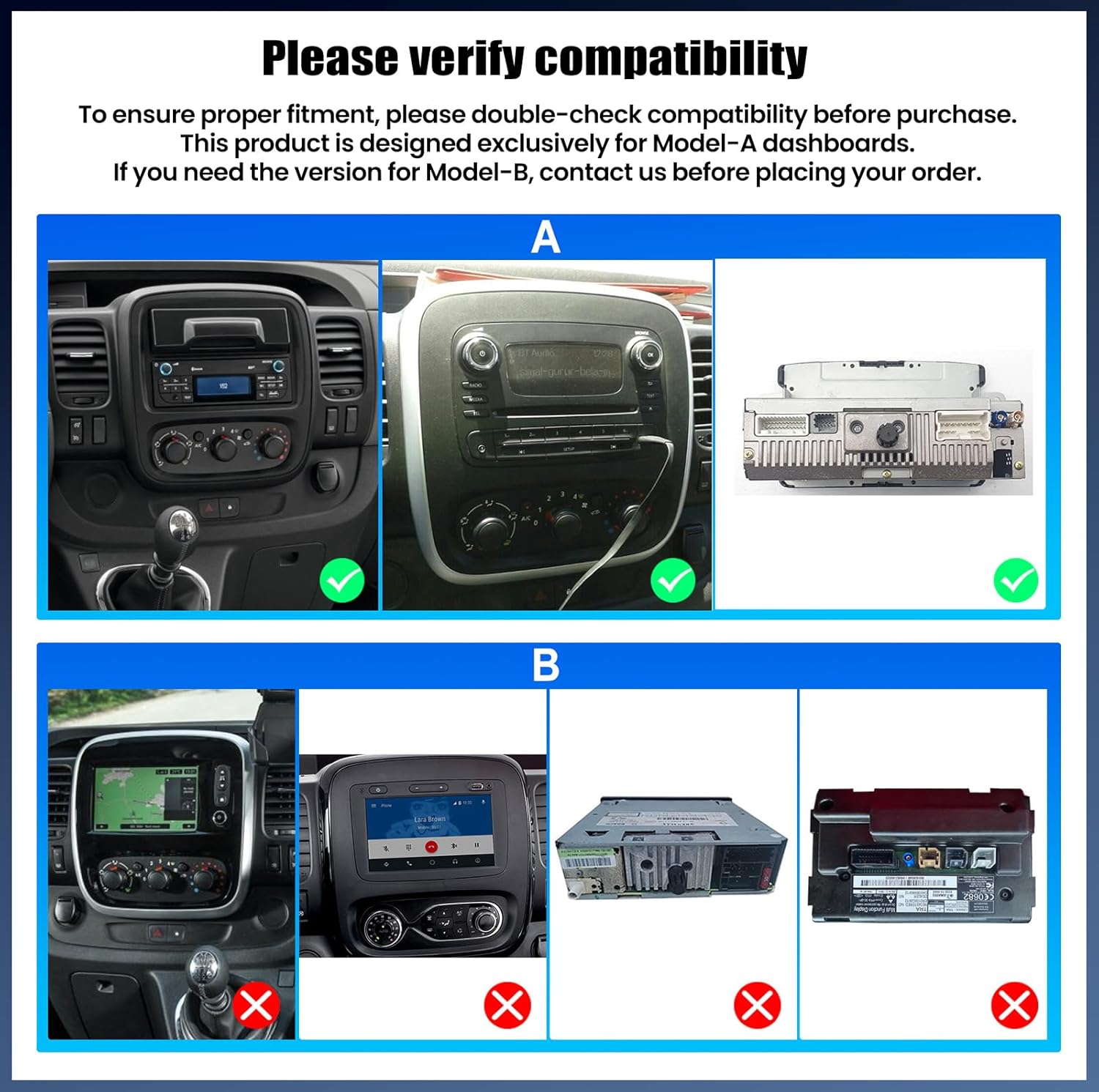
Image 2.1: Compatibility guide showing dashboard types. Model A (top row) indicates compatible dashboards for Opel Vivaro B 2014-2018 and Renault Trafic 3 2014-2021. Model B (bottom row) indicates incompatible dashboards.
Please compare your vehicle's dashboard with the images provided. This product is designed exclusively for Model-A dashboards. If your dashboard matches Model-B, this unit is not compatible. For any compatibility concerns, please contact customer support.
3. Package Contents
Ensure all components listed below are present in your package:
- Main Autoradio Unit (9-inch screen)
- Power Cable
- RCA Input/Output Cables
- USB Cables (4-pin and 6-pin)
- GPS Antenna
- Reversing Camera Input Cable
- Radio Antenna
- User Manual
- External Microphone
- Rear Camera
- Canbus Decoder
- Installation Tool
- Original Car USB Cable (if applicable)

Image 3.1: Diagram showing the main unit dimensions, rear panel connections, and all included accessories.
4. Installation Guide
Professional installation is recommended for this product. Incorrect installation can damage the unit or your vehicle's electrical system. Refer to Image 3.1 for a visual guide to the rear connections and included cables.
4.1. Pre-Installation Steps
- Disconnect Battery: Before starting, disconnect the negative terminal of your vehicle's battery to prevent electrical shorts.
- Remove Original Radio: Carefully remove your vehicle's existing car radio and dashboard trim. Use the provided installation tool if necessary.
- Inspect Wiring: Familiarize yourself with the vehicle's original wiring harness.
4.2. Connecting the Autoradio
- Power Cable: Connect the main power cable harness to the corresponding port on the autoradio's rear panel (labeled '1' in Image 3.1). Then connect it to your vehicle's power supply.
- USB Cables: Connect the 4-pin and 6-pin USB cables to the designated USB ports (labeled '4' in Image 3.1). Route these cables to a convenient location for future use (e.g., glove compartment).
- GPS Antenna: Connect the GPS antenna to the GPS port (labeled '5' in Image 3.1) and mount it in a location with a clear view of the sky, such as on the dashboard or under the windshield.
- Radio Antenna: Connect the vehicle's radio antenna to the radio antenna port (labeled '6' in Image 3.1).
- Reversing Camera: Connect the reversing camera input cable to the port labeled '3' in Image 3.1. Install the rear camera at the back of your vehicle and connect its video output to this cable. Ensure the camera's power is connected to the reverse light circuit.
- RCA Cables: Connect any external amplifiers, subwoofers, or auxiliary input devices using the RCA input/output cables (labeled '2' in Image 3.1).
- Canbus Decoder: If your vehicle requires a Canbus decoder for steering wheel controls or other vehicle data integration, connect it according to the specific wiring diagram provided with the Canbus unit.
- Microphone: Connect the external microphone to the designated input for improved call quality.
4.3. Post-Installation
- Test Connections: Before fully reassembling the dashboard, reconnect the vehicle battery and perform a basic test of the unit's functions (power on, radio, sound, touch screen).
- Secure Unit: Once tested, carefully mount the autoradio into the dashboard opening and secure it.
- Reassemble Dashboard: Reinstall all dashboard trim pieces.
5. Initial Setup
After successful installation and powering on the unit for the first time, you may need to perform some initial setup steps:
- Language Selection: Follow the on-screen prompts to select your preferred system language.
- Time and Date: Set the correct time zone, date, and time. This can often be synchronized automatically via GPS or network if connected to Wi-Fi.
- Wi-Fi Connection: Navigate to the system settings, select 'Wi-Fi', and connect to an available Wi-Fi network. This is essential for downloading apps, system updates, and real-time traffic data.
- Steering Wheel Control Learning: If your vehicle has steering wheel controls, access the 'Steering Wheel Learning' function in the settings. Follow the on-screen instructions to map your vehicle's steering wheel buttons to the autoradio's functions.
6. Operating Instructions
6.1. Wireless CarPlay & Android Auto
Connect your smartphone wirelessly to access Apple CarPlay or Android Auto. The system is optimized for automatic connection upon vehicle ignition. This allows for voice control of navigation, calls, and music, integrating seamlessly with your original steering wheel controls.
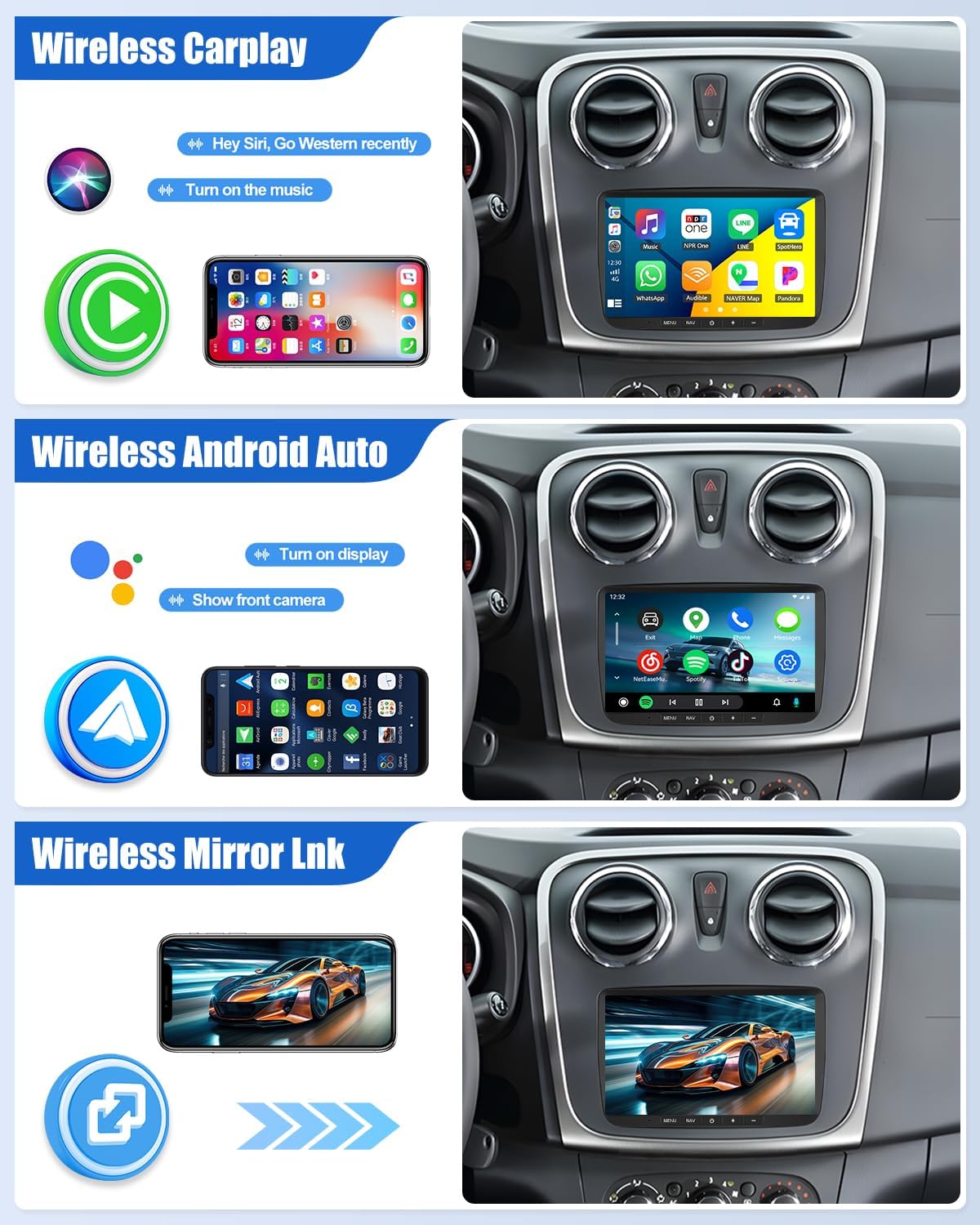
Image 6.1: Demonstrates the interfaces for Wireless CarPlay, Wireless Android Auto, and Wireless Mirror Link.
6.2. GPS Navigation & Wi-Fi Connectivity
The integrated GPS system includes offline maps for precise guidance. Connect to Wi-Fi to receive real-time traffic updates, download alternative routes, and access automatic map updates. The Wi-Fi connection also enables internet browsing and app downloads.
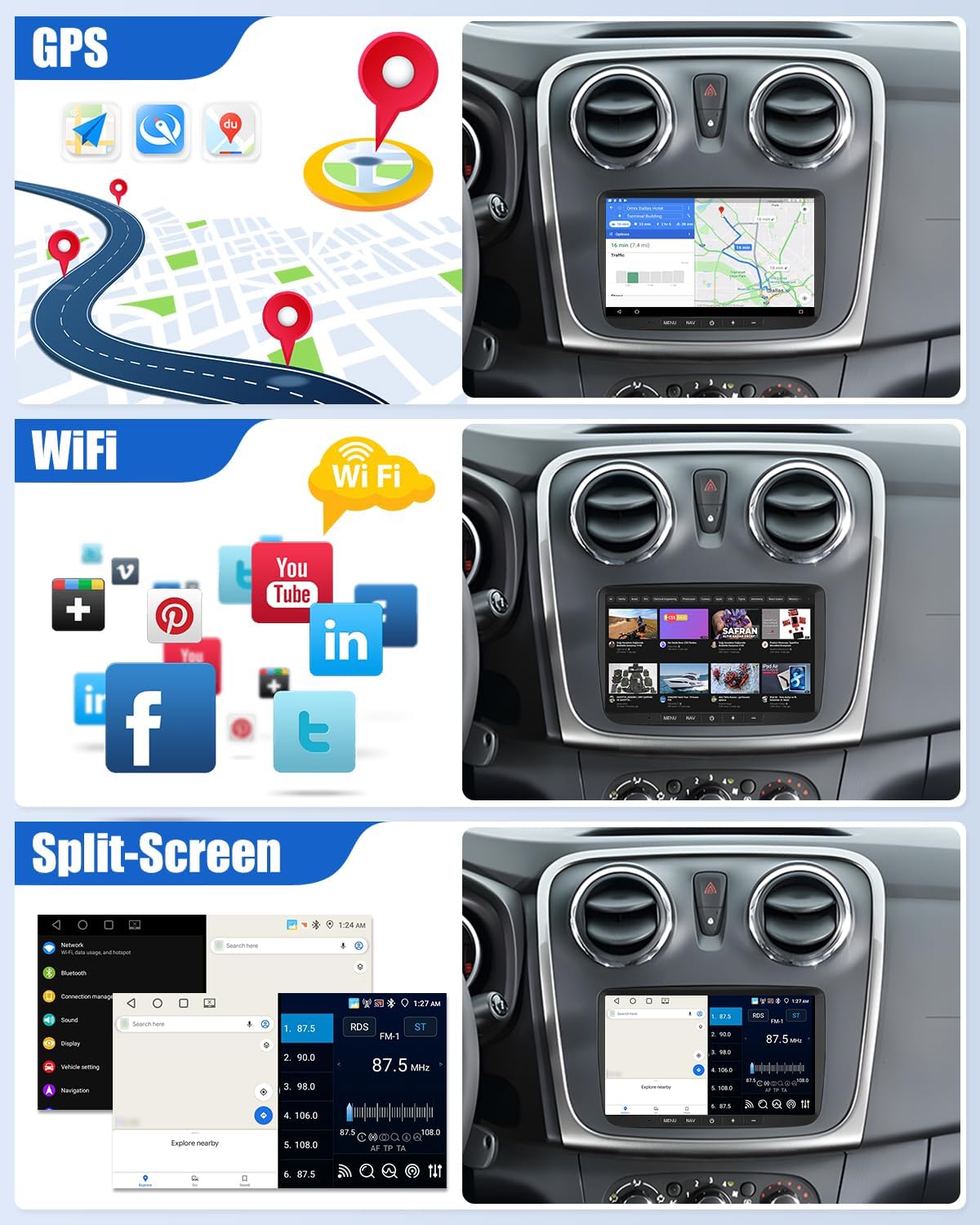
Image 6.2: Illustrates GPS navigation, Wi-Fi access for various apps, and the split-screen feature.
6.3. Bluetooth 5.0 & Mirror Link
Bluetooth 5.0 provides a stable connection for hands-free calls and audio streaming from your smartphone. The Mirror Link function allows you to project your smartphone's screen onto the autoradio display via Wi-Fi, providing direct access to your mobile applications.
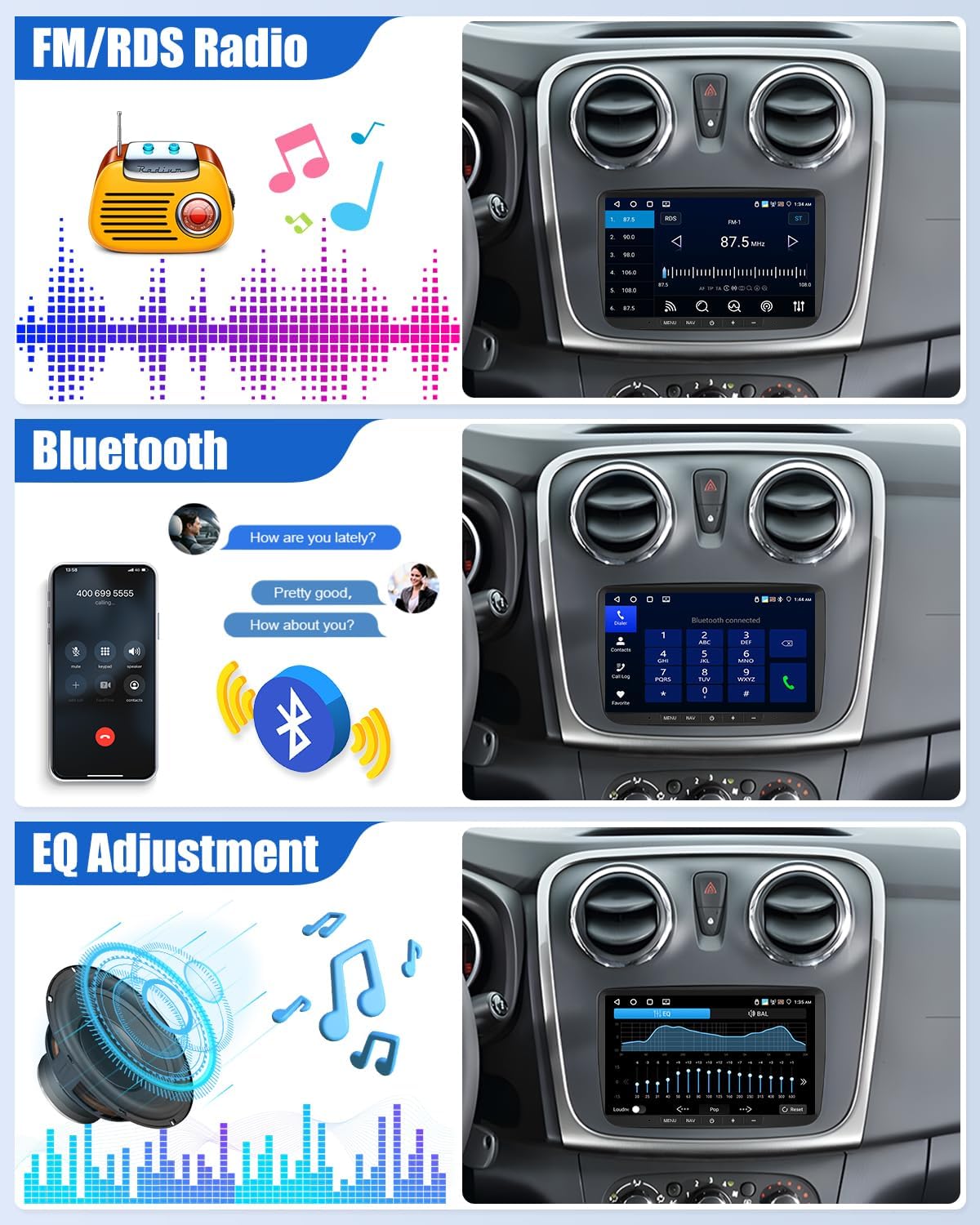
Image 6.3: Shows the FM/RDS radio interface, Bluetooth hands-free calling, and the EQ adjustment screen.
6.4. DSP Audio System & RDS Radio
Experience high-quality sound with the Digital Signal Processing (DSP) and a 32-band equalizer. The FM/RDS radio features automatic station search and allows you to save up to 18 presets for clear reception of your favorite stations.

Image 6.4: Detailed view of the 32-band equalizer interface for precise audio tuning.
6.5. Split-Screen Function
The split-screen feature allows you to run two applications simultaneously. For example, you can view navigation on one side of the screen while controlling your music playlist on the other.
6.6. Rear View Camera
When the vehicle is shifted into reverse gear, the screen automatically displays a wide and clear view from the connected rear camera, assisting in parking and eliminating blind spots.
6.7. Advanced Functions & Customization
Customize your user interface with various themes and organize applications on the home screen. The intelligent voice assistant supports natural language commands for hands-free control of system functions.
7. Maintenance
To ensure the longevity and optimal performance of your CAMECHO Autoradio, follow these maintenance guidelines:
- Screen Cleaning: Use a soft, lint-free cloth to gently wipe the touchscreen. For stubborn smudges, slightly dampen the cloth with water or a screen-safe cleaner. Avoid harsh chemicals or abrasive materials.
- Software Updates: Periodically check for system software updates via the Wi-Fi connection in the settings menu. Keeping the software updated ensures optimal performance, security, and access to new features.
- Environmental Conditions: Avoid exposing the unit to extreme temperatures, direct sunlight for prolonged periods, or excessive moisture.
- Cable Connections: Occasionally check all cable connections to ensure they are secure and free from damage.
8. Troubleshooting
This section addresses common issues you might encounter with your autoradio.
| Problem | Possible Cause | Solution |
|---|---|---|
| No Power | Loose power connection, blown fuse, vehicle battery issue. | Check power cable connections. Inspect vehicle fuses. Ensure vehicle battery is charged. |
| No Sound | Volume too low, mute activated, speaker wiring issue, incorrect audio output settings. | Increase volume. Check if mute is active. Verify speaker connections. Check audio settings (e.g., balance, fader). |
| GPS Signal Lost/Inaccurate | GPS antenna obstruction, antenna not connected, outdated maps. | Ensure GPS antenna has a clear view of the sky. Check antenna connection. Update maps via Wi-Fi. |
| Bluetooth Connection Issues | Bluetooth not enabled, device not discoverable, interference. | Ensure Bluetooth is enabled on both the autoradio and your phone. Make phone discoverable. Try re-pairing. |
| Touchscreen Unresponsive | System freeze, temporary software glitch. | Restart the unit (press and hold power button or use reset pinhole if available). |
| CarPlay/Android Auto Not Connecting | Incorrect settings, phone software issue, incompatible phone. | Ensure CarPlay/Android Auto is enabled on the unit and your phone. Update phone OS. Try restarting both devices. |
If you encounter an issue not listed here or if the suggested solutions do not resolve the problem, please contact CAMECHO customer support for further assistance.
9. Specifications
Detailed technical specifications for the CAMECHO Android 15 Carplay Autoradio:
- Brand: CAMECHO
- Operating System: Android 15
- Processor: 8-Core
- RAM: 6GB
- Internal Storage (ROM): 128GB
- Screen Size: 9 inches
- Screen Resolution: 1280x720 (HD)
- Connectivity Technology: Bluetooth 5.0, Wi-Fi
- Special Features: Wireless CarPlay, Wireless Android Auto, DSP (Digital Signal Processor), FM/RDS Radio, EQ (Equalizer), GPS Navigation, Mirror Link
- Compatible Devices: Android smartphones, iPhones
- Connector Type: RCA, USB
- Surround Sound Channel Configuration: 5.1

Image 9.1: Close-up of the 9-inch 1280x720 resolution screen, highlighting its protective features.

Image 9.2: Visual representation of the internal hardware, emphasizing Android 15, 8-Core CPU, 6GB RAM, and 128GB ROM.
10. Warranty and Support
For warranty information, technical support, or any inquiries regarding your CAMECHO Autoradio, please refer to the purchase documentation or contact the seller directly. Keep your proof of purchase for warranty claims.


