
Introduction
This manual provides instructions for the Gvyugke Captain 500 Wireless Gaming Headset. It covers product features, setup, operation, maintenance, and troubleshooting to ensure optimal performance and user experience. Please read this manual thoroughly before using the headset.
Package Contents
Verify that all items are present in the package:
- Gvyugke Captain 500 Wireless Gaming Headset
- Detachable Noise-Cancelling Microphone
- 2.4GHz USB Adapter
- 3.5mm Audio Cable
- USB Charging Cable
- User Manual (this document)
Product Overview
The Captain 500 headset features a robust design with multiple components for enhanced gaming and audio experience.

Internal Components: This image illustrates the internal structure of the headset, highlighting key elements such as the ear cushion, integrated head beam, game lights, ring transducer, neodymium magnet, and PET shockproof protector, which contribute to its audio performance and durability.

Comfort and Ergonomics: The headset is designed for comfort with breathable memory foam ear cushions, a soft protective headband, and adjustable sliders to fit various head sizes. These features ensure extended wear without discomfort.

Detachable Microphone: The headset includes a detachable 360° omni-directional noise-cancelling microphone. It is flexible for optimal positioning and can be removed when not in use.

RGB Lighting Effect: The earcups feature colorful RGB lighting, which can be enabled or disabled based on user preference and battery conservation needs.
Setup and Connectivity
The Captain 500 headset offers three connection modes: 2.4GHz wireless, Bluetooth 5.2, and 3.5mm wired.

Triple Connection Channel: This diagram outlines the three primary connection methods: 2.4GHz wireless for PC and game consoles, Bluetooth for mobile devices, and 3.5mm wired for Xbox and other audio devices.
2.4GHz Wireless Mode
This mode provides ultra-low latency (≤20ms) for gaming.
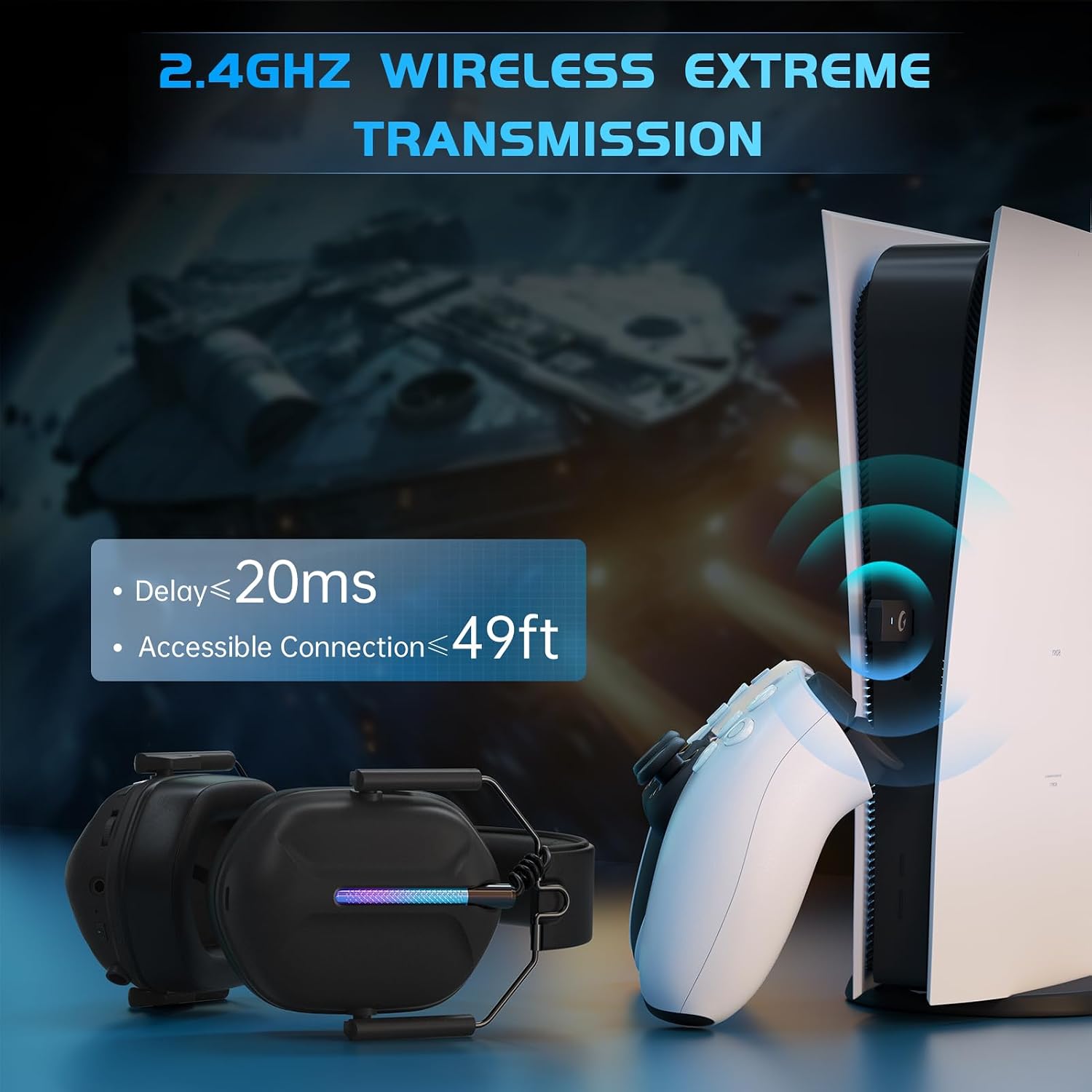
2.4GHz Wireless Transmission: The headset connects wirelessly via a 2.4GHz USB adapter, offering low latency and a stable connection up to 49 feet, ideal for PC and console gaming.
- Insert the 2.4GHz USB adapter into a compatible port on your PC, PS5, PS4, Nintendo Switch (audio only, microphone not supported), Mac, or Laptop.
- Power on the headset. It will automatically attempt to connect to the adapter.
- Ensure the headset is selected as the audio input/output device in your system settings.
Compatibility: PS5, PS4, PC, Nintendo Switch (audio only), Mac, Laptop, Computer. Note: Not compatible with Xbox All Series in 2.4GHz mode.
Bluetooth 5.2 Mode
Connect to mobile devices and tablets.

Bluetooth Connectivity: The headset supports Bluetooth 5.2 for wireless connection to mobile phones, tablets, and other Bluetooth-enabled smart devices.
- Power on the headset and switch to Bluetooth mode (refer to headset controls for mode selection).
- On your mobile phone, tablet, iPad, or other smart VR device, enable Bluetooth and search for "Captain 500" in the list of available devices.
- Select "Captain 500" to pair.
Compatibility: Mobile phone, Tablet, iPad, and other smart VR devices. Note: Not compatible with Xbox All Series in Bluetooth mode.
3.5mm Wired Mode
For universal compatibility with devices featuring a 3.5mm audio jack.
- Connect one end of the 3.5mm Aux cable to the headset's 3.5mm port.
- Connect the other end to the 3.5mm port on your Xbox One/Series X, S controller, or any other device with a 3.5mm audio jack.
Compatibility: Xbox One/Series X, S (wired mode only), and other game controllers with a 3.5mm port. Note: Older version Xbox may require a headset adapter (not included).
Operating Instructions
Power On/Off
- To power on: Press and hold the Power button until the indicator light illuminates.
- To power off: Press and hold the Power button until the indicator light turns off.
Volume Control
- Use the volume roller or buttons on the headset to adjust the audio level.
Microphone Usage
- Attach the detachable microphone to the designated port on the headset.
- Position the microphone close to your mouth for clear voice capture.
- Use the microphone mute button on the headset to toggle mute on/off.
RGB Lighting
- The headset features colorful RGB lighting. Refer to the headset controls for enabling or disabling this feature.
- Disabling RGB lighting can extend battery life.
Charging and Battery Life
The headset provides extended battery life for gaming sessions.

Battery Life Overview: The headset offers up to 40 hours of use. RGB lighting reduces this to 20 hours. A voice alert signals low battery (below 3%), and a full charge takes approximately 2.5 hours. The headset can be used while charging.
- Connect the USB charging cable to the headset's charging port and a power source.
- A full charge takes approximately 2.5 hours.
- The headset can be used while charging.
- Expected battery life is up to 40 hours without RGB lighting, and 20+ hours with RGB lighting enabled.
- A voice alert will sound when the battery level is below 3%.
Maintenance
Proper maintenance ensures the longevity and performance of your headset.
- Cleaning: Use a soft, dry cloth to clean the headset. Do not use abrasive cleaners or solvents.
- Storage: Store the headset in a cool, dry place away from direct sunlight and extreme temperatures. The headset is foldable for convenient storage.
- Water Resistance: The headset has a waterproof rating. However, avoid submerging it in water or exposing it to heavy rain.
- Microphone Care: Handle the detachable microphone carefully. Avoid bending it excessively.
Troubleshooting
If you encounter issues with your headset, refer to the following common solutions:
- No Sound/Low Volume:
- Ensure the headset is powered on and properly connected (2.4GHz adapter, Bluetooth paired, or 3.5mm cable securely plugged in).
- Check the volume level on both the headset and your connected device.
- Verify that the headset is selected as the default audio output device in your system settings.
- Microphone Not Working:
- Ensure the microphone is securely attached and not muted.
- Check the microphone input settings on your connected device.
- For Nintendo Switch in 2.4GHz mode, the microphone is not supported.
- Connection Issues (2.4GHz/Bluetooth):
- Ensure the headset is within the operating range (49ft for 2.4GHz).
- Restart both the headset and the connected device.
- For Bluetooth, try unpairing and re-pairing the headset.
- Avoid sources of interference (e.g., other wireless devices).
- Battery Not Charging:
- Ensure the USB charging cable is properly connected to both the headset and a working power source.
- Try a different USB port or charging cable.
Specifications
| Feature | Specification |
|---|---|
| Model Name | Captain 500 |
| Connectivity Technology | 2.4GHz Wireless, Bluetooth 5.2, 3.5mm Wired |
| Wireless Range (2.4GHz) | Up to 49ft |
| Latency (2.4GHz) | ≤20ms |
| Audio Driver Type | Dynamic Driver (50MM) |
| Frequency Range | 20 Hz - 20,000 Hz |
| Microphone | Detachable Omnidirectional Electret Noise-Cancelling |
| Battery Life (Gaming) | Up to 40 hours (without RGB) |
| Battery Life (Gaming with RGB) | 20+ hours |
| Battery Charge Time | Approx. 2.5 hours |
| Control Method | Push Button |
| Ear Placement | Over Ear |
| Form Factor | Over Ear (Foldable) |
| Material | Plastic, Fabric, Silicone |
| Water Resistance Level | Waterproof |
| Parcel Dimensions | 16.3 x 16.1 x 10.6 cm |
| Weight | 500 g |
Warranty and Support
For warranty information and customer support, please refer to the product packaging or contact the manufacturer directly. Gvyugke provides professional support to assist customers with any inquiries or issues.
