
1. Introduction
Thank you for choosing the SOVMIKU 4K NVR 5MP PoE Camera System. This system provides advanced surveillance capabilities with 4K NVR recording, 5MP PoE cameras featuring human detection, 300° pan and 90° tilt functionality, auto-tracking, and two-way audio. Designed for home and business security, this manual will guide you through the installation, operation, and maintenance of your new security system.
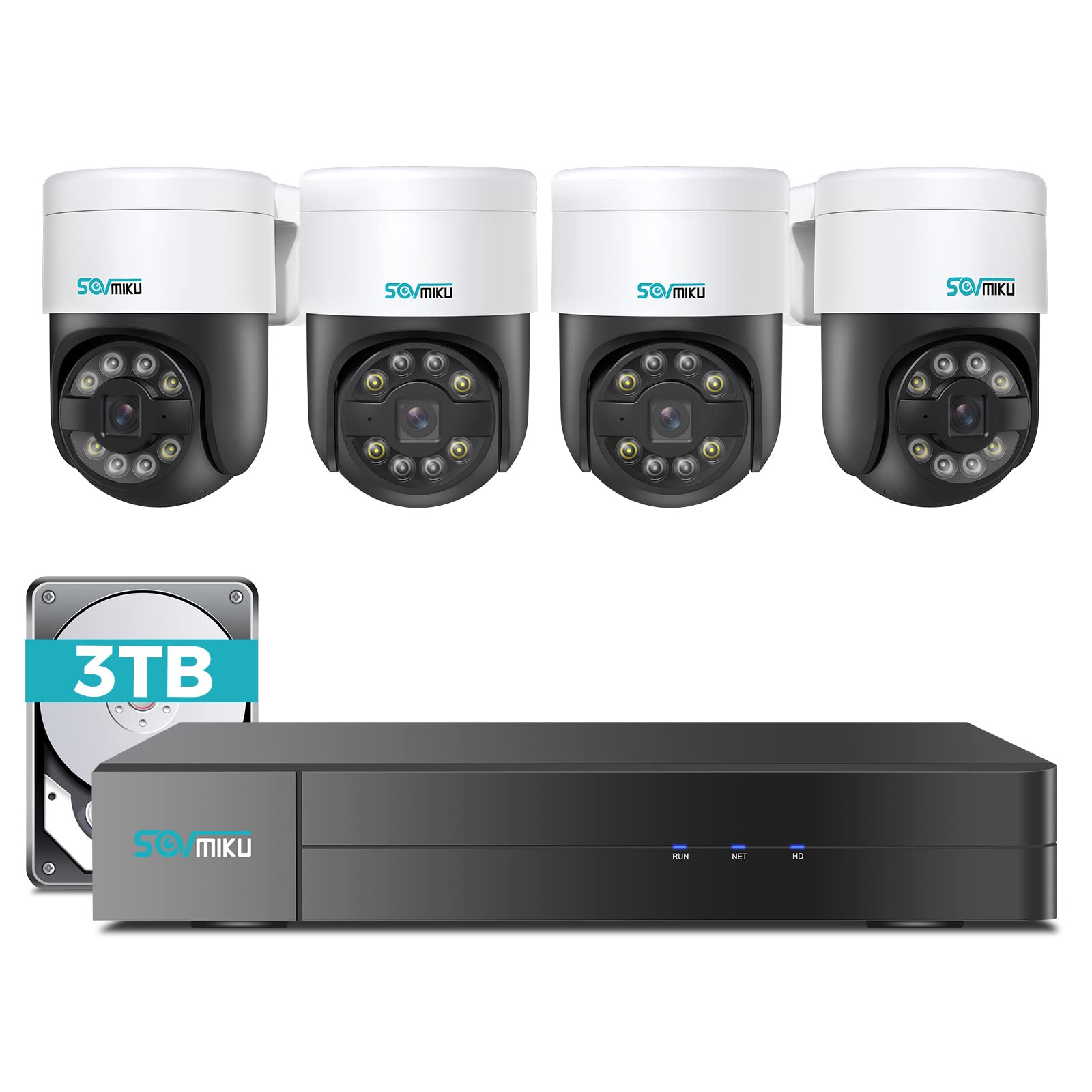
Image 1.1: Overview of the SOVMIKU 4K NVR 5MP PoE Camera System components.
2. Package Contents
Please check the package contents carefully upon opening. If any items are missing or damaged, contact SOVMIKU customer support.
- 1x 4K Network Video Recorder (NVR) with 3TB HDD
- 4x 5MP PoE Outdoor Security Cameras (PTZ, IP66 rated)
- 1x NVR Power Adapter
- 1x USB Mouse
- 1x HDMI Cable
- 4x Ethernet Cables (for cameras)
- 4x Mounting Screw Kits
- 1x Quick Start Guide
- 1x Warning Sticker Set

Image 2.1: Illustration of typical package contents for the SOVMIKU PoE Camera System.
3. Setup
3.1 NVR Initial Setup
- Connect Monitor: Connect the NVR to a monitor or TV using the provided HDMI cable.
- Connect Mouse: Plug the USB mouse into a USB port on the NVR.
- Connect Network: Connect the NVR to your router using an Ethernet cable for internet access and remote viewing.
- Connect Power: Plug the NVR power adapter into the NVR and then into a power outlet. The NVR will power on automatically.
- Initial Wizard: Follow the on-screen setup wizard to configure language, date/time, password, and network settings.

Image 3.1: Diagram showing NVR connections to monitor, mouse, network, and power.
3.2 Camera Installation
- Mounting Location: Choose a suitable location for each camera, ensuring good coverage and a stable mounting surface. Consider the camera's IP66 rating for outdoor use.
- Drill Holes: Use the provided mounting template to mark and drill holes for the camera base. Insert wall anchors if necessary.
- Secure Camera: Attach the camera base to the mounting surface using the provided screws.
- Connect PoE Cable: Connect one end of an Ethernet cable to the camera's PoE port and the other end to an available PoE port on the NVR. The camera will power on and connect automatically.
- Adjust Angle: Loosen the adjustment screws on the camera to set the desired pan, tilt, and rotation angle. Tighten the screws once positioned.

Image 3.2: Step-by-step guide for mounting a PoE camera.
3.3 Mobile App Setup
- Download App: Search for the official SOVMIKU security app in your device's app store (iOS or Android).
- Register Account: Open the app and register a new user account.
- Add Device: Follow the in-app instructions to add your NVR system. This typically involves scanning a QR code on the NVR or manually entering its device ID.
- Live View: Once added, you can view live feeds from your cameras, access playback, and control PTZ functions remotely.
4. Operating the System
4.1 Live View and Playback
- Live View: On the NVR monitor or mobile app, select the 'Live View' option to see real-time footage from all connected cameras.
- Playback: Access the 'Playback' menu to review recorded footage. You can search by date, time, and event type (e.g., motion detection, human detection).

Image 4.1: Example of the mobile app's live view interface.
4.2 PTZ Control and Two-Way Audio
- PTZ Control: For PTZ cameras, use the on-screen controls (NVR interface or mobile app) to pan (300°), tilt (90°), and zoom the camera lens.
- Two-Way Audio: Select a camera with two-way audio support in live view. Use the microphone icon to speak through the camera and the speaker icon to listen to audio from the camera's location.
4.3 Human Detection and Auto Tracking
- Human Detection: The system is configured to detect human shapes, reducing false alarms from pets or inanimate objects. Configure alert settings in the NVR or app.
- Auto Tracking: When human detection is triggered, the PTZ camera can automatically track the detected person's movement within its field of view. Enable this feature in the camera settings.
5. Maintenance
- Camera Cleaning: Periodically clean the camera lenses with a soft, damp cloth to ensure clear image quality. Do not use harsh chemicals.
- Firmware Updates: Check the SOVMIKU official website or the mobile app for available firmware updates for your NVR and cameras. Keeping firmware updated ensures optimal performance and security.
- Hard Drive Management: The 3TB HDD will automatically overwrite the oldest footage when full. You can configure recording schedules and retention policies in the NVR settings. Regularly back up important footage.
6. Troubleshooting
| Problem | Possible Cause | Solution |
|---|---|---|
| No video display on monitor | Loose HDMI cable, NVR not powered on, incorrect monitor input. | Check HDMI connection, ensure NVR power, select correct monitor input. |
| Camera not showing video | Loose Ethernet cable, camera not powered, faulty cable. | Check PoE Ethernet connection, try a different NVR PoE port or cable. |
| No remote access via app | NVR not connected to internet, incorrect network settings, app not configured. | Ensure NVR is connected to router, verify network settings, re-add device in app. |
| PTZ control not working | Camera not a PTZ model, PTZ function disabled, network issue. | Confirm camera model, enable PTZ in settings, check network stability. |
7. Specifications
- NVR Channels: 8-channel (supports up to 8 cameras)
- Video Resolution: Up to 4K (NVR), 5MP (Cameras)
- Storage: 3TB HDD (pre-installed)
- Camera Type: PoE PTZ (Pan 300°, Tilt 90°)
- Camera Features: Human Detection, Auto Tracking, 2-Way Audio
- Weatherproof Rating: IP66 (Cameras)
- Connectivity: Ethernet (PoE), HDMI, USB
- Package Dimensions: 16.5 x 14.5 x 12.5 inches
- Item Weight: 18.96 pounds
8. Warranty and Support
SOVMIKU products typically come with a standard manufacturer's warranty. Please refer to the warranty card included in your package or visit the official SOVMIKU website for detailed warranty terms and conditions.
For technical support, troubleshooting assistance, or warranty claims, please contact SOVMIKU customer service through their official website or the contact information provided in your product documentation.
Website: www.sovmiku.com (Example URL, please refer to actual product documentation)
Email: support@sovmiku.com (Example Email, please refer to actual product documentation)