Introduction
This manual provides detailed instructions for the setup, operation, and maintenance of your Nonbliep RH-320 Wireless Controllers. These controllers are designed for use with Nintendo Switch, Switch Lite, Switch OLED, and Windows PC, offering a versatile gaming experience with features such as Bluetooth connectivity, Turbo function, Gyro Axis, and Dual Vibration.
Safety Information
- Keep the controllers away from water and other liquids to prevent damage.
- Avoid exposing the controllers to extreme temperatures or direct sunlight.
- Do not attempt to disassemble or modify the controllers, as this may void the warranty and cause damage.
- Handle with care to prevent drops or impacts.
- Keep out of reach of small children.
Package Contents
- 2 x Nonbliep RH-320 Wireless Controllers
- 2 x USB Charging Cables
- 1 x User Manual (this document)
Controller Layout

Image: Front and top view of the Nonbliep RH-320 Wireless Controller, highlighting the location of all buttons, joysticks, D-Pad, and LED indicators.
- Left Stick: Analog joystick for movement and camera control.
- D-Pad: Directional pad for precise directional input.
- Turbo Button (T): Activates and adjusts the Turbo function.
- MENU Selection: Button for menu navigation.
- HOME Button (H): Returns to the system home screen.
- Capture Button: Takes screenshots during gameplay.
- MENU Selection+: Button for additional menu navigation.
- A/B/X/Y Buttons: Standard action buttons.
- Right Stick: Analog joystick for camera control or other functions.
- LED Indicator: Displays connection status and battery level.
- L/R Buttons: Left and Right shoulder buttons.
- ZL/ZR Buttons: Left and Right trigger buttons.
- USB-C Port: For charging the controller.
Setup
1. Charging the Controller
Before initial use, fully charge the controller. Connect the provided USB-C cable to the controller's USB-C port and the other end to a USB power source (e.g., Nintendo Switch dock, PC, or USB wall adapter). The LED indicators will show charging status and turn off when fully charged. A full charge typically takes 2-3 hours and provides approximately 10 hours of playtime.
2. Connecting to Nintendo Switch

Image: The Nonbliep Wireless Controller shown with icons indicating compatibility with Nintendo Switch (various models), Windows PC, and iOS/Android devices.
- On your Nintendo Switch console, navigate to the HOME Menu.
- Select Controllers > Change Grip/Order.
- Press and hold the HOME button on the Nonbliep controller for 3-5 seconds until the LED indicators start flashing rapidly. This indicates pairing mode.
- Once the controller is successfully paired, one or more LED indicators will remain solid, indicating the player number.
- Note: This controller supports waking up the original Nintendo Switch console, but not the Switch 2.
3. Connecting to PC (Windows)
- Ensure your PC has Bluetooth enabled.
- Go to Settings > Devices > Bluetooth & other devices.
- Select Add Bluetooth or other device > Bluetooth.
- Press and hold the HOME button on the Nonbliep controller for 3-5 seconds until the LED indicators flash rapidly.
- Select the controller from the list of available Bluetooth devices on your PC.
- Follow any on-screen prompts to complete the pairing process. The controller is compatible with Steam and other PC games.
Operating Instructions
1. Basic Controls
- Use the Left Stick for character movement.
- Use the Right Stick for camera control or aiming.
- The D-Pad provides precise directional input for menu navigation or specific game actions.
- The A/B/X/Y buttons perform in-game actions as assigned by the game.
- The L/R and ZL/ZR buttons function as shoulder and trigger inputs.
2. TURBO Function
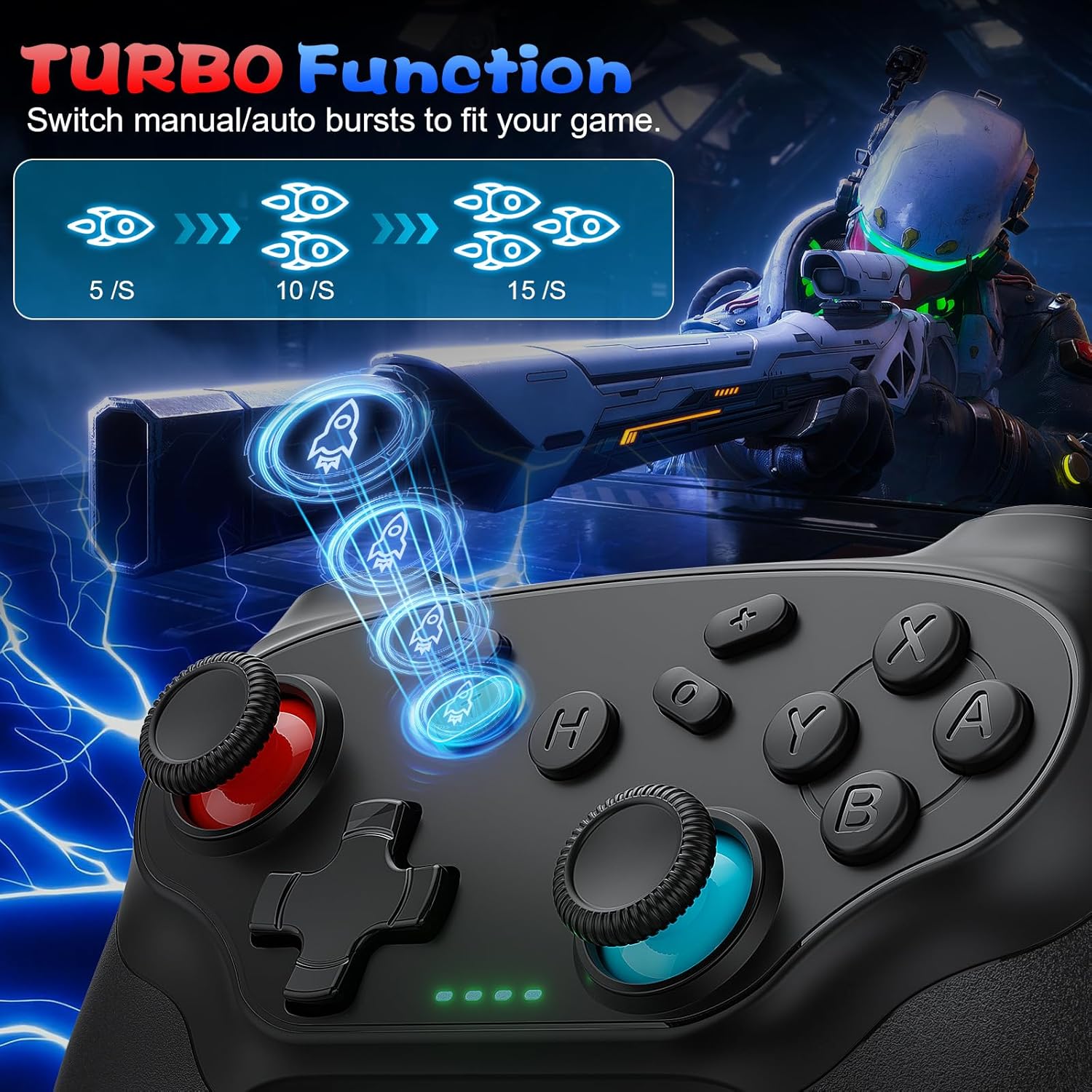
Image: A diagram showing the Turbo button and three different firing rates (5/s, 10/s, 15/s) for rapid-fire actions in games.
The TURBO function allows for rapid, automatic button presses. To activate:
- Press and hold the Turbo (T) button, then press the action button you wish to set to Turbo (e.g., A, B, X, Y, L, R, ZL, ZR). The button will now continuously press as long as you hold it.
- To adjust the Turbo speed (8, 15, or 25 rounds/second), press and hold the Turbo (T) button, then press the Right Stick up or down.
- To clear the Turbo function for a specific button, press and hold the Turbo (T) button, then press the assigned action button again.
- To clear all Turbo settings, press and hold the Turbo (T) button for 5 seconds.
3. Gyro Axis

Image: The Nonbliep Wireless Controller with glowing lines emanating from it, illustrating the 6-axis gyro sensor's ability to detect motion and provide precise control for steering, aiming, and smooth flight in games.
The controller features a 6-axis gyro sensor for precise motion control. This allows for realistic steering, sharp aiming, and smooth flight in compatible games, enhancing the immersive gaming experience.
4. Dual Vibration

Image: The Nonbliep Wireless Controller with visual effects of shockwaves emanating from its handles, representing the crisp tactile feedback provided by the dual vibration motors for an immersive gaming experience.
Built-in dual motion motors provide crisp tactile feedback, immersing you deeper into the game. The intensity of the vibration may vary depending on the game and in-game events.
5. Screenshot Function
Press the Capture button to take a screenshot of your current gameplay. The screenshot will be saved to your console's or PC's designated media storage.
Maintenance
- Cleaning: Use a soft, dry cloth to clean the controller. Do not use harsh chemicals or abrasive materials.
- Storage: Store the controllers in a cool, dry place away from direct sunlight and extreme temperatures when not in use.
- Battery Care: To prolong battery life, avoid fully discharging the controller frequently. Charge it regularly, even if not in constant use.
Troubleshooting
- Controller not connecting: Ensure the controller is charged. Try re-pairing the controller by following the setup instructions. Make sure Bluetooth is enabled on your device.
- Buttons or joysticks unresponsive: Check if the controller is properly connected. If the issue persists, try resetting the controller (refer to manufacturer's website for specific reset instructions if not in manual).
- Charging issues: Ensure the USB-C cable is securely connected to both the controller and the power source. Try a different USB port or charging cable.
- Lag or input delay: Ensure the controller is within the 10-meter wireless range of your device. Minimize interference from other wireless devices.
Specifications
| Feature | Detail |
|---|---|
| Model | RH-320 |
| Compatibility | Nintendo Switch, Switch Lite, Switch OLED, Windows PC |
| Connectivity | Bluetooth Wireless |
| Battery Capacity | 1000 mAh Lithium Ion |
| Charging Time | 2-3 hours |
| Operating Time | Up to 10 hours |
| Wireless Range | Up to 10 meters |
| Special Features | Turbo Function, 6-Axis Gyro Sensor, Dual Vibration, Screenshot Button |
| Dimensions | 6.69 x 5.59 x 4.84 inches (Package) |
| Weight | 1.17 pounds (Item) |
Official Product Video
Video: A demonstration of the Nonbliep Wireless Controller, showcasing its features and compatibility with the Nintendo Switch. The video highlights the controller's design, button layout, and in-game performance, including the Turbo function and responsive controls.
Warranty and Support
Nonbliep products come with a standard manufacturer's warranty. For specific warranty details, technical support, or customer service inquiries, please refer to the contact information provided on the product packaging or visit the official Nonbliep website. Please retain your proof of purchase for warranty claims.


