
Qubo T-106
Qubo T-106 Tablet User Manual
Model: T-106
1. Introduction
Thank you for choosing the Qubo T-106 Tablet. This manual provides essential information for setting up, operating, maintaining, and troubleshooting your device. Please read it carefully before using your tablet to ensure optimal performance and safety.
The Qubo T-106 is a versatile 10.1-inch tablet featuring an Octacore processor, Android 12 operating system, 6GB RAM, and 128GB internal storage. It supports 4G connectivity, Wi-Fi, and Bluetooth 5, making it suitable for various tasks from entertainment to productivity.
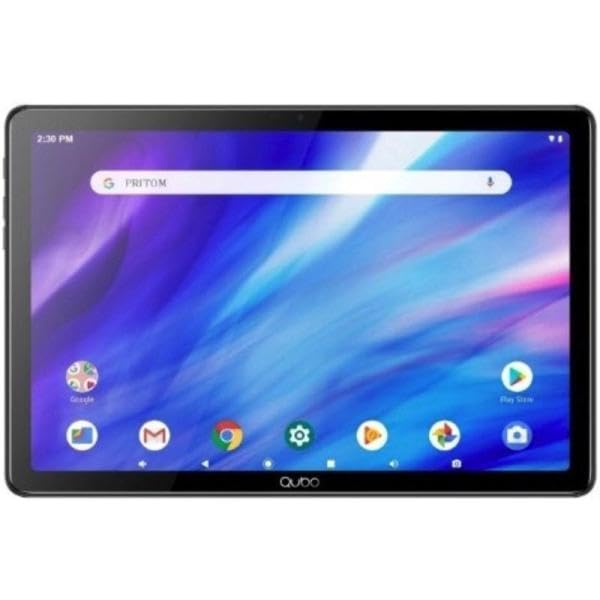
Image 1.1: Front view of the Qubo T-106 Tablet, showcasing its 10.1-inch display.
2. Safety Information
To prevent damage to your device or injury to yourself and others, please observe the following safety precautions:
- Do not expose the tablet to extreme temperatures, direct sunlight, or high humidity.
- Avoid dropping or subjecting the tablet to strong impacts.
- Use only Qubo-approved chargers and accessories.
- Do not attempt to disassemble or repair the tablet yourself. Refer to qualified service personnel.
- Keep the tablet away from water and other liquids.
- Dispose of the tablet and its battery responsibly according to local regulations.
3. What's in the Box
Upon unpacking your Qubo T-106 Tablet, please ensure all items are present:
- Qubo T-106 Tablet
- Instruction Manual (this document)
- USB-C Cable or Connector
If any items are missing or damaged, please contact your retailer or Qubo customer support.
4. Setup
4.1 Charging the Tablet
Before first use, fully charge your tablet. Connect the provided USB-C cable to the tablet's USB-C port and the other end to a compatible power adapter (not always included) or a computer's USB port.
- The charging indicator will illuminate.
- A full charge typically takes 3-4 hours.
4.2 Powering On/Off
- To Power On: Press and hold the Power button (usually located on the side or top edge) until the Qubo logo appears on the screen.
- To Power Off: Press and hold the Power button until the power options menu appears. Select "Power off" and confirm.
- To Restart: From the power options menu, select "Restart" and confirm.
4.3 Initial Setup Wizard
The first time you power on your tablet, an on-screen setup wizard will guide you through:
- Language selection
- Wi-Fi network connection
- Google account sign-in or creation
- Date and time settings
- Security settings (PIN, pattern, password)
4.4 Inserting SIM/MicroSD Card (Optional)
If your model supports 4G connectivity or expandable storage, locate the SIM/MicroSD card tray on the side of the tablet. Use the provided ejector tool to open the tray. Insert the Nano-SIM card and/or MicroSD card (up to 128GB, check specifications for exact maximum) into the designated slots with the gold contacts facing down. Gently push the tray back into the tablet.
5. Operating Your Tablet
5.1 Basic Navigation
- Touch: Tap an icon to open an app or select an item.
- Touch & Hold: Press and hold an item to access contextual menus or move icons.
- Swipe: Drag your finger across the screen to scroll through pages or lists.
- Pinch: Use two fingers to zoom in or out on images and web pages.
5.2 Connecting to Wi-Fi
- Go to Settings > Network & internet > Wi-Fi.
- Toggle Wi-Fi On.
- Select your desired network from the list.
- Enter the password if prompted and tap Connect.
5.3 Using 4G Data (if applicable)
Ensure a valid SIM card is inserted. Go to Settings > Network & internet > Mobile network. Enable Mobile data. You may need to configure APN settings provided by your mobile carrier.
5.4 Camera Operation
Open the Camera app from the home screen or app drawer.
- Tap the shutter button to take a photo.
- Tap the video icon to switch to video recording.
- Use the switch icon to toggle between the front (5MP) and rear (8MP) cameras.
6. Maintenance
6.1 Cleaning the Tablet
Use a soft, lint-free cloth to clean the screen and body of the tablet. Do not use liquid cleaners, aerosols, or abrasive materials, as these can damage the screen or finish.
6.2 Software Updates
Periodically check for software updates to ensure your tablet has the latest features and security patches. Go to Settings > System > System update.
6.3 Battery Care
- Avoid fully discharging the battery frequently.
- Do not leave the tablet charging for extended periods after it's fully charged.
- Store the tablet in a cool, dry place if not used for a long time, with the battery charged to about 50%.
7. Troubleshooting
| Problem | Possible Solution |
|---|---|
| Tablet does not turn on. | Ensure the battery is charged. Connect the charger and wait a few minutes before attempting to power on again. If unresponsive, perform a force restart by holding the power button for 10-15 seconds. |
| Cannot connect to Wi-Fi. | Check if Wi-Fi is enabled in settings. Ensure you have the correct password. Restart your Wi-Fi router and the tablet. Try connecting to a different Wi-Fi network to isolate the issue. |
| Apps are crashing or freezing. | Close and reopen the app. Clear the app's cache and data in Settings > Apps. Update the app to the latest version. If the problem persists, uninstall and reinstall the app. |
| Slow performance. | Close unused apps. Clear cache and temporary files. Free up storage space by deleting unnecessary files or apps. Restart the tablet. Consider a factory reset as a last resort (back up your data first). |
| Battery drains quickly. | Reduce screen brightness. Disable Wi-Fi, Bluetooth, GPS, and 4G when not in use. Close background apps. Check battery usage in Settings > Battery to identify power-hungry apps. |
8. Specifications
| Feature | Detail |
|---|---|
| Model | Qubo T-106 (T106 128GB) |
| Display | 10.1 inches IPS, 1280x800 resolution |
| Processor | MT8788 Octacore, 3.4 GHz (max speed) |
| Operating System | Android 12 |
| RAM | 6GB |
| Internal Storage | 128GB |
| Expandable Storage | MicroSD (capacity not specified, typically up to 128GB or 256GB) |
| Rear Camera | 8 Megapixels (Autofocus) |
| Front Camera | 5 Megapixels (Fixed Focus) |
| Connectivity | 4G (B1/B3/B7/B8/B20), Wi-Fi 802.11n (2.4G/5G), Bluetooth 5, FM, GPS, GLONASS, A-GPS |
| Battery | 6000 mAh Lithium-ion, 12 hours average battery life |
| Charging Port | USB-C |
| Dimensions | 15 x 15 x 20 cm |
| Weight | 1.1 kg |
9. Warranty and Support
9.1 Warranty Information
The Qubo T-106 Tablet comes with a three-year warranty against manufacturing defects from the date of purchase. This warranty covers defects in materials and workmanship under normal use. It does not cover damage caused by misuse, accidents, unauthorized modifications, or normal wear and tear.
Please retain your proof of purchase for warranty claims.
9.2 Customer Support
For technical assistance, warranty claims, or further inquiries, please contact Qubo customer support through your retailer or visit the official Qubo website for contact details.
Note: Contact information may vary by region. Please refer to your product packaging or the Qubo official website for the most up-to-date support details.
Related documentsT-106


Ask a question about this manual
Ask about setup, troubleshooting, compatibility, parts, safety, or missing instructions. Manuals+ will review the question and use this page’s manual context to help answer it.