1. Introduction
Thank you for choosing the FOGARI Keyboard Case for your Samsung Galaxy Tab A11/A9 8.7 Inches. This manual provides detailed instructions for setting up, operating, and maintaining your new keyboard case. Please read this manual thoroughly before use to ensure optimal performance and longevity of your product.
2. Product Overview
2.1 Package Contents
- 1 x FOGARI Keyboard Case for Samsung Galaxy Tab A11/A9 8.7 Inches
- 1 x USB-C Charging Cable
- 1 x User Manual
2.2 Key Features
- Durable Protection: Synthetic leather exterior and soft silicone back cover provide comprehensive protection for your tablet.
- Detachable Bluetooth Keyboard: AZERTY French layout with ABS keys and Bluetooth 5.0 for fast, stable connection up to 10 meters. Magnetic attachment allows for flexible use.
- Automatic Sleep/Wake Function: Automatically locks or unlocks the screen when the case is opened or closed, conserving battery life.
- Multiple Viewing Angles: Anti-slip grooves allow adjustment to various comfortable viewing and typing angles (120°, 125°, 130°).
- Integrated Pen Holder: Convenient slot to secure your stylus (stylus not included).
- Precise Cutouts: Ensures full access to all ports, sensors, speakers, microphone, and cameras.
3. Compatibility
This keyboard case is specifically designed for the following Samsung Galaxy Tab models:
- Samsung Galaxy Tab A9 8.7'' 2023 (Models: SM-X110, SM-X115, SM-X117)
- Samsung Galaxy Tab A11 8.7'' 2025 (Models: SM-X133, SM-X135)
Please verify the model number on the back of your tablet before purchase to ensure compatibility.

This image illustrates the compatible tablet models: Samsung Galaxy Tab A11 8.7" 2025 (SM-X133/SM-X135) and Samsung Galaxy Tab A9 8.7" 2023 (SM-X110/SM-X115/SM-X117).
4. Setup Instructions
4.1 Charging the Keyboard
- Locate the USB-C charging port on the side of the keyboard.
- Connect the provided USB-C cable to the keyboard and a suitable USB power adapter (not included).
- The charging indicator light will illuminate during charging.
- A full charge typically takes approximately 3 hours. The indicator light will change or turn off once fully charged.
- The keyboard provides approximately 75 hours of continuous use on a full charge.

The detachable Bluetooth keyboard features an AZERTY French layout, ABS keys, and a USB-C charging port. It is compatible with various operating systems.
4.2 Pairing the Bluetooth Keyboard with Your Tablet
- Ensure the keyboard is fully charged.
- Turn on the keyboard by sliding the power switch (usually located on the side or top edge of the keyboard). The indicator light will flash.
- Press the CONNECT button on the keyboard (often labeled with a Bluetooth symbol or 'Connect'). The Bluetooth indicator light will start blinking, indicating it's in pairing mode.
- On your Samsung Galaxy Tab, go to Settings > Connected devices > Bluetooth.
- Turn on Bluetooth on your tablet.
- Your tablet will search for available Bluetooth devices. Look for a device named something like "Bluetooth Keyboard" or "FOGARI Keyboard" in the list.
- Tap on the keyboard name to initiate the pairing process.
- If prompted, enter the displayed code on the keyboard and press Enter.
- Once paired, the Bluetooth indicator light on the keyboard will stop blinking and remain solid or turn off, and your tablet will show the keyboard as "Connected".
5. Operating Instructions
5.1 Inserting Your Tablet into the Case
- Gently align your Samsung Galaxy Tab with the soft silicone back cover.
- Press the tablet firmly into the case, ensuring all edges are securely seated within the silicone frame.
- Verify that all ports, buttons, and camera cutouts are correctly aligned and accessible.
5.2 Adjusting Viewing Angles
The case features anti-slip grooves that allow you to adjust your tablet to multiple viewing angles for typing, watching, or drawing.
- Place the tablet in the desired groove on the case cover.
- Adjust the angle by moving the tablet to different grooves (e.g., 120°, 125°, 130°).

The case offers multiple viewing angles with anti-slip grooves and precise cutouts for all tablet features.
5.3 Automatic Sleep/Wake Function
When the tablet is securely placed in the case, opening the cover will automatically wake your tablet, and closing it will put your tablet to sleep. This feature helps conserve battery life.

The case supports automatic sleep/wake functionality. The image also shows the magnetic detachable keyboard and charging information.
5.4 Using the Integrated Pen Holder
A dedicated slot is provided to securely hold your stylus. Simply slide your stylus into the holder for easy access and storage.
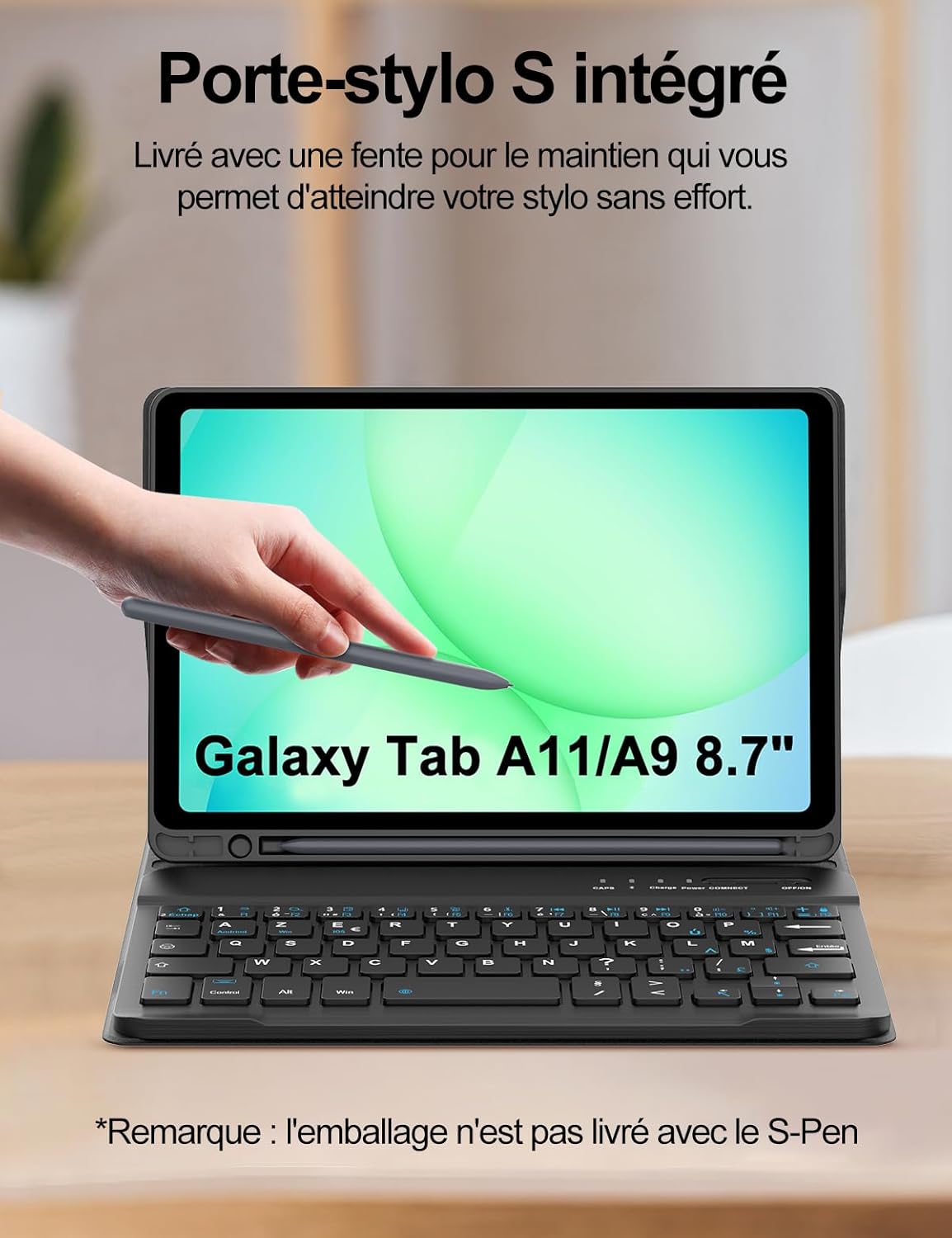
The integrated pen holder provides a secure and accessible location for your stylus.
5.5 Usage Scenarios
The FOGARI Keyboard Case enhances your tablet experience for various activities:
- Productivity: Ideal for typing documents, emails, and reports.
- Creative Work: Provides a stable platform for drawing or digital art.
- Entertainment: Perfect for watching movies or videos with adjustable viewing angles.
- Learning: Facilitates comfortable reading and note-taking for students.

The keyboard case supports various activities including working, drawing, watching movies, and studying.
6. Maintenance
6.1 Cleaning the Case
- Wipe the exterior of the synthetic leather case with a soft, damp cloth.
- Avoid using harsh chemicals or abrasive cleaners, as these can damage the material.
- Ensure the case is completely dry before reinserting your tablet.
6.2 Cleaning the Keyboard
- Use a soft, dry cloth to wipe the keys and surface of the keyboard.
- For stubborn dirt, slightly dampen the cloth with water or a mild cleaning solution.
- Use compressed air to remove debris from between the keys.
- Ensure the keyboard is completely dry before use or charging.
7. Troubleshooting
7.1 Keyboard Not Connecting
- Check Power: Ensure the keyboard is turned on and fully charged.
- Re-pair: Delete the keyboard from your tablet's Bluetooth device list and repeat the pairing process (Section 4.2).
- Bluetooth On: Confirm Bluetooth is enabled on your tablet.
- Distance: Ensure the keyboard is within 10 meters of your tablet.
- Interference: Move away from other wireless devices that might cause interference.
7.2 Keys Not Responding
- Recharge: The keyboard battery might be low. Charge it fully.
- Re-connect: Disconnect and reconnect the Bluetooth connection.
- Restart: Restart both your tablet and the keyboard.
7.3 Automatic Sleep/Wake Not Working
- Tablet Placement: Ensure your tablet is correctly and securely seated in the case.
- Case Closure: Make sure the case cover closes completely and aligns properly with the tablet screen.
8. Specifications
| Brand | FOGARI |
| Model Compatibility | Samsung Galaxy Tab A9 8.7'' 2023 (SM-X110/X115/X117), Samsung Galaxy Tab A11 8.7'' 2025 (SM-X133/SM-X135) |
| Connectivity Technology | Bluetooth 5.0 |
| Wireless Transmission Distance | Up to 10 meters |
| Keyboard Layout | AZERTY French |
| Key Material | ABS (Acrylonitrile Butadiene Styrene) |
| Case Material | Synthetic Leather (exterior), Soft Silicone (back cover) |
| Charging Port | USB-C |
| Charging Time | Approx. 3 hours |
| Continuous Working Time | Approx. 75 hours |
| Special Features | Detachable Magnetic Keyboard, Auto Sleep/Wake, Integrated Pen Holder, Multiple Viewing Angles |
9. Warranty and Support
FOGARI products are designed for quality and reliability. For any questions, technical support, or warranty claims, please refer to the contact information provided with your purchase or visit the official FOGARI website. Please retain your proof of purchase for warranty purposes.